



An athletic archive file format identification workflow is a structured, repeatable process that school athletic directors, archive coordinators, facilities staff, and IT administrators use to survey a collection of unknown or legacy digital files, confirm what format each file actually is (not just what its extension claims), and produce a prioritized action list before any preservation, migration, or display work begins. The direct answer: run a format identification pass before you touch anything. Files with the wrong extension, obsolete codecs, proprietary containers, or unreadable signatures will silently fail during any migration or platform upload — and discovering that failure after you have committed hundreds of hours to a preservation project is far more costly than a two-hour inventory run at the start. This guide walks through the complete workflow in nine numbered steps, provides a tool-selection table matched to common athletic archive scenarios, explains what decisions to make based on what the identification reveals, and connects the workflow directly to the downstream goal of powering hall-of-fame displays, digital record boards, and interactive recognition systems with usable, verified content.
Nothing in this guide constitutes legal, records management, or IT compliance advice. Retention obligations, access controls, and institutional policies should be reviewed by qualified district or school professionals before implementation.
Every athletic department inherits files it did not create. A coach retires and hands over an external hard drive. A booster club donates a USB stick labeled “old photos.” A server migration from 2014 lands a folder called “Archive_backup_FINAL_v2” in shared storage with no documentation about what it contains, how old the files are, or whether any of them still open. A photography studio that provided portraits for twenty seasons no longer exists, and the files it delivered have extensions that do not match any format the IT department currently supports.
Running a preservation or migration project over an unknown collection without first identifying what is actually in it is one of the most common causes of preventable data loss in school athletic archives. A file that appears to be a JPEG — because it has a .jpg extension — may actually be a TIFF saved with the wrong extension, a Camera RAW file, a HEIC exported from an iPhone, or a corrupt file that will fail silently during batch processing. Format identification resolves that ambiguity before it becomes a problem.

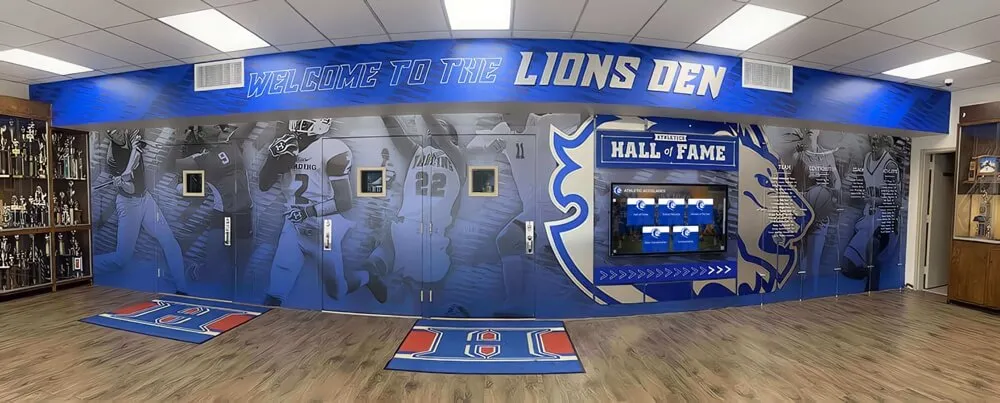
A collection of unknown legacy files can represent decades of irreplaceable athletic history — format identification is what makes it possible to treat each file appropriately before preservation, migration, or display work begins
Why Format Identification Comes Before Everything Else
Format identification is the first step in the preservation workflow — not a step that can be skipped when a deadline is pressing. Here is why the order matters:
Migrations fail silently on misidentified files. A batch conversion script that processes .jpg files assumes JPEG compression and color profiles. A file saved as a TIFF with a .jpg extension will either convert incorrectly or produce a corrupt output file, and the error may not be visible until the file is opened weeks later.
Platforms reject unrecognized formats. Recognition platforms and hall-of-fame content management systems have specific format requirements for uploaded content. Files in unsupported formats — obsolete codecs, proprietary containers, formats that require software no longer installed — fail at upload. Identifying those files before batch upload saves the work of diagnosing individual upload failures.
Prioritization requires knowing what you have. Not all format problems are equally urgent. An XLSX file in an active, well-supported format requires no immediate action. A video encoded in a proprietary codec whose only decoder was discontinued in 2011 requires urgent attention. Format identification produces the information needed to make that distinction.
Physical originals may still exist. For some legacy digital files — particularly low-resolution scans from the 1990s — the format identification step reveals not just what the file is, but that it is too low in quality to serve as a preservation master. Knowing that early means the physical original can be located and rescanned before it deteriorates further. Discovering that fact after the physical original has been lost is a different and worse outcome.
A well-maintained digital history archive begins with a complete understanding of what the archive actually contains — at the format level, not just the file-name level. Format identification is what makes that understanding achievable at scale.
The Nine-Step Athletic Archive File Format Identification Workflow
Step 1: Define the Scope and Assign Roles
Before running any tools, agree on what collection of files will be surveyed in this pass and who is responsible for each stage of the workflow. Large athletic archives are better handled in scoped batches — one storage location, one media type, or one era at a time — than as a single undifferentiated sweep.
Define scope by answering these questions:
- Which storage location or folder tree is in scope for this identification run?
- Are physical materials out of scope for this pass (to be addressed in a separate digitization project)?
- Which staff member or volunteer will run the identification tools?
- Who reviews the output and makes format classification decisions?
- Who has authority to approve format migration or deletion recommendations?
Record the scope and role assignments in a brief pre-work document stored in the archive’s _Admin/Archive-Policy/ folder. Future staff will thank you for this documentation when the next unknown collection arrives.
Scope boundaries matter. A scope that includes an entire shared drive without subdivision produces an output report so large it becomes unusable. A scope that targets a single folder — Sports/Football/Historical/Pre-2000/ — produces an actionable report. Start narrow; expand scope in subsequent passes once the workflow is familiar.
Step 2: Generate a Complete File Inventory
Before identifying formats, generate a flat inventory of every file in the scoped collection. This inventory becomes the working document for the entire identification workflow.
What to capture in the inventory:
- Full file path
- File name including extension
- File size (bytes)
- Last-modified date
- Extension (what the file claims to be)
A spreadsheet with one row per file is the working format most archive coordinators find practical. For collections of hundreds or thousands of files, a command-line directory listing or file management tool can generate this inventory automatically and export it to CSV.
Why capture size and modification date? File size flags obvious anomalies — a .jpg that is 48 bytes is not a photograph; it is either a placeholder or a corrupt file. Modification dates flag files that predate the storage system on which they were found, or files whose dates have been reset by a system migration and no longer reflect their actual creation context.
Zero-byte files, files with no extension, and files with unusual characters in their names are all worth flagging in this step. They require manual attention that automated format identification tools may not handle correctly.
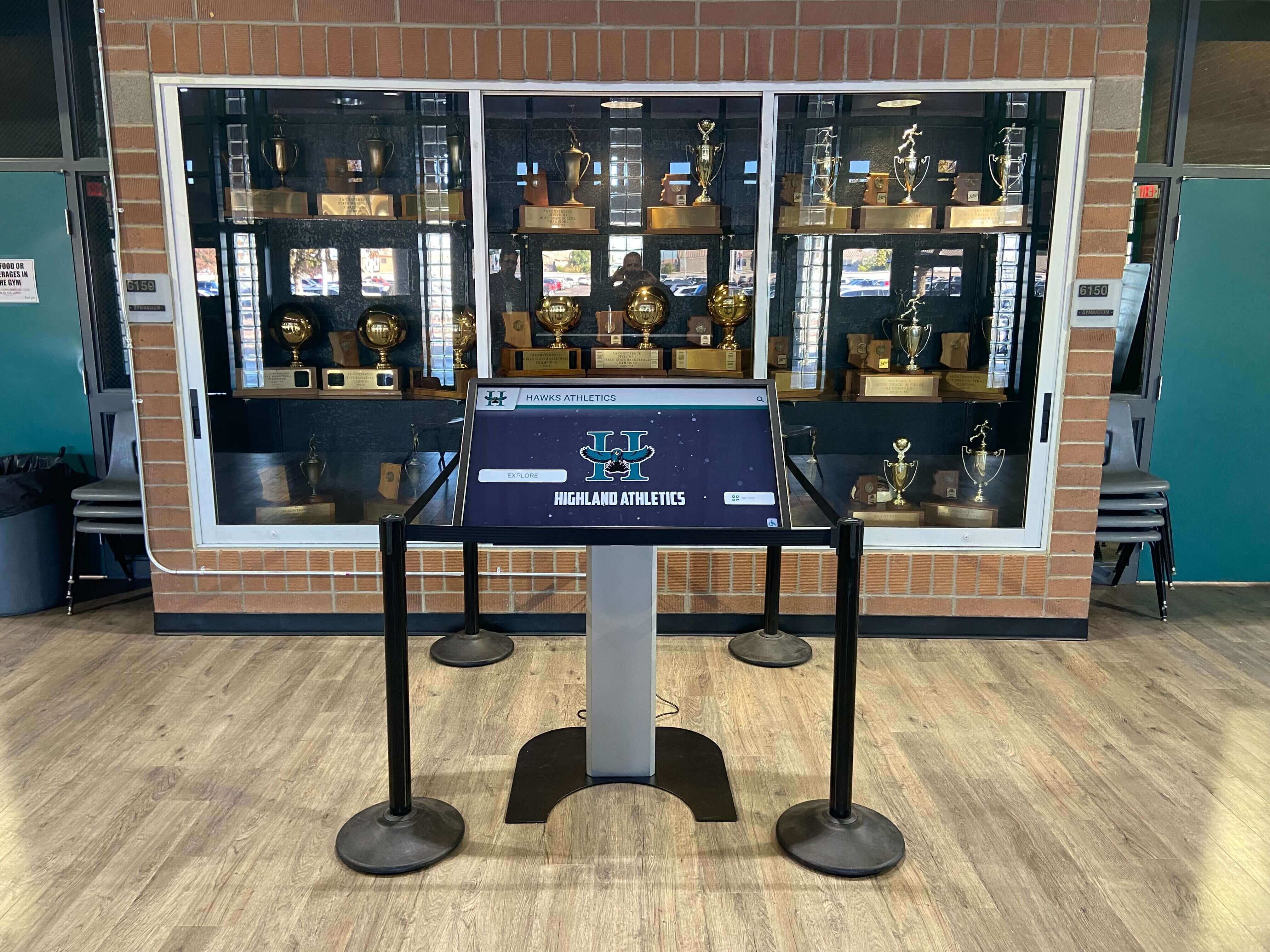
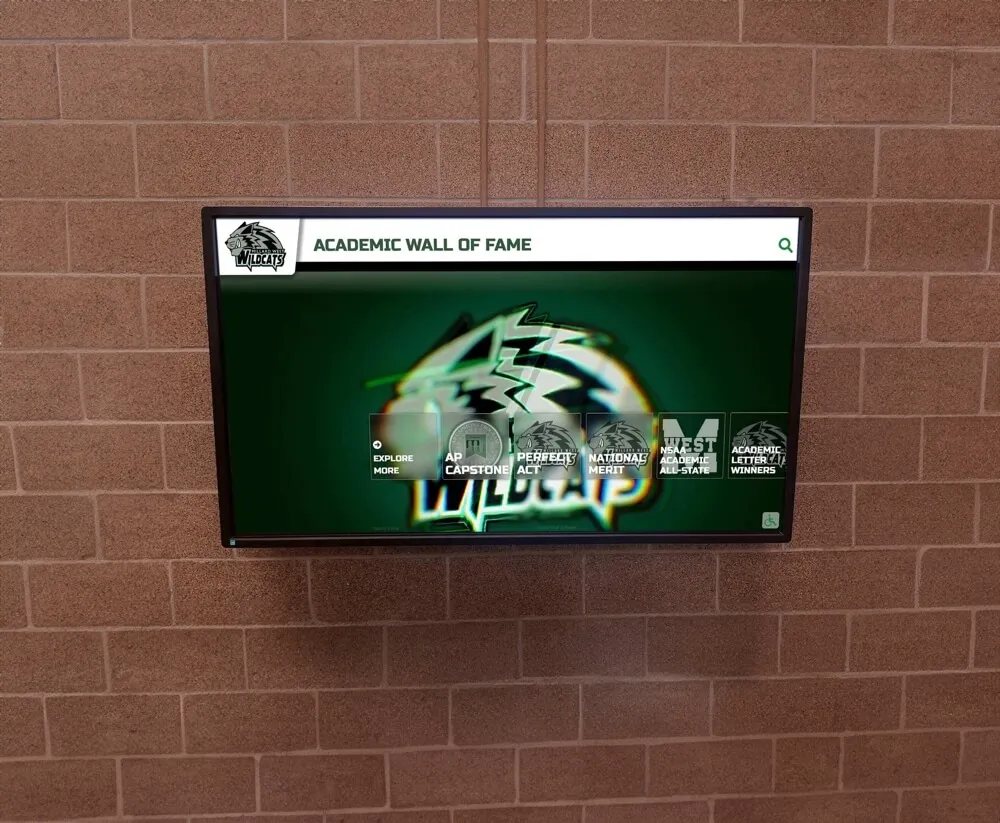
Recognition displays draw from archive files that have been identified, preserved, and organized — the format identification workflow is what ensures those files are in formats the display platform can actually read
Step 3: Run Signature-Based Format Identification
File extensions are unreliable. They are set by the person or software that named the file, and they can be wrong — intentionally renamed, incorrectly generated, or changed during a system migration. Format identification based on file signatures reads the actual binary content of the file and compares it against a database of known format signatures to determine what the file actually is.
This step requires at least one tool from the table below. For athletic archive collections of mixed or unknown provenance, running two complementary tools and comparing their results is worth the additional time.
Format Identification Tool Selection Table
| Tool | Best For | Cost | Technical Level | Notes |
|---|---|---|---|---|
| DROID (Digital Record Object Identification) | Batch identification against the PRONOM registry; archival standard | Free (UK National Archives) | Moderate | Industry-standard for institutional archives; produces PRONOM format IDs |
| Siegfried | Fast batch identification; PRONOM and Wikidata registries | Free, open source | Moderate | Faster than DROID on large collections; command-line output |
| ExifTool | Metadata extraction from images, video, audio; format confirmation | Free, open source | Low–Moderate | Excellent for photos and media; reads embedded format metadata |
| MediaInfo | Video and audio format analysis including codec, container, bitrate | Free, open source | Low | Essential for video collections; GUI and command-line versions |
| TrID | Extension-agnostic format detection by binary analysis | Free for non-commercial | Low–Moderate | Useful for unusual or renamed files |
file command (Unix/Linux/macOS) | Quick per-file format check in a terminal | Built-in | Low (command line) | Fast for small collections; less detailed than DROID |
| Bulk Rename Utility / Agent Ransack | Finding files by extension or pattern without format analysis | Free | Low | Useful for the inventory step, not format identification proper |
Which tool to start with:
- If your archive holds primarily photographs and scanned documents, start with ExifTool for quick metadata extraction combined with DROID for authoritative format identification.
- If your archive holds significant video content — game footage, highlight reels, digitized VHS — start with MediaInfo to assess codec and container, then confirm other file types with DROID or Siegfried.
- If you are working in a Mac or Linux environment and the collection is small (under 1,000 files), the
filecommand provides immediate format identification without software installation. - For large mixed collections of unknown provenance, DROID is the most thorough choice and produces output directly usable in subsequent archive documentation.
Step 4: Reconcile Extension Claims Against Identified Formats
Compare the extension column from your Step 2 inventory with the identified format column from the Step 3 tool output. Every row where the extension and the identified format do not match is a discrepancy that requires a manual decision.
Common discrepancies in athletic archives:
| Extension Found | Format Identified | Likely Cause | Action |
|---|---|---|---|
.jpg | TIFF | Renamed during a migration or export | Rename to .tiff; treat as TIFF for preservation |
.jpg | HEIC / HEIF | iPhone-originated file saved before conversion | Convert to JPEG or TIFF; HEIC not universally supported |
.avi | MPEG-4 container | Legacy export from video editing software | Identify codec; assess migration need |
.mov | DivX / XviD codec | Converted from DVD or VHS with a consumer tool | High migration priority; proprietary codec |
.pdf | Proprietary format | Mislabeled file; PDF header missing | Open manually to assess; do not attempt batch processing |
.doc | RTF | Saved from old word processor | Verify content; export to PDF/A for preservation |
.wmv | Windows Media Video | Proprietary Microsoft codec | High migration priority; codec support declining |
| No extension | Any format | System migration stripped extensions | Identify by signature; rename appropriately |
Any file where the identified format is listed as “unknown” or “unidentified” by the tool requires manual inspection. Open the file in the application most likely to handle it, note what it contains, and assign a format classification manually. Do not delete unidentified files without manual review — unidentified status can mean a corrupt file, but it can also mean a format the tool’s database does not cover.
Step 5: Classify Files by Format Category and Sustainability
Once format identification is complete, classify every file in the inventory by format category (still image, video, audio, document, structured data, other) and by format sustainability status (current preservation standard, acceptable for preservation, migration recommended, migration required).
Format Sustainability Classification
| Sustainability Status | Definition | Examples |
|---|---|---|
| Current preservation standard | Open, lossless, widely documented; recommended by library and archival communities | TIFF (uncompressed), WAV (PCM), PDF/A, CSV |
| Acceptable for preservation | Open or widely supported; some limitations but broadly readable | JPEG (for access copies), PNG, MP4 (H.264), PDF |
| Migration recommended | Proprietary or limited-support format; currently readable but at long-term risk | PSD, DOCX, XLSX (without CSV companion), WMV |
| Migration required | Obsolete, proprietary codec with no current decoder, or format with documented sustainability risk | SWF/Flash, RealMedia (.rm, .rmvb), DivX/XviD AVI, old database formats |
| Unidentified | Tool could not confirm format; manual review required | Files with no signature match |
| Corrupt or empty | Zero bytes, unreadable header, or failed to open in any application | Requires separate remediation workflow |
Assign each file a sustainability classification in your inventory spreadsheet. This classification drives all downstream decisions about what to do with the file.
Championship records and tournament documentation preserved in well-identified, sustainability-rated formats remain usable across decades of system changes — the classification step is what transforms a raw file count into a preservation action plan.

Format identification and sustainability classification determine which files are ready for display platforms and which require migration before they can be published in a recognition system
Step 6: Flag High-Priority Files for Immediate Action
Not every format issue requires immediate attention. The classification from Step 5 enables triage. Use the following criteria to flag files for immediate action versus scheduled review:
Immediate action flags:
- Any file classified as “migration required” — obsolete formats degrade in accessibility with every operating system update
- Any file containing content from an era when physical originals may no longer be available — if the file is the only copy, the risk of format obsolescence is acute
- Any video file with a proprietary codec that is no longer supported by current operating systems
- Any file type that a recognition or display platform has rejected during a test upload
- Flash / SWF files — no current browser or operating system natively supports this format; these files require immediate migration to a readable format or will be permanently inaccessible
Scheduled review flags:
- Files in “migration recommended” status with physical originals still available — schedule rescan rather than format conversion
- Files in acceptable formats whose access copies need to be regenerated at higher resolution for a specific display platform
Hold, no action required:
- Files in current preservation standard formats that are properly named and located in the correct folder hierarchy
- Access copies in acceptable formats that were generated from masters that are preserved at the correct standard
Document the immediate-action flags as a prioritized work list in your archive’s task management system or _Admin/ folder. Assign each item an owner and a target completion date before moving to the next step.
Step 7: Make Format Migration Decisions Using a Decision Framework
For every file flagged for migration, use a consistent decision framework to determine the appropriate action. The decision is not always migration — sometimes the right answer is to locate a physical original and rescan, or to formally document a gap that cannot be closed.
Format Migration Decision Framework
| Condition | Recommended Action |
|---|---|
| File is in a current preservation standard format | No migration needed; verify backup and metadata completeness |
| File is an access copy; master exists in a good format | Regenerate access copy from master if needed; do not migrate access copy in isolation |
| File is in a migration-recommended format; physical original exists | Rescan from physical original; treat original scan as a working copy, not a master |
| File is in a migration-required format; readable with current software | Migrate to current preservation standard now; keep original as backup until migrated copy is verified |
| File is in a migration-required format; unreadable with current software | Escalate to IT or a qualified digitization vendor; assess recoverability |
| File is unidentified; appears to contain content | Manual inspection by archive coordinator; attempt to open in multiple applications |
| File is corrupt or zero bytes; no physical original available | Document as an unrecoverable gap in the archive’s institutional record |
| File is corrupt or zero bytes; physical original exists | Rescan from physical original; document the digital loss in the archive record |
For programs managing booster club fundraisers and donor recognition programs that depend on a supply of high-quality historical photographs and video, the migration decision framework is what determines whether the archive can actually deliver that content — or whether an unknown file in an obsolete format represents a gap in the historical record that will surface at the worst possible moment.
Step 8: Execute, Document, and Verify
Once migration decisions are made, execute the migrations, verify the results, and document every action in the archive’s preservation log.
Execution guidelines:
- Never overwrite original files during migration; always write migrated files to a new location and retain originals until verification is complete
- Use tools that support lossless conversion where possible; document any lossy conversion explicitly
- Process one format category at a time — all images, then all video, then all audio — rather than mixing migration types in a single batch, which makes verification harder
Verification requirements:
- Open a representative sample of migrated files in the target application and confirm they display correctly
- Verify that image dimensions and color profiles are preserved
- Verify that video audio tracks are intact and synchronized
- Verify that document text and formatting match the original
- Generate MD5 or SHA-256 checksums for all migrated files and record them in the archive’s metadata spreadsheet
Documentation requirements:
- Record every migration action: file name, source format, target format, tool used, date, and operator
- Update the archive’s inventory spreadsheet to reflect the current format of each file
- Note any files where migration was not possible and document the reason
For programs using digital showcase boards for long-service recognition, accurate documentation of each file’s format history means that when content needs to be re-exported for a new display platform, staff know exactly what format the masters are in and what conversion steps have already been performed.

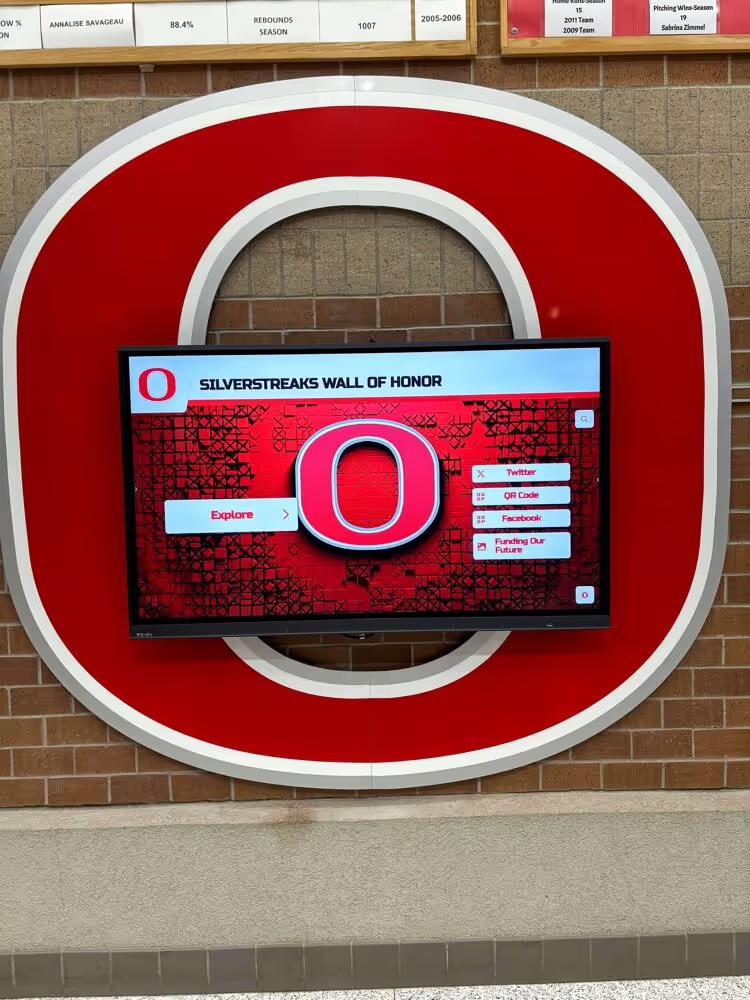
Athletic recognition displays in school hallways draw from verified, format-identified archive files — the documentation step in the workflow creates a record of every format decision so future staff know exactly what each file is and how it was preserved
Step 9: Update the Archive Inventory and Schedule the Next Review
Format identification is not a one-time project — it is a periodic workflow that repeats each time a new collection of unknown files enters the archive, and on a scheduled basis for the existing collection.
Update the archive inventory:
- Merge the format identification results into the master archive inventory spreadsheet
- Add the format identification date as a column so future staff know when each file was last verified
- Flag any files that require a follow-up action that was deferred from this pass
Schedule the next review:
- For newly ingested files: run format identification at the point of ingest, before the files are committed to the archive’s permanent storage
- For existing collections: schedule a full format survey every two to three years, or sooner if a significant format sustainability event occurs (a software product is discontinued, a format is formally deprecated, a new platform requirement surfaces)
- After any storage system migration: run format identification immediately after transfer to confirm that files were not altered, renamed, or corrupted during the move
For schools preparing for athletic award gala presentations that will draw on decades of archive photographs, video, and records, a current format identification pass ensures that the content requested at the last minute is actually in a format the presentation system can display — rather than a format that was readable in 2010 but is now unsupported.
Connecting Format Identification to Recognition Programs
The downstream payoff of a completed format identification workflow is visible at every point where archive content needs to be produced for a recognition use case.
When a hall-of-fame committee requests all available photographs of an inductee from three different decades, the archive coordinator who has completed a format identification workflow can confirm which files are in display-ready formats, which need access copies generated from masters, and which are flagged for follow-up. The committee gets accurate content — not a mix of verified files and placeholders for files that cannot be opened.
When a school prepares an anniversary recognition program that will surface historical content across multiple display platforms — lobby screens, online archives, printed programs — the format identification workflow determines which files can be published immediately, which need conversion, and which represent gaps in the historical record.
Annual fundraiser event showcases that incorporate athletic history — photo montages, video highlights, championship retrospectives — rely on archive content that is ready to use when the event timeline demands it. Format identification is what makes that readiness possible; without it, unknown files carry unknown risk through every deadline.
For programs considering a digital hall of fame or interactive recognition platform, format identification is the prerequisite step that enables fast, accurate content population. Recognition platforms that surface athlete portraits, season records, and championship documentation work best when the archive files behind them have been identified, classified, and confirmed as platform-compatible — rather than discovered to be in an unsupported format at the moment of upload.

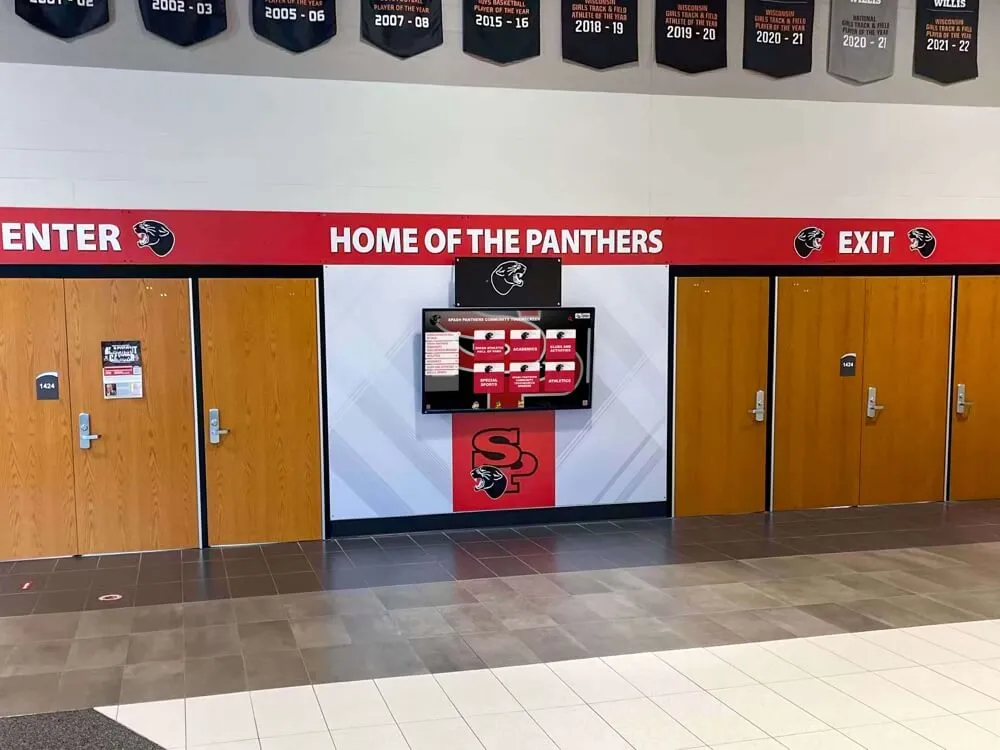
Touchscreen hall-of-fame displays surface portrait cards, records, and media that have been format-identified and confirmed as platform-compatible — the identification workflow is what separates display-ready content from unknown files that may or may not open
Turn Your Identified, Preserved Archive Into an Interactive Recognition Display
When your athletic archive files have been identified, classified, and preserved in the right formats, every photograph, record, and video highlight is ready to power a searchable, interactive touchscreen recognition experience. Rocket Alumni Solutions helps schools transform well-organized archives into living displays that honor athletic history every day.
Request a DemoPractical Scenarios: Applying the Workflow
Scenario A: Inherited External Hard Drive from a Retiring Coach
A coach retires and delivers a 1TB external hard drive labeled “Athletics 2002–2019.” It contains approximately 40,000 files across multiple folders with no consistent naming convention and no documentation.
Format identification approach:
- Copy the drive’s contents to a quarantine folder on the archive server before doing anything else — never work directly on donated media
- Run DROID over the quarantine folder to generate a format identification report
- Export the report to CSV and add it to the archive inventory spreadsheet
- Classify files by format sustainability; look specifically for Flash files, obsolete video codecs, and proprietary image formats from early digital camera software
- Flag high-value content — championship years, visible hall-of-fame inductees — for priority migration and metadata documentation
- Return the drive to the coach or store it with the archive as a second backup until migration is verified
Scenario B: Server Migration Produces Files with Stripped Extensions
An IT migration from an old on-premises server to a cloud storage platform strips file extensions from approximately 800 files, leaving them with no extension. All 800 files need format identification before they can be added to the archive.
Format identification approach:
- Isolate the extensionless files in a staging folder
- Run the
filecommand (on Linux or macOS) or TrID on the batch to identify formats by binary signature - Rename files with the correct extensions based on identification results
- Verify a sample of renamed files by opening them in the appropriate application
- Move verified files to their correct locations in the folder hierarchy and update the archive inventory
Scenario C: Unknown Collection of CDs from Athletic Department Storage
A facilities team discovers 60 CD-ROMs in an athletic department closet, labeled only with sports abbreviations and years (e.g., “FB 2003,” “BBG 2007”). The format of content on the CDs is unknown.
Format identification approach:
- Copy CD contents to a staging folder on the archive server before the CDs degrade further — optical media has a finite lifespan
- Run ExifTool and DROID over the staged contents to identify image, video, and document formats
- Check for video content using MediaInfo; assess codec and container for any video files found
- Check specifically for proprietary image formats from early digital camera software (camera-specific RAW formats from 2003–2007 may require specific decoder software)
- Cross-reference content against the archive’s existing catalog — determine whether any CDs contain content already in the archive (duplicates) or content not previously cataloged (additions)
For schools with 8th-grade graduation milestones and multi-year recognition histories documented across many media types and years, the CD scenario illustrates exactly why format identification must precede any assumption about content usability — optical media from 2003 may contain TIFF masters, low-resolution JPEGs, or proprietary formats that require research to open.
Apartment complex and campus digital displays that surface institutional history face the same format diversity challenge — content created across many years arrives in many formats, and identification is the necessary first step before any content reaches a display system.
FAQ
Do I need specialized IT skills to run format identification tools? Most format identification tools used in institutional archives — including DROID, ExifTool, and MediaInfo — are designed for non-programmers and have graphical interfaces or straightforward command-line options. DROID, for example, can be run by dragging a folder into the application interface and clicking “Start Identification.” ExifTool has both command-line and graphical front-ends. An archive coordinator with basic computer literacy can complete a format identification pass without IT support for most collections; very large collections or unusual file types may benefit from IT assistance.
How long does a format identification run take? Identification speed depends on the tool, the number of files, and the storage speed of the media being scanned. ExifTool can process several hundred photographs per minute on a modern computer. DROID on a 10,000-file collection typically completes within one to three hours. Collections on slow network shares or aging optical media may take longer. Running the tool overnight on large collections is a practical strategy.
What if the format identification tool cannot identify a file? An unidentified file requires manual investigation. Try opening the file in multiple applications — a browser, a media player, a text editor in plain-text mode, a hex editor. If the file begins with readable text, it may be a plain-text format with an unusual extension (CSV, XML, JSON, INI). If it begins with binary data that is not recognized by any application you try, the file may be corrupt, encrypted, or in a format specific to discontinued software. Document the file as “unidentified” in the archive inventory with a note about what manual steps were taken, and escalate to IT if the file appears to contain significant content.
Should we identify formats for files we created ourselves, or only for legacy collections? Both. Files you create yourself can still be misidentified if they were exported by software with a format bug, saved by a malfunctioning batch process, or renamed during a workflow step. Including newly created files in periodic format audits catches those errors before they propagate. For ongoing ingest workflows, a brief format check at the point of ingest — confirming that the extension matches the actual format — catches most problems at the source.
What is PRONOM, and why does it matter?
PRONOM is a technical registry of file format information maintained by the UK National Archives. It is the authoritative reference database used by DROID and Siegfried to match file signatures against known formats. When a format identification tool reports a PRONOM format ID (for example, fmt/43 for JPEG), it is reporting a format that is documented in the PRONOM registry with a known specification, sustainability assessment, and format history. PRONOM coverage is especially strong for formats common in institutional archives — images, documents, audio, and structured data. Some very specialized or very new formats may not yet have PRONOM entries; those are the “unidentified” results that require manual investigation.
How does format identification interact with a recognition platform onboarding process? Recognition platform vendors specify the formats they accept for upload — typically JPEG and PNG for images, MP4 for video, PDF for documents. A completed format identification workflow tells you, before you begin onboarding, which files in your archive are already in accepted formats and which need conversion to access copies before upload. Programs that arrive at platform onboarding with a current format inventory spend less time on remediation and more time on content curation and display design.
What happens to files we cannot migrate? Files that cannot be migrated — because the format is unreadable by any current software, because the content is too low in quality to be usable, or because migration would produce a degraded result — should be documented as known gaps in the archive’s institutional record. A formal gap record includes the file name, the last known format, the content it was believed to contain, the reason migration was not possible, and the date the determination was made. Formal gap documentation preserves institutional knowledge about what was lost and why, even when the file itself cannot be recovered.
From Identified Files to a Living Recognition System
A completed athletic archive file format identification workflow transforms an unknown collection into a documented inventory — every file classified by format, every migration decision made and recorded, every gap formally acknowledged. That transformation is the prerequisite for everything that comes next.
Programs that complete this workflow before beginning preservation work, platform onboarding, or display population find that every subsequent step is faster and more reliable. Portrait photographs are already in JPEG format at the correct resolution for platform upload. Video highlights are already in MP4 containers at display-ready resolution. Championship records are already in PDF/A format with supporting evidence. Nothing requires emergency remediation at the moment it is needed.
The goal of an athletic archive is not to store files — it is to honor the history those files represent. A hall-of-fame display that surfaces championship records, athlete portraits, and season highlights does so reliably only when the files behind it have been identified, preserved, and confirmed as usable. Format identification is the step that makes that reliability possible.

Interactive hall-of-fame displays that surface decades of athletic history depend on archives where every file has been identified, its format confirmed, and its preservation status documented — the workflow described in this guide is what makes that depth of display possible
For programs that are ready to connect a format-identified, well-preserved archive to an interactive recognition platform, the work described in this guide is exactly what makes rapid, accurate content population possible — not a remediation project that delays the display launch, but a direct path from organized archive to living recognition experience.
Ready to Connect Your Preserved Archive to an Interactive Athletic Display?
When your archive files are identified, classified, and preserved in verified formats, Rocket Alumni Solutions can transform that content into a searchable, interactive touchscreen recognition experience that honors your program's history for students, alumni, and visitors every day. Request a demo and see how your organized archive becomes a living display.
Request a Demo