



An athletic archive frame rate conversion workflow is the structured sequence of decisions and steps a school or athletic program follows to safely change the playback frame rate of digitized or natively-digital game footage — from the original source frame rate recorded on VHS, Hi8, or early digital camcorders — to a frame rate required by a recognition display, digital hall of fame kiosk, or archival delivery system. The direct answer: frame rate conversion for athletic archives is not a single button press in an export dialog. It is a source-identification step, a source-to-delivery mapping decision, a conversion execution step with specific codec parameters, and a quality assurance pass that verifies the output before the master file is retired from the active workflow. Getting this sequence wrong — converting at the wrong rate, applying the wrong pulldown cadence, or failing to verify interlacing artifacts — produces game highlight footage where athletes move with judder, ghosting, or unnatural motion that undercuts the historical record and makes the footage unwatchable in a lobby display. This guide provides a complete frame rate conversion workflow for school athletic archives, written for athletic directors, archive coordinators, IT staff, and recognition program managers who are working with decades of game footage recorded across multiple camera formats and frame rate standards.
Nothing in this guide constitutes professional broadcast engineering or archival advice. Frame rate decisions, codec parameters, and delivery specifications vary by equipment, platform, and intended use. Review any implementation with qualified staff before applying to live archive masters.
Historic game footage is one of the most valuable assets a school athletic archive holds — and one of the most technically fragile. A photograph can be stored as a TIFF and opened in virtually any image viewer for the next fifty years. A video file carries dependencies that a photograph does not: a container format, a codec, a frame rate, a field order, a color space, and an interlace structure. Each of those attributes must be correctly understood before the file is converted, re-encoded, or delivered to a new platform. Frame rate is frequently the attribute that receives the least attention during athletic archive digitization projects, and it is the one most likely to produce visible, distracting artifacts in the finished recognition display.
The stakes are real for programs that want to show game highlights from the 1980s, 1990s, or early 2000s in a modern lobby kiosk or hall of fame touchscreen installation. Legacy camcorders recorded at frame rates and with interlacing structures designed for analog broadcast delivery, not for the progressive playback pipelines of current display hardware. Converting that footage correctly preserves the motion integrity of the original game — the authentic speed of a fast break, the real arc of a game-winning kick — and delivers it to a recognition audience in a form that honors the athletes and moments it represents.

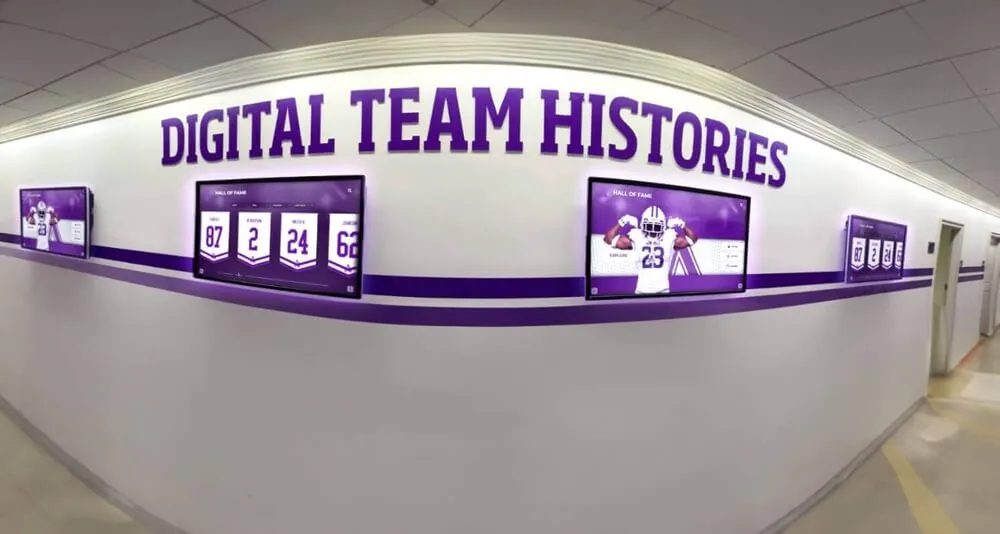
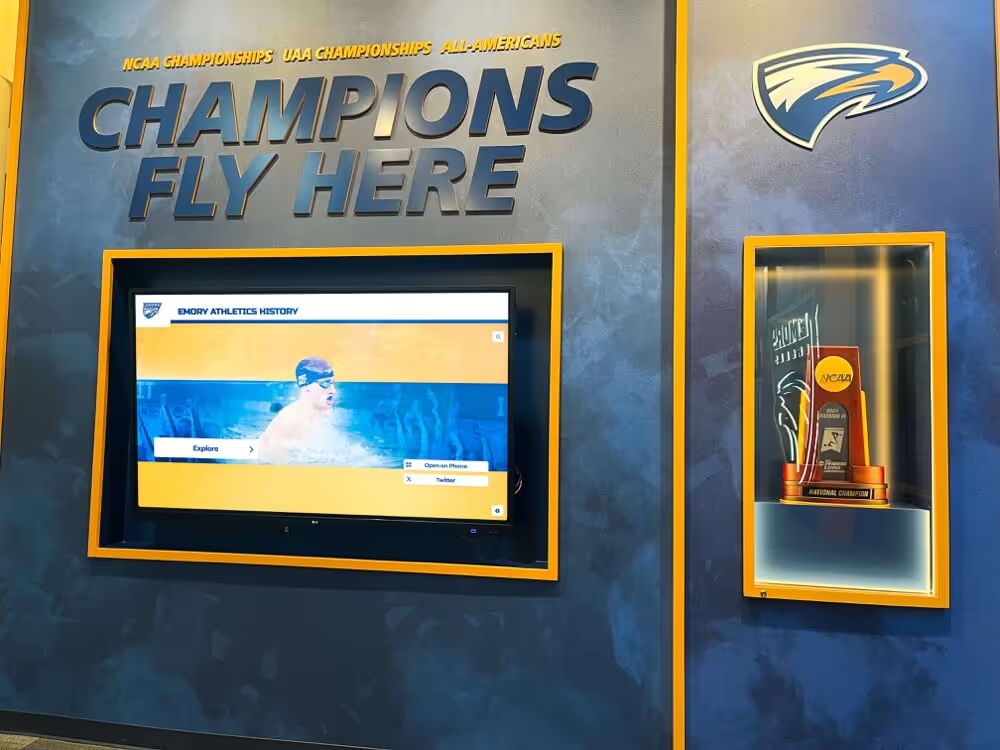
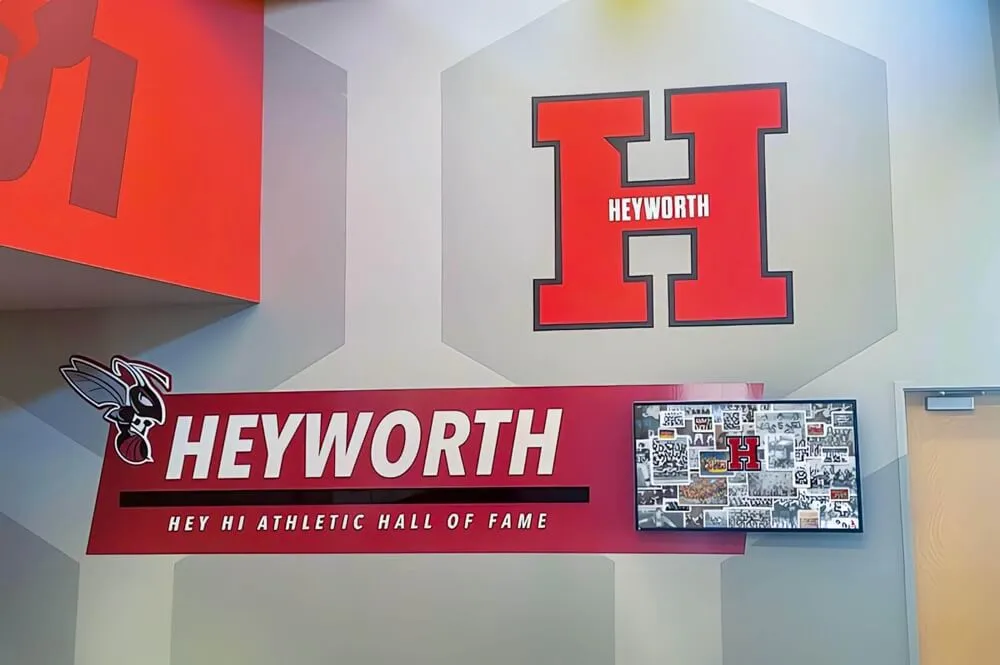
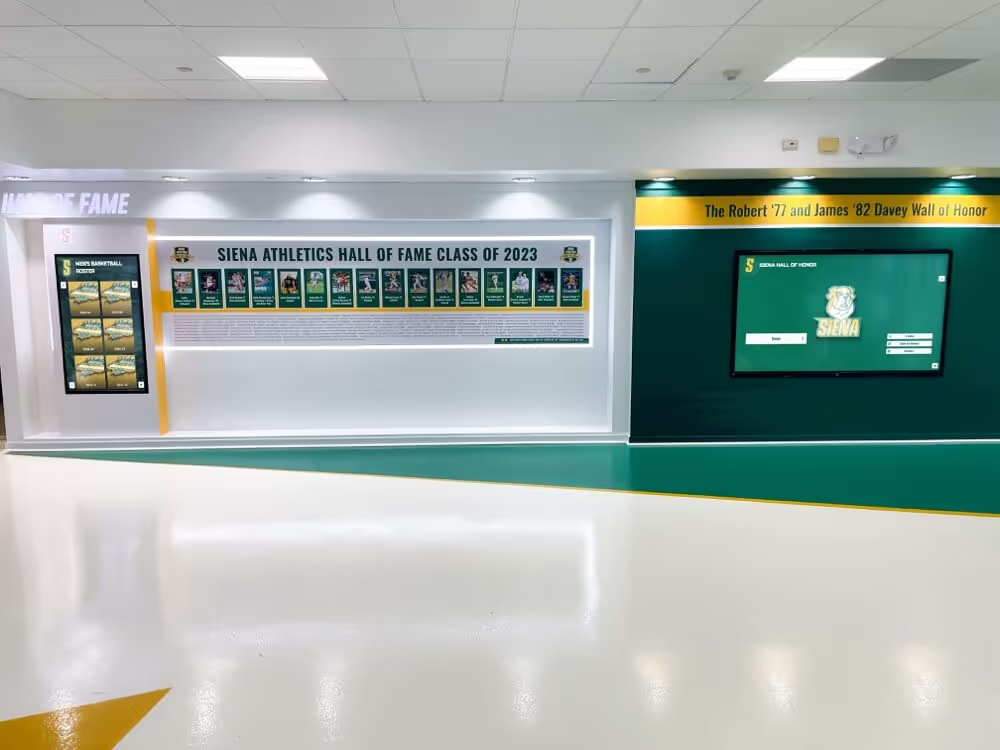
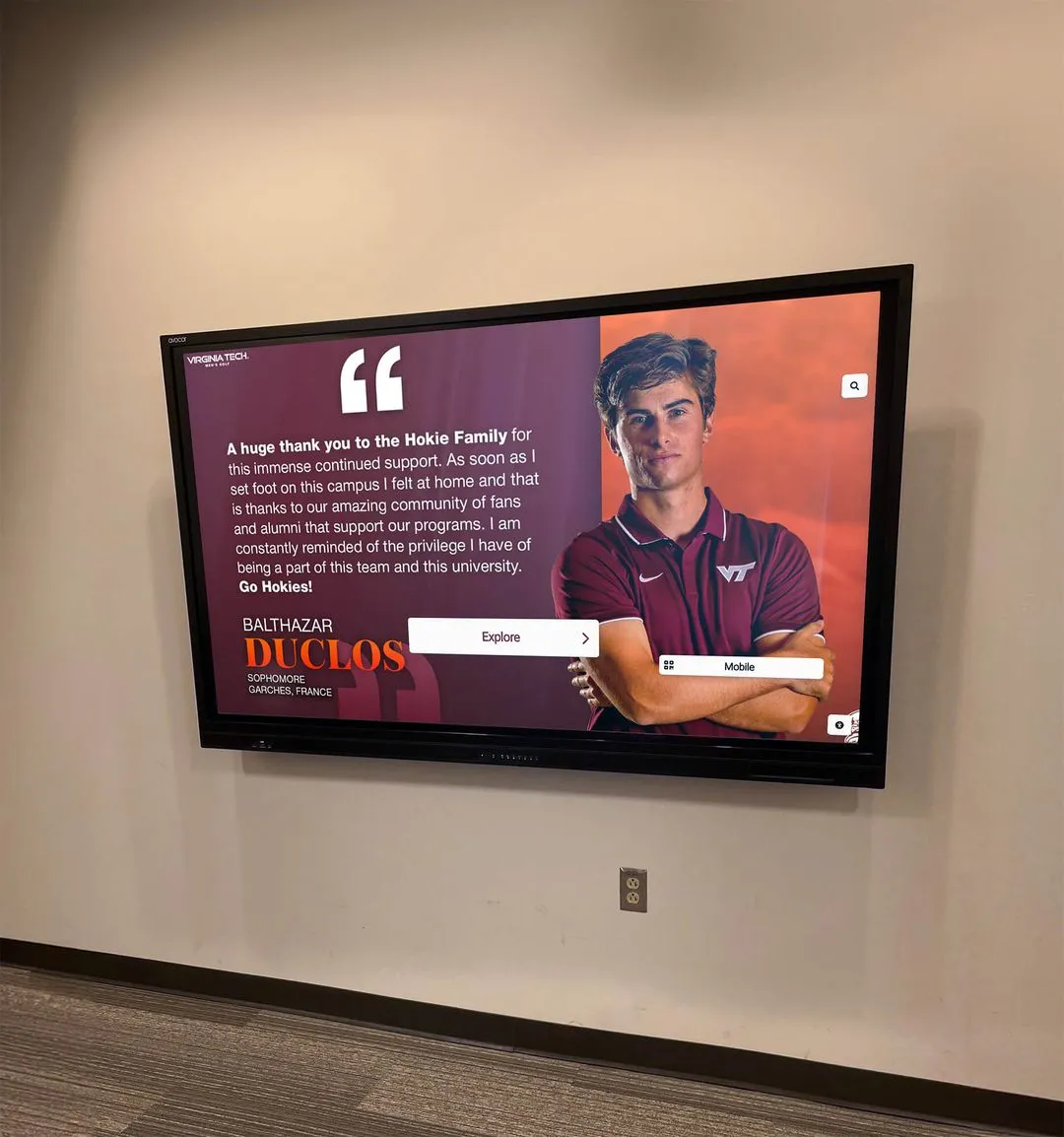
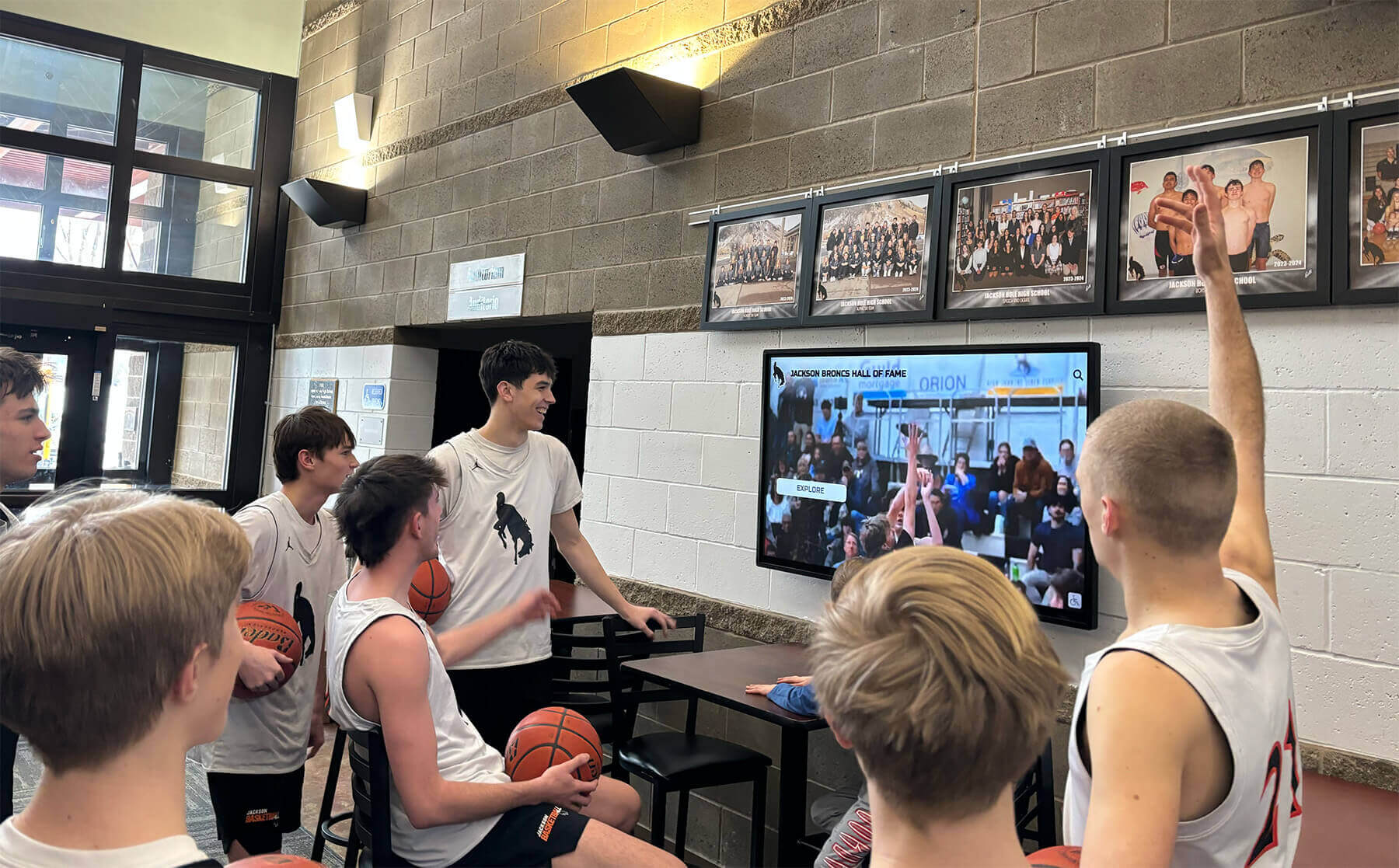
Game highlight footage displayed in school lobbies and recognition kiosks depends on a correct frame rate conversion workflow — footage converted at the wrong rate or without proper deinterlacing produces visible motion artifacts that undercut the historical record
Why Frame Rate Conversion Is Specific to Athletic Archive Video
Frame rate conversion in an athletic archive context differs from the general-purpose video transcoding a school IT department might perform for online distribution. Athletic archive conversion must meet two requirements that commercial video transcoding often ignores: preservation of the original motion integrity and creation of a verified archival master that will be the source for all future access copies.
Preservation of motion integrity matters for historic game footage because the speed and timing of athletic movement are part of the historical record. A volleyball spike, a gymnastics floor routine, and a wrestling match all have characteristic motion patterns that are distorted when footage is converted at the wrong frame rate or with a poorly chosen frame blending algorithm. For a recognition display showing career highlights of a hall of fame inductee, distorted motion is not a minor aesthetic concern — it misrepresents the athlete’s performance and undermines the credibility of the display.
Archival master creation matters because the conversion workflow should produce a single verified output that becomes the new access master, not a series of export experiments saved to the desktop. An athletic archive that converts a VHS transfer seven times to try different settings and retains all seven outputs has not improved the archive — it has created a version management problem. The workflow in this guide produces one correct output, verified, named according to the archive’s file naming convention, and stored in the archive’s designated location before the next conversion begins.
For schools that are also digitizing physical athletic records, trophies, and wall displays as part of a broader recognition transformation, the approach described in this athletic hall of fame complete guide for school administrators provides useful context for how digitized video fits into an institutional recognition strategy that includes multiple media types.
Understanding Source Frame Rates in Legacy Athletic Footage
Before executing any conversion, the archivist must correctly identify the frame rate and interlace structure of the source footage. This identification step is the foundation of the entire workflow — a conversion built on a misidentified source rate will produce incorrect motion in the output regardless of how carefully the export settings are configured.
Common source frame rates in school athletic archives:
| Era | Common Formats | Frame Rate | Interlace Structure | Region |
|---|---|---|---|---|
| 1970s–1980s | VHS, Betamax, U-matic | 29.97 fps (NTSC) | Interlaced (60i) | North America |
| 1970s–1980s | VHS-PAL, Betamax-PAL | 25 fps (PAL) | Interlaced (50i) | Europe, Australia |
| 1990s–early 2000s | Hi8, S-VHS, SVHS-C | 29.97 fps (NTSC) | Interlaced (60i) | North America |
| Late 1990s–2000s | MiniDV, Digital8 | 29.97 fps (NTSC) | Interlaced (60i), some progressive (30p) | North America |
| Late 1990s–2000s | MiniDV-PAL | 25 fps (PAL) | Interlaced (50i), some progressive (25p) | Europe, Australia |
| Mid 2000s–2010s | HDV, early AVCHD | 29.97 fps or 59.94 fps | Interlaced (60i) or progressive (30p/60p) | North America |
| 2010s–present | AVCHD, H.264, HEVC | 23.976, 29.97, 59.94 fps | Progressive (various) | Universal |
| Film transfers | 16mm, Super 8 | 18, 24, or 25 fps (variable) | Progressive | Universal |
The most common source formats in a North American school athletic archive from the 1980s through mid-2000s are interlaced NTSC at 29.97 frames per second, stored internally as 60 interlaced fields per second. This is the format that requires the most careful handling during conversion — particularly when the delivery target is a modern 24p, 30p, or 60p progressive display.
Identifying the source frame rate:
The most reliable method for identifying source frame rate is to inspect the file’s technical metadata using a free tool such as MediaInfo (available for Windows, macOS, and Linux). MediaInfo displays the container format, codec, frame rate, interlace structure, and field order of any video file without modifying or playing it. The MediaInfo report for a correctly digitized VHS transfer should show:
- Format: AVI or MOV (common container formats for VHS capture)
- Codec: DV, MJPEG, or uncompressed (common capture codecs)
- Frame rate: 29.970 fps
- Scan type: Interlaced
- Scan order: Top Field First or Bottom Field First (depends on the capture hardware)
Note the scan order carefully. VHS and most consumer interlaced formats are Bottom Field First (BFF). DV format is Bottom Field First. HDV and many broadcast formats are Top Field First (TFF). Applying the wrong field order during deinterlacing produces a frame blend that runs backward by one field, introducing a subtle but visible motion artifact that is most noticeable during fast camera pans across a court or field.
Source-to-Delivery Frame Rate Decision Table
The following table maps common source frame rates and interlace structures to recommended delivery frame rates for the most common athletic archive delivery contexts. Use this table to select the delivery frame rate before beginning the conversion workflow.
| Source Format | Source Frame Rate | Source Interlace | Delivery Context | Recommended Output Rate | Conversion Method |
|---|---|---|---|---|---|
| VHS / S-VHS (NTSC) | 29.97 fps | Interlaced 60i | Modern touchscreen display (60 Hz) | 29.97 fps progressive | Deinterlace (YADIF or equivalent), no rate change |
| VHS / S-VHS (NTSC) | 29.97 fps | Interlaced 60i | Modern touchscreen display (60 Hz) | 59.94 fps progressive | Deinterlace to fields (field-based output), doubles frame count |
| VHS / S-VHS (NTSC) | 29.97 fps | Interlaced 60i | Archival master (future flexibility) | 29.97 fps progressive | Deinterlace (YADIF adaptive); store as H.264 or ProRes master |
| MiniDV (NTSC) | 29.97 fps | Interlaced 60i | School lobby display | 29.97 fps progressive | Deinterlace; may be stored as MOV/DV natively if platform accepts |
| MiniDV (NTSC) | 29.97 fps | Progressive DV | School lobby display | 29.97 fps progressive | No deinterlacing required; direct transcode or passthrough |
| VHS / S-VHS (PAL) | 25 fps | Interlaced 50i | Display or archival master | 25 fps progressive | Deinterlace; no rate change |
| Film transfer (telecine) | 23.976 fps (3:2 pulldown) | Interlaced 60i | Archival master | 23.976 fps progressive | Inverse telecine (IVTC) to remove pulldown before deinterlacing |
| Film transfer (direct) | 24 fps | Progressive | Archival master | 24 fps progressive | No deinterlacing; direct transcode |
| Early AVCHD / HDV | 29.97 fps | Interlaced 60i | Archival master | 29.97 fps progressive | Deinterlace with TFF field order |
| Modern digital | 59.94 fps | Progressive | Display master | 29.97 fps progressive | Frame rate reduction (drop every other frame or blend); verify motion |
| Modern digital | 59.94 fps | Progressive | Display master | 59.94 fps progressive | Passthrough; no conversion required |
The decision rule that covers the majority of North American school athletic archives: if the source is interlaced NTSC at 29.97 fps, the output target is 29.97 fps progressive through YADIF deinterlacing, stored as H.264 or ProRes at the source resolution. This conversion path preserves the frame timing of the original game footage, eliminates interlacing artifacts, and produces a file compatible with current display platforms without altering the speed of athletic movement.
The Athletic Archive Frame Rate Conversion Workflow: Numbered Steps
Step 1: Confirm the Archive Record for the Source File
Before running any conversion, locate the ingest record for the source file and confirm that the file has been ingested, checksummed, and stored as an archive master. The conversion workflow should never operate on a file that has not been formally accepted into the archive — and it should never modify the original archive master.
Confirm the following before proceeding:
- The source file exists in the designated archival storage location (not a desktop, USB drive, or Downloads folder)
- A checksum (MD5 or SHA-256) has been generated for the source file and stored in the archive log
- The file’s descriptive metadata (sport, season, event, date, original format) is complete in the archive management record
- The archive record designates this file as the master — not a previous access copy or a delivery file
If any of these conditions are unmet, complete the ingest workflow before beginning conversion.
Step 2: Create a Working Copy
The conversion workflow operates on a working copy of the archive master, never on the master itself. Copy the source file from archival storage to a designated conversion workspace — a local drive with sufficient capacity for both the working copy and the converted output.
Verify the working copy against the stored checksum before proceeding:
md5sum working-copy.mov
Compare the result against the checksum in the archive record. If they do not match, the copy did not transfer correctly. Delete the working copy and repeat the transfer before proceeding.
Step 3: Inspect the Source File with MediaInfo
Open the working copy in MediaInfo and record the following technical attributes in the conversion log:
- Container format (AVI, MOV, MXF, MP4, etc.)
- Video codec (DV, MJPEG, H.264, MPEG-2, etc.)
- Frame rate (displayed as frames per second, e.g., 29.970)
- Scan type (Progressive or Interlaced)
- Scan order (Top Field First or Bottom Field First) — record as TFF or BFF
- Resolution (width × height, e.g., 720 × 480 for NTSC DV)
- Color space and chroma subsampling (e.g., YUV 4:2:0)
- Audio sample rate and bit depth (e.g., 48 kHz / 16-bit)
- Duration (minutes and seconds)
This inspection record becomes part of the archive’s conversion log for this file. If a future archivist needs to understand why a specific conversion decision was made, the inspection record documents the technical state of the source at the time of conversion.
Step 4: Consult the Source-to-Delivery Decision Table
Using the attributes recorded in Step 3, consult the source-to-delivery decision table above to select the delivery frame rate and conversion method. Record the selected output parameters in the conversion log before proceeding:
- Output frame rate
- Deinterlacing method (if required)
- Output codec
- Output container
- Output resolution (if different from source)
If the source is a film transfer with 3:2 pulldown — identifiable by a nominal frame rate of 23.976 fps encoded in a 29.97 fps interlaced container — consult Step 9 (inverse telecine) before proceeding with the standard deinterlacing path.
Step 5: Configure the Conversion Software
The conversion for most athletic archive sources can be executed in FFmpeg (free, command-line) or in a GUI application that supports custom filter chains. For interlaced NTSC sources converting to progressive at the same frame rate, the recommended FFmpeg command structure is:
ffmpeg -i input.avi -vf yadif=0:-1:0 -c:v libx264 -crf 18 -preset slow -c:a copy output.mp4
The parameters in this command:
-vf yadif=0:-1:0— YADIF deinterlace filter, mode 0 (output one frame per frame, not one per field), automatic field order detection-c:v libx264— H.264 video codec for the output-crf 18— Constant Rate Factor at 18 (high quality; 0 is lossless, 23 is default, lower numbers are higher quality)-preset slow— encoding speed/compression tradeoff; slow produces smaller files at the same quality than fast-c:a copy— copy the audio stream without re-encoding
For archival master output rather than access copies, replace -c:v libx264 -crf 18 -preset slow with -c:v prores_ks -profile:v 3 to output ProRes 422 HQ, a lossless-adjacent professional format compatible with most video editing and archival environments.
For sources where MediaInfo identifies a specific field order (TFF or BFF), override the automatic detection by adding parity=1 (TFF) or parity=0 (BFF) to the YADIF options:
-vf yadif=0:0:0    (BFF — bottom field first, most NTSC consumer formats)
-vf yadif=0:1:0    (TFF — top field first, HDV, some professional formats)
Step 6: Execute the Conversion and Monitor Progress
Run the conversion command and monitor the output for error messages. FFmpeg reports encoding progress continuously during conversion, including the current frame, frames per second of encoding speed, and elapsed time. Note any warning messages — particularly warnings about interlacing, field order, or timestamps — in the conversion log.
A clean conversion produces no warnings or errors. If FFmpeg reports timestamp discontinuities, missing frames, or field order conflicts, note these in the log and evaluate whether the output requires additional review in Step 7.
Do not interrupt a conversion in progress and save the partial output. A partial encode is not a valid access copy and should not be committed to the archive. If the conversion must be interrupted, delete the partial output and re-run from the beginning using the working copy.
Step 7: Quality Assurance Review of the Converted Output
The quality assurance review is the most important step in the workflow. Open the converted output in a video player capable of displaying the file at full resolution and play through the following sections, watching specifically for the artifacts listed:
QA review sections and what to look for:
First 60 seconds: Verify no interlacing combs (horizontal line artifacts visible during motion). If combs are visible, the deinterlace filter did not apply correctly or the field order was inverted. Return to Step 5 with the corrected field order parameter.
Fast lateral motion (camera pan across court or field): Watch for ghosting or double-image artifacts during horizontal pans. These indicate frame blending rather than true deinterlacing. Verify that the YADIF mode parameter is set to 0 (send frame) rather than 1 (send field), which doubles the frame count and creates a different class of artifact.
Fast vertical motion (ball travel, jumps): Watch for vertical stuttering or unnatural freezing mid-motion. This can indicate a dropped frame in the source or a conversion error. Compare the same moment in the working copy to confirm whether the artifact is in the source or introduced by conversion.
Audio sync at 30 seconds, 5 minutes, and end of file: Play audio and video together and verify that speech, crowd noise, and game sounds align correctly with the visual action. Frame rate conversion errors can introduce progressive audio drift that is subtle at the start and obvious by the end of a long clip.
Color and brightness: Confirm that the converted output matches the color and brightness of the working copy. Some codecs apply color space transforms during conversion that shift exposure or saturation. Verify visually and note any significant difference.
Record the QA result — pass or fail — in the conversion log with specific timestamps for any artifact that requires investigation.
Step 8: Generate a Checksum for the Converted Output
Once the QA review has passed, generate a checksum for the converted output file and record it in the conversion log:
md5sum output.mp4
Store both the checksum and the full conversion parameters (input file, FFmpeg command, output file) in the conversion log. This record documents the complete derivation chain: source master → working copy → converted output, with checksums at each stage.
Step 9: Handle Film Transfers with 3:2 Pulldown (Inverse Telecine)
Film footage transferred to NTSC video for storage in a school archive — common for Super 8 game film from the 1960s and 1970s — is typically stored with 3:2 pulldown applied. Pulldown is the process of encoding 24-fps film onto a 29.97-fps interlaced video signal by distributing film frames across video fields in a repeating 3:2:3:2 pattern. Applying standard deinterlacing to pulldown footage produces a mixed result: some frames deinterlace correctly and some produce blended artifacts because the pulldown cadence places film frame boundaries inside video fields.
The correct treatment for pulldown footage is inverse telecine (IVTC), which removes the pulldown and recovers the original 24-fps progressive frames before any deinterlacing is applied:
ffmpeg -i input.avi -vf fieldmatch,decimate -c:v libx264 -crf 18 -preset slow -c:a copy output_24p.mp4
The fieldmatch filter reconstructs the original progressive frames from the interlaced signal, and decimate removes the duplicate frames created by the pulldown process, recovering the original 23.976 fps frame rate.
For film transfers where the pulldown was applied inconsistently — common in consumer telecine processes from the 1980s and 1990s — IVTC may not produce clean results throughout the entire clip. In these cases, review the output carefully during Step 7 and consider whether 29.97 fps progressive deinterlacing (without IVTC) produces a more consistent result despite the theoretical frame count mismatch.
Step 10: Archive the Converted File as an Access Master
After the QA review passes and the checksum is recorded, move the converted output from the conversion workspace to the archive’s designated access master location. Update the archive record to reflect:
- Access master file path and filename
- Access master checksum
- Conversion parameters and date
- Relationship to the source archive master (file name or archive identifier)
The working copy in the conversion workspace may now be deleted — it has served its purpose and its checksum verified that it matched the archive master before conversion began. Delete the working copy from the workspace to avoid storage clutter and version confusion.
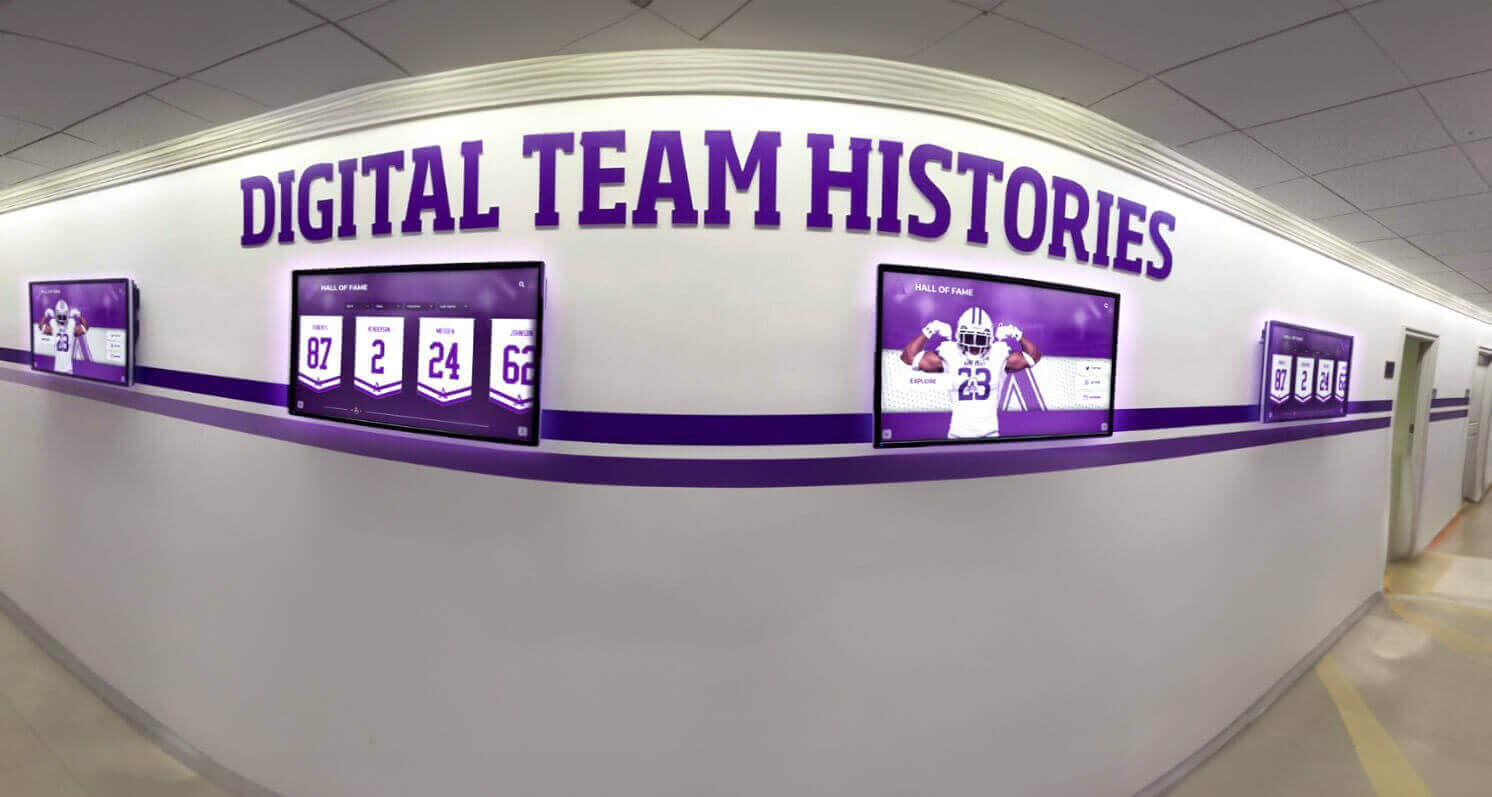
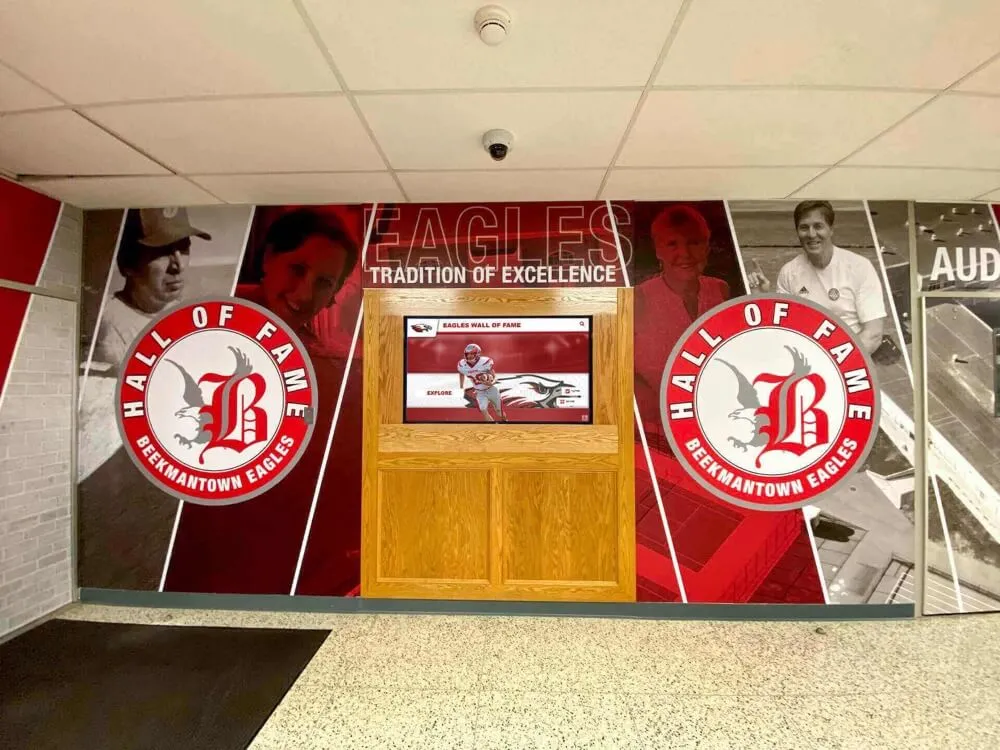
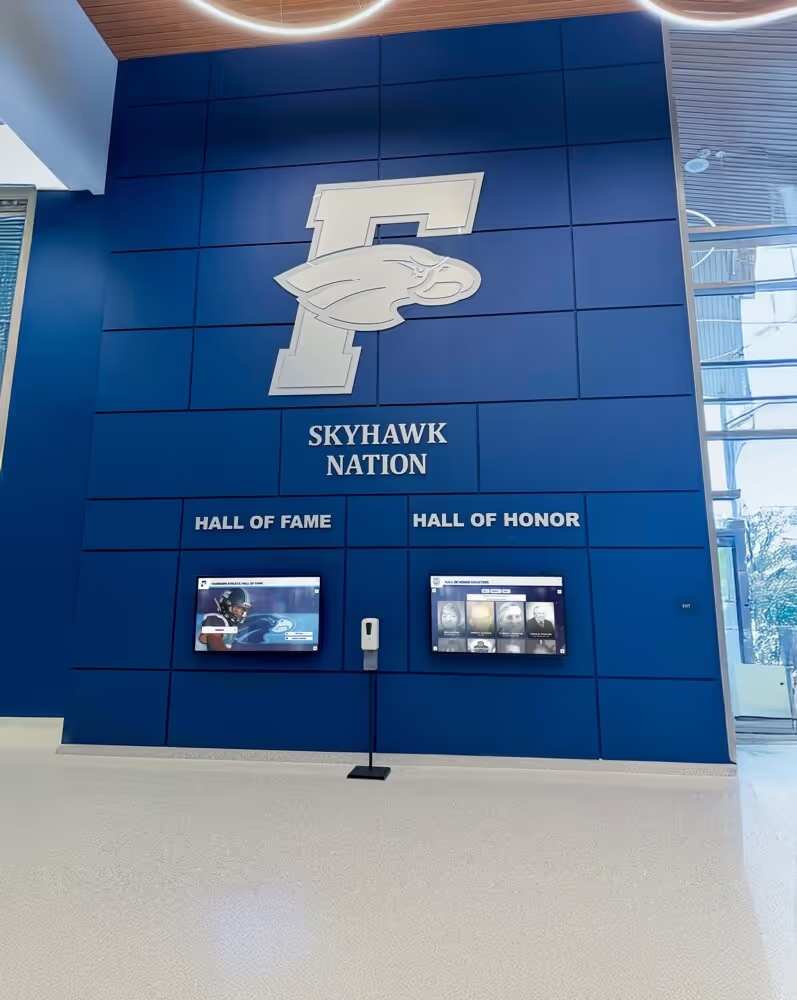
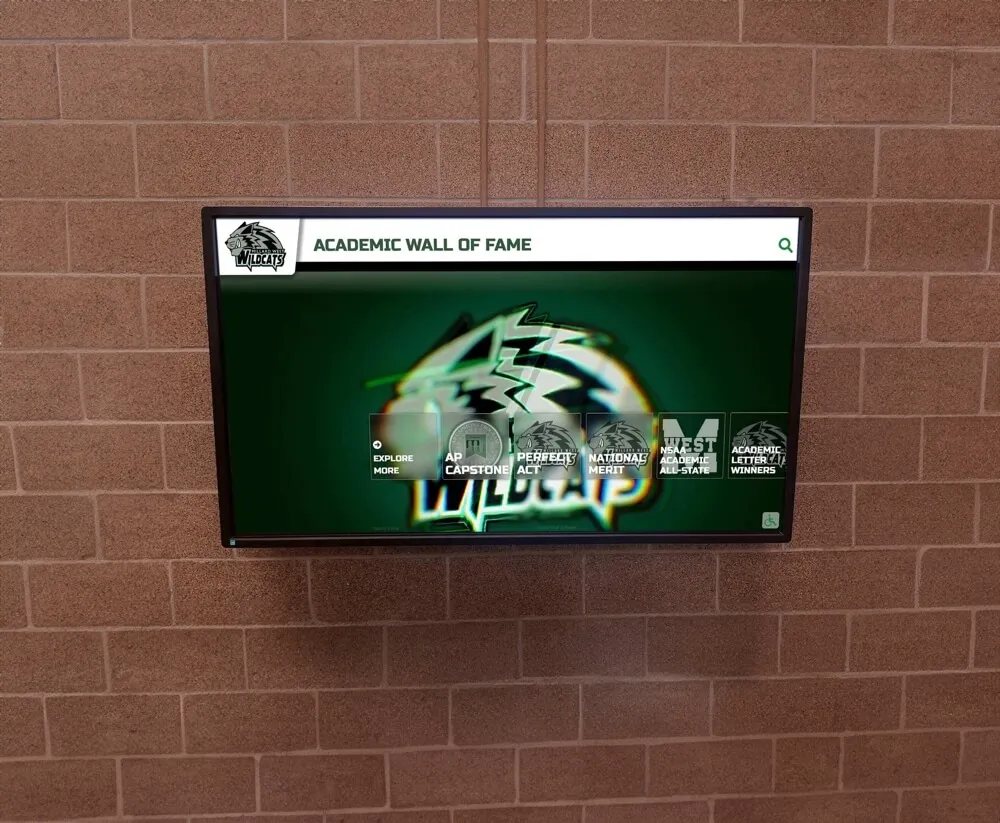
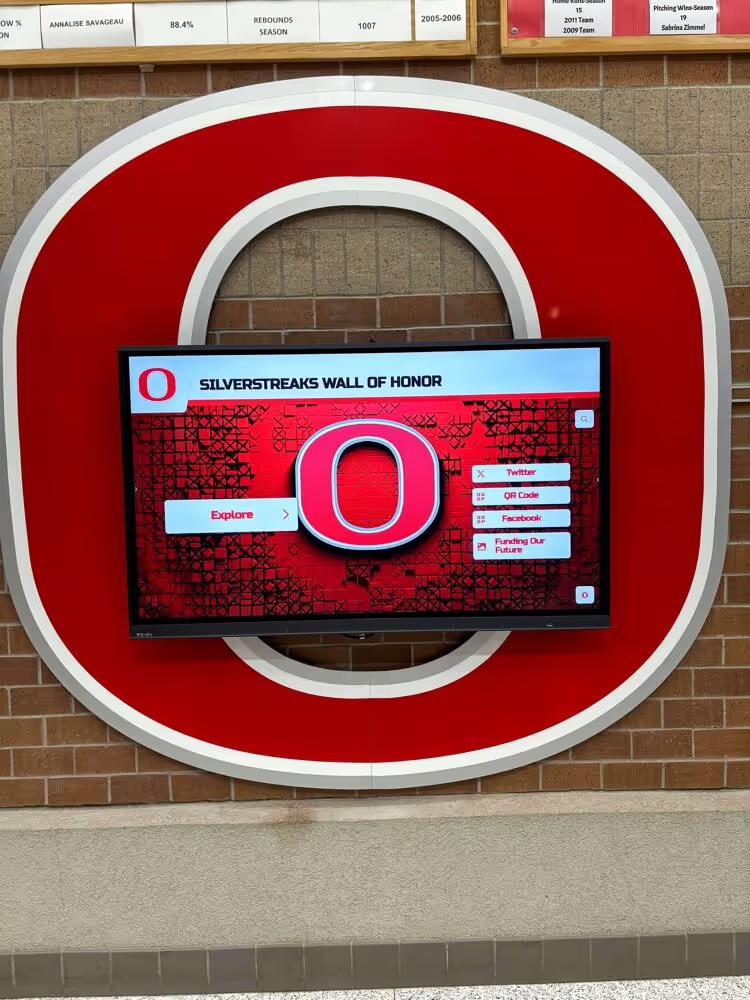
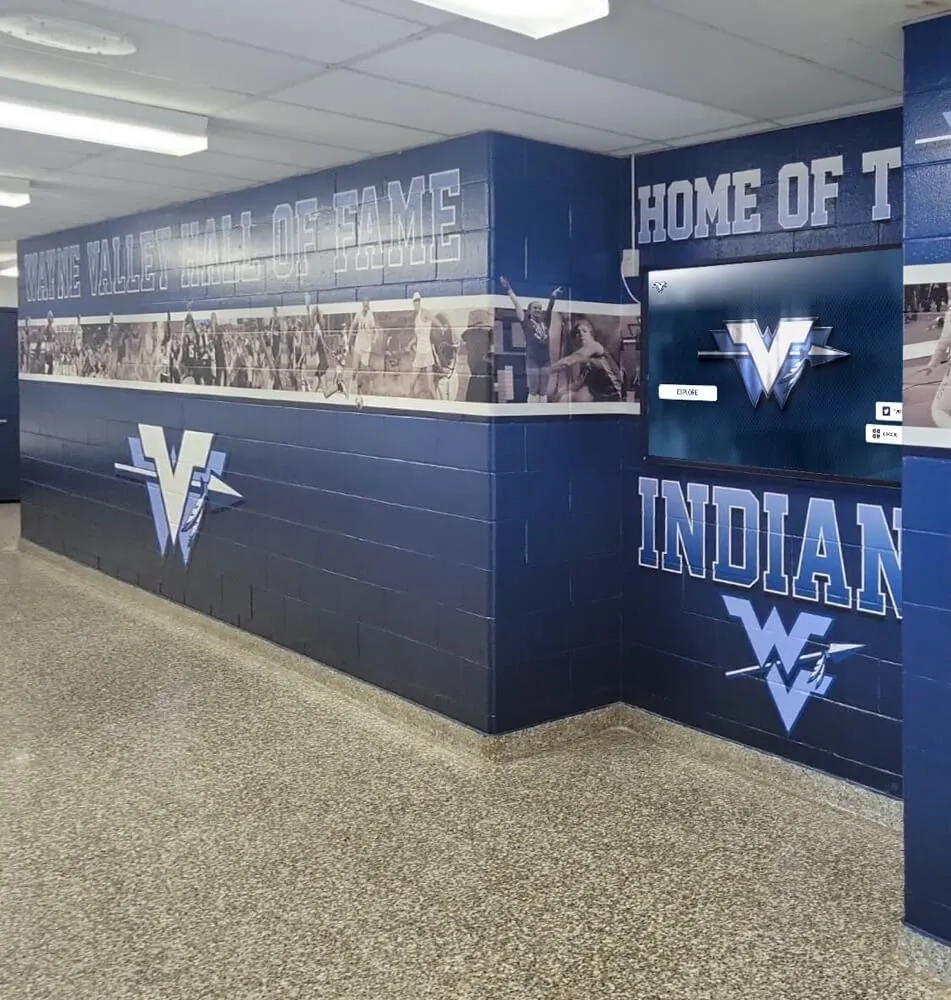
School hallway displays that surface decades of game footage require converted video files that play at the correct frame rate without motion artifacts — the conversion workflow determines whether historic moments look authentic or distorted on modern screens
Software Tools for Athletic Archive Frame Rate Conversion
Several tools support the frame rate conversion workflow described in this guide. The selection of tools depends on the archive’s technical capacity, operating system environment, and budget.
Recommended tools by role:
| Tool | Role | Platform | Cost | Notes |
|---|---|---|---|---|
| MediaInfo | Source inspection | Windows, macOS, Linux | Free | Most reliable for identifying frame rate, interlace, and field order |
| FFmpeg | Conversion execution | Windows, macOS, Linux | Free | Most flexible command-line tool; supports all common codecs and filters |
| HandBrake | GUI-based conversion | Windows, macOS, Linux | Free | User-friendly; YADIF deinterlacing available; limited to H.264 and H.265 output |
| DaVinci Resolve (free tier) | GUI-based conversion, QA review | Windows, macOS, Linux | Free | Full timeline review; supports ProRes output; excellent for QA review step |
| Adobe Premiere Pro | GUI-based conversion, QA review | Windows, macOS | Subscription | Industry standard; reliable deinterlacing; export to all professional formats |
| Avisynth / VapourSynth | Advanced filter chains | Windows (Avisynth); cross-platform (VapourSynth) | Free | Scripted workflows; useful for batch processing large collections |
| DVdate, DVrescue | DV format recovery | Windows, macOS, Linux | Free | Specific to DV/MiniDV format recovery; handles timecode errors in DV streams |
For athletic archives without dedicated technical staff, HandBrake offers the most accessible path for straightforward interlaced NTSC to progressive conversion. For archives with IT support and a larger collection to process, FFmpeg with a documented command template provides the most consistent and auditable results across a batch conversion project.
The broader context of how digitized video integrates with physical recognition environments — banners, trophy cases, and locker room installations — is examined in this athletic locker room signage and team identity guide, which describes how video and static elements reinforce athletic culture in the same physical spaces where recognition displays are installed.
Batch Conversion Planning for Large Athletic Archives
Schools with large video archives — multiple decades of game footage across several sports — require a batch conversion approach rather than file-by-file execution. Batch conversion planning defines the scope, grouping, execution schedule, and verification protocol for converting a collection rather than a single file.
Batch conversion planning checklist:
- Complete a video inventory before beginning: count all video files by format, frame rate, and interlace structure
- Group files by source format and conversion path — files that share the same source format, frame rate, and conversion target can be processed with a single FFmpeg template
- Estimate total duration: total running time of all source files determines conversion time (conversion typically runs at 1×–3× real time for H.264 output)
- Estimate storage requirements: H.264 at CRF 18 produces approximately 0.5–2 GB per hour of source video depending on resolution and motion complexity
- Write a conversion script or template command for each source-format group and test it on a single representative file before batch execution
- Define the QA sampling rate for batch output: spot-check every file or verify at minimum 10–20% of batch output files, specifically checking the first file, last file, and any file flagged during conversion with warnings
- Document the batch run in the conversion log: start time, end time, number of files processed, number of QA failures, and remediation steps for failures
For school programs building a recognition platform that will eventually surface historic game footage to students, alumni, and visitors, the investments in correct frame rate conversion described here directly determine the quality of what audiences see. Schools comparing options for displaying that footage — from dedicated kiosk displays to integrated hall of fame platforms — will find comparisons of institutional platforms from providers including Rocket Alumni Solutions, enshrinement platforms, and custom AV installations useful context for understanding where converted footage ultimately lives.
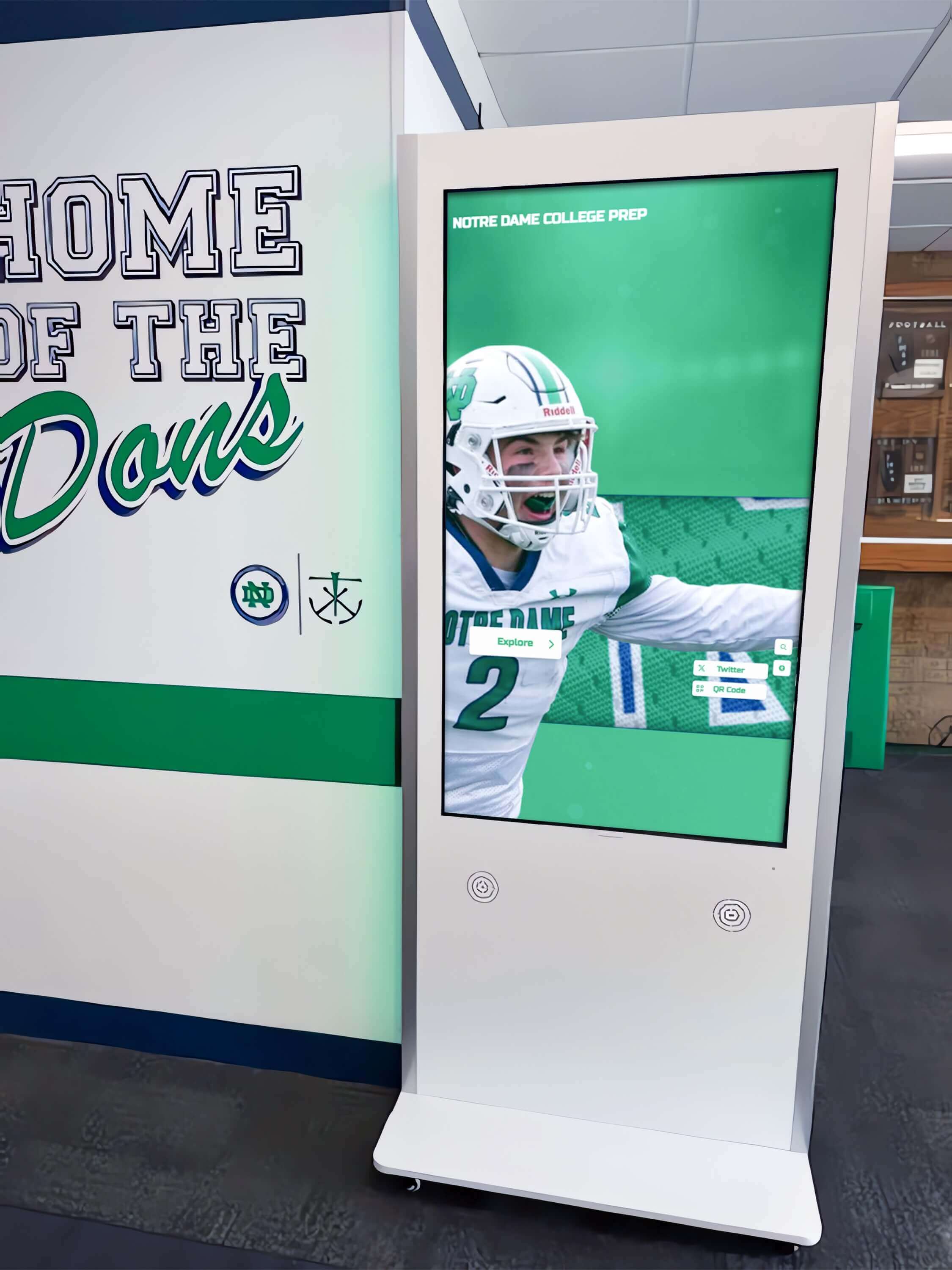
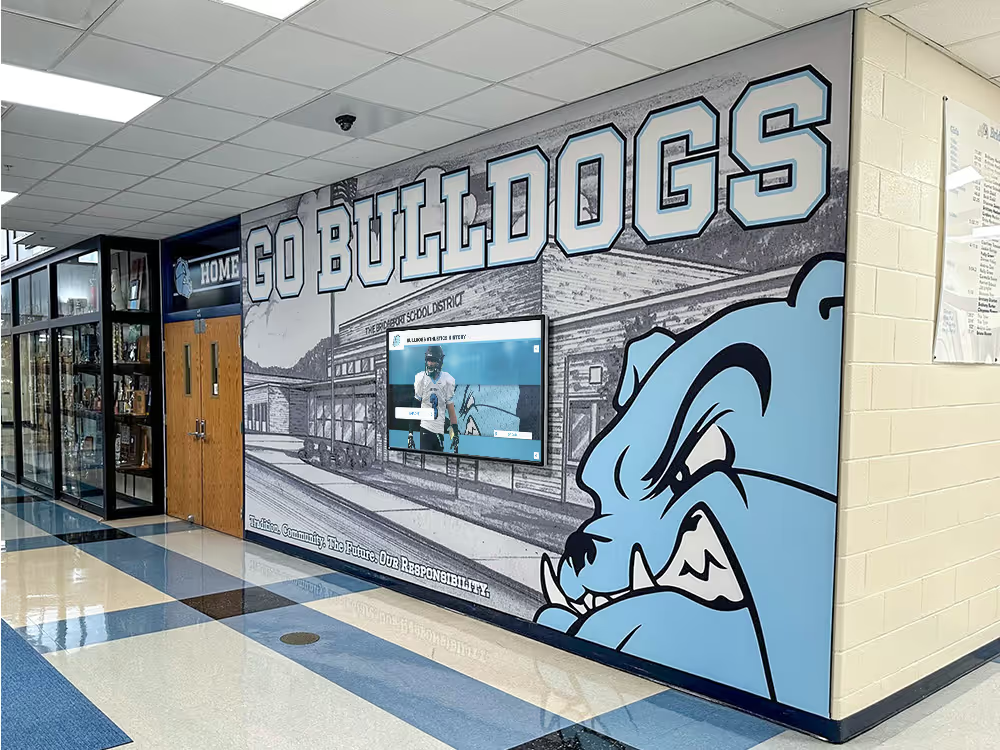
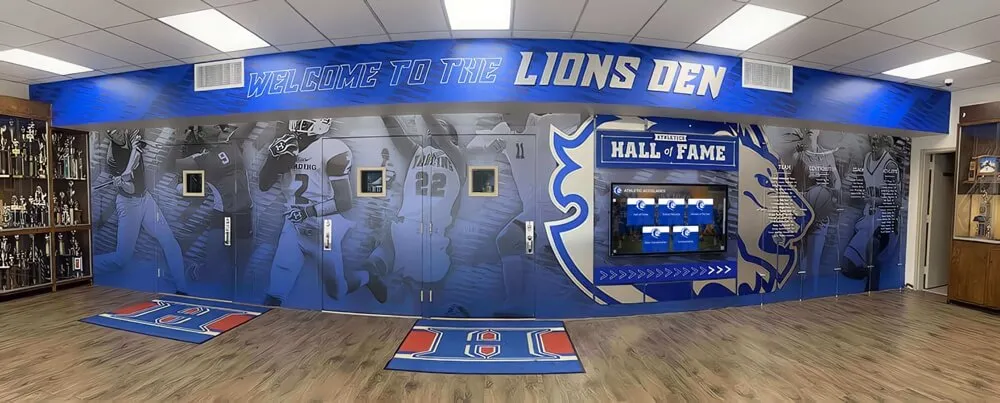
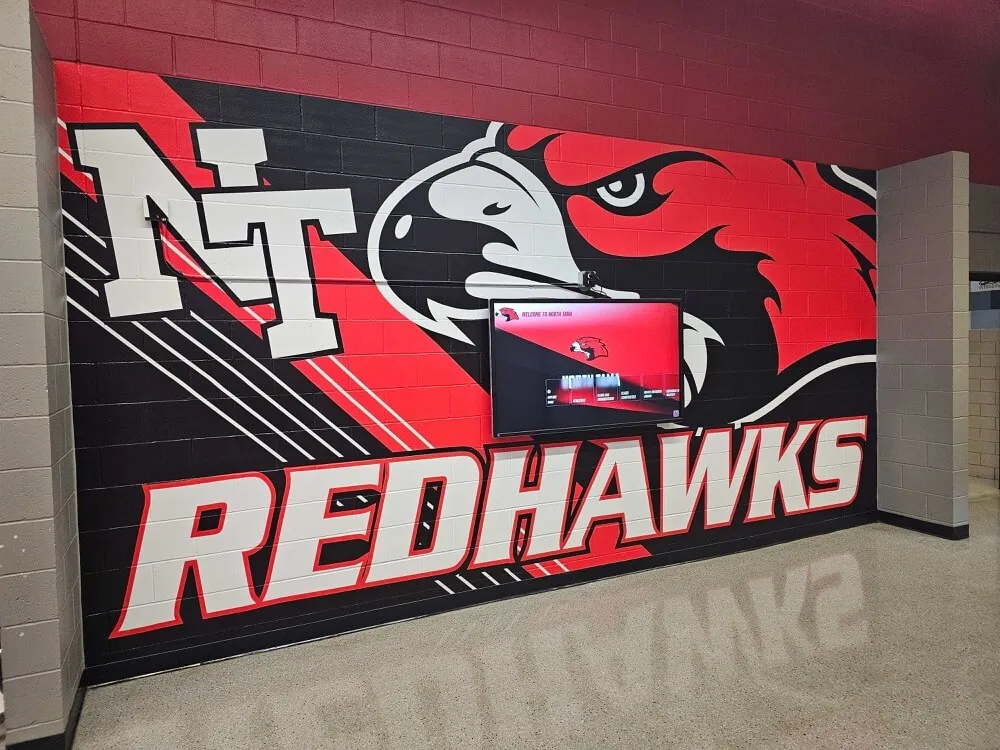
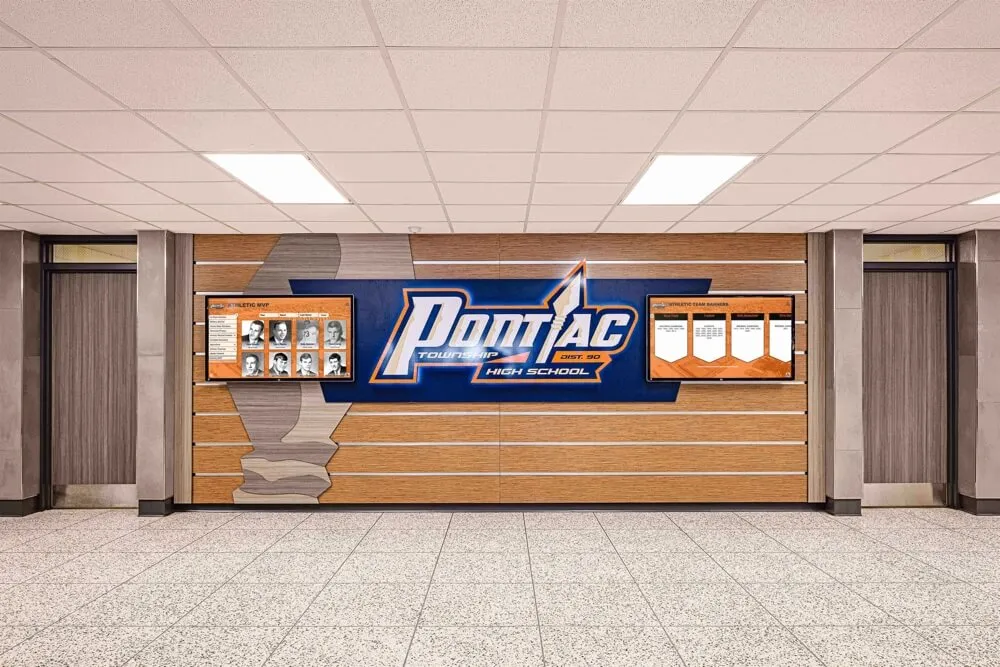
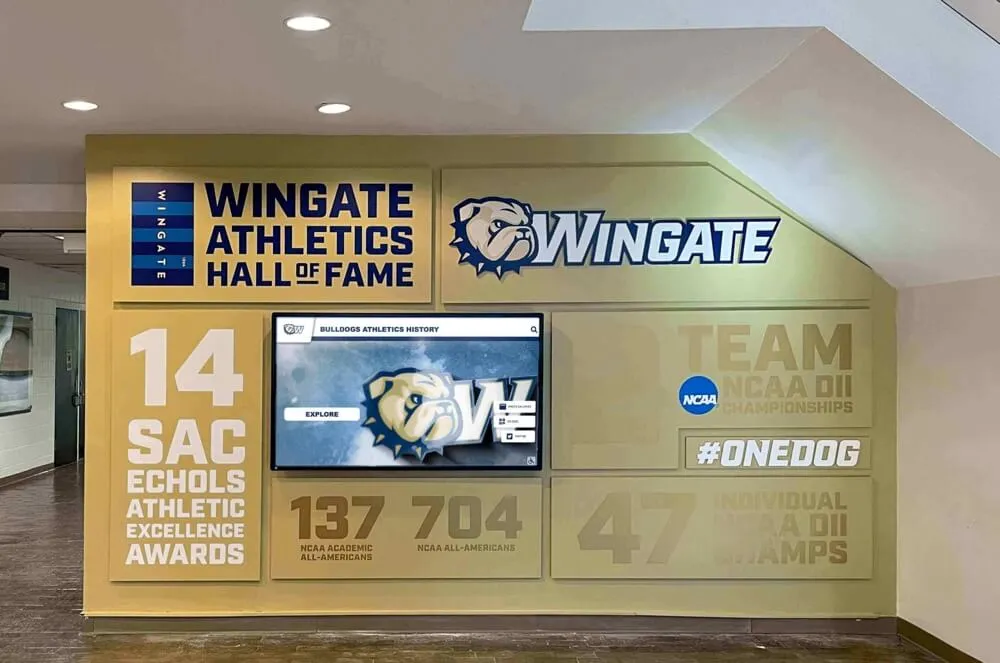
Hall of fame kiosks that include historic game footage require access master files at the correct frame rate and interlace structure — footage that plays correctly in an editing application may still exhibit artifacts in a kiosk's embedded media player if the conversion was not verified against the delivery platform
Common Frame Rate Conversion Errors in Athletic Archives
Error 1: Deinterlacing with the wrong field order.
This is the most common conversion error for legacy NTSC footage. Most North American consumer video formats (VHS, Hi8, MiniDV) use Bottom Field First field order. Many deinterlacing tools default to Top Field First. When the field order is inverted, each frame is reconstructed from mismatched fields — the top half of the frame comes from one video field and the bottom half from the adjacent field rather than the same field. The result is a subtle horizontal tearing effect most visible during fast motion. Fix: verify field order in MediaInfo and specify it explicitly in the FFmpeg YADIF command.
Error 2: Applying deinterlacing to progressive source files.
Some MiniDV recordings and many AVCHD clips from the 2000s onward were recorded in progressive mode even though they are stored in an interlaced container. Applying YADIF deinterlacing to a progressive source does not improve the file — it may introduce artifacts by blending frames that did not require blending. Fix: verify the scan type field in MediaInfo before configuring the conversion.
Error 3: Converting interlaced 29.97 fps to 23.976 fps without inverse telecine.
Some archivists target 23.976 fps for delivery because of its film-like appearance on modern displays. Converting interlaced 29.97 fps footage directly to 23.976 fps — without first deinterlacing and then applying frame rate reduction — produces a rhythmic motion artifact (frame blending every fifth frame) that creates a subtle but persistent pulse in the motion of the converted footage. Fix: deinterlace to 29.97 fps progressive first, then apply frame rate reduction separately, or use inverse telecine if the source contains film-origin content with pulldown.
Error 4: Treating access copies as source masters for re-conversion.
When an archive’s original conversion produced a low-quality H.264 access copy at high CRF values (high compression), subsequent attempts to improve quality by re-converting from that access copy will not succeed — the quality lost in the first conversion is not recoverable from the compressed file. Fix: return to the original archive master (the uncompressed or losslessly captured digitization) as the source for any conversion.
For programs building out the broader context of how athletic records — including video — connect to institutional recognition traditions, the framework described in this college commitment day digital board guide illustrates how video-adjacent content surfaces in the recognition displays that game footage eventually populates.
Delivery Specifications for Common Athletic Archive Display Contexts
After conversion, the access master must be formatted for the specific delivery context where it will be played. Delivery specifications differ from archival master specifications: the delivery file is compressed for efficient playback, formatted for the receiving platform, and sized for the available display hardware.
Delivery specifications by display context:
| Delivery Context | Recommended Format | Frame Rate | Resolution | Codec | Notes |
|---|---|---|---|---|---|
| Touchscreen hall of fame kiosk | MP4 (H.264) | 29.97 fps progressive | 1920×1080 | H.264, CRF 20–23 | Most kiosk platforms expect H.264 MP4; verify with platform documentation |
| Large lobby display (TV/monitor) | MP4 (H.264 or H.265) | 29.97 or 59.94 fps progressive | 1920×1080 or 3840×2160 | H.264 or H.265 | 4K delivery if display is 4K; verify player hardware capability |
| Athletic banquet or ceremony playback | MP4 or MOV (ProRes) | 29.97 fps progressive | 1920×1080 | ProRes 422 or H.264 | Higher quality for projector playback; ProRes if editing suite is on-site |
| Web or streaming archive | MP4 (H.264) | 29.97 fps progressive | 1280×720 or 1920×1080 | H.264, CRF 23 | Smaller file for streaming; 720p acceptable for 1980s-era source quality |
| Archival access master (future use) | MP4 (H.264) or MOV (ProRes) | Source frame rate progressive | Source resolution | H.264 CRF 18 or ProRes 422 HQ | Highest quality retained; used for future derivative creation |
| Social media highlight clips | MP4 (H.264) | 29.97 fps | 1080×1080 or 1920×1080 | H.264 | Cropped and clipped from access master; never clip the archival master directly |
The access master is never the delivery file. Every delivery context receives its own derivative, exported from the access master. This principle — identical to the master/derivative principle in photographic archiving — ensures that the access master remains unmodified and available as a clean source for future delivery in formats that do not yet exist.
For programs that are also managing donor recognition and booster club relationships alongside athletic recognition displays, the governance framework in this booster club gift acceptance policy guide is useful context for how institutional policies around donations and recognition intersect with archive management responsibilities.
Pre-Conversion Checklist for Athletic Archive Video
Before beginning any frame rate conversion in the athletic archive workflow, verify the following:
Source verification:
- Source file is confirmed as the archive master (not an access copy or delivery file)
- Archive master checksum is recorded and stored
- Working copy has been created and verified against the archive master checksum
- MediaInfo inspection has been completed and all technical attributes recorded in the conversion log
- Source format, frame rate, interlace structure, and field order are documented
Conversion configuration:
- Source-to-delivery decision table has been consulted and delivery frame rate selected
- Conversion command or software settings are configured and tested on a short segment before full execution
- Field order parameter is explicitly set (do not rely on automatic detection for legacy formats)
- Output file path and naming follow the archive’s file naming convention
- Output storage location has sufficient capacity for the converted file
Quality assurance:
- QA review covers the first 60 seconds, a fast-motion section, and audio sync at multiple points
- No interlacing combs are visible during motion in the output
- No audio drift is audible at the end of the converted file
- Checksum has been generated for the converted output
Archive update:
- Conversion log entry is complete with source, conversion parameters, output, and QA result
- Archive record has been updated with access master file path and checksum
- Working copy has been deleted from the conversion workspace
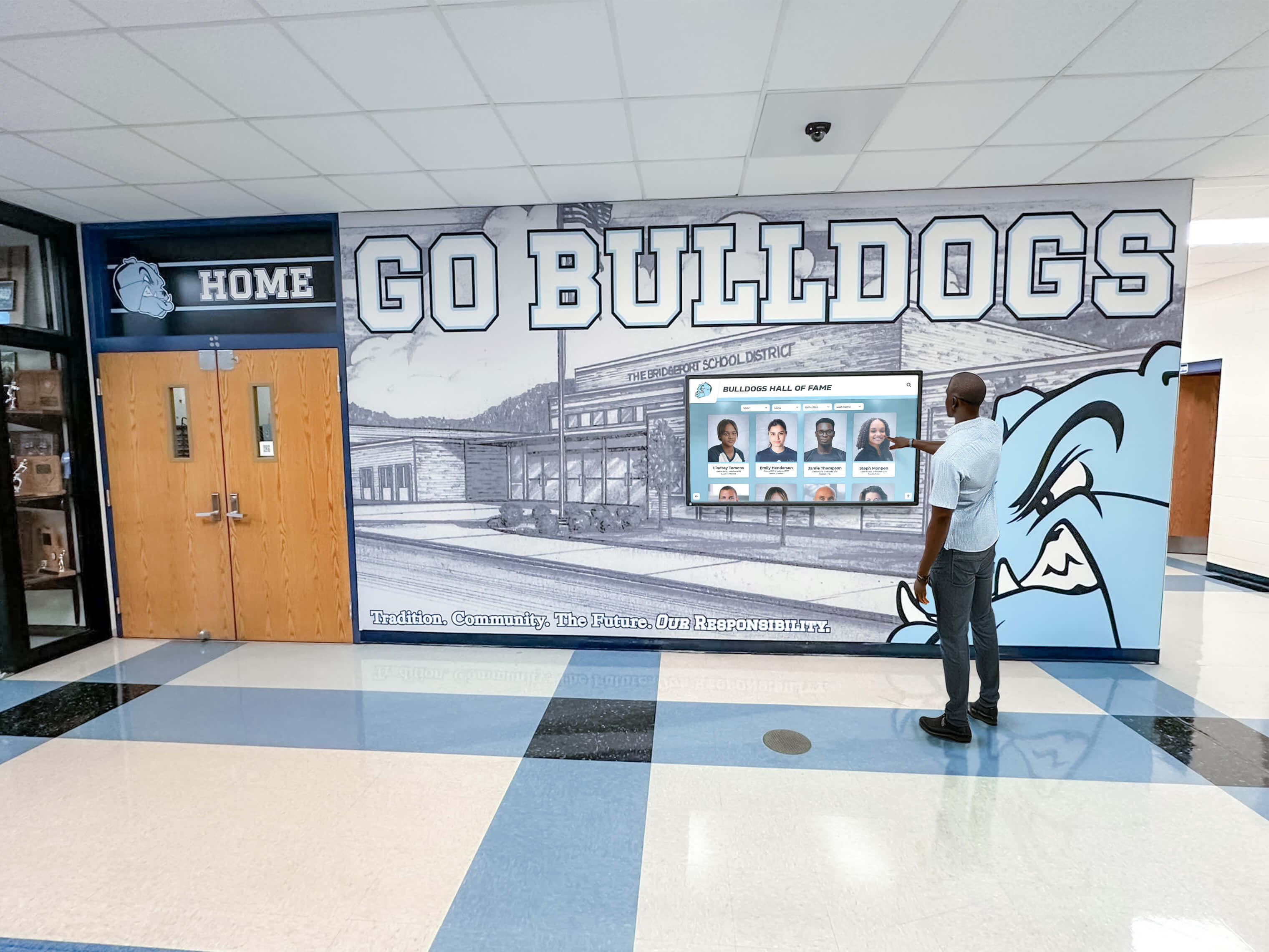
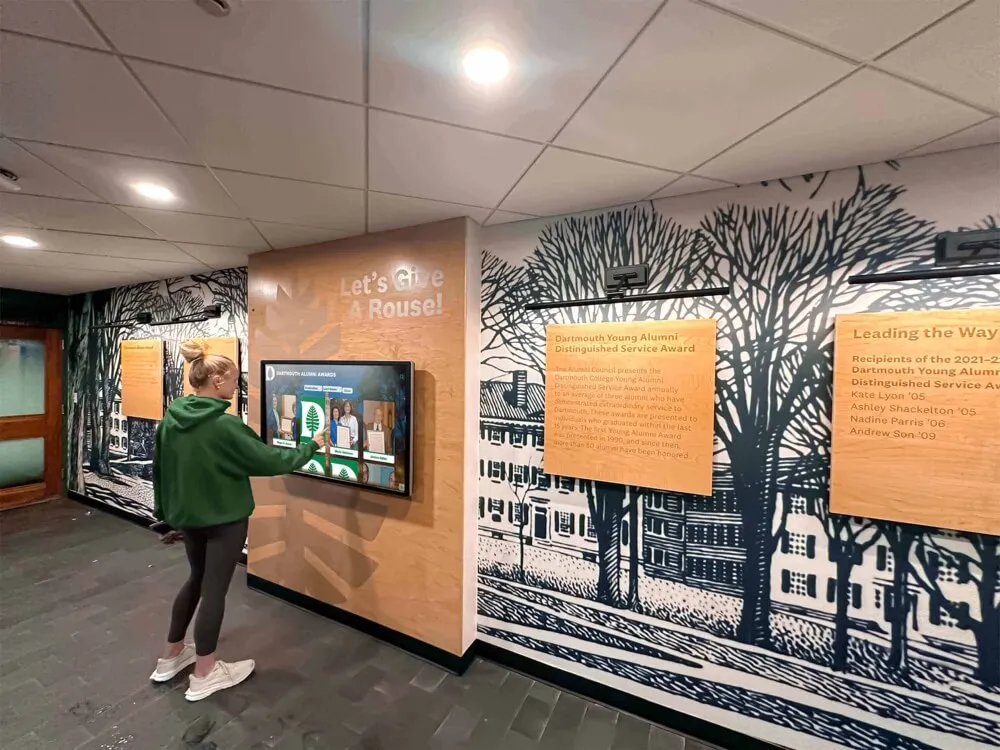
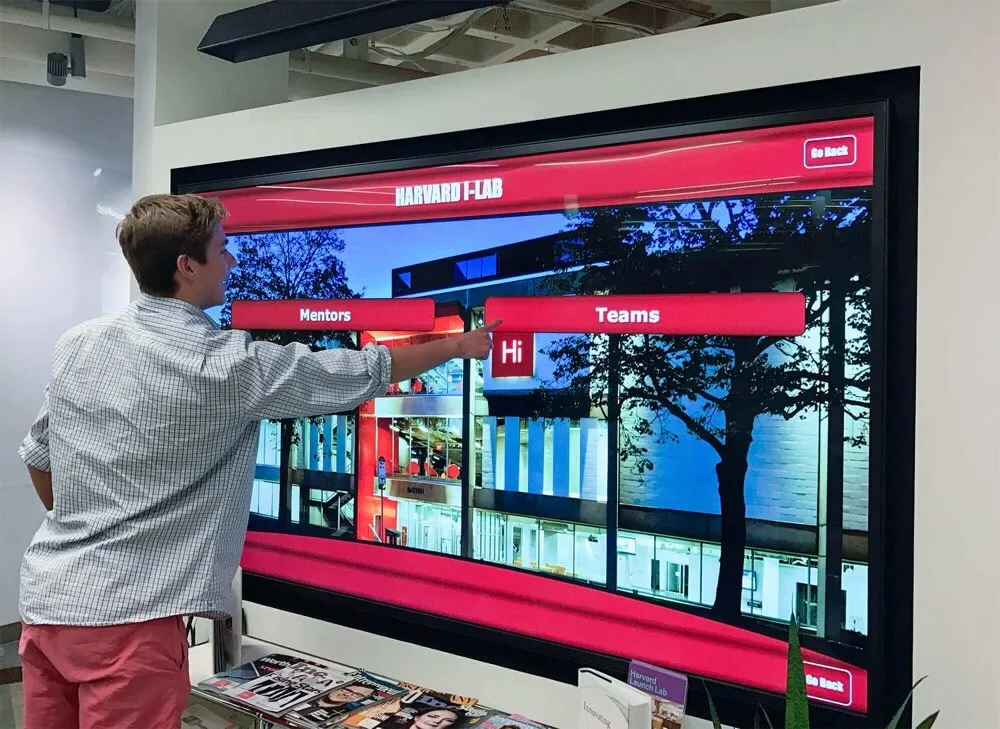
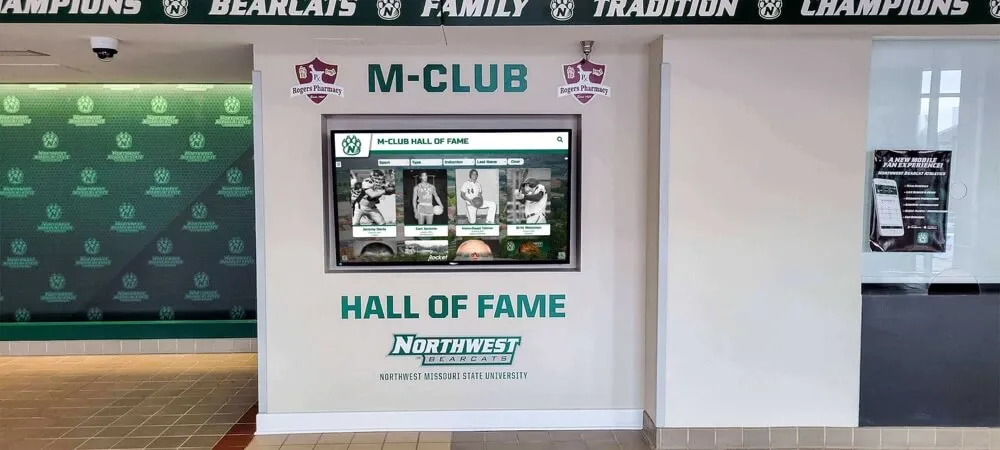
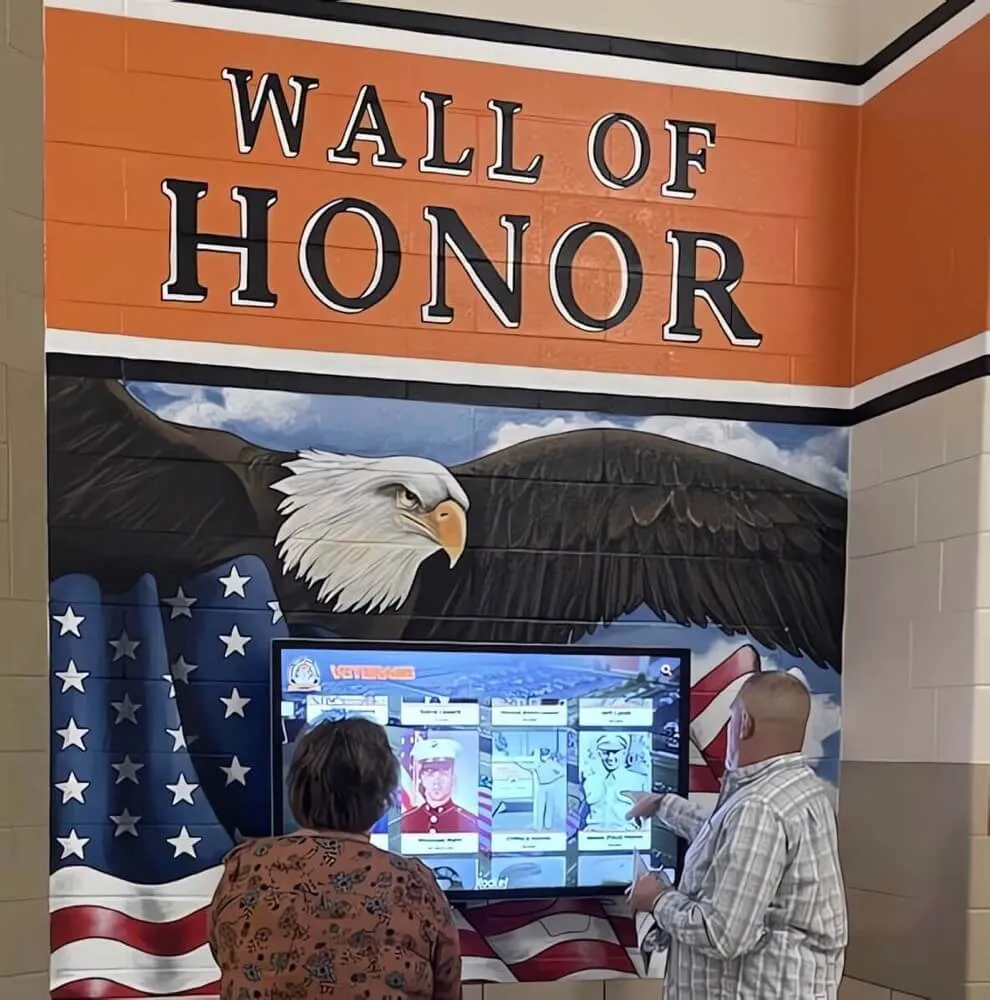
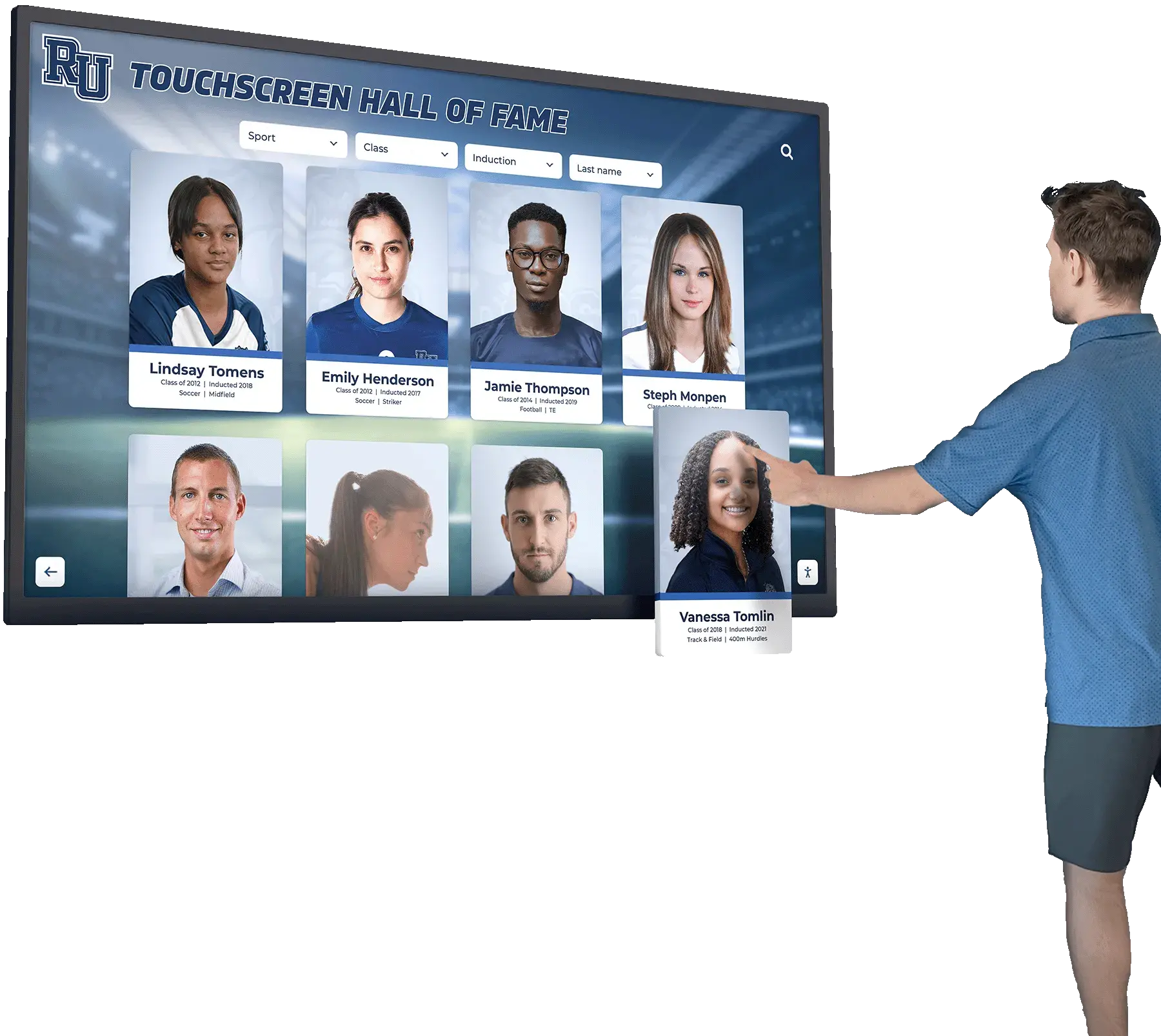
Recognition displays that invite visitors to explore decades of game footage depend on conversions that were executed correctly — each clip in the display passed through a source inspection, conversion, and quality assurance sequence before it appeared on screen
Frequently Asked Questions
What frame rate should athletic archive game footage be converted to for modern display?
For North American school athletic archives where source footage is interlaced NTSC at 29.97 fps, the recommended delivery frame rate is 29.97 fps progressive. This preserves the original motion timing of the game footage without adding or removing frames. Converting to 23.976 fps introduces frame-rate reduction artifacts; converting to 59.94 fps doubles the frame count and may introduce frame interpolation artifacts if the conversion software blends frames rather than duplicating them. When in doubt, match the delivery frame rate to the source frame rate and change only the interlace structure from interlaced to progressive.
Does deinterlacing change the speed of athletes in the footage?
No. Deinterlacing from interlaced to progressive at the same frame rate (29.97i to 29.97p) does not change the playback speed, timing, or duration of the footage. It changes how each frame is constructed — from two interleaved fields to a single complete frame — but the number of frames per second remains the same and athletic motion appears at its original speed.
What is the difference between deinterlacing and frame rate conversion?
Deinterlacing is the process of converting interlaced video (where each frame contains two fields captured at slightly different moments in time) into progressive video (where each frame is a complete image). Frame rate conversion is the process of changing the number of frames per second of a video file. For most legacy athletic archive footage, deinterlacing is required; true frame rate conversion (changing from 29.97 fps to a different rate) may or may not be required depending on the delivery platform. The two processes are often applied together but should be understood and controlled separately.
Can HandBrake handle film-transfer footage with 3:2 pulldown?
HandBrake’s deinterlacing filter (YADIF) will deinterlace pulldown footage, but it will not remove the pulldown cadence — it will produce 29.97 fps progressive output from 29.97 fps interlaced input even if the source was originally 24-fps film. For correct inverse telecine on film transfers, FFmpeg with fieldmatch and decimate filters is required. For school archives where film-origin content is present, identify it during the MediaInfo inspection step (look for a 23.976 fps frame rate or irregular frame timestamps) and route it through the FFmpeg IVTC path rather than HandBrake.
How large are converted game footage files?
At H.264 CRF 18 (high quality access master), a 60-minute game video at 1920×1080 progressive typically produces a file between 4 and 10 GB depending on motion complexity. Standard-definition NTSC source footage (720×480) at the same quality level produces files between 1 and 3 GB per hour. For archival master storage, ProRes 422 HQ at 1080p produces approximately 35–50 GB per hour. Storage planning for a conversion project should account for the working copy, the converted output in the workspace, and the final access master in archival storage — three copies during the active conversion period.
Does our hall of fame platform accept any video format?
Most digital hall of fame platforms designed for school athletic recognition accept H.264 encoded MP4 files at 1080p progressive. Some accept H.265 (HEVC) for higher efficiency at the same quality level. Platform-specific delivery specifications should be confirmed before batch conversion begins — converting an entire archive to ProRes 422 HQ only to discover the platform requires H.264 MP4 doubles the work. Request the platform’s media specification document and use it as the final authority for delivery format decisions.
Should we keep the original VHS digitization files after conversion?
Yes. The original digitization files — the direct digital capture from the VHS, Hi8, or MiniDV playback — are the archive masters. They should be retained in archival storage even after conversion is complete. Converted access masters are derivatives of the digitization, not replacements for it. If a future conversion technology produces better results than current tools, the original digitization is the source that enables re-conversion. Deleting the digitization files to save storage space after conversion eliminates the ability to re-derive from the original capture if conversion quality standards improve.
Historic game footage is the most immediate and vivid connection a school’s current students have to the athletes who came before them. When a basketball team’s championship run from thirty years ago plays on a lobby kiosk without judder, without ghosting, and at the original speed the players actually moved, that footage delivers its recognition purpose — honoring the past in a way that the present can experience. The athletic archive frame rate conversion workflow is what makes that possible: a disciplined source-to-delivery sequence that treats the original recording with the same care the archive applies to every other preservation decision.
For schools ready to display their converted game footage — alongside photographs, record boards, and athlete profiles — in an interactive recognition environment that students, alumni, and visitors can explore, Rocket Alumni Solutions builds the platforms where that content reaches its audience.
Ready to Bring Your Historic Game Footage to Life on a Recognition Display?
Once your game footage is correctly converted and preserved, Rocket Alumni Solutions helps schools surface that content in interactive touchscreen recognition displays, digital halls of fame, and lobby kiosks where students, alumni, and visitors can explore decades of athletic history. From championship game highlights to oral history recordings, our platform is built to present the full depth of your athletic archive in a display environment worthy of your program's history. Request a demo to see how your converted archive content can power a recognition experience your community will return to again and again.
Request a Demo