Athletic Archive OCR Quality Checklist for Searchable School Collections
- Home /
- Touch Archive Blog /
- Athletic Archive OCR Quality Checklist for Searchable School Collections
The Easiest Touchscreen Solution




Live Example: Rocket Alumni Solutions Touchscreen Display
Interact with a live example (16:9 scaled 1920x1080 display). All content is automatically responsive to all screen sizes and orientations.
Athletic archive OCR quality checklist — a six-phase, repeatable quality-assurance process — is the practical tool that separates a digital archive that can actually be searched from one that is merely stored. Optical character recognition (OCR) converts scanned images of text into machine-readable characters, making a 1984 football program, a 1997 record book, or a newspaper clipping from a championship season discoverable by anyone who types a name, a year, or a sport into a search box. When OCR quality is low, athletes go unfound, records cannot be surfaced for hall-of-fame nominations, and decades of history stay buried in files that no one can locate.
This checklist is designed for school administrators, athletic directors, booster leaders, archivists, and anyone responsible for making a school’s scanned athletic history searchable. It covers every phase from document preparation through output validation, with tables for quick reference and a FAQ section addressing the questions that arise most often during school archive OCR projects.
Scanned documents without accurate OCR are, from a search perspective, photographs of text. Every name, every record, every award mentioned in those documents is invisible to any search engine, recognition platform, or alumni portal until OCR converts the image into readable characters. For athletic archives — where the whole point is to surface the right name for a hall-of-fame nomination, a recognition display, or a donor acknowledgment — searchability is not an optional feature. It is the difference between an archive that works and one that merely takes up storage.

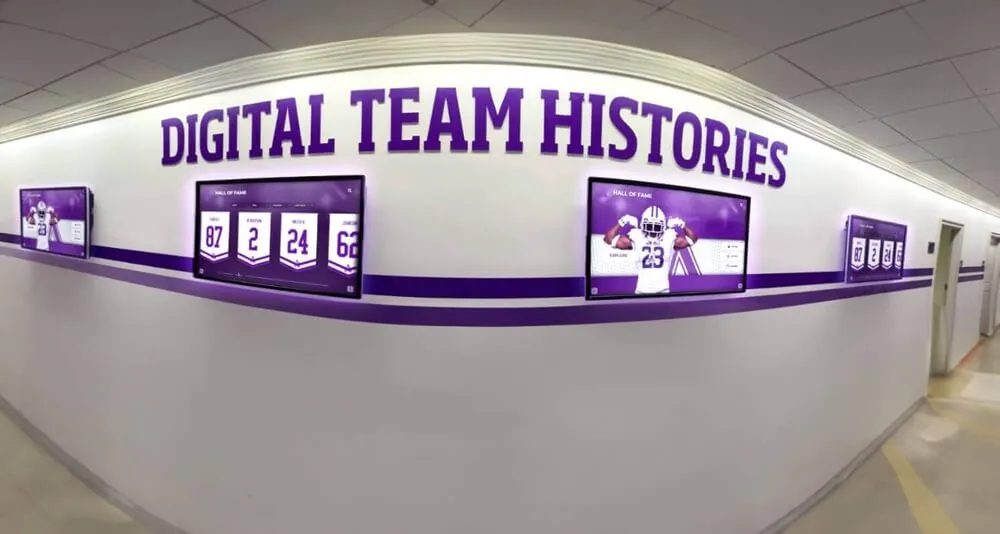
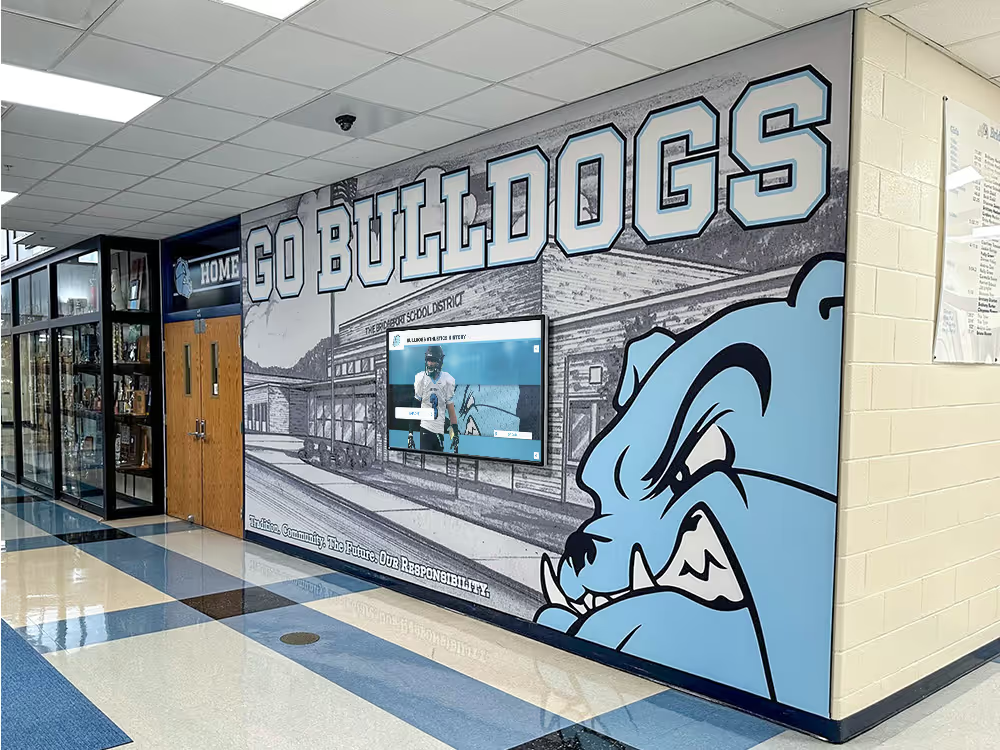
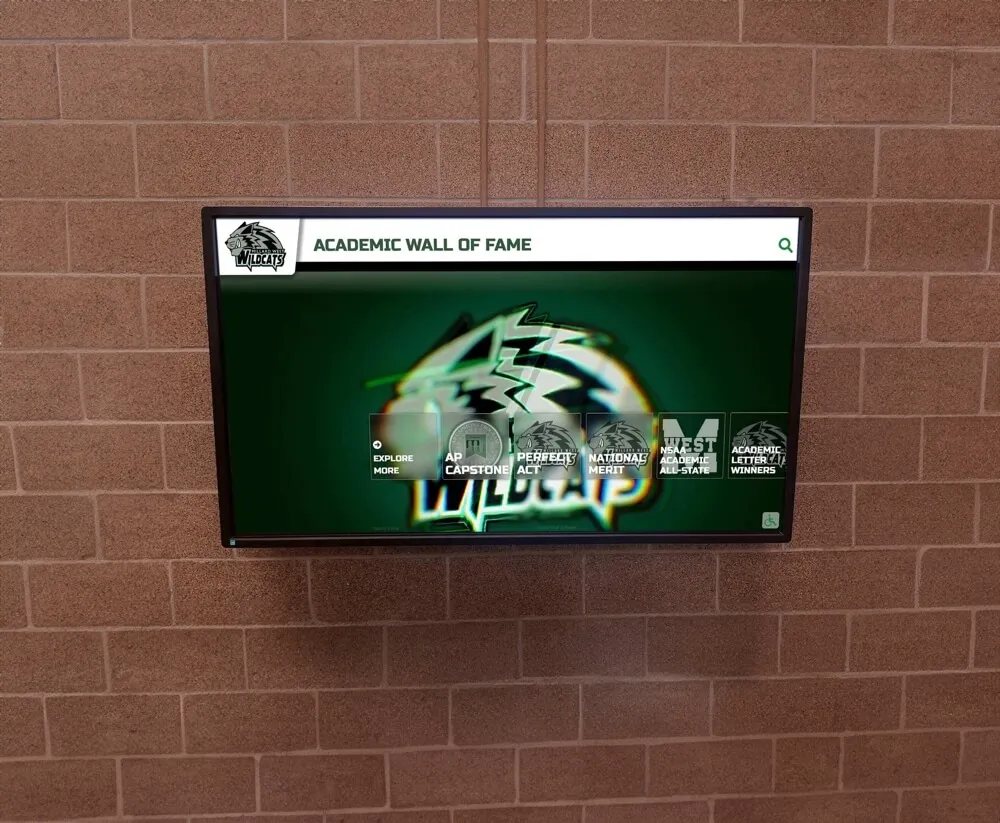
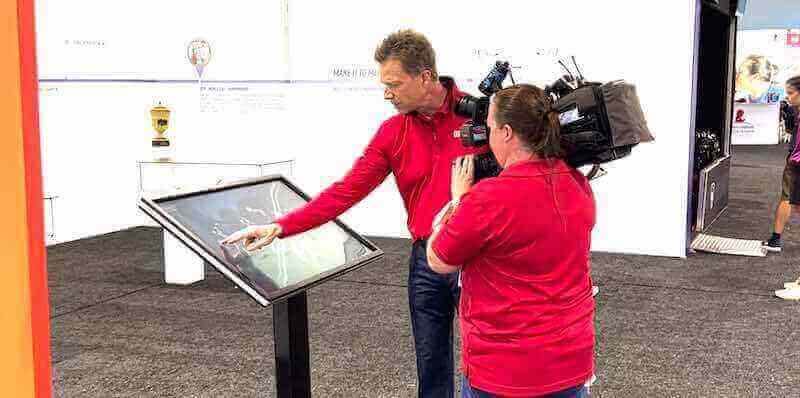
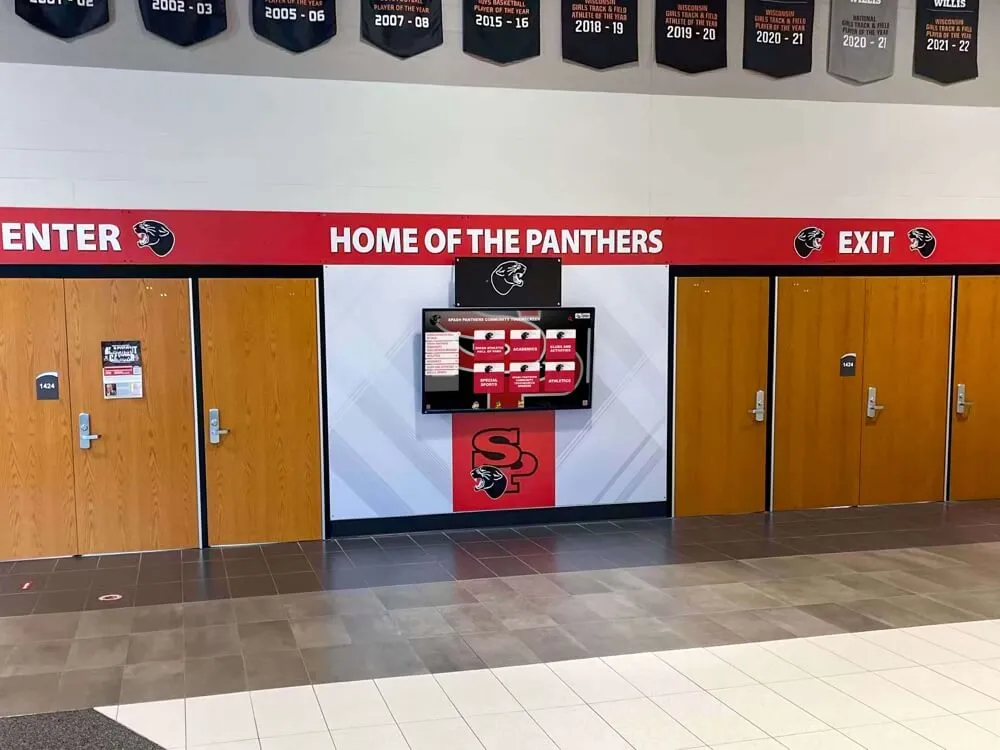
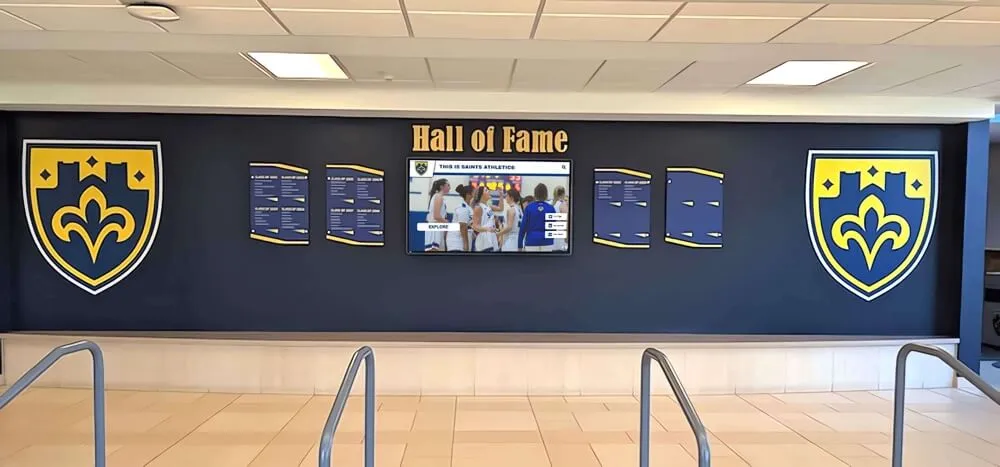
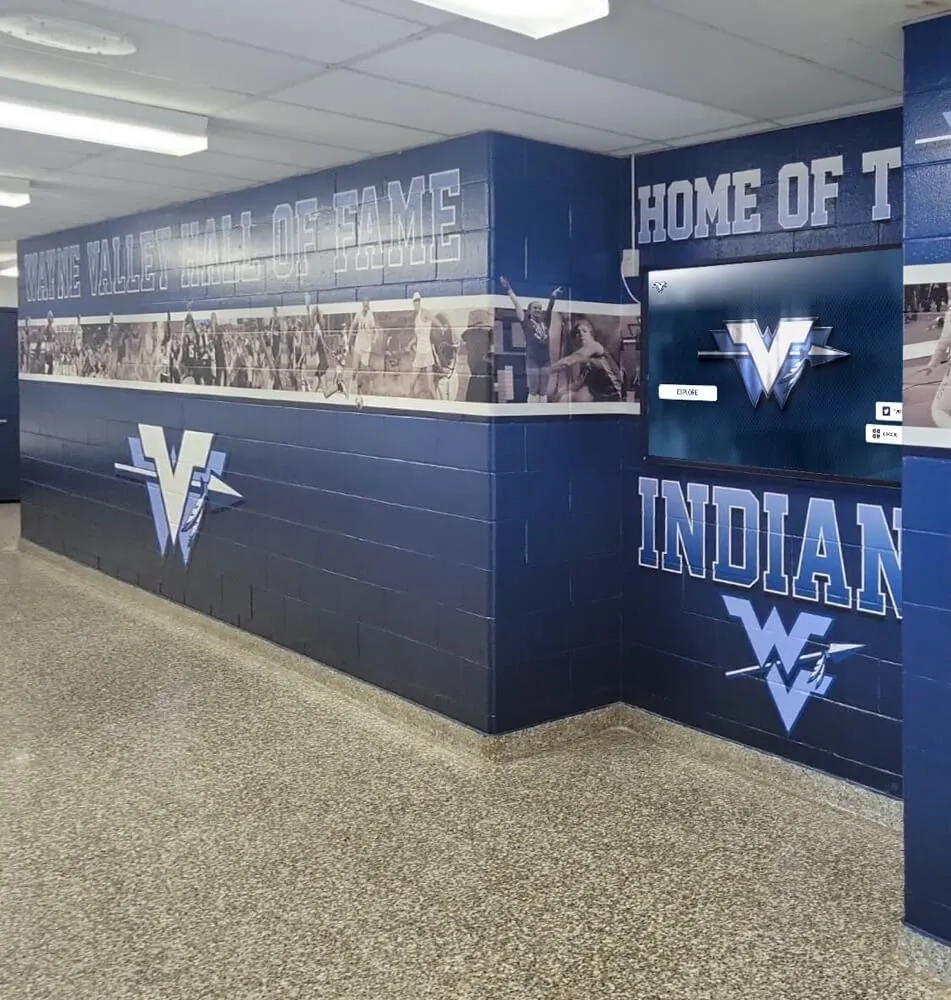
Digital athletic record displays are only as useful as the searchability behind them — OCR quality determines whether a name from 1991 can be found in seconds or stays buried in an unsearchable image file
What Makes OCR Quality Matter More for Athletic Archives
General document digitization and athletic archive digitization share the same OCR principles, but athletic archives present specific challenges that require deliberate attention:
- Mixed typography: programs, yearbooks, and record books combine headline fonts, body text, hand-lettered captions, and tabular statistics — each requiring different OCR settings to handle accurately
- Aged and degraded originals: newsprint clippings yellow and fox; mimeographed rosters fade; thermal-printed schedules develop ghost text — all of which reduce OCR confidence if not corrected at scan time
- Proper names and uncommon spellings: athlete names, coach surnames, and school names do not appear in standard spell-check dictionaries — OCR errors in names are silent failures that make people unsearchable
- Numerical records: times, distances, scores, and record dates must be character-perfect, because a 4.7 read as 47 or a 1978 read as 1978 (correct) vs. 1973 (incorrect) changes the meaning entirely
- Tabular data: record books, honor rolls, and statistics tables require zone-based OCR or table-aware processing to preserve row-column relationships
The checklist below addresses each phase of the OCR workflow, from the moment a document arrives for scanning through the moment a validated, searchable file is added to the archive.
The Athletic Archive OCR Quality Checklist
Phase 1: Document Preparation
Document preparation before scanning is the highest-leverage phase in the entire OCR workflow. Problems introduced here — dust, folds, misalignment, damaged pages — cannot be fully corrected by any OCR engine after the scan is made.
1.1 Physical inspection and triage
- Inspect each item for tears, folds, and loose pages before placing on the scanner
- Gently flatten folded or rolled documents using light weight (a clean book placed on top for 30 minutes) — do not force creased pages flat on the scanner glass
- Remove staples, paper clips, and binding elements that prevent pages from lying flat
- Flag severely degraded items (mold, brittleness, heavy water damage) for conservator review before scanning — do not scan items that may be further damaged by handling
- Dust each item with a soft anti-static brush; remove surface debris that creates speckles in the scan image
- Confirm the document is not nitrate or acetate film disguised as a document — these require specialist handling
1.2 Batch organization
- Group items by document type before scanning (programs together, yearbooks together, clippings together) — each type will need slightly different scan settings
- Create a scan log entry for each item before it is placed on the scanner: item description, estimated date range, condition notes, intended output file name
- Number items within a batch so the scan log entry matches the output file in sequence
Phase 2: Scan Settings and Capture Quality
OCR accuracy is ceiling-limited by scan resolution and image quality. A blurry, low-resolution, or skewed scan will produce poor OCR regardless of how sophisticated the OCR engine is.
2.1 Resolution settings by document type
| Document Type | Minimum Scan Resolution | Recommended Resolution | Notes |
|---|---|---|---|
| Printed programs (1980s–present) | 300 dpi | 400 dpi | Standard commercial printing; 300 dpi sufficient for clean originals |
| Newsprint clippings | 400 dpi | 600 dpi | Newsprint halftone screen requires higher resolution to resolve text |
| Mimeograph and spirit duplicator | 400 dpi | 600 dpi | Low-contrast originals benefit from higher resolution |
| Typed rosters and records (pre-1980) | 300 dpi | 400 dpi | Clean typed text; 300 dpi acceptable for well-preserved originals |
| Handwritten records | 400 dpi | 600 dpi | OCR on handwriting is limited; higher resolution helps whatever OCR can interpret |
| Yearbook pages (coated stock) | 300 dpi | 400 dpi | Coated stock reproduces cleanly; 300 dpi usually sufficient |
| Thermal-printed schedules | 400 dpi | 600 dpi | Thermal text fades; higher resolution captures marginal text better |
| Microfilm or microfiche | 400 dpi | 600 dpi | Quality depends heavily on the microfilm reader/scanner used |
2.2 Image mode and color settings
- Scan in grayscale (8-bit) for text-only documents — grayscale typically produces better OCR than black-and-white bitonal for documents with marginal text or uneven backgrounds
- Scan in RGB color mode for documents with color elements that distinguish meaning (color-coded statistics, highlighted text, colored team designations)
- Do not apply automatic sharpening or contrast enhancement during capture — these settings can introduce artifacts that reduce OCR accuracy; apply corrections after scanning if needed
- Set scanner exposure to avoid blown-out whites (which lose text at edges) or blocked-up blacks (which merge characters)
2.3 Alignment and placement
- Align documents squarely on the scanner glass — skew of more than 3–5 degrees measurably reduces OCR accuracy
- Use the scanner’s alignment guides rather than estimating placement by eye
- For bound volumes (yearbooks, record books), use a book scanner or overhead copy stand to capture pages without forcing the spine flat; spine distortion that curves text lines reduces OCR accuracy significantly
- Capture a small test scan of the first page and inspect the resulting image file before scanning the rest of the batch — confirm resolution, alignment, and exposure are correct before committing the full run
Phase 3: Image Quality Verification Before OCR
Before sending scan files to an OCR engine, verify that the images themselves meet the minimum quality threshold for accurate character recognition.
3.1 Image quality inspection checklist
- Open each scan file at 100% zoom and confirm that text characters are sharp and distinguishable — individual letters in body text should be clearly separated, not touching or merging
- Check for scanner glass dust artifacts (small dark specks not present in the original) — these cause false character detections; clean the scanner glass between batches
- Verify that page edges are fully captured — text truncated at the margin causes missed words at line ends
- Confirm that no pages are inverted (upside down) or rotated 90 degrees — most OCR engines handle minor skew automatically but not large rotation errors
- Flag pages where ink or toner has bled, creating halos around characters, for manual review after OCR — these areas will have lower confidence scores
3.2 Image preprocessing (apply only when needed)
| Preprocessing Step | When to Apply | Caution |
|---|---|---|
| Deskew (straighten) | Scan shows text lines at an angle | Most OCR software handles this automatically; only apply manually if automated deskew fails |
| Despeckle | Scan shows small random dots not in original | Use minimal settings; aggressive despeckle removes punctuation and diacritics |
| Binarization (convert to black-and-white) | OCR engine requires bitonal input | Only if engine requires it; grayscale input usually produces better results |
| Contrast enhancement | Very low-contrast originals (faded mimeographs, thermal prints) | Apply to a copy; never modify the archival master scan |
| Background removal | Colored or heavily textured paper backgrounds | Moderate settings; aggressive removal can damage character edges |
Always apply preprocessing to a copy of the scan file, never to the archival master TIFF.
Phase 4: OCR Processing
OCR processing settings directly determine accuracy. Mismatched settings — wrong language, wrong document type, missing zone definitions for tables — produce errors that accumulate silently across a collection.
4.1 OCR engine configuration
- Set the language to English (or the primary language of the document) — this enables the engine’s language model, which corrects ambiguous character interpretations based on probable word patterns
- Select the correct document layout type: single-column (typed letter), multi-column (newspaper, program), or table-dominant (statistics page, roster) — each layout type tells the OCR engine how to segment the page before reading it
- Enable dictionary-based spell correction only if you have verified that your OCR software’s correction dictionary does not aggressively “correct” proper names — name correction errors are among the most common and least visible OCR quality failures
- Disable auto-rotation if documents have already been properly aligned — auto-rotation can sometimes introduce small angle errors
4.2 Zone-based OCR for tables and statistical records
Standard page-layout OCR reads documents in column order and does not preserve row-column relationships in tables. For record books, statistics pages, and honor rolls:
- Use zone-based OCR to define table regions separately from body text regions before running OCR
- Assign each column header as a separate zone or label it manually after OCR
- Verify that row associations are preserved by checking that a name in column 1 still corresponds correctly to the record in column 3 after OCR processing
- For complex multi-page statistical tables, consider a structured data extraction approach (manual transcription into a spreadsheet with OCR as a reference draft) rather than relying on automated table OCR alone
4.3 Confidence thresholds
Most OCR engines assign a confidence score (0–100) to each recognized word. Using these scores systematically identifies where manual review is needed.
| Confidence Score | Meaning | Action Required |
|---|---|---|
| 95–100 | High confidence; character recognition nearly certain | No action needed for standard text |
| 80–94 | Moderate confidence; most words correct | Spot-check proper names and numbers |
| 60–79 | Low confidence; significant errors likely | Manual review of all flagged words |
| Below 60 | Very low confidence; unreadable or severely degraded original | Manual transcription required; note in metadata |
- Review all words flagged below your confidence threshold before finalizing the OCR output
- Pay particular attention to confidence scores on proper names — the OCR engine’s language model has no basis for correcting names, so low-confidence name recognition requires manual verification
- Log pages where more than 20% of words fall below confidence threshold — these pages may require re-scanning at higher resolution or with preprocessing applied
Phase 5: OCR Output Quality Verification
Once OCR processing is complete, verify the output files before adding them to the searchable archive.
5.1 Output file format verification
- Confirm that output files are in the correct format for your intended use: searchable PDF (PDF with embedded text layer) for document viewing, plain text (TXT) for database ingestion, or both
- Verify that searchable PDFs open correctly and that the text layer is selectable — in Adobe Acrobat or any PDF viewer, attempt to select and copy a line of text from the document; if the selection follows the printed text correctly, the text layer is properly aligned
- Confirm that the original scan image is preserved in the PDF at its original resolution — some OCR software compresses or downsizes the image during PDF output; verify your output settings prevent this
- If outputting plain text for database ingestion, open the TXT file in a text editor and scan the first and last 20 lines for formatting artifacts (stray characters, garbled line breaks, encoded non-ASCII characters) that would cause problems in a database import
5.2 Accuracy spot-check protocol
No school archive project can manually verify every word in every scanned document. A structured spot-check protocol identifies systematic errors without requiring exhaustive review.
For each batch of 50 documents, apply the following spot-check:
- Select 5 documents at random from the batch
- For each document, locate and verify: the document title or header, at least 3 proper names (athlete names, coach names, school names), and at least 3 numerical records (dates, scores, statistics)
- Compare the OCR output text against the original scan image for each selected element
- If more than 2 errors are found across the 5-document sample, review the entire batch
- Record the error rate in the scan log — this data helps identify systematic issues (a particular document type, a particular scan operator’s settings) that can be corrected before processing more batches
5.3 Name accuracy verification
Names are the most search-critical content in an athletic archive. A name that OCR renders as “Smth” instead of “Smith,” or “Taylro” instead of “Taylor,” is permanently unsearchable unless corrected.
- For every hall-of-fame inductee, award recipient, or record holder whose name appears in scanned documents, verify the OCR output of their name against a known-correct source (existing database, yearbook composite, award plaque)
- Create and maintain a custom word list of common proper names, school names, and mascot names in your archive — most OCR engines allow custom dictionaries that improve accuracy on domain-specific vocabulary
- Check for common OCR name substitutions: “rn” being read as “m” (turning “Harmon” into “Hammon”), “li” being read as “h” (turning “Alison” into “Ahson”), and “0” (zero) vs. “O” (letter) confusion in names containing both
Phase 6: Searchability Validation
After OCR output is added to a search index or recognition platform, validate that the content is actually discoverable — not just present.
6.1 Search function testing
- Perform test searches for 10 known names from your scanned documents — verify that documents containing each name appear in results
- Search for partial names (first name only, last name only) and verify that these return correct results
- Test numerical searches: search for a specific year (e.g., 1987), a specific record (e.g., 4.72), and a specific score — verify that results are accurate
- Test searches for terms likely to have OCR errors: terms with repeated letters, terms with numerals adjacent to letters, terms in all-caps or small-caps typography
- Document any search terms that fail to return expected results — these indicate OCR errors that require correction in the source text layer
6.2 Recognition platform integration check
For archives connected to a touchscreen display, hall-of-fame platform, or searchable alumni portal:
- Verify that newly added searchable documents are indexed within the platform’s expected timeframe (check with your platform provider for typical indexing delays)
- Test a search for an inductee whose name appears only in scanned documents (not entered manually) — if the search succeeds, OCR integration is working correctly
- Confirm that search results display source document context (the sentence or entry where the name appears), not just a link to the PDF — contextual results help users confirm they found the right person
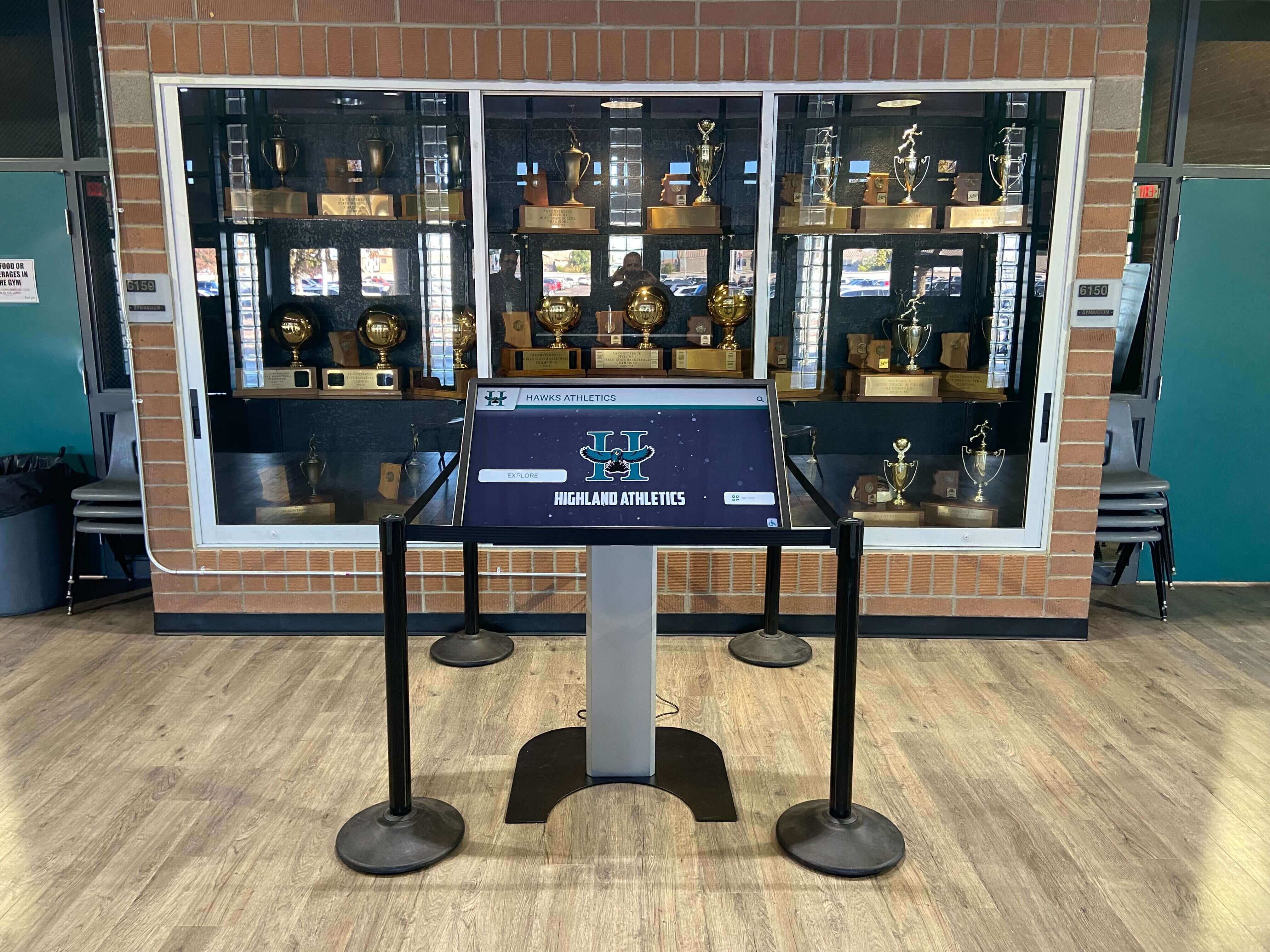
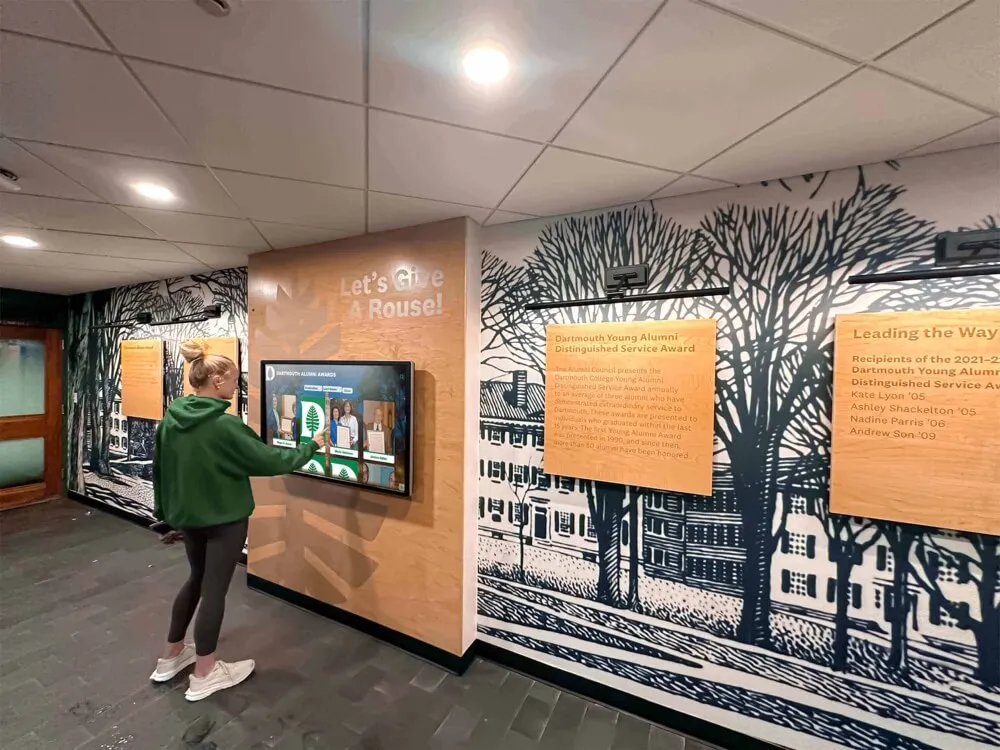
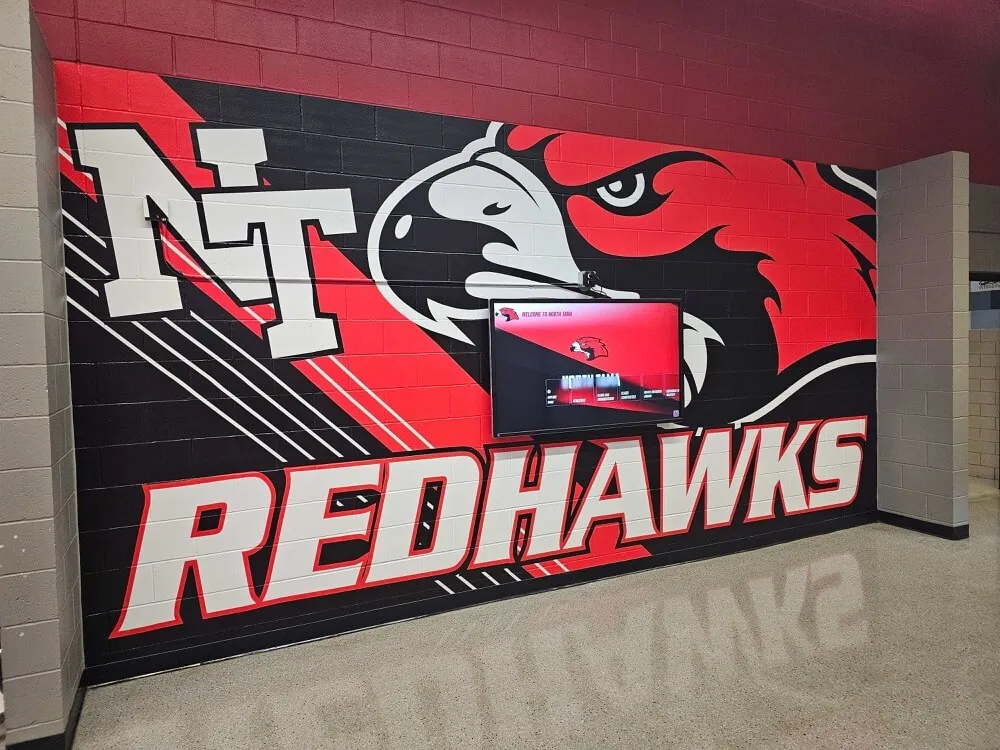
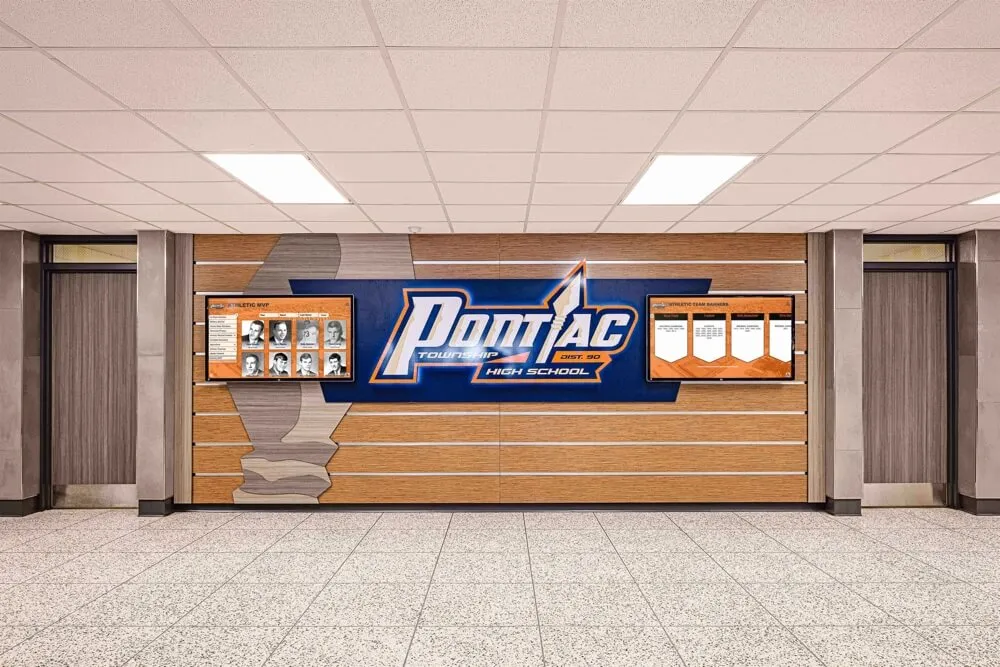
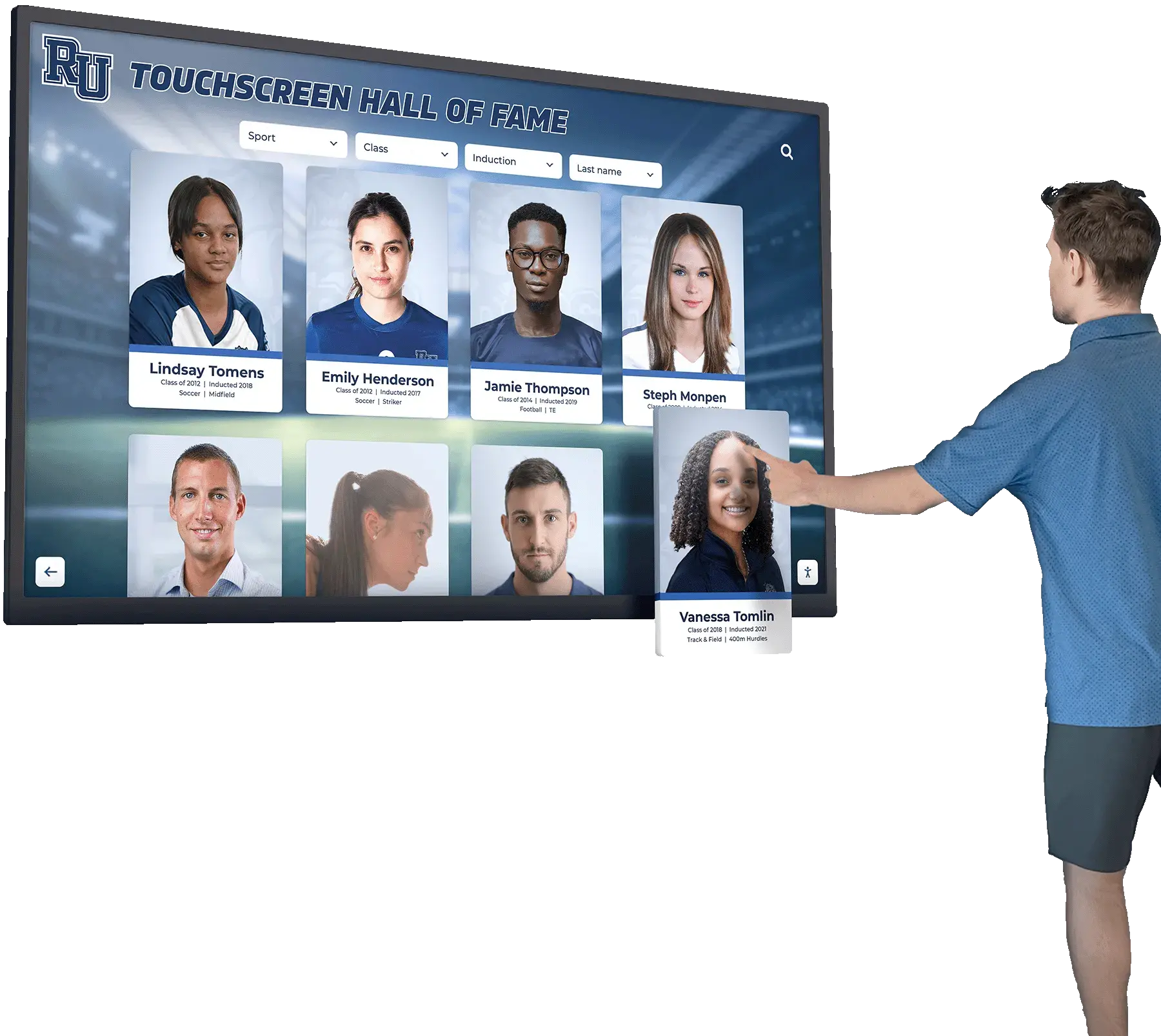
A searchable touchscreen recognition display is only as complete as the OCR quality behind it — names and records in scanned programs and yearbooks must be accurately converted to text before they are discoverable
Document-Type Quick Reference: OCR Considerations
| Document Type | Primary OCR Challenge | Key Checklist Steps |
|---|---|---|
| Game programs (1970s–1990s) | Mixed font sizes; halftone images that bleed into text | Phase 2 resolution; Phase 3 despeckle with care |
| Yearbooks (bound) | Spine distortion curving text lines; mixed layouts per page | Phase 2 book scanner; Phase 4 layout setting per section |
| Newspaper clippings | Halftone dot screen; yellowing; reverse type (white on black) | Phase 2 at 600 dpi; Phase 3 grayscale; manual review for reverse type |
| Typed rosters (pre-1970) | Ribbon fading; overstrikes and corrections; no proportional spacing | Phase 3 conservative correction; Phase 5 name spot-check |
| Mimeograph records | Uneven ink distribution; faded text at page edges | Phase 3 contrast enhancement on copy; Phase 4 low-confidence review |
| Awards programs | Decorative fonts for recipient names | Phase 4 low-confidence threshold; Phase 5 full name verification |
| Record books (statistical) | Tables; multi-column data; header/data alignment | Phase 4 zone-based OCR; Phase 5 row-column verification |
| Handwritten scorebooks | Limited OCR applicability | Manual transcription recommended; scan provides image reference |
Connecting OCR Quality to Recognition Programs
The business case for OCR quality is straightforward: a searchable archive enables recognition programs that a non-searchable archive cannot support.
When a hall-of-fame committee nominates a candidate, staff need to locate every document in the archive where that athlete’s name appears — programs from their playing years, newspaper coverage of their achievements, roster records that confirm their statistics. With accurate OCR across the archive, this search takes seconds. Without it, the search requires manually reviewing every scanned document in the relevant decade.
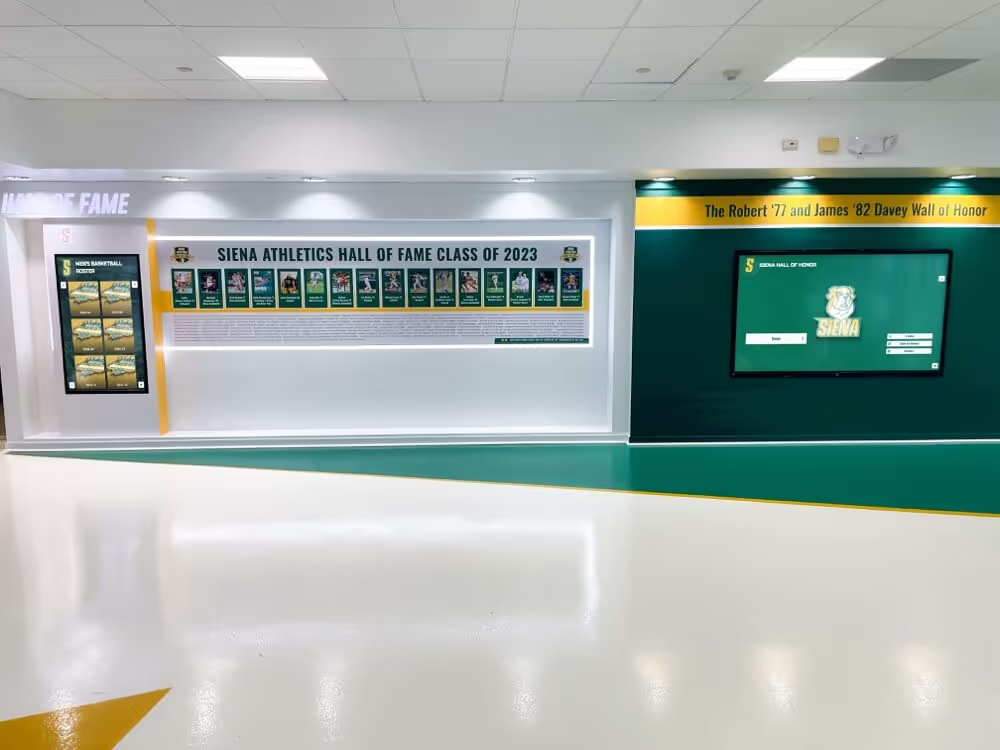
Schools building interactive hall-of-fame displays that draw content from scanned historical documents depend on OCR quality to populate inductee records with documentary evidence. If a 1979 record-setting performance is documented only in a scanned record book, and the OCR for that page is inaccurate, the record cannot be associated with the athlete without manual intervention.
Digital donor recognition programs that acknowledge multi-decade donors often need to surface historical documents — pledge records, event programs listing donors’ names, foundation reports — to verify and display a donor’s full history of giving. Accurate OCR across archived annual reports and program documents makes this possible at scale.
For schools managing athletic record boards through digital recognition platforms, searchable OCR allows historical records from pre-digital seasons — documented in printed record books, not spreadsheets — to be surfaced alongside current digital records without manual re-entry.
Booster organizations and hall-of-fame committees that maintain nomination processes benefit directly from searchable archives: nominators who can search by name, year, and achievement pull relevant documentary evidence in minutes instead of hours. Higher-quality OCR reduces the barrier to thorough nomination research.
Make Your Athletic Archive Searchable and Display-Ready
When your scanned programs, yearbooks, and record books are backed by accurate OCR, every athlete name and achievement in your archive becomes searchable — and every searchable record can power a recognition display that honors your program's history. See how Rocket Alumni Solutions connects verified archive content to interactive touchscreen recognition.
Request a DemoOCR Quality Checklist Summary
For quick reference, here is the complete phase-by-phase checklist condensed to its essential steps:
Phase 1 — Document Preparation
- Inspect and flatten documents; remove binding elements
- Log each item before scanning
- Dust and clean documents and scanner glass
Phase 2 — Scan Settings 4. Set resolution to 400 dpi minimum (600 dpi for newsprint and degraded originals) 5. Scan in grayscale; use color only when color carries meaning 6. Align documents squarely; use a book scanner for bound volumes 7. Capture a test scan before committing the batch
Phase 3 — Image Quality Before OCR 8. Inspect scans at 100% zoom for sharpness and completeness 9. Apply preprocessing (deskew, despeckle) only to copies, never masters 10. Flag visually degraded pages for manual review after OCR
Phase 4 — OCR Processing 11. Set language and layout type correctly for each document type 12. Use zone-based OCR for table-dominant pages 13. Enable confidence scoring and set review thresholds 14. Use a custom word list for proper names in your collection
Phase 5 — Output Verification 15. Verify text layer selectability in searchable PDFs 16. Spot-check 5 documents per batch of 50 for accuracy 17. Verify all high-priority names against known-correct sources 18. Log pages with confidence below threshold for manual correction
Phase 6 — Searchability Validation 19. Test search for 10 known names from scanned documents 20. Test partial-name and numerical searches 21. Verify platform indexing and contextual result display
FAQ
What is OCR confidence score and what threshold should schools use? A confidence score is the OCR engine’s internal estimate of how certain it is about each recognized word, expressed as a percentage. A score of 95 means the engine is highly confident; a score of 55 means it is essentially guessing. For athletic archives, a practical threshold is: words below 80 confidence warrant a spot-check; words below 60 require manual review. For proper names specifically, verify all names below 90 confidence against a known-correct source, since name errors are silent and high-impact.
Can OCR be applied to handwriting in old scorebooks and rosters? Automated OCR on cursive or print handwriting (called ICR, or intelligent character recognition) produces unreliable results on the kinds of handwriting found in school athletic records. For high-value handwritten documents — founding-era rosters, hand-tabulated record books — manual transcription with the scan as a reference is more accurate and more efficient than attempting automated OCR. The scan provides the archival record; the manual transcript provides searchability.
What should we do if newsprint clippings are too yellowed for accurate OCR? Yellowed newsprint reduces OCR accuracy because the contrast between ink and paper is diminished. Two options: first, apply moderate contrast enhancement to a copy of the scan (not the master) and re-run OCR on the enhanced copy; second, manually transcribe the key text content — athlete names, headline text, record mentions — and attach the transcription as a metadata record to the scan file. For collections where newsprint quality is uniformly poor, manual transcription of critical content is often faster than repeatedly trying to improve automated OCR results.
How do we handle text printed in decorative or display fonts (awards programs, program covers)? Decorative and display fonts are the most difficult category for OCR, because the engine’s character models are trained primarily on standard body text fonts. For program covers and awards documents where recipient names appear in decorative typography: always verify these names manually against a known-correct source, regardless of confidence score. Decorative fonts can produce confident-but-wrong results because the engine commits to a wrong character with high certainty. These are exactly the names most likely to appear in hall-of-fame nominations and recognition displays, so manual verification is worth the time.
How often should a completed archive batch be re-indexed if OCR corrections are made? This depends on your search platform. Most platforms re-index documents automatically when the source file is replaced with a corrected version. Some require a manual re-index trigger. Contact your platform provider to confirm the re-indexing workflow before making bulk OCR corrections, so that corrections propagate to search results promptly. For recognition platforms used for active hall-of-fame or donor research, corrections made to high-priority documents should be verified in search results within one business day.
Does scanning resolution affect OCR accuracy differently for older documents than for modern ones? Yes. Modern commercially printed documents (1980s and later) on good-quality paper reproduce cleanly at 300 dpi, and higher resolution provides marginal improvement beyond 400 dpi. Older documents — particularly mimeograph, spirit duplicator, and thermal prints from the 1960s–1970s — have lower original contrast and irregular ink distribution; for these, the jump from 300 to 400 or 600 dpi produces measurable OCR accuracy improvement because the higher resolution captures text details that the lower resolution merges or loses. If you have a mixed-era collection, scan everything at 400 dpi as a baseline rather than trying to match resolution to document age individually.
How does OCR quality affect our ability to use a digital recognition platform? Recognition platforms with searchable athlete databases and interactive hall-of-fame tools rely on accurate text data to surface historical content. Platforms that accept uploaded searchable PDFs use the embedded text layer for indexing — if that text layer has significant OCR errors, the athlete names and records in those documents will not appear in searches. Touchscreen display solutions that draw from archive documents for inductee bios and historical context are only as rich as the accuracy of the OCR behind those documents. Following this checklist ensures that content uploaded to any recognition platform is both present and findable.
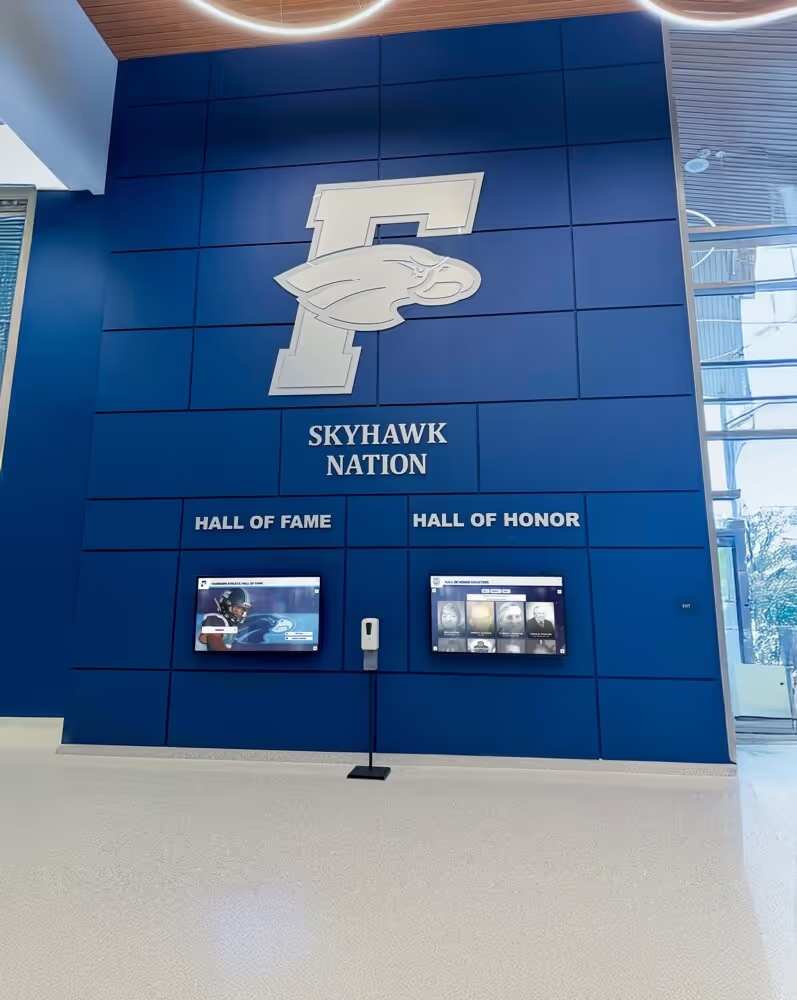
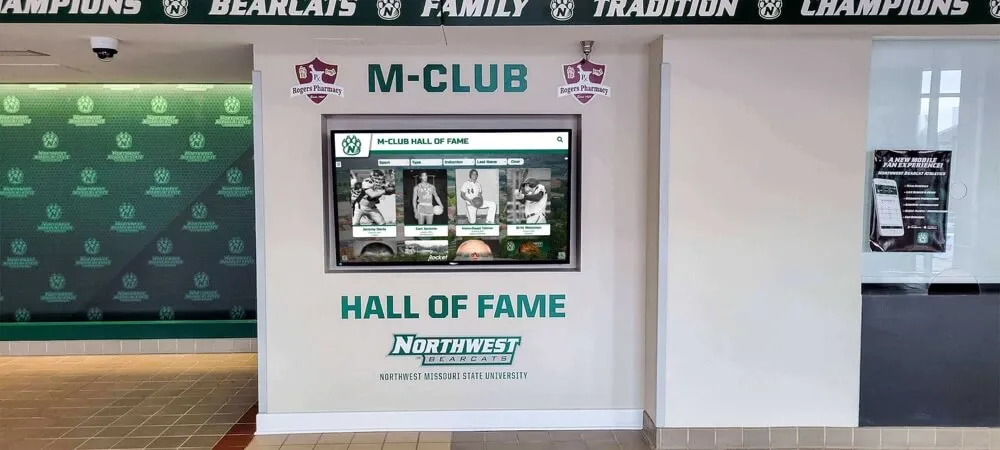
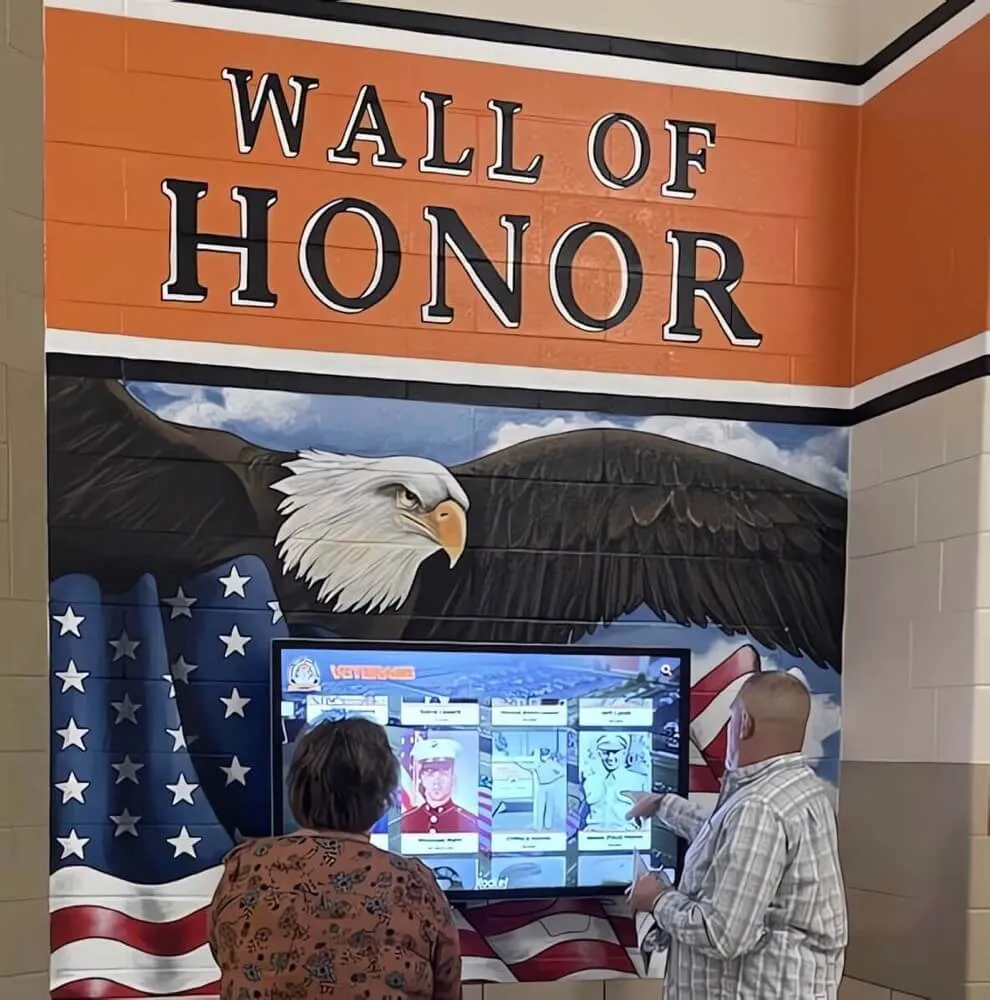
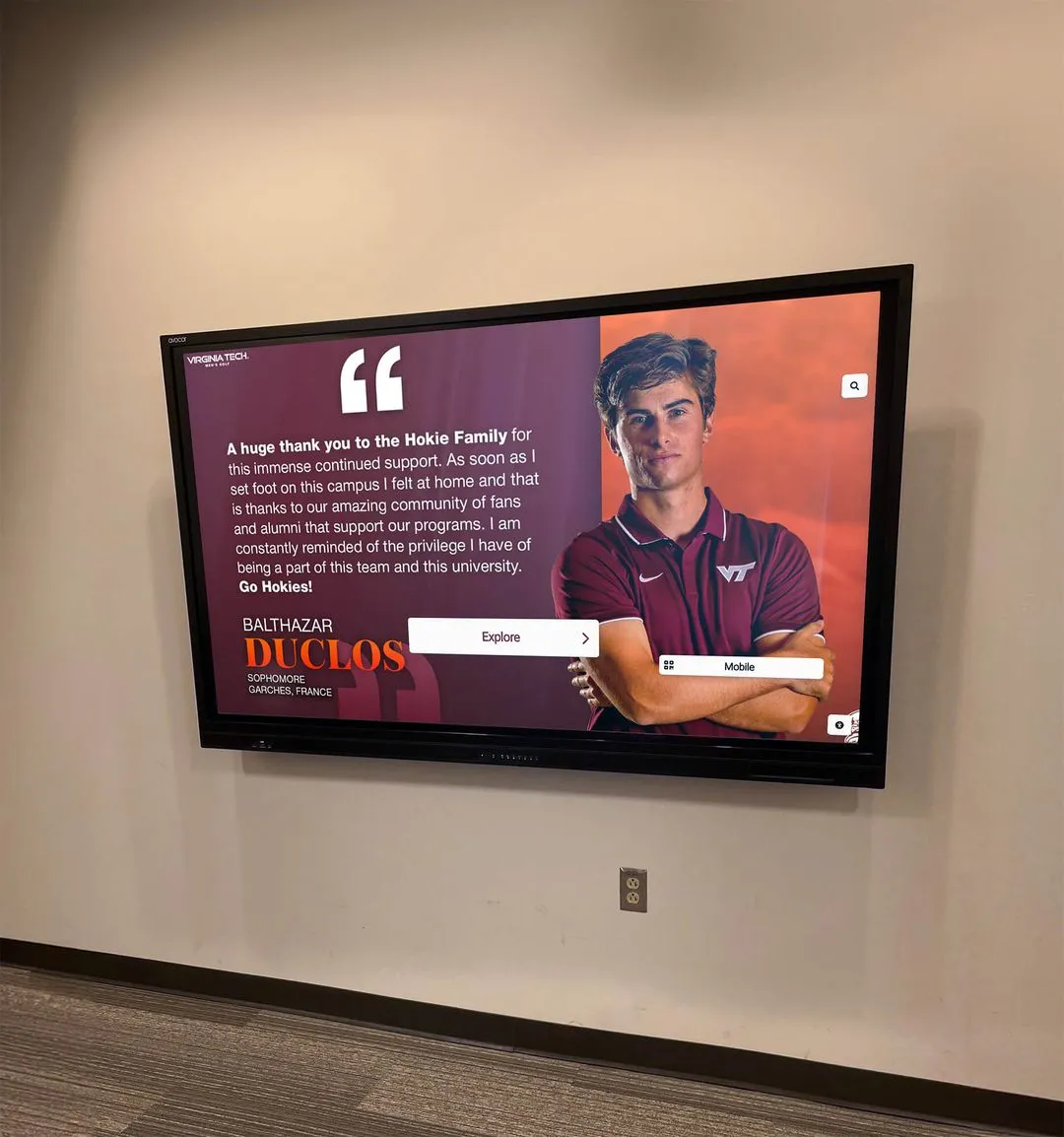
Historical portrait and record collections form the foundation of a recognition archive — accurate OCR across every associated document is what makes each athlete findable by name, year, and achievement
Putting the Checklist Into Practice
The most effective way to implement this checklist is to assign it by phase rather than applying all six phases simultaneously. Start with a pilot batch of 25–50 documents: run through all six phases, identify where errors are occurring, adjust settings, and refine the process before scaling to the full collection.
For schools with large existing archives — boxes of programs, multiple decades of yearbooks, filing cabinets of newspaper clippings — prioritize by searchability value. Documents that contain hall-of-fame inductee names, program record-holders, and long-tenured coach and staff mentions have the highest impact on recognition workflows. Process these first, apply the full checklist rigorously, and build toward lower-priority documents as the process becomes routine.
Archive staff and volunteers new to OCR quality control typically internalize the core checklist steps within two or three batches. The checklist moves from a reference document to a mental framework that shapes every scan decision — resolution, alignment, preprocessing — before the OCR engine ever sees the page.
For programs connecting a searchable archive to an interactive recognition display, the payoff is tangible: when a student, alumnus, or donor searches a name and finds it attributed to three programs, a championship record, and a newspaper article from their playing years, the archive has done exactly what it was designed to do. That search result is the product of every correct decision made during scanning, OCR processing, and validation — which is precisely what this checklist exists to ensure.
Connect Your Searchable Archive to an Interactive Recognition Display
A well-executed OCR process produces an archive that is not just stored but searchable — and a searchable archive is ready to power a touchscreen hall of fame, digital record board, or athletic history display that engages students, alumni, and visitors every day. Request a demo and see how Rocket Alumni Solutions puts your archive to work.
Request a DemoLive Example: Rocket Alumni Solutions Touchscreen Display
Interact with a live example (16:9 scaled 1920x1080 display). All content is automatically responsive to all screen sizes and orientations.