



Organizations managing multiple digital displays face a common challenge: finding digital signage services that provide split-screen layouts, weather widgets, news tickers, social media feeds, and data visualization—all without requiring programming expertise or expensive custom development. Many solutions promise easy content management but deliver complicated interfaces requiring technical knowledge that most administrators simply don’t have.
Modern digital signage platforms now offer comprehensive widget libraries and drag-and-drop interfaces that enable non-technical users to create professional multi-screen displays featuring live weather, scrolling news, social media integration, and custom data feeds. These no-code solutions eliminate development costs while providing the flexibility to design split-screen layouts tailored to specific communication needs.
This guide examines digital signage services designed specifically for users seeking multi-screen management with ready-to-use widgets, exploring platform capabilities, implementation approaches, and practical strategies for organizations managing multiple displays without dedicated technical staff.
The digital signage industry has undergone significant transformation. Early systems required programming knowledge for even basic content changes, creating dependencies on technical staff or vendors. Modern platforms address this limitation through visual editors, pre-built widgets, and template libraries that enable administrators to create sophisticated multi-screen displays through intuitive interfaces.

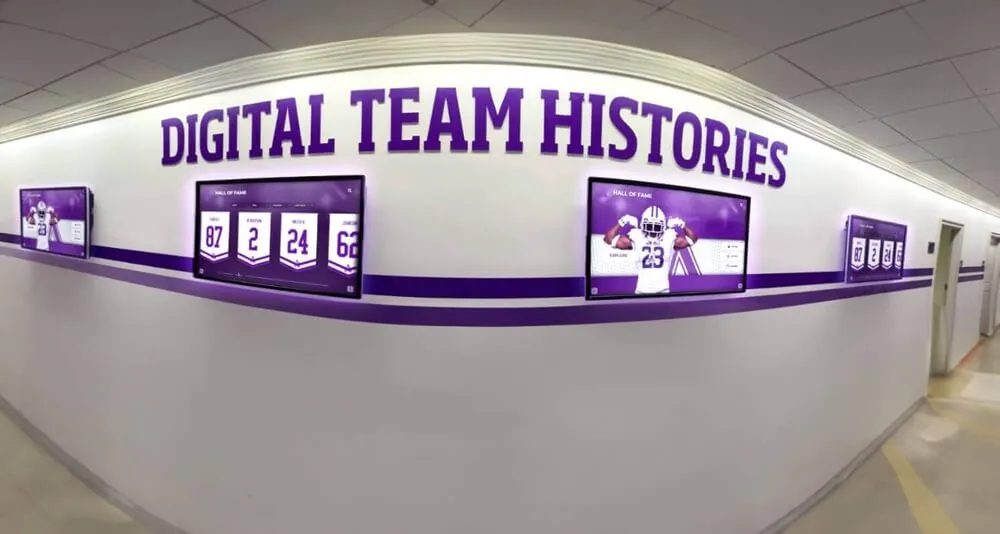
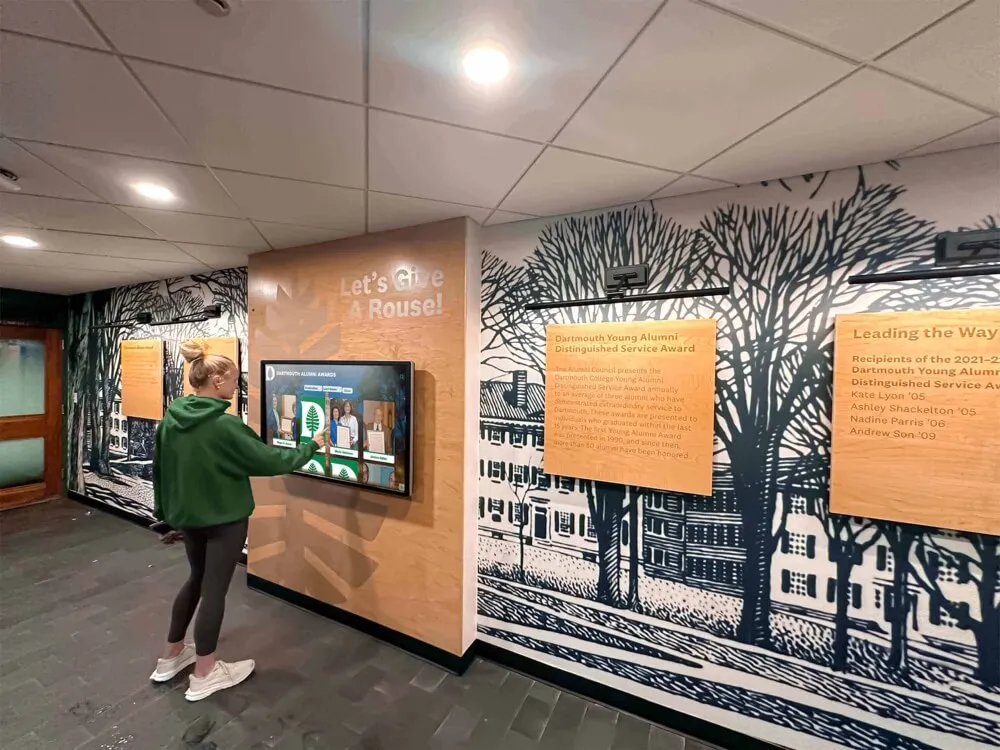
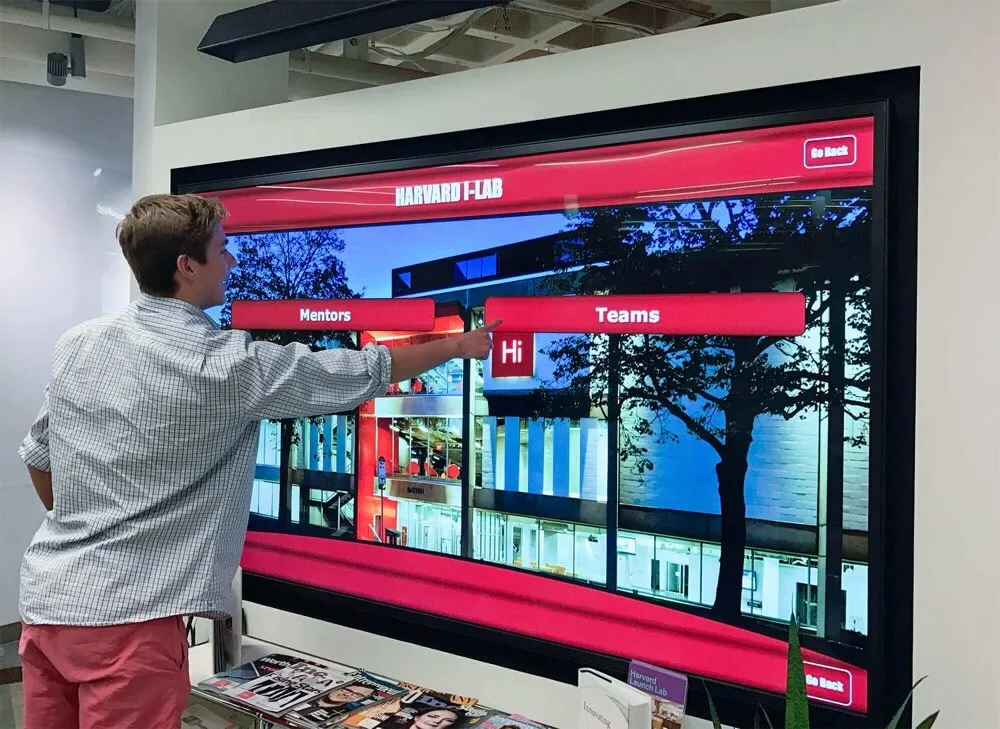
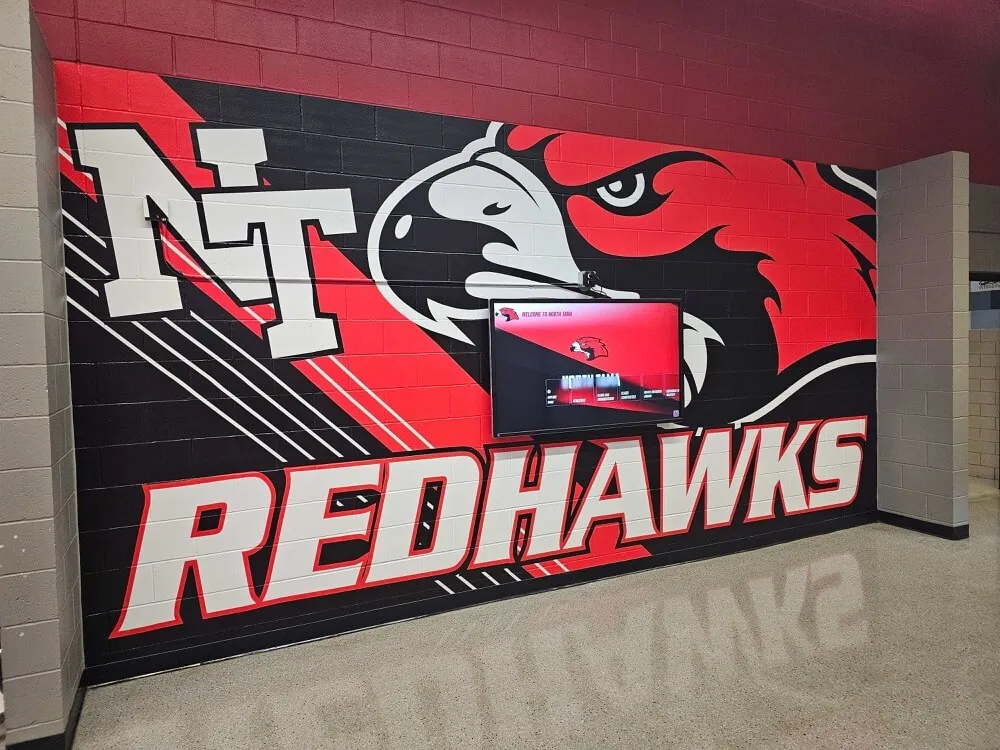
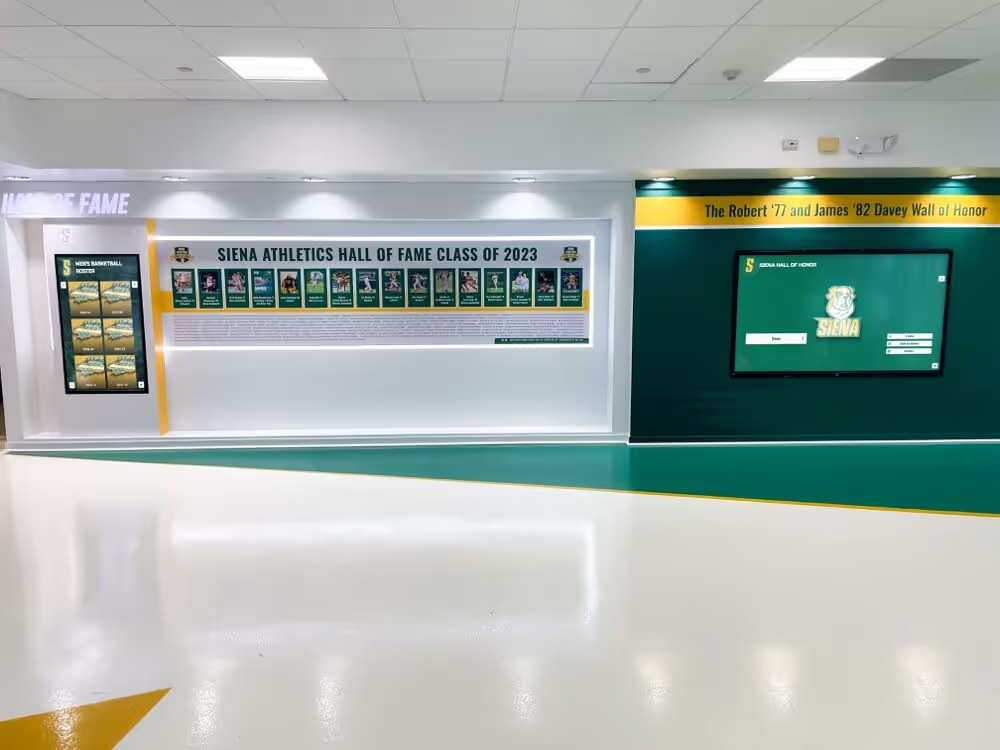
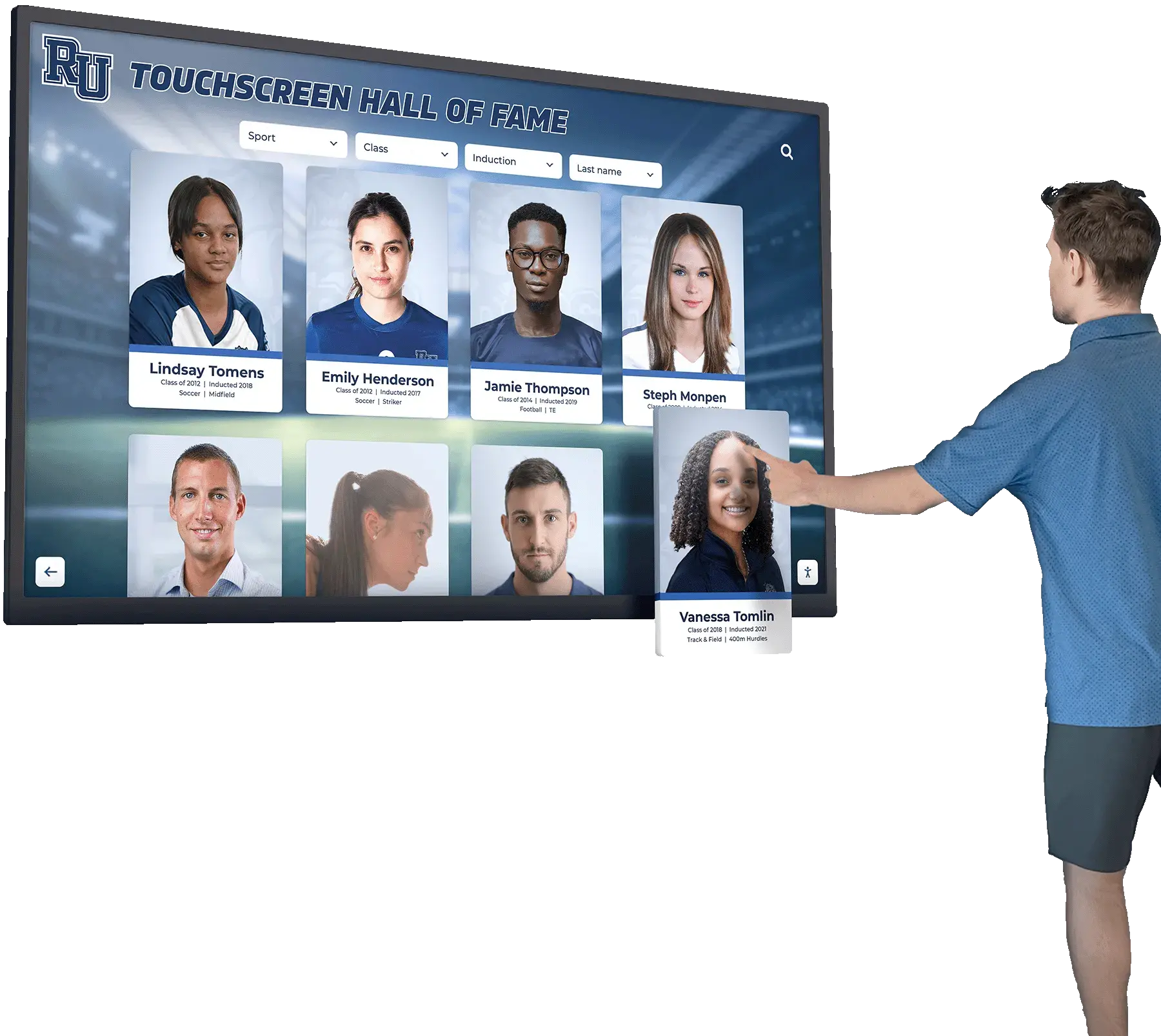
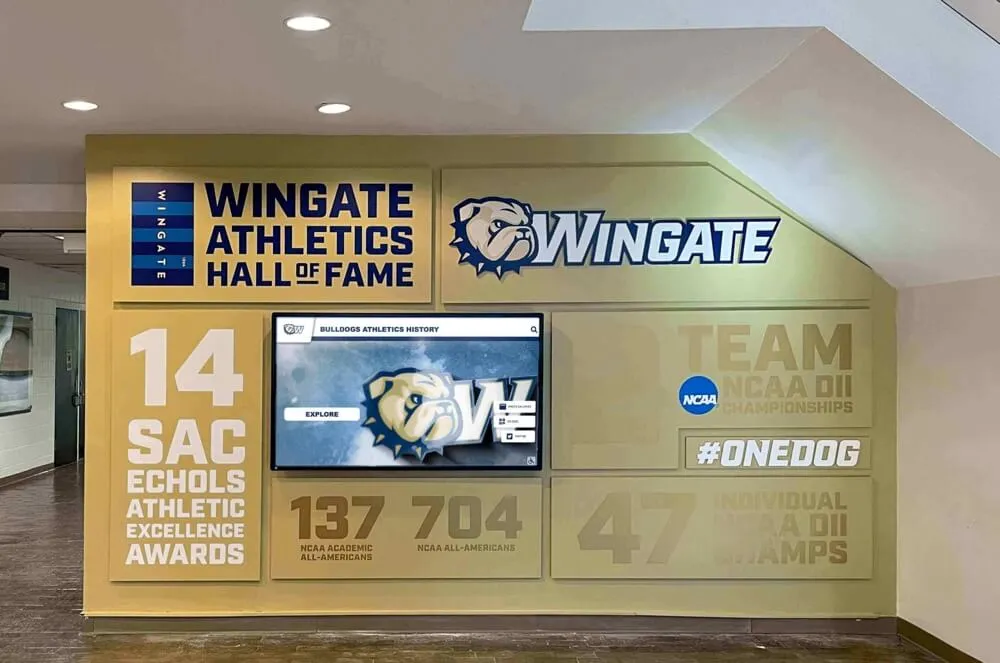
Multi-screen digital signage installations coordinate content across multiple displays to create cohesive visual communication environments
Understanding Multi-Screen Digital Signage Services
Multi-screen digital signage refers to systems managing content across multiple displays from centralized platforms, whether those screens exist in single locations or distributed across multiple sites.
What Multi-Screen Digital Signage Provides
Centralized Content Management
Multi-screen platforms deliver core functionality:
- Single dashboard controlling all displays regardless of location
- Content scheduling and distribution to specific screens or groups
- Real-time updates deployed instantly across networks
- Remote management from any internet-connected device
- Role-based permissions for collaborative content management
- Playlist creation and automated rotation
Multi-Display Coordination
Manage displays individually or collectively:
- Group screens by location, department, or content type
- Push identical content to multiple displays simultaneously
- Customize content for specific screens within networks
- Synchronize content timing across multiple displays
- Create display hierarchies for organizational structures
- Monitor all screens from unified dashboards
The No-Programming Requirement
Organizations without technical staff need genuinely accessible solutions:
What “No Programming” Actually Means
True no-code platforms provide:
- Drag-and-drop content placement without HTML or CSS
- Visual layout editors showing exactly how content appears
- Pre-built templates eliminating design work
- Widget libraries requiring only configuration, not development
- API integrations through simple authentication, not coding
- Point-and-click scheduling and publishing
- Form-based settings instead of configuration files
This accessibility determines whether platforms serve broader teams or remain dependent on technical gatekeepers.
For schools and institutions managing recognition displays alongside informational signage, explore how digital signage integrates with interactive touchscreen systems creating comprehensive communication environments.
Essential Widget Types for Digital Signage
Widgets convert static displays into active information sources, pulling live data from external sources without manual updates.
Weather Widgets
Weather information serves multiple organizational purposes:
Standard Weather Features
Weather widgets typically provide:
- Current conditions and temperatures
- Hourly forecasts for planning
- Multi-day extended forecasts
- Severe weather alerts and warnings
- Location customization for multiple sites
- Temperature unit preferences (Fahrenheit/Celsius)
- Weather icons and visual representations
- Background imagery matching conditions
Implementation Approaches
According to Screenly’s weather widget guide, weather widgets connect to services like Weather.com, OpenWeatherMap, or AccuWeather through API keys, updating automatically at set intervals without manual intervention.
Practical Applications
Organizations use weather displays for:
- Athletic facilities showing conditions affecting outdoor activities
- Schools informing students about recess weather
- Transportation hubs providing travel condition information
- Retail locations suggesting weather-appropriate products
- Corporate lobbies keeping employees informed
- Event venues helping attendees prepare appropriately
Weather widgets rank among the most requested features, as they provide immediate practical value to viewers.
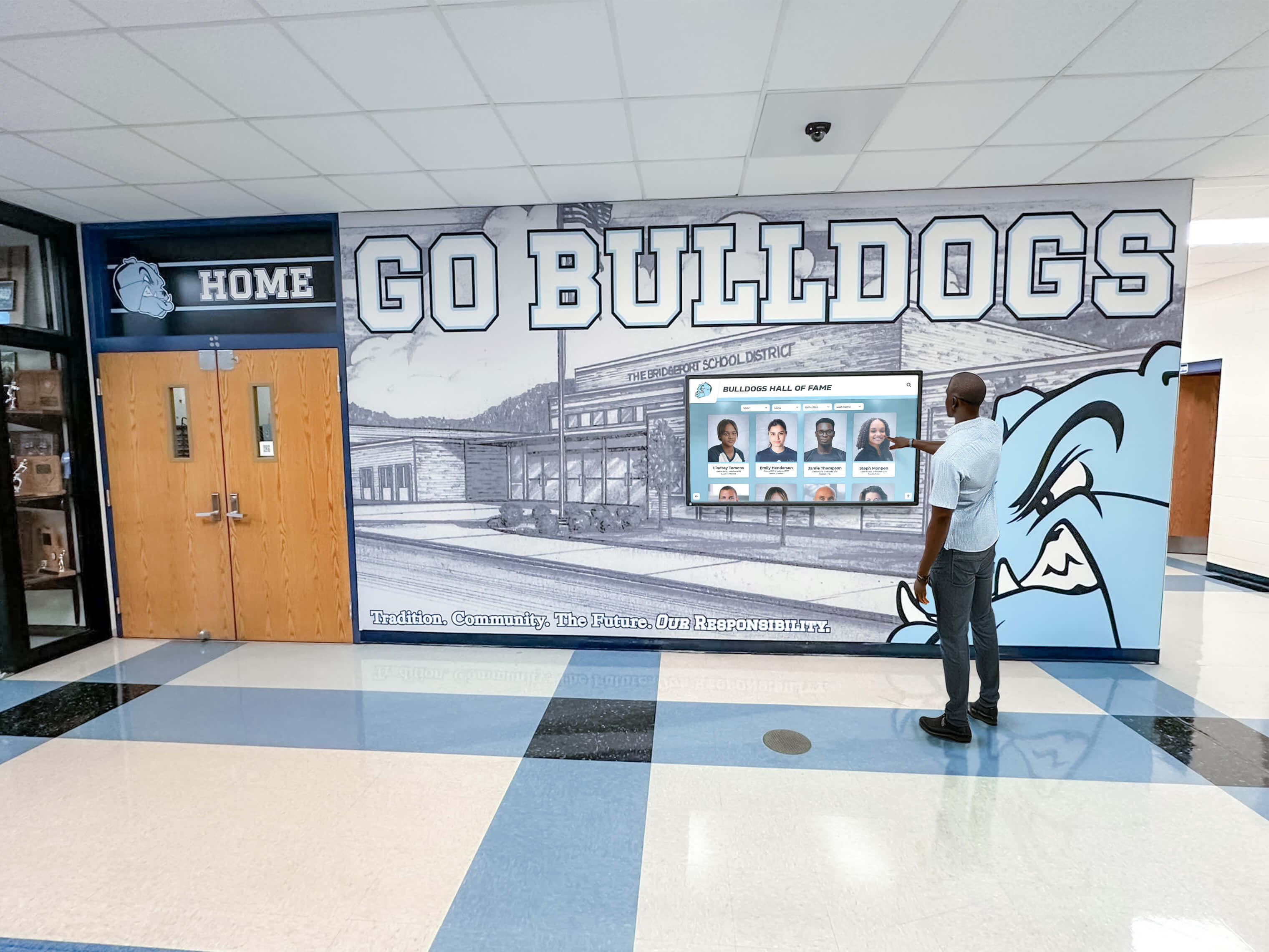
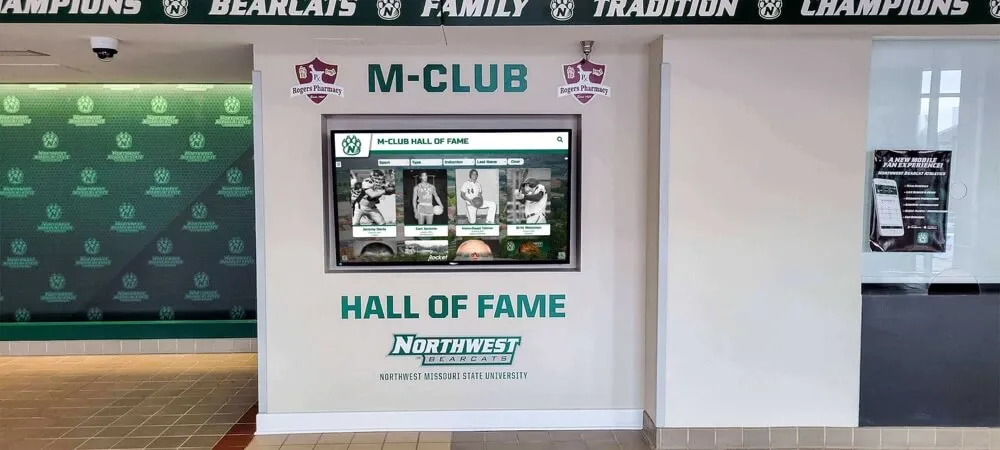
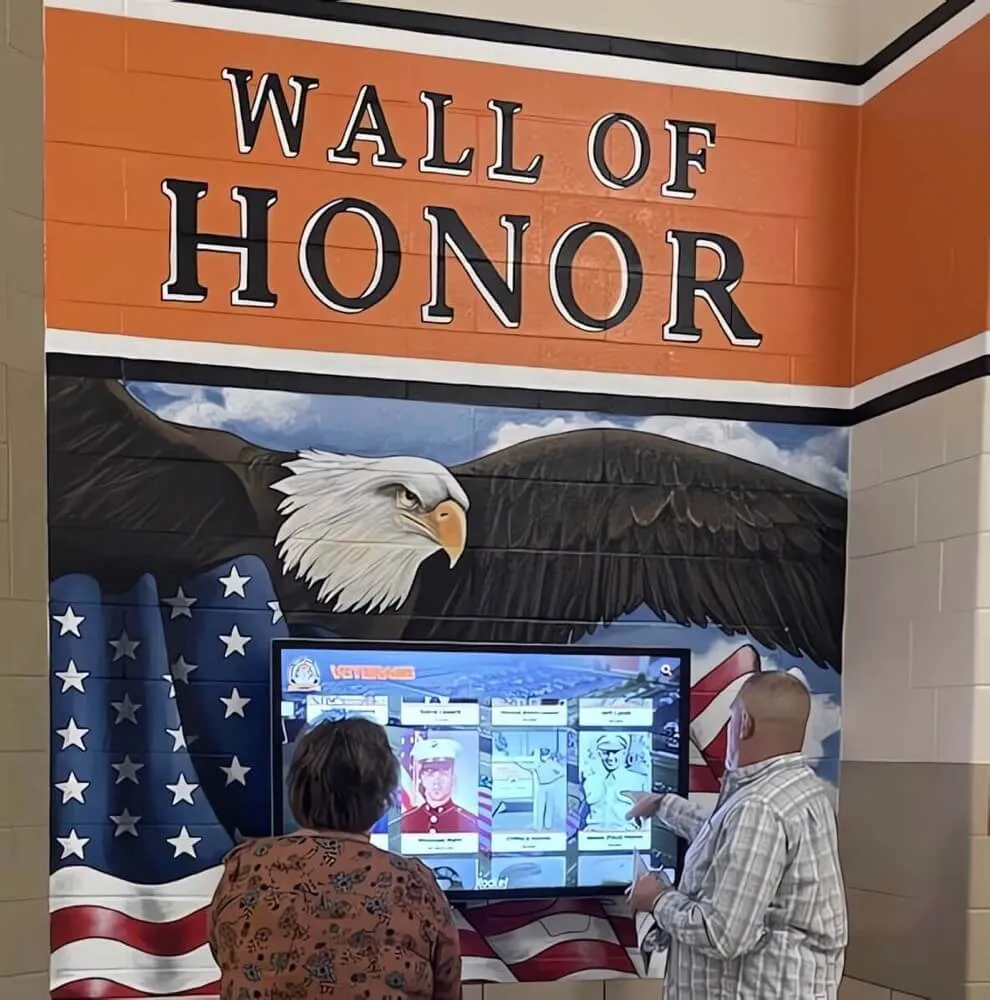
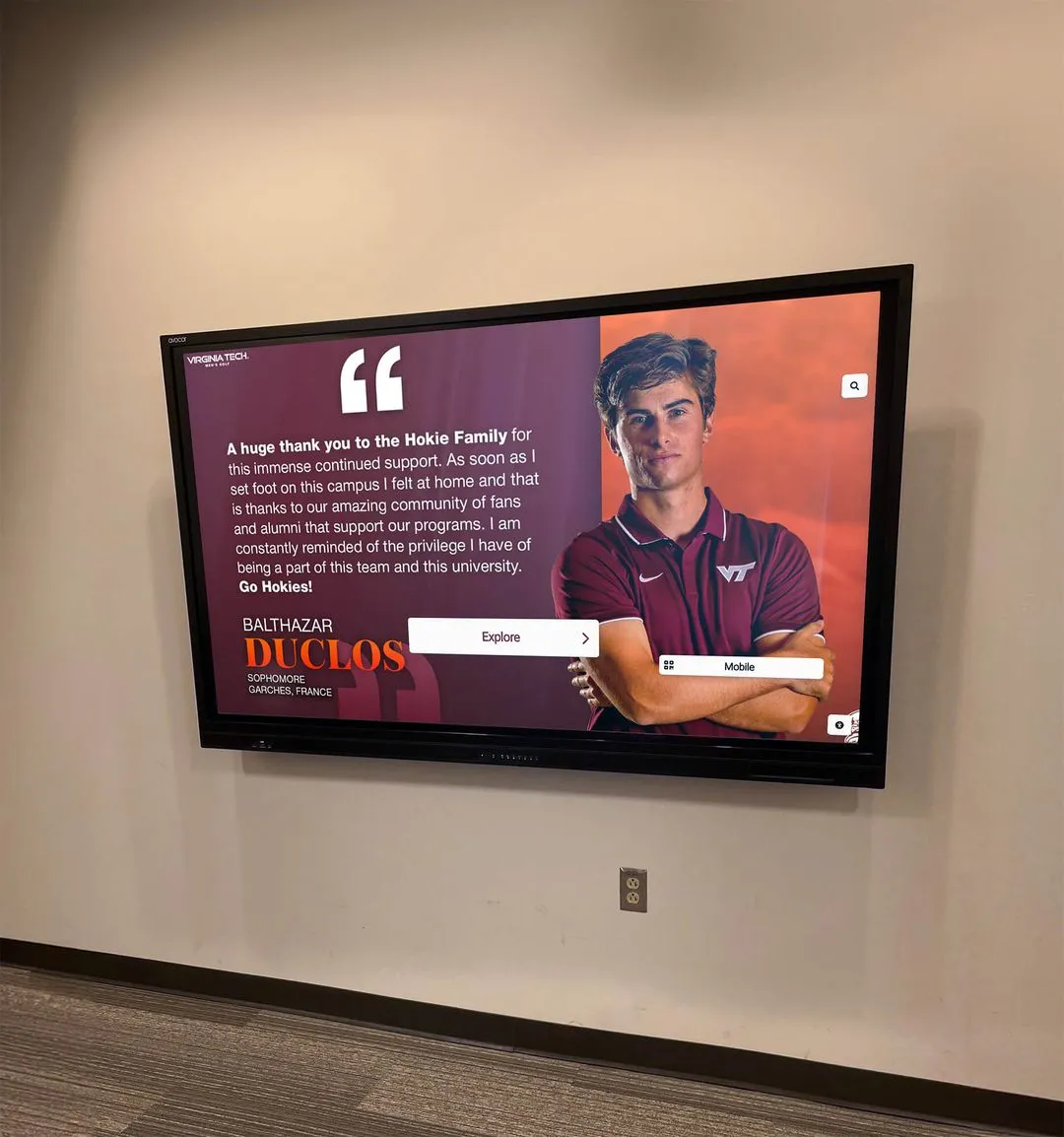
Interactive displays enable visitors to access detailed information while passive screens can show weather, news, and other widget-based content
News and Information Tickers
Scrolling news keeps audiences informed about relevant current events:
News Ticker Capabilities
Modern news widgets offer:
- RSS feed integration from any news source
- Scrolling or rotating headline displays
- Filtering by topic, keyword, or source
- Custom headline creation for internal news
- Update frequency controls
- Typography and styling customization
- Click-through to full articles (on interactive displays)
- Multiple news zones displaying different feeds simultaneously
Content Source Options
News tickers can display:
- National news from major outlets (CNN, BBC, Reuters)
- Local news from regional media sources
- Industry-specific publications and trade news
- Internal organizational announcements
- Emergency alerts and safety information
- Market data and financial news
- Sports scores and updates
According to Display NOW’s widget overview, news tickers keep viewers informed with scrolling headlines from trusted sources, ensuring content stays fresh and relevant without manual updates.
Design Considerations
Effective news tickers balance information with readability:
- Bottom-screen placement preserving primary content area
- Contrasting backgrounds ensuring legibility
- Appropriate scroll speeds (neither too fast nor slow)
- Clear separation from other content zones
- Source attribution building credibility
- Update indicators showing information recency
Social Media Feed Widgets
Social media integration creates active, high-engagement displays:
Supported Platforms
Social widgets typically integrate:
- Twitter/X feeds showing tweets and trends
- Instagram photo and video feeds
- Facebook posts and updates
- LinkedIn company updates
- YouTube video integration
- TikTok short-form video content
- Custom hashtag aggregation
Implementation Options
Social media widgets work through two approaches:
Direct Integration
- Connect platform accounts through OAuth authentication
- Display official feeds with real-time updates
- Full content formatting and media display
- Automatic refresh at configured intervals
Hashtag Aggregation
- Collect posts using specific hashtags
- Combine content from multiple platforms
- Moderate before display (essential for public spaces)
- Filter inappropriate or off-topic content
NoviSign’s widget documentation emphasizes that social media feeds engage audiences by displaying live updates from social platforms like Twitter, Facebook, and Instagram.
Moderation and Safety
Organizations must address content control:
- Pre-approval workflows for public displays
- Profanity and inappropriate content filtering
- User blacklisting capabilities
- Automated moderation through AI
- Manual review queues for sensitive environments
- Clear social media policies for branded hashtags
Schools and youth-serving organizations particularly require robust moderation.
For institutions incorporating social proof and community engagement into displays, explore approaches to visitor engagement through interactive digital signage.
Data Visualization and Custom Content Widgets
Beyond standard widgets, platforms support custom data integration:
Data Source Integration
Connect business systems and databases:
- Spreadsheet integration (Google Sheets, Excel Online)
- CRM data for sales metrics and leaderboards
- Analytics platforms showing performance dashboards
- Inventory systems displaying stock levels
- Calendar integrations for schedule and event displays
- Survey results and polling data
- Custom database connections through APIs
Visualization Options
Present data through multiple formats:
- Charts and graphs (bar, line, pie, gauge)
- Tables and data grids
- Progress bars and thermometers
- Countdown timers to deadlines or events
- Leaderboards and rankings
- Key performance indicators (KPI) displays
- Maps showing geographic data
Update Mechanisms
Data refreshes through various triggers:
- Time-based automatic refresh (every X minutes)
- Real-time updates through webhooks
- Manual refresh when data changes
- Scheduled updates at specific times
- Event-triggered updates
These capabilities transform displays into business intelligence tools, not just announcement boards.
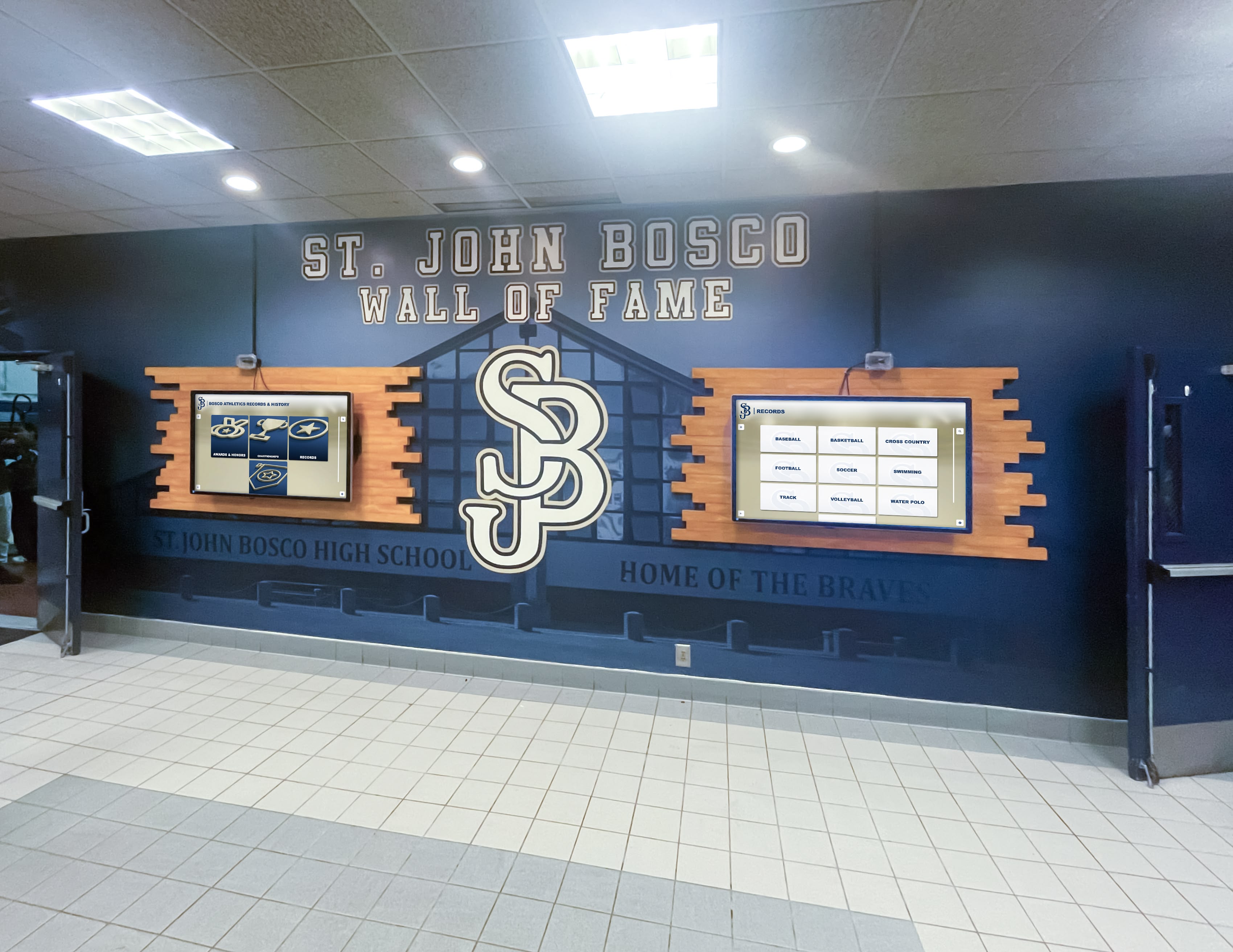
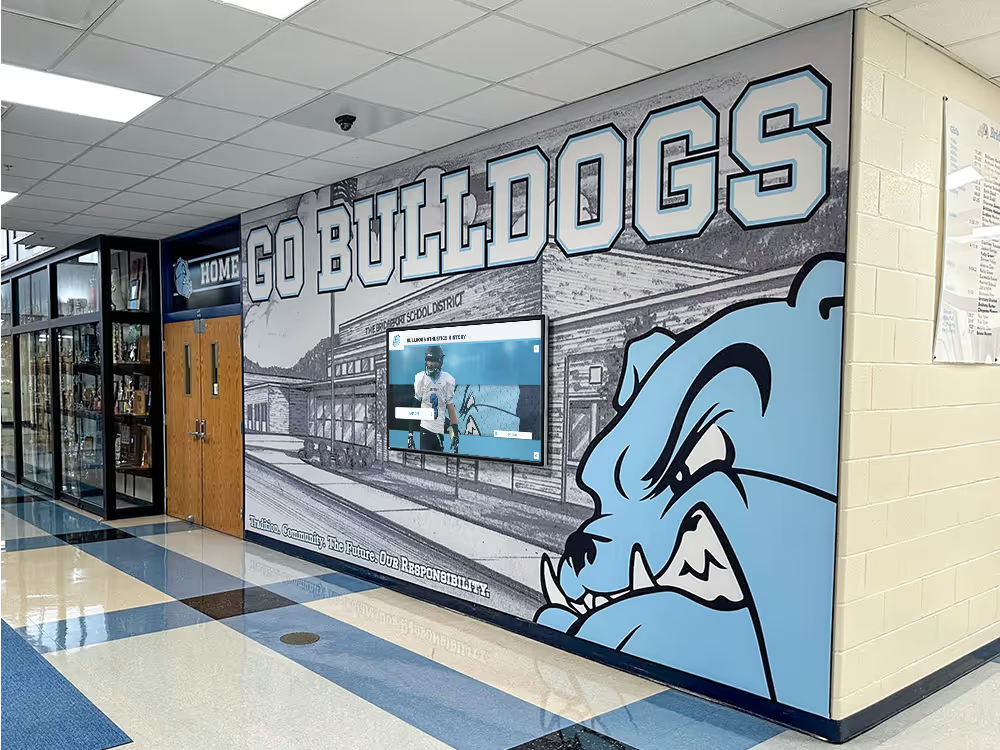
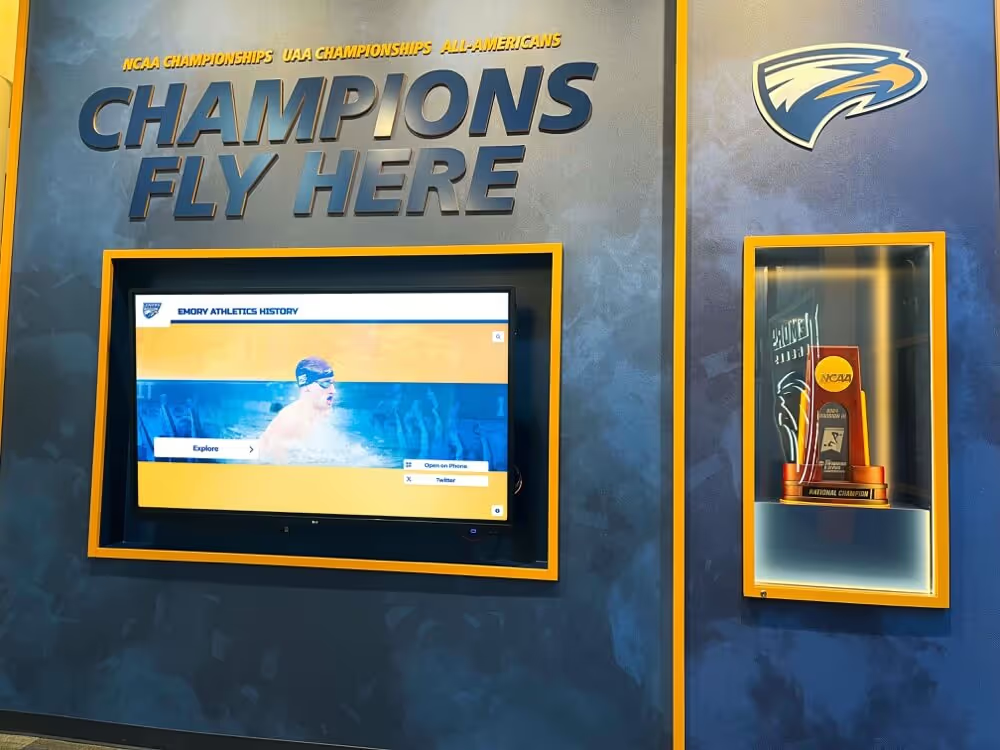
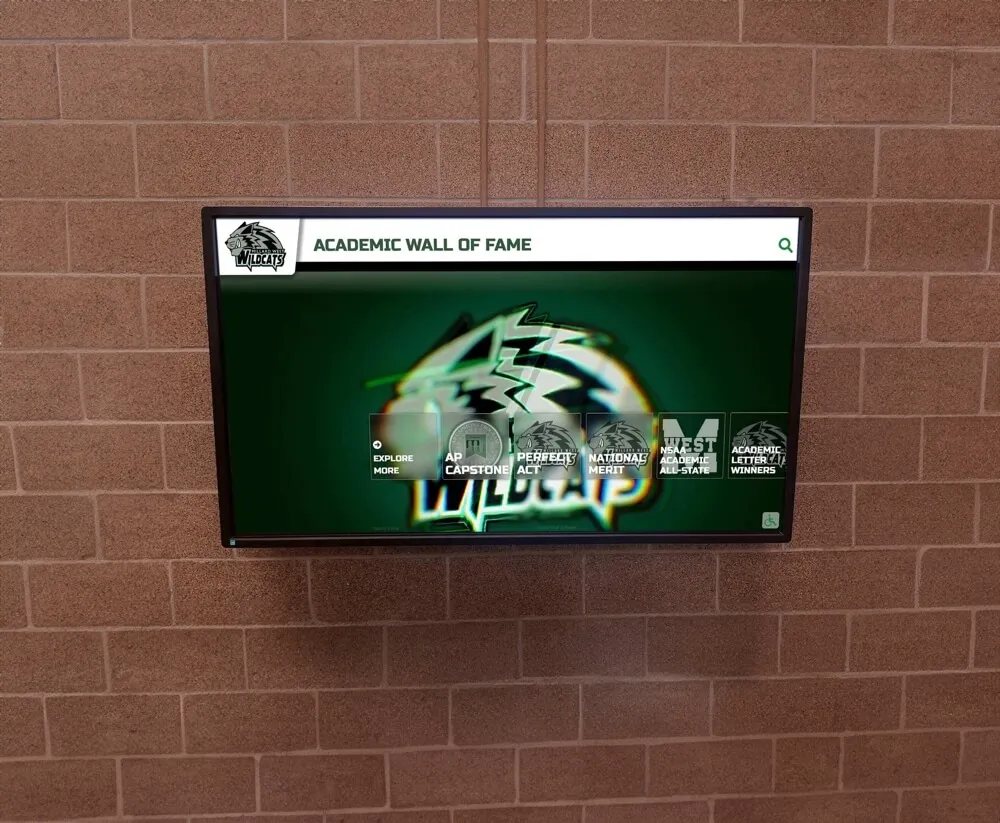
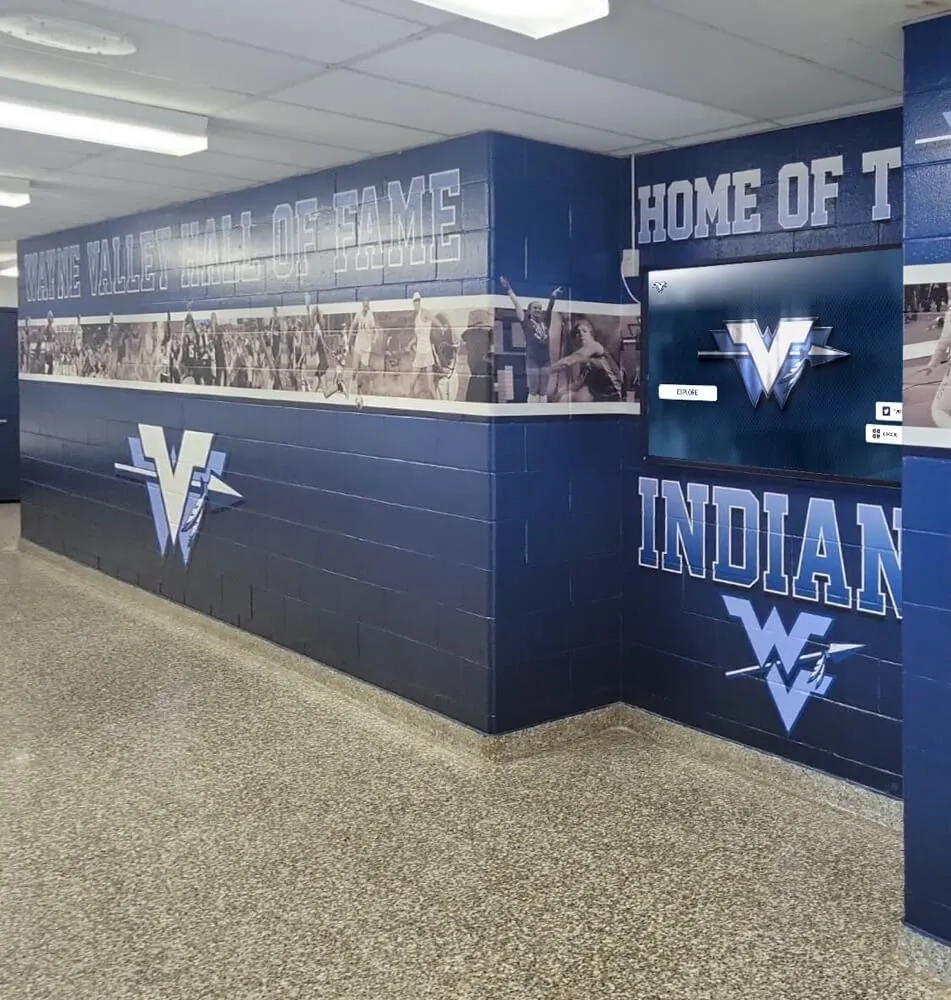
Multi-screen installations can display complementary content across adjacent displays or operate independently with different widget configurations
Split-Screen and Zone-Based Layouts
Split-screen layouts maximize information density by dividing displays into multiple content zones.
Understanding Layout Zones
Zone-Based Design Principles
Digital signage zones work like newspaper layouts:
- Primary content area (largest, central position)
- Secondary information zones (weather, news, time)
- Branding areas (logos, organizational identity)
- Call-to-action zones (QR codes, website URLs)
- Dynamic content regions (rotating announcements)
Common Split-Screen Patterns
Standard configurations include:
Horizontal Splits
- Top banner for branding or emergency alerts
- Main content area occupying central screen
- Bottom ticker for news or announcements
Vertical Splits
- Primary content on left (70% width)
- Right sidebar for weather, time, upcoming events (30% width)
Quadrant Layouts
- Four equal zones showing different content types
- Suitable for multi-purpose displays
- Higher information density but requires larger screens
Picture-in-Picture
- Main full-screen content
- Small overlay zones for supplementary information
- Useful for maintaining primary message hierarchy
According to AIScreen’s multi-screen guide, split-screen layouts enable showcasing multiple items simultaneously, creating more engaging and informative displays.
Template Systems and Customization
Pre-Built Templates
Modern platforms provide template libraries:
- Industry-specific designs (education, corporate, retail, healthcare)
- Purpose-specific layouts (wayfinding, menu boards, event schedules)
- Seasonal templates for holidays and special occasions
- Responsive designs adapting to various screen orientations
- Customizable color schemes matching brand guidelines
- Font and typography systems maintaining consistency
Visual Layout Editors
No-code platforms include:
- Drag-and-drop zone positioning
- Pixel-perfect alignment tools
- Proportional resizing maintaining aspect ratios
- Preview modes showing actual display appearance
- Multi-device previews for various screen sizes
- Undo/redo functionality for safe experimentation
- Template saving for reuse across displays
Content Scheduling by Zone
Advanced systems enable:
- Different content schedules for each zone
- Independent update timing for various widgets
- Time-of-day layouts changing content prominence
- Day-of-week variations for different audiences
- Event-triggered layout changes
- Seasonal layout transitions
This detailed control improves information delivery based on audience needs.
For organizations managing recognition content alongside general signage, review how interactive touchscreen kiosks complement passive digital displays in comprehensive communication strategies.
Leading Digital Signage Platforms with Widget Support
Multiple vendors offer no-code platforms with extensive widget libraries.
Platform Comparison: Key Features
NoviSign Digital Signage
NoviSign provides:
- Drag-and-drop interface for content creation
- 140+ apps and widgets including weather, Instagram, Power BI, YouTube, Google Slides
- Split Screen app showcasing multiple items
- Multi-screen management from single dashboard
- Cloud-based platform accessible from any device
- Template library for quick content creation
- Free trial for evaluation
NoviSign emphasizes simplicity, making it suitable for users without technical backgrounds.
OptiSigns
OptiSigns offers:
- 140+ apps for interactive content
- Weather, Instagram, Power BI, YouTube, Google Slides integration
- Easy-to-use Split Screen app
- Managing content across multiple screens
- Cloud-based management
- Extensive third-party integrations
- Affordable pricing for small deployments
OptiSigns focuses on ease of use and broad integration capabilities.
Monitors AnyWhere
Monitors AnyWhere specializes in:
- Widget-based content embedding
- Live social media feeds (Facebook, TikTok, YouTube, Instagram)
- RSS feed integration
- Multi-screen management from single PC
- Cost-efficient hardware requirements
- Local and cloud deployment options
The platform focuses on running multiple screens with modest hardware requirements.
Display NOW
Display NOW provides:
- Social media feeds (Twitter, Facebook, Instagram)
- News ticker from trusted sources
- Real-time weather forecasts by location
- Content management ensuring freshness
- Media integration capabilities
- Template-based design system
Display NOW maintains content freshness through automated widget updates.
REACH Media Network
REACH technology handles:
- Weather information widgets
- Photo stream displays
- Social media integration
- YouTube video content
- Live TV feeds
- Traffic information
- Comprehensive app and widget library
REACH provides extensive integration options.
Evaluation Criteria for Platform Selection
Technical Requirements Assessment
Consider organizational capabilities:
- Internet connectivity reliability (cloud platforms require stable connections)
- Hardware compatibility (existing displays vs. new equipment)
- Operating system requirements (Windows, Android, Linux, proprietary)
- IT support availability for troubleshooting
- Security and network policies affecting cloud services
- Backup and redundancy requirements
Usability Evaluation
Test actual workflows:
- Content creation time from concept to published display
- Learning curve for non-technical staff
- Template availability matching your needs
- Widget configuration complexity
- Preview accuracy before publishing
- Error recovery and undo capabilities
Cost Analysis
Calculate total ownership costs:
- Software licensing (monthly subscription vs. one-time purchase)
- Per-screen pricing models
- Hardware requirements and compatibility
- Training and onboarding costs
- Ongoing support and maintenance
- Upgrade and feature expansion costs
Vendor Stability Assessment
Evaluate long-term viability:
- Company history and financial stability
- Customer base size and retention
- Development roadmap and update frequency
- Support responsiveness and quality
- User community and documentation quality
- Migration options if platform changes
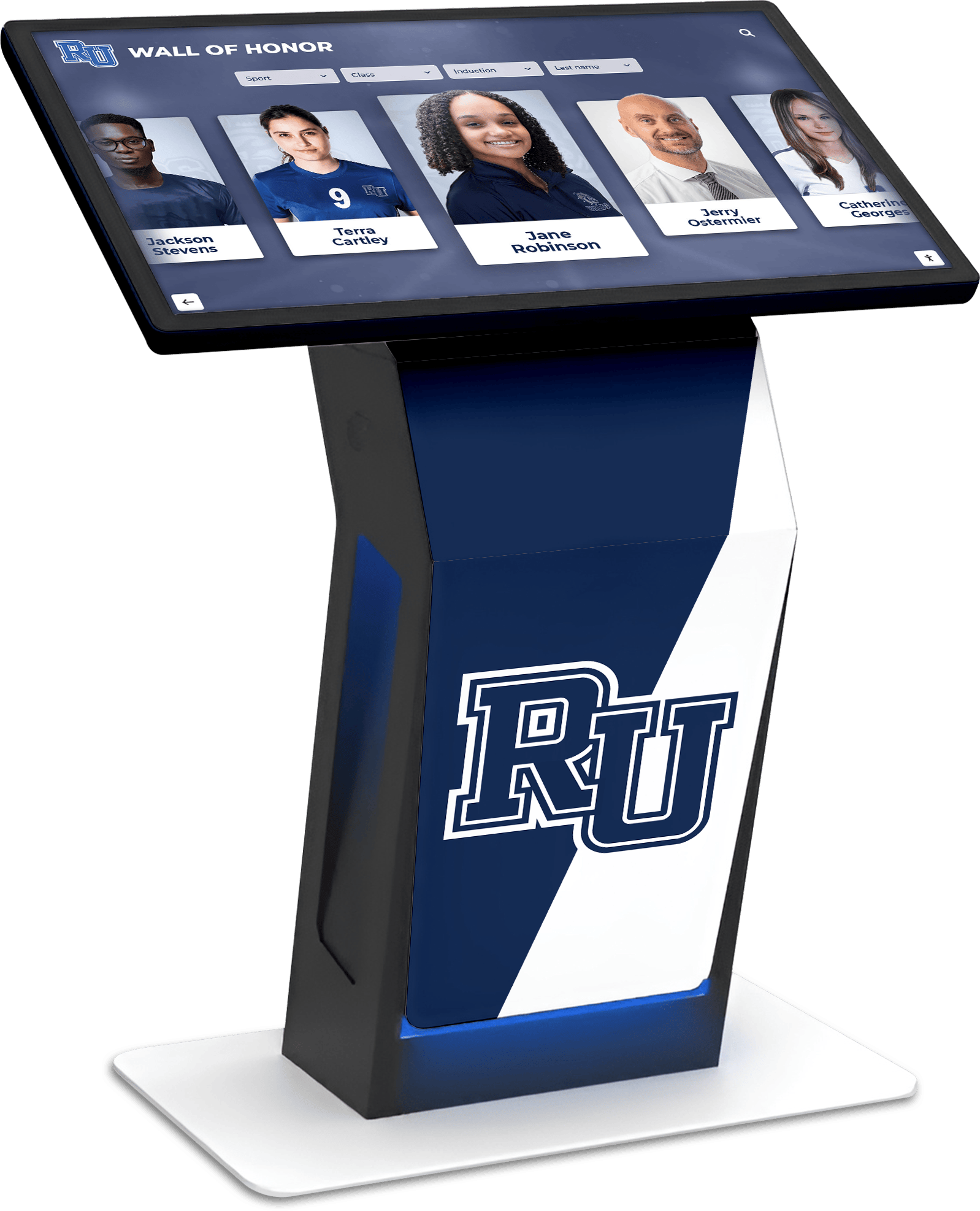
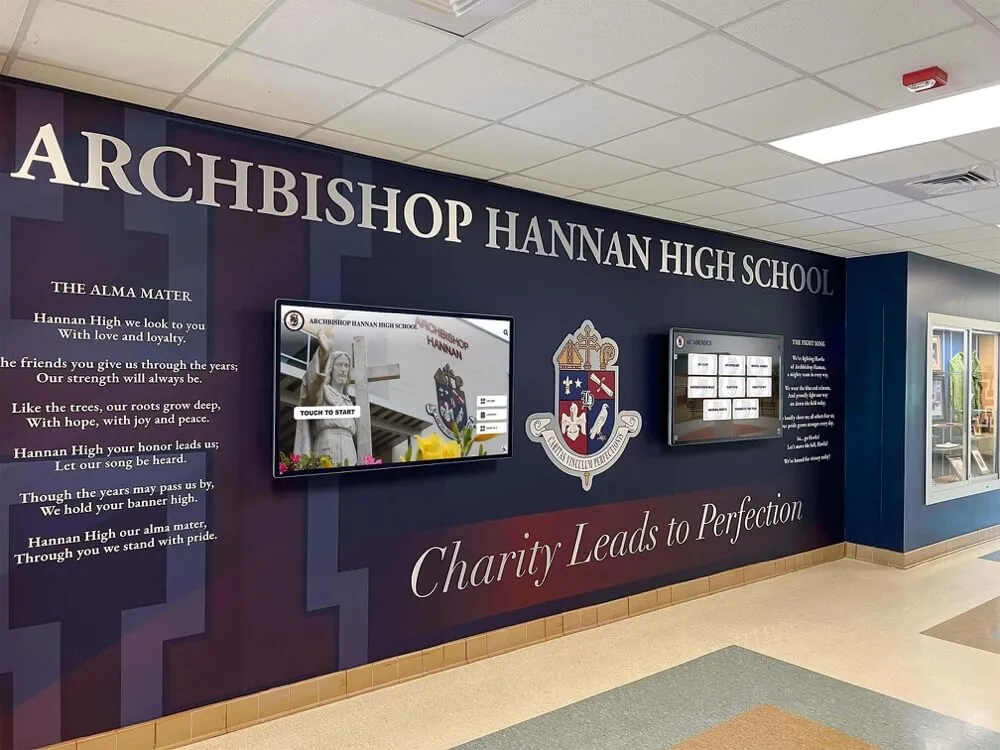
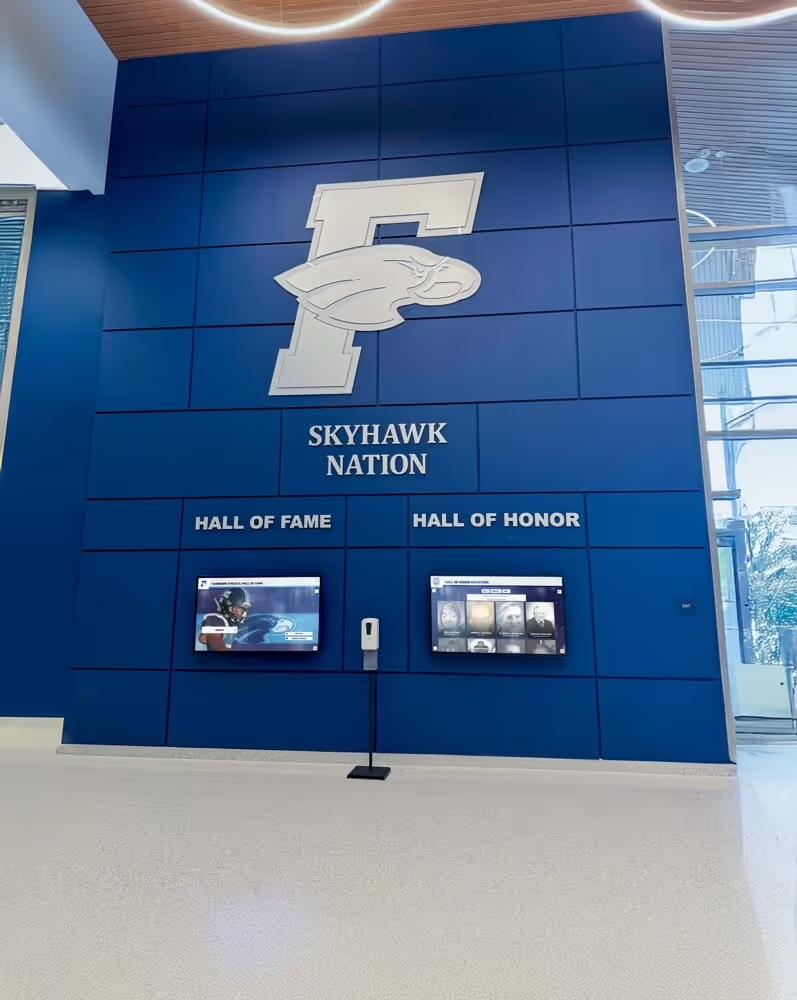
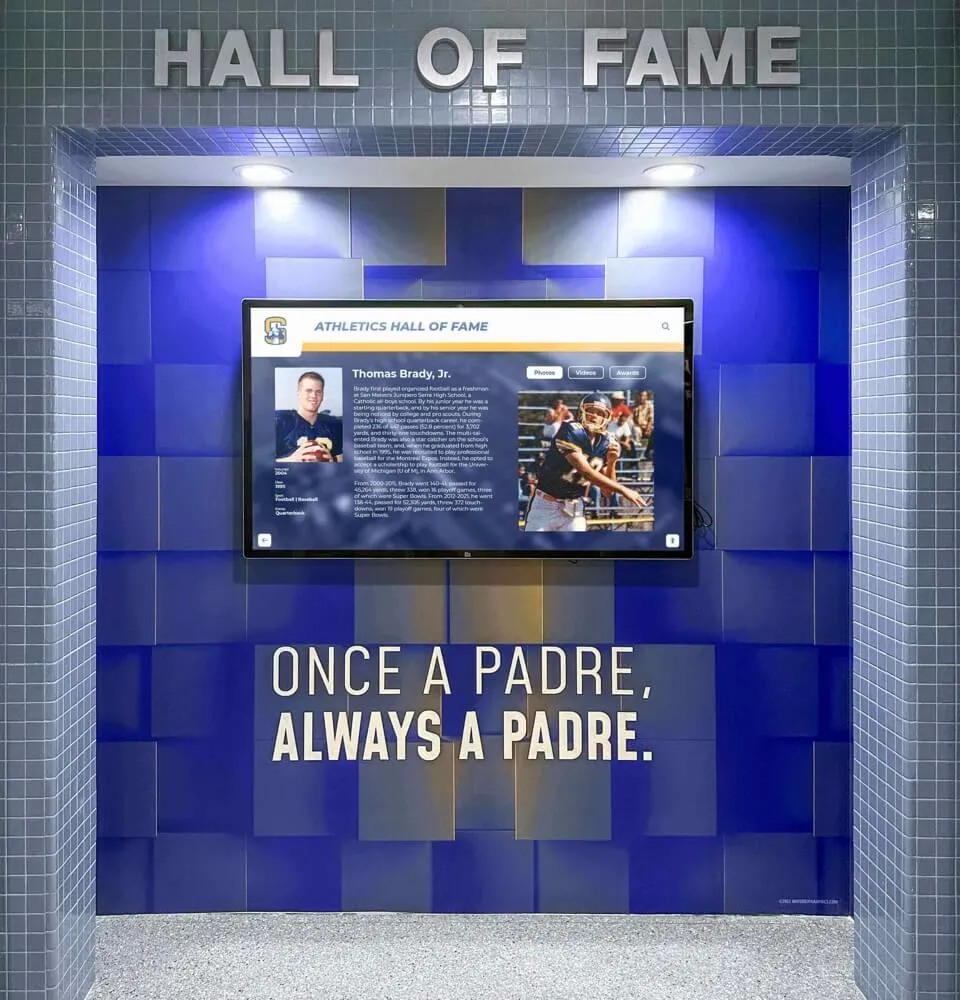
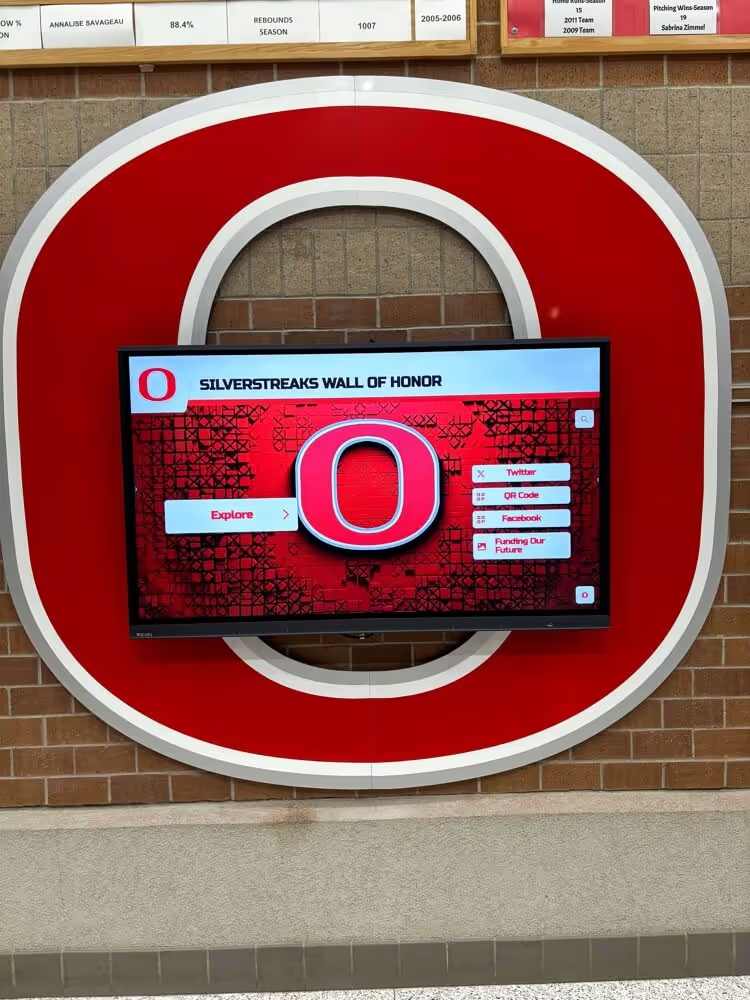
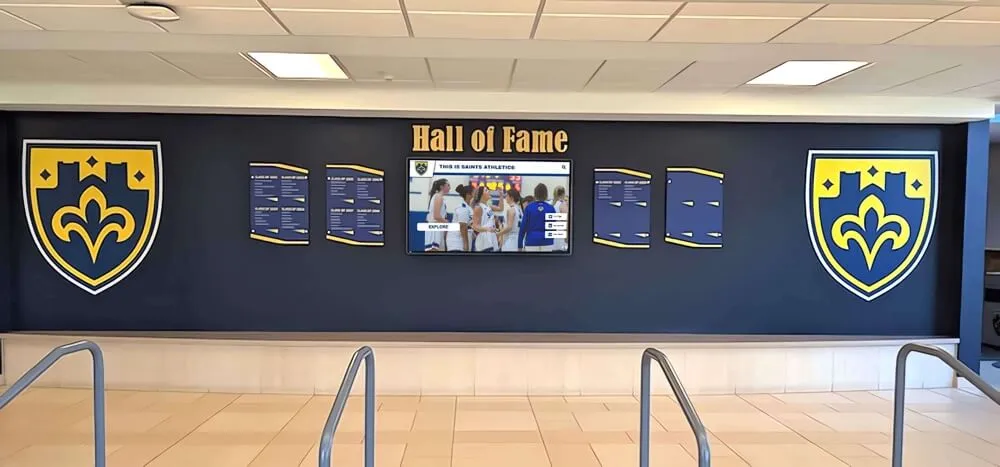
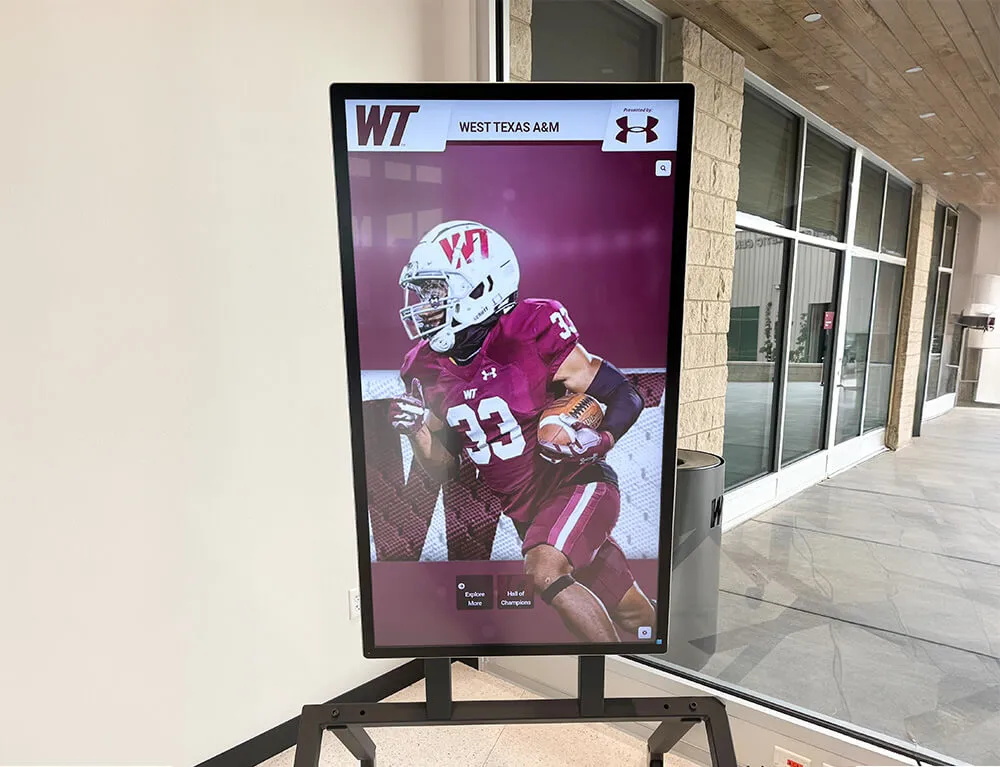
While passive digital signage handles announcements and information, interactive touchscreens enable exploration of detailed content like recognition archives and institutional history
Implementation Strategies for Multi-Screen Networks
Successful deployment requires systematic planning and phased rollout.
Network Architecture Planning
Connectivity Requirements
Multi-screen networks need reliable infrastructure:
Internet Connectivity
- Minimum bandwidth requirements per display
- Wired Ethernet preferred over WiFi for reliability
- Backup connectivity for essential displays
- Content caching for offline operation
- VPN requirements for secure remote management
Local vs. Cloud Architecture
Two primary approaches:
Cloud-Based Systems
- Content stored and managed in cloud platforms
- Displays pull content from internet servers
- Remote management from anywhere
- Automatic backup and disaster recovery
- Requires constant internet connectivity
- Monthly subscription costs
Local Server Systems
- On-premises content server
- Displays pull content from local network
- Operates during internet outages
- Requires IT infrastructure management
- Higher upfront costs, lower ongoing fees
- Greater control over data and security
Most organizations choose cloud systems for simplicity despite connectivity dependence.
Display Player Hardware
Each screen requires computing devices:
Dedicated Media Players
- Commercial digital signage players (BrightSign, IAdea, etc.)
- Reliable, purpose-built hardware
- Fanless operation for longevity
- Remote management and monitoring
- Higher initial cost, lower maintenance
Computer-Based Solutions
- Small form-factor PCs or mini computers
- Greater flexibility and power
- Familiar operating systems (Windows, Linux)
- Lower hardware costs
- Potential reliability concerns for 24/7 operation
Smart Display Integration
- Samsung, LG, and Sony professional displays with built-in players
- Eliminates separate hardware requirements
- Simplified installation and cabling
- Proprietary software ecosystems
- Higher display costs offset by eliminated players
Hardware selection impacts total cost of ownership and ongoing maintenance.
Content Strategy and Governance
Content Planning Framework
Systematic approaches prevent displays from becoming neglected:
Content Calendar Development
- Annual planning for seasonal content
- Monthly content refresh schedules
- Weekly update responsibilities
- Daily content monitoring
- Emergency content override procedures
Role Definition
- Content creators (who develops materials)
- Content approvers (who authorizes publishing)
- Technical administrators (who manages system)
- Display monitors (who reports issues)
- Emergency contacts for urgent situations
Content Standards
- Brand guidelines and design requirements
- Image resolution and quality standards
- Text legibility requirements (font sizes, contrast)
- Video length and format specifications
- Widget refresh frequency policies
- Acceptable content sources and vendors
For institutions managing both passive signage and interactive recognition displays, explore how digital display solutions address multiple communication needs through integrated platforms.
Phased Rollout Approach
Phase 1: Pilot Deployment (1-3 Months)
Start small to learn:
- Install 1-3 displays in high-traffic locations
- Test core widgets (weather, news, social media)
- Train initial content team
- Gather user feedback and usage data
- Document issues and solutions
- Refine content processes before expansion
Phase 2: Initial Expansion (3-6 Months)
Scale proven approaches:
- Deploy to additional high-priority locations
- Expand content team with trained staff
- Implement content governance procedures
- Develop template library for efficiency
- Establish regular maintenance schedules
- Monitor performance metrics
Phase 3: Full Network Deployment (6-12 Months)
Complete installation:
- Roll out to all planned locations
- Implement advanced features and integrations
- Optimize content based on engagement data
- Establish sustainable maintenance workflows
- Document complete system for future staff
- Plan ongoing improvement initiatives
Phased approaches reduce risk while building organizational capability.
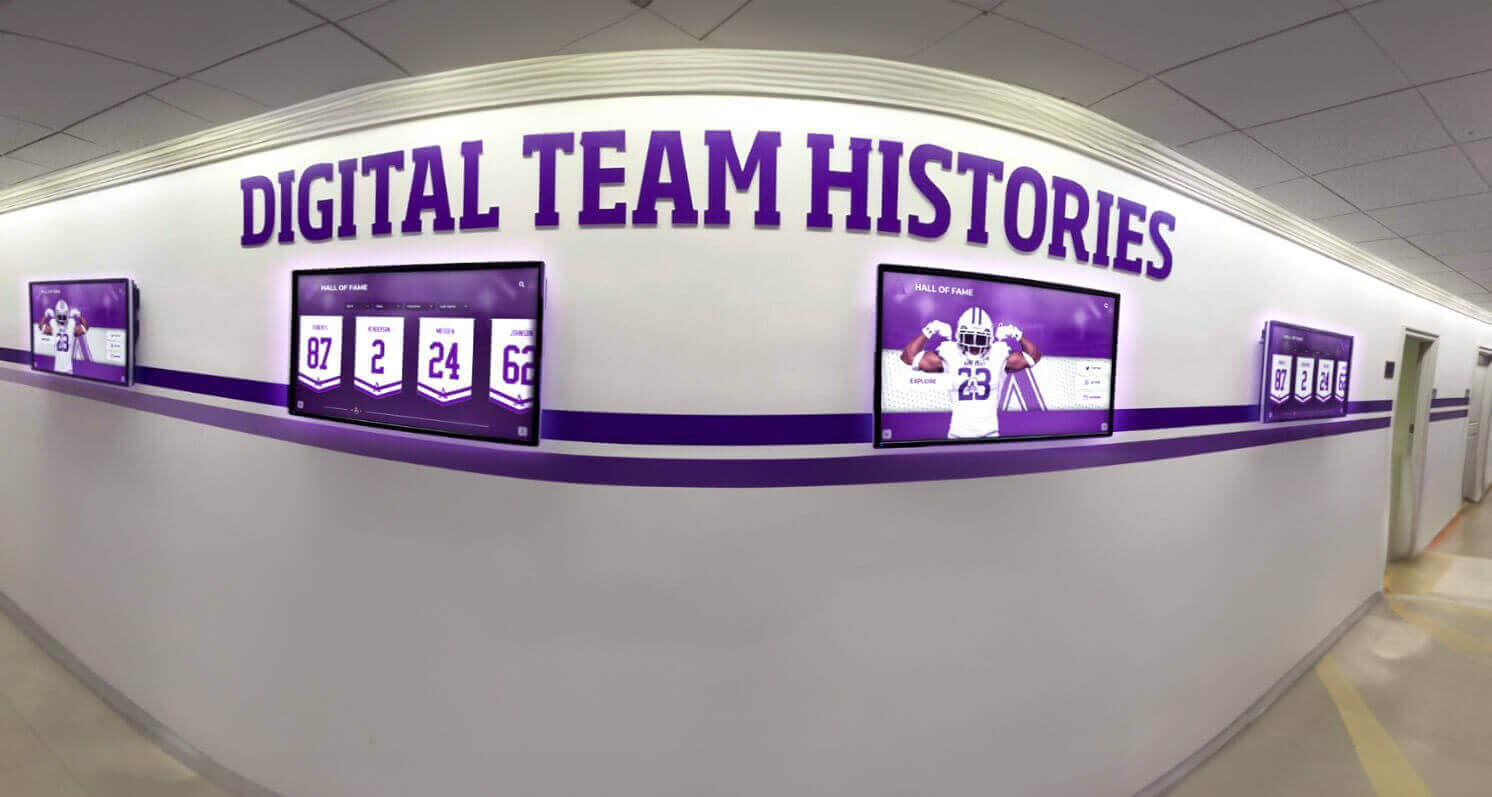
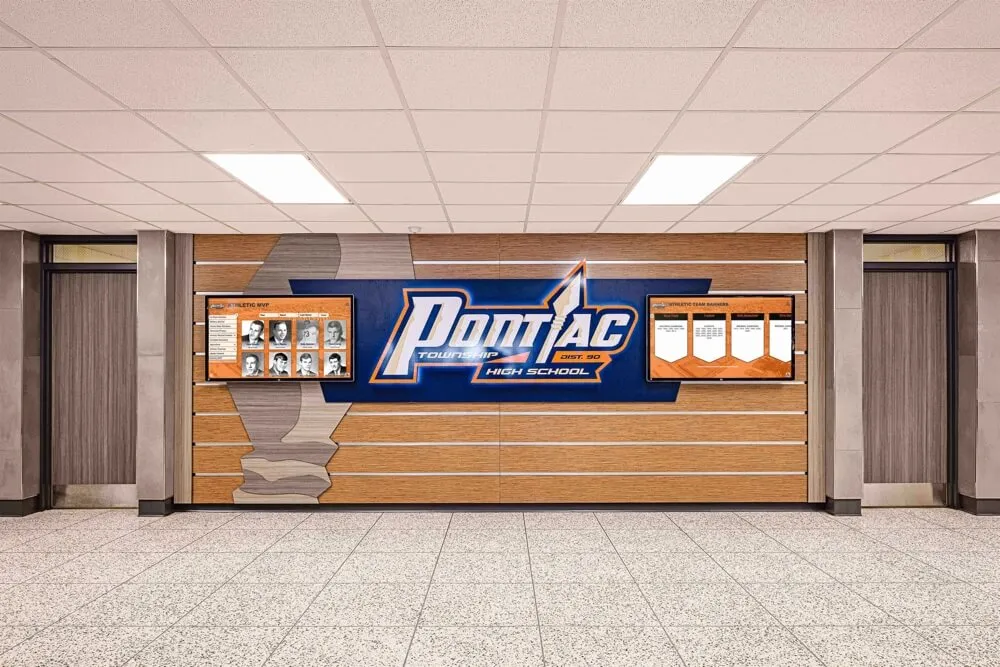
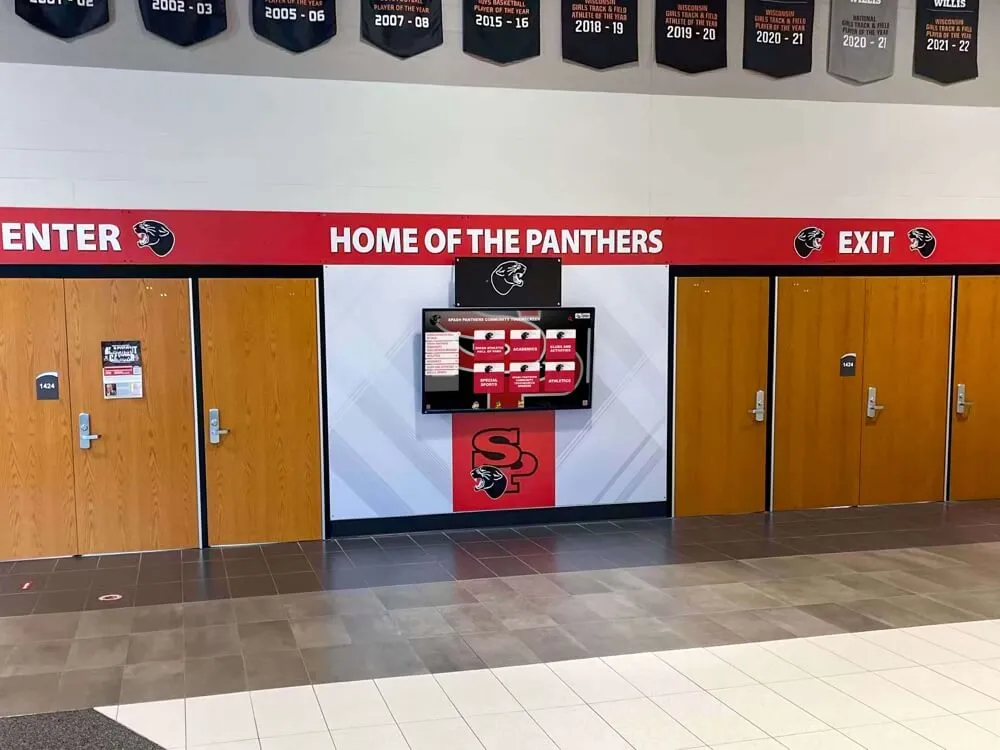
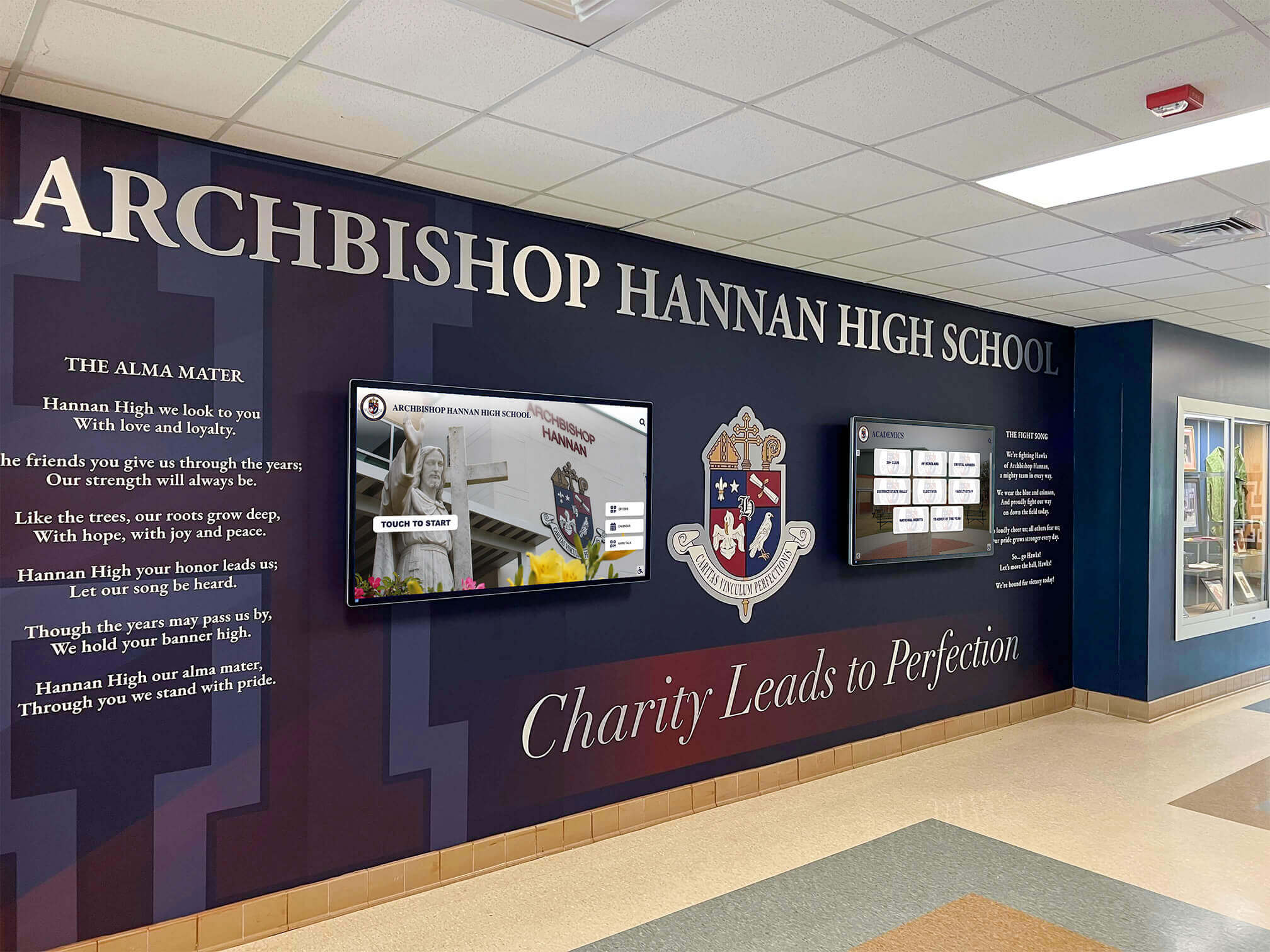
Hallway installations can feature multiple coordinated displays showing related content or independent information tailored to specific locations
Widget Configuration and Management
Effective widget implementation requires understanding configuration options and best practices.
Weather Widget Setup
Configuration Parameters
Weather widgets require several settings:
Location Settings
- Geographic location (city, ZIP code, or GPS coordinates)
- Multiple location support for multi-site organizations
- Location naming for display labeling
- Time zone specification for accurate forecasts
Display Preferences
- Temperature units (Fahrenheit or Celsius)
- Measurement units (inches or centimeters for precipitation)
- Forecast range (current only, hourly, multi-day)
- Weather alert inclusion
- Icon style and visual theme
- Background imagery options
Update Frequency
- Typical refresh: every 30-60 minutes
- Balance freshness with API rate limits
- Faster updates for severe weather monitoring
- Cache duration for offline resilience
Data Sources
According to Loop TV’s weather guide, common weather data providers include Weather.com, OpenWeatherMap, and AccuWeather, each requiring API keys obtained through free or paid accounts.
Social Media Widget Configuration
Account Connection
Social media widgets need authentication:
OAuth Authorization
- Connect organizational social media accounts
- Grant read permissions (not posting access)
- Revoke and reconnect when credentials change
- Handle multi-account scenarios
- Respect rate limits imposed by platforms
Hashtag Monitoring
- Define monitored hashtags
- Set inclusion/exclusion rules
- Configure update polling frequency
- Implement content filtering
Content Filtering and Moderation
Critical for public displays:
Automated Filtering
- Profanity detection and blocking
- Inappropriate image recognition through AI
- Spam detection and elimination
- URL blocking to prevent phishing
- Account blacklists for problem users
Manual Moderation
- Approval queues before display
- Post-publication removal capabilities
- Moderator assignment and permissions
- Moderation activity logging
- Response protocols for policy violations
Organizations serving youth or operating in sensitive environments must implement thorough moderation.
News Ticker Configuration
RSS Feed Management
News tickers rely on RSS feed subscriptions:
Feed Selection
- Major news outlets (CNN, BBC, Reuters, AP)
- Local news sources relevant to audience
- Industry-specific publications
- Internal organizational news feeds
- Emergency alert services
Content Filtering
- Keyword inclusion (show only relevant topics)
- Keyword exclusion (filter unwanted subjects)
- Category selection (sports, business, technology, etc.)
- Duplicate headline removal
- Date range limits (only recent news)
Display Configuration
- Scroll speed (words per minute)
- Headline formatting (all caps, title case, etc.)
- Source attribution display
- Update timestamp inclusion
- Headline character limits
- Transition effects between headlines
Scheduling Considerations
- Time-of-day variations (local news morning, national afternoon)
- Day-of-week content changes (weekend vs. weekday focus)
- Emergency interruption protocols
- Seasonal content adjustments
Data Visualization Widgets
Data Source Connection
Custom widgets require data integration:
Spreadsheet Integration
- Google Sheets connection through API
- Microsoft Excel Online integration
- Automatic refresh when sheets update
- Cell range selection for specific data
- Multi-sheet support
Database Connections
- SQL database queries through connectors
- REST API integration for web services
- Authentication and credential management
- Query optimization for performance
- Error handling for connection failures
Data Transformation
- Filtering rows based on criteria
- Sorting by values or dates
- Calculations and aggregations
- Date formatting and localization
- Unit conversion and standardization
Visualization Selection
Choose appropriate formats:
- Bar charts for comparisons
- Line graphs for trends over time
- Pie charts for part-to-whole relationships
- Gauges for single metrics against targets
- Tables for detailed data display
- Maps for geographic information
- Leaderboards for rankings
Match visualization to data type and audience comprehension.
For organizations incorporating recognition content with informational displays, explore how digital recognition systems complement widget-based signage in comprehensive communication strategies.
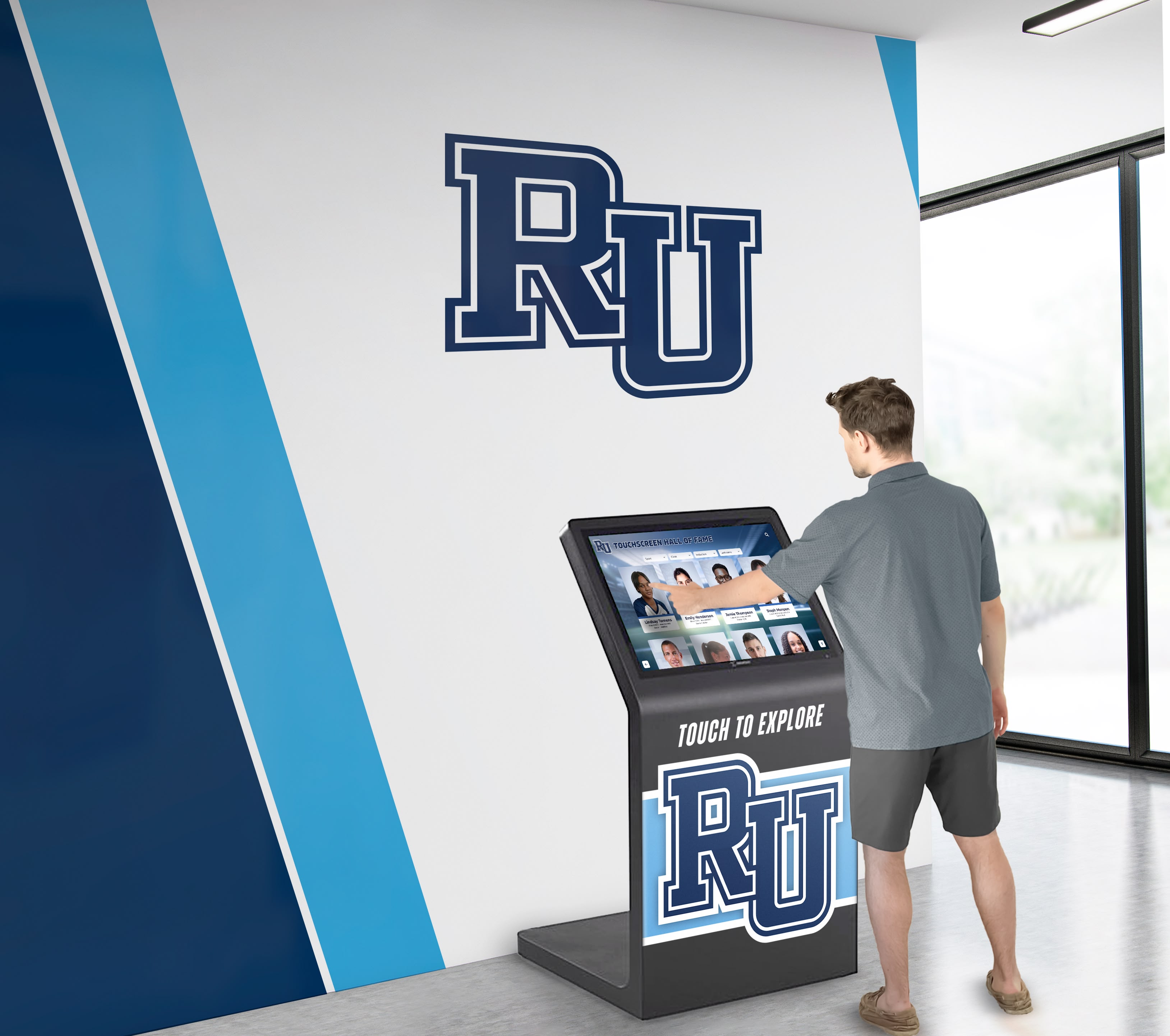
Interactive kiosks enable detailed exploration while passive displays handle announcements, weather, news, and other widget-driven content
Practical Applications by Industry
Different sectors leverage multi-screen widget-based signage for specific purposes.
Educational Institutions
Schools and universities use digital signage extensively:
Common Widget Configurations
Lobby and Entrance Displays
- School branding and welcome messages
- Weather widget showing current conditions
- News ticker with district announcements
- Daily schedule and bell times
- Upcoming events calendar
- Emergency alerts zone
- Social media feed with school hashtag (moderated)
Athletic Facility Displays
- Game schedules and results
- Weather affecting outdoor activities
- Team standings and statistics
- Athletic news ticker
- Sponsor recognition rotation
- Live game streaming when applicable
Cafeteria and Common Areas
- Daily menu and nutrition information
- Weather for outdoor activities
- Student achievement recognition
- Club and organization announcements
- Social media highlights
- Countdown timers to events
Administrative Areas
- Staff directory and contact information
- Professional development schedules
- District news and policy updates
- Data dashboards (attendance, enrollment, etc.)
- Weather and dismissal information
Educational institutions particularly value no-code solutions, as educators and administrators lack time for technical training.
For schools implementing comprehensive recognition alongside informational signage, explore digital display solutions for educational institutions addressing multiple communication needs.
Corporate and Office Environments
Businesses utilize displays for internal communication:
Lobby and Reception Areas
- Corporate branding and messaging
- Weather for visitor convenience
- Stock ticker for public companies
- News relevant to industry
- Social media brand mentions
- Visitor wayfinding information
- Meeting room schedules
Employee Areas
- Company announcements and news
- Department performance dashboards
- Employee recognition and celebrations
- Cafeteria menus and prices
- Weather and commute information
- Social event calendars
- Wellness program information
Sales and Operations Centers
- Real-time sales dashboards
- Leaderboards and rankings
- Performance metrics and KPIs
- CRM data visualizations
- Market news and competitor tracking
- Customer satisfaction scores
- Project status updates
Corporate environments often have data integration requirements beyond standard widgets, necessitating platforms supporting custom data connections.
Healthcare Facilities
Medical environments require specific content considerations:
Patient and Visitor Areas
- Wayfinding and directional information
- Department hours and services
- Physician directories with photos
- Weather for discharge planning
- Health education content
- Patient satisfaction ratings
- Wait time estimates
Staff Areas
- Shift schedules and staffing levels
- Quality metrics and patient outcomes
- Safety alerts and protocol reminders
- Training schedules and requirements
- Recognition for exceptional care
- Emergency procedure updates
Healthcare displays must comply with HIPAA privacy requirements, ensuring patient information never appears on public screens.
Retail and Hospitality
Customer-facing businesses prioritize promotional content:
Retail Applications
- Promotional offers and sales
- Product features and demonstrations
- Weather suggesting product relevance
- Social media customer posts (moderated)
- Inventory availability
- Loyalty program information
- Store events and activities
Restaurant and Hospitality
- Digital menu boards with pricing
- Daily specials and featured items
- Social media reviews and photos
- Weather for outdoor seating
- Event calendars and entertainment schedules
- Loyalty program promotions
- Wait time estimates
Retail environments typically update content frequently, requiring efficient workflow tools.
Technical Considerations and Best Practices
Successful implementations address practical technical realities.
Display Hardware Selection
Screen Size and Resolution
Match hardware to viewing conditions:
Viewing Distance Guidelines
- 3-5 feet: 32-43 inch displays (close proximity applications)
- 5-10 feet: 43-55 inch displays (standard hallways and lobbies)
- 10-20 feet: 55-75 inch displays (large lobbies and auditoriums)
- 20+ feet: 75+ inch displays or video walls (large venues)
Resolution Requirements
- 1080p (Full HD) minimum for most applications
- 4K resolution for large screens or close viewing
- Higher resolutions enable more detailed widget content
- Consider pixel density (PPI) for text legibility
Professional vs. Consumer Displays
Commercial displays provide:
- Extended operation hours (16-24 hours daily)
- Longer warranties (3-5 years vs. 1 year)
- Higher brightness for ambient light environments
- Better heat dissipation for enclosed spaces
- Robust mounting options
- Anti-burn-in technologies for static content
- Professional support and replacement programs
Consumer TVs fail quickly under continuous operation despite lower costs.
Orientation Considerations
- Landscape orientation standard for most applications
- Portrait orientation for vertical spaces (elevators, narrow hallways)
- Consider widget layout impact of orientation
- Some platforms charge differently for portrait mode
Network Security and Access Control
Security Requirements
Digital signage networks require protection:
Network Segmentation
- Isolate signage from critical business systems
- Separate VLAN for display devices
- Firewall rules controlling access
- DMZ placement for internet-facing displays
Authentication and Authorization
- Strong passwords for content management systems
- Multi-factor authentication for administrators
- Role-based access control limiting permissions
- Regular credential rotation
- Audit logging of all content changes
Data Protection
- Encrypted connections (HTTPS, TLS) for cloud services
- VPN access for remote management
- Content backup and recovery procedures
- Compliance with data privacy regulations
- Incident response procedures
Organizations must balance accessibility with security, particularly when multiple staff manage content.
Content Performance Optimization
File Size and Format Optimization
Efficient content loads faster and performs better:
Image Optimization
- Appropriate resolution for screen size (no excess pixels)
- Compression balancing quality and file size
- Modern formats (WebP, AVIF) reducing bandwidth
- Progressive loading for large images
Video Best Practices
- H.264 or H.265 encoding for compatibility and efficiency
- Bitrate matching display resolution
- Video length appropriate for viewing context
- Looping considerations for repeated playback
- Caching on local players reducing network traffic
Widget Refresh Optimization
- Balance update frequency with performance impact
- Cache widget data locally when possible
- Rate limit API calls avoiding throttling
- Stagger refresh timing across multiple widgets
- Handle API failures gracefully without display disruption
Poor optimization causes stuttering, slow loads, and player crashes.
Maintenance and Monitoring
Proactive System Monitoring
Prevent problems through active oversight:
Automated Monitoring
- Display online/offline status tracking
- Player health and performance metrics
- Content update verification
- Screenshot capture for visual verification
- Bandwidth usage monitoring
- Error logging and alerting
Regular Maintenance Tasks
- Software and firmware updates
- Display cleaning and physical inspection
- Content review and refresh
- Broken widget identification and repair
- Performance testing and optimization
- Backup verification and disaster recovery testing
Issue Response Procedures
- Escalation paths for different problem types
- Vendor support contact information
- Spare hardware availability
- Temporary content procedures during outages
- Communication protocols informing affected users
Neglected systems degrade quickly, undermining stakeholder confidence.
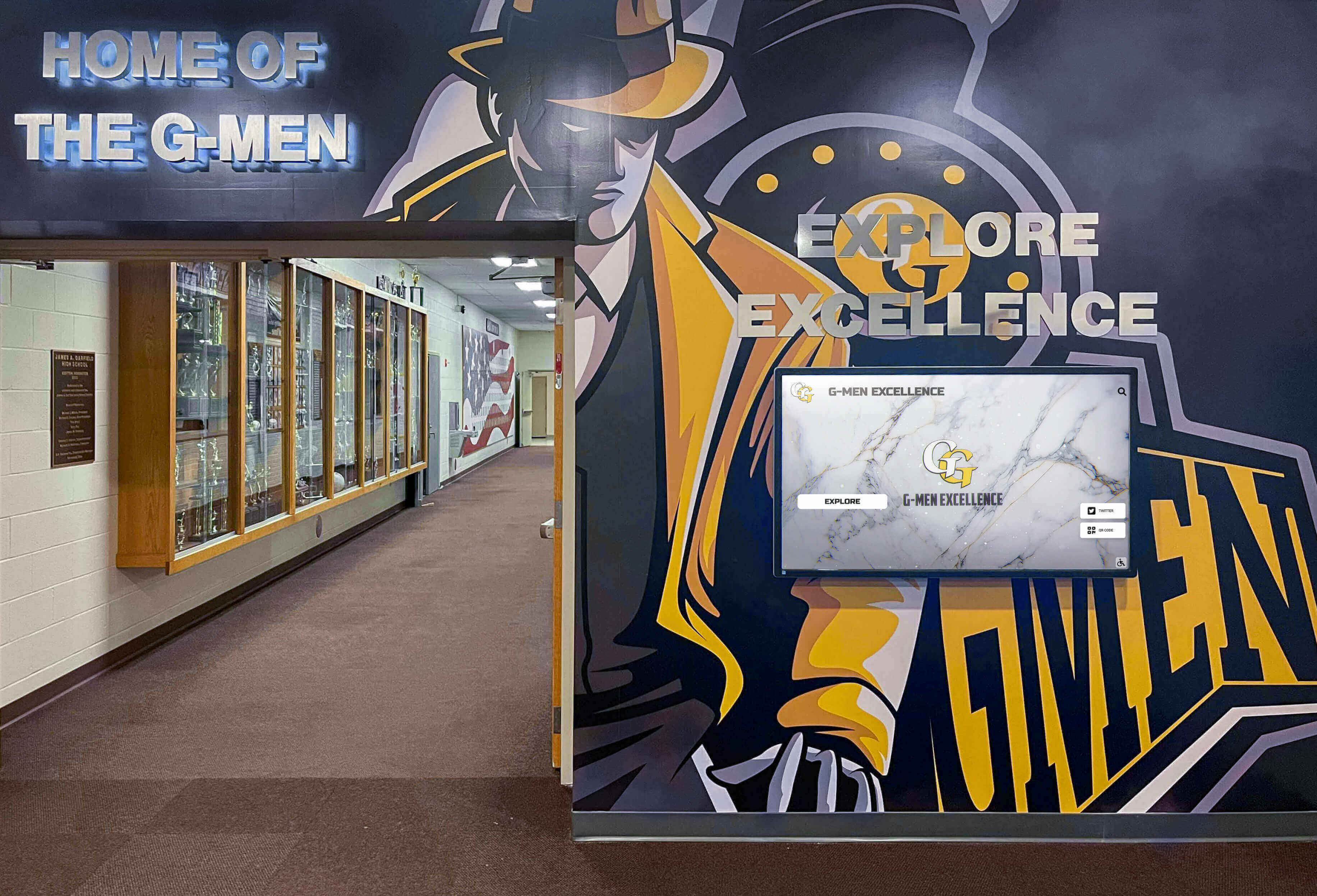
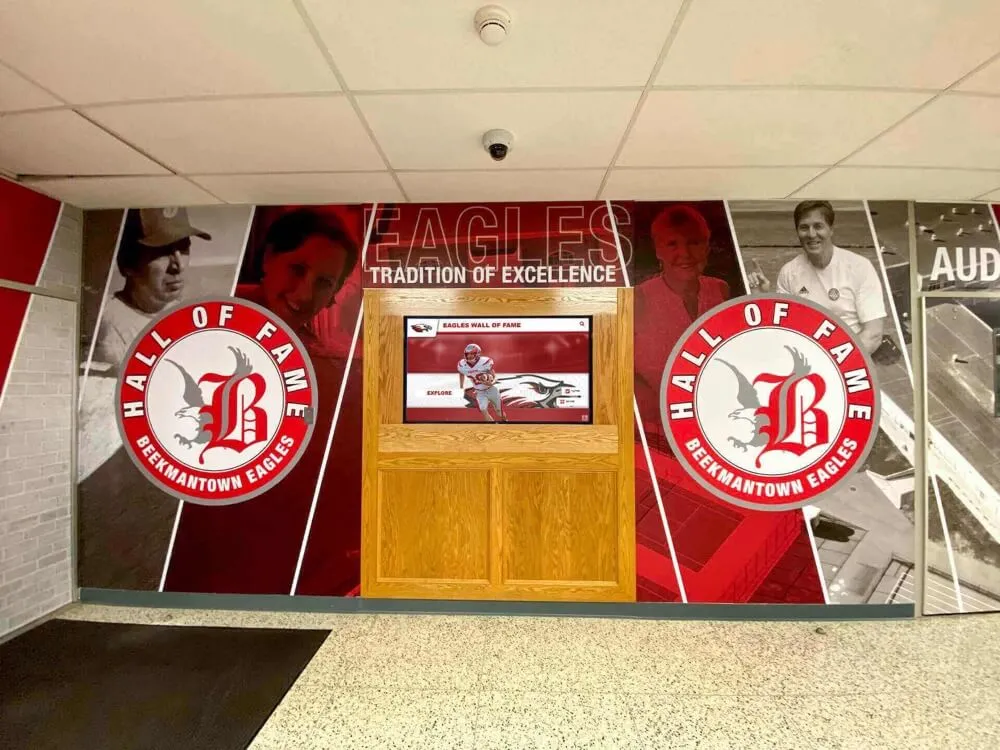
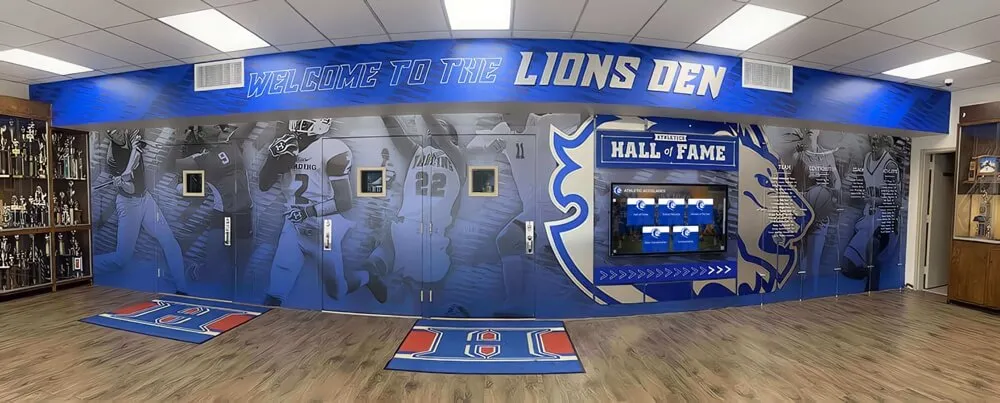
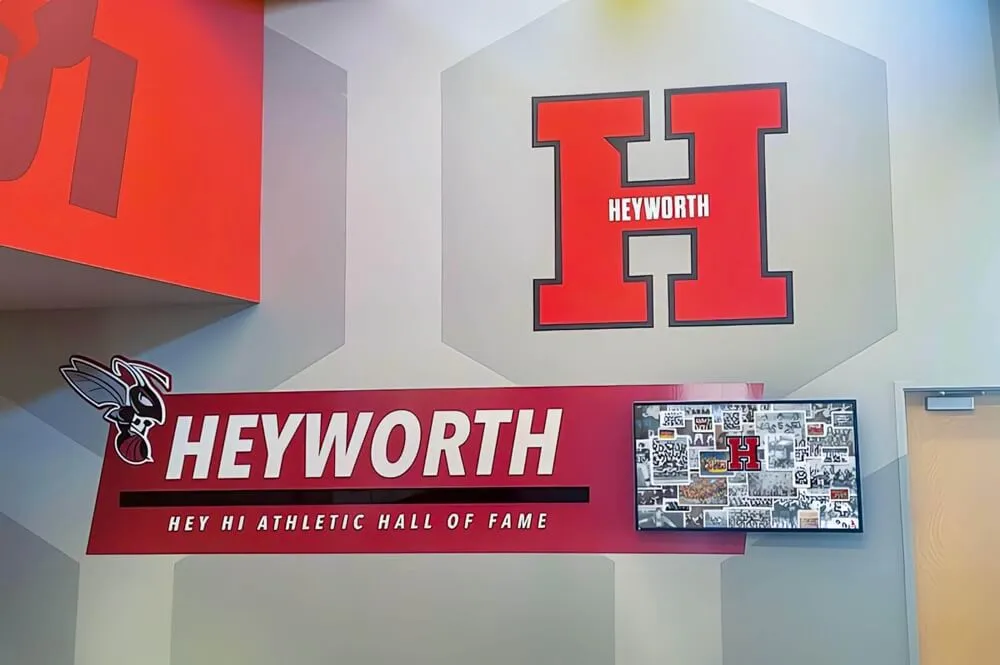
Effective digital signage integrates with existing architectural elements and recognition displays, creating cohesive environments rather than disconnected technology additions
Cost Analysis and ROI Considerations
Understanding total costs enables informed investment decisions.
Initial Investment Components
Hardware Costs
One-time equipment expenses:
- Commercial displays: $1,000-5,000 per screen (varies by size and features)
- Media players: $200-800 per display (if needed)
- Mounting hardware: $100-400 per screen
- Cabling and infrastructure: $200-1,000 per location
- Installation labor: $300-1,500 per display
- Typical total: $2,000-8,000 per display installed
Software and Licensing
Platform costs vary significantly:
- Monthly subscription: $10-50 per screen per month
- Annual licensing: $100-500 per screen per year
- One-time purchase: $500-2,000 per screen (less common)
- Enterprise licensing: negotiated based on scale
- Setup and configuration fees: $500-5,000 one-time
Implementation Services
Professional services accelerate deployment:
- Needs assessment and planning: $2,000-10,000
- Content template development: $1,000-5,000
- Initial content creation: $2,000-10,000
- Staff training: $1,000-5,000
- Project management: 10-20% of total project cost
Ongoing Operating Costs
Recurring Expenses
Annual costs for system operation:
- Software subscriptions: $120-600 per screen annually
- Internet connectivity: $500-2,000 per location annually
- Content management labor: highly variable based on update frequency
- Maintenance and support: $200-1,000 per screen annually
- Electricity: $50-200 per screen annually
- Content services (if outsourced): $2,000-20,000 annually
Hidden Costs
Often-overlooked expenses:
- Staff time for content creation and management
- Widget API fees for premium services
- Storage for content libraries
- Bandwidth for high-traffic networks
- Replacement displays for failures
- Technology refresh every 5-7 years
Return on Investment Analysis
Measurable Benefits
Quantify value delivered:
Labor Savings
- Eliminated printing and distribution of announcements
- Reduced staff time answering wayfinding questions
- Automated content updates replacing manual changes
- Centralized management eliminating site visits
Communication Effectiveness
- Increased information retention from dynamic displays
- Broader message reach to entire populations
- Real-time emergency communication capabilities
- Improved stakeholder satisfaction
Revenue Generation
- Advertising and sponsorship opportunities
- Promotional content driving sales or participation
- Reduced signage production costs
- Enhanced brand perception and awareness
Intangible Benefits
Harder-to-quantify advantages:
- Modern, professional appearance
- Improved visitor experience
- Enhanced internal culture
- Competitive advantage in recruitment
- Sustainability (eliminating printed materials)
ROI timelines typically range from 1-3 years depending on scale and previous communication costs.
Troubleshooting Common Challenges
Understanding typical problems and solutions saves frustration.
Widget Configuration Issues
Weather Widget Not Displaying
Common causes and fixes:
- Invalid API key: Verify credentials with weather service
- Location errors: Confirm correct city name, ZIP code, or coordinates
- Rate limit exceeded: Reduce refresh frequency or upgrade API tier
- Display zone too small: Increase widget area or reduce font sizes
- Firewall blocking: Whitelist weather service domains and IP addresses
Social Media Feed Not Updating
Troubleshooting steps:
- Authentication expired: Reconnect social media accounts
- Account permissions: Verify read access granted during OAuth
- Hashtag spelling: Confirm exact hashtag including capitalization
- Moderation queue: Check if posts awaiting approval
- Platform API changes: Contact vendor for compatibility updates
- Rate limiting: Space out requests to avoid throttling
News Ticker Showing Stale Content
Resolution approaches:
- Feed URL changed: Verify RSS feed still active and accessible
- Cache duration: Reduce caching time forcing fresh retrieval
- Feed update frequency: Source may publish infrequently
- Time zone issues: Confirm proper handling of timestamps
- Filter too restrictive: Broaden keyword criteria capturing more content
Display and Player Problems
Screen Shows “No Content Available”
Diagnostic steps:
- Network connectivity: Verify internet access from display location
- Content scheduling: Confirm content assigned to specific display
- Player authentication: Check player connected to content management system
- Software updates: Restart player or apply pending updates
- Storage capacity: Clear cache or delete unused content
- Licensing issues: Verify active software subscription
Content Appears Distorted or Incorrectly Sized
Resolution adjustments:
- Resolution mismatch: Ensure content designed for display resolution
- Aspect ratio problems: Match content aspect ratio to screen (16:9, 9:16, etc.)
- Scaling settings: Adjust player output resolution settings
- Overscan compensation: Configure display to pixel-perfect mode
- Template errors: Verify zone dimensions in layout editor
Network and Performance Issues
Slow Content Loading or Playback Stuttering
Performance optimization:
- Bandwidth limitations: Upgrade internet connection or reduce content size
- File size optimization: Compress images and videos more aggressively
- Player hardware: Upgrade underpowered media players
- Widget complexity: Reduce number of simultaneous widgets
- Network congestion: Implement quality of service (QoS) prioritization
- Local caching: Enable content caching on players
Multiple Displays Out of Sync
Synchronization methods:
- Time-based scheduling: Set precise start times for content
- Network time protocol: Synchronize player clocks via NTP
- Master-slave configuration: Designate primary display controlling others
- Playlist duration: Ensure identical playlists across displays
- Manual triggering: Use remote commands initiating simultaneous playback
For organizations managing both informational signage and interactive recognition systems, explore how comprehensive digital display platforms address diverse communication needs through unified management.
Future Trends and Emerging Capabilities
Digital signage technology continues evolving rapidly.
Artificial Intelligence Integration
Automated Content Generation
AI enables new capabilities:
- Automatic content creation from data sources
- Dynamic text generation based on context
- Intelligent content recommendations
- Personalized messaging for different audiences
- Automatic optimization based on engagement
- Natural language processing for announcements
Computer Vision Applications
Camera-based intelligence:
- Audience analytics (demographics, attention, dwell time)
- Gesture control for touchless interaction
- Facial recognition for personalization (where permitted)
- Queue detection triggering relevant content
- Occupancy monitoring for space management
- Safety monitoring and alert generation
Predictive Analytics
Data-driven decision making:
- Content performance prediction
- Optimal scheduling recommendations
- Maintenance prediction preventing failures
- Audience size forecasting
- Energy consumption optimization
AI technology changes displays from passive broadcast to advanced communication systems.
Enhanced Interactivity
Multi-Modal Input
Beyond touch interaction:
- Voice commands for hands-free control
- Gesture recognition for touchless navigation
- Mobile device integration via Bluetooth or WiFi
- QR codes linking to extended content
- NFC interaction triggering personalized experiences
Gamification Elements
Engagement through interaction:
- Trivia and quiz games
- Leaderboards and competitions
- Interactive polls and surveys
- Scavenger hunts and challenges
- Reward programs and incentives
Interactive elements increase attention and recall.
Sustainability and Energy Efficiency
Green Digital Signage
Environmental considerations:
- Energy-efficient displays (LED backlit, OLED)
- Solar-powered outdoor installations
- Automatic brightness adjustment saving power
- Power scheduling turning displays off when unneeded
- Electronic waste reduction through longer lifecycles
- Paperless communication environmental benefits
Organizations increasingly evaluate environmental impact alongside functionality.
Conclusion: Empowering Communication Without Coding
Digital signage services offering multi-screen management with widget-based content integration have democratized sophisticated visual communication. Organizations no longer need programming expertise or expensive custom development to create professional displays featuring live weather, news tickers, social media feeds, and custom data visualization. Modern no-code platforms provide drag-and-drop interfaces, pre-built templates, and extensive widget libraries enabling administrators to design split-screen layouts tailored to specific needs.
The platforms examined in this guide—NoviSign, OptiSigns, Monitors AnyWhere, Display NOW, and REACH Media Network—show what modern accessible digital signage solutions offer. These services share common characteristics: intuitive visual editors, comprehensive widget libraries, cloud-based management, and pricing models suitable for organizations of various sizes. Organizations should evaluate platforms based on specific widget requirements, multi-screen capabilities, ease of use, and total cost of ownership rather than selecting based solely on feature count or initial pricing.
Ready to Transform Your Digital Communication?
Discover how Touch Archive helps organizations create engaging digital displays that combine informational content with interactive recognition systems, preserving institutional history while communicating current information.
Book a DemoImplementation success depends on systematic planning, phased deployment, clear content governance, and ongoing maintenance. Organizations should begin with pilot installations testing core widgets and workflows before expanding to complete networks. This approach builds organizational capability while demonstrating value to stakeholders justifying further investment.
The no-code revolution in digital signage represents more than technical advancement—it fundamentally changes who can create and manage visual communication. When teachers can update school displays, when administrators can modify corporate dashboards, when facility managers can adjust venue information—all without IT department intervention—digital signage becomes truly integrated into organizational communication rather than remaining a specialized technical function.
Your communication needs deserve solutions matching your team’s actual capabilities. Widget-based digital signage platforms deliver professional results through accessible tools, transforming multiple screens into coordinated communication networks without requiring programming expertise. The right platform eliminates technical barriers while providing the flexibility to create displays exactly matching your requirements.
Ready to explore widget-based digital signage for your multi-screen network? See how modern platforms simplify digital communication while delivering professional results through no-code interfaces.
Sources:
- How to Set Up Multiscreen Digital Signage
- OptiSigns Digital Signage Software
- Monitors AnyWhere - Digital Signage Solutions
- Digital Signage Widgets & Apps | Display NOW Blog
- NoviSign Digital Signage - Software & Signage Widgets
- How to Show The Weather on Your Digital Signage
- What Are Digital Signage Widgets? And How to Use Them
- How to Set Up Multi-Screen Digital Signage Software: 6 Step Guide