Interactive Touch Screen Digital Signage: How It Works and What You Need
- Home /
- Touch Archive Blog /
- Interactive Touch Screen Digital Signage: How It Works and What You Need
The Easiest Touchscreen Solution




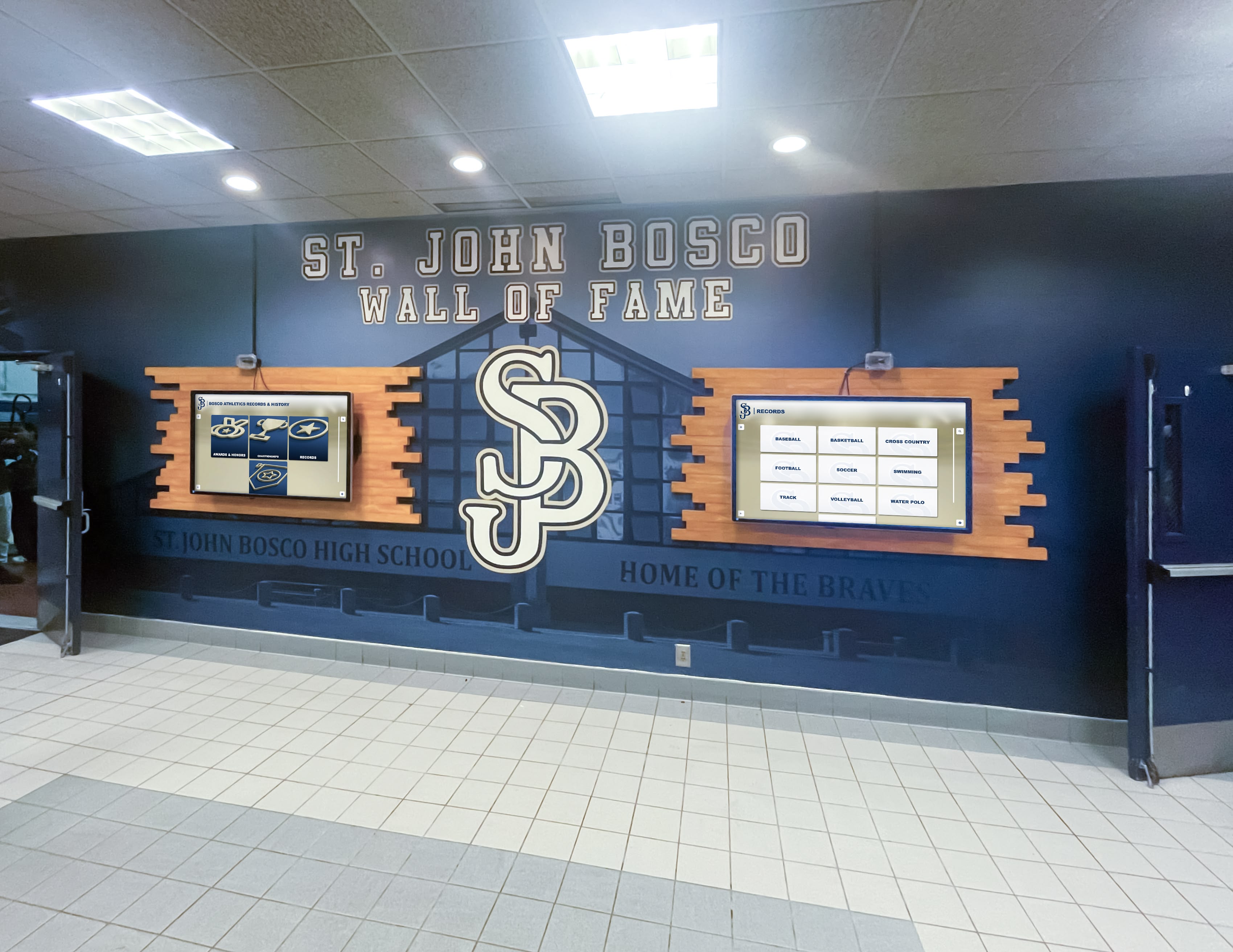
Live Example: Rocket Alumni Solutions Touchscreen Display
Interact with a live example (16:9 scaled 1920x1080 display). All content is automatically responsive to all screen sizes and orientations.
Walk into almost any modern school lobby, museum, or sports facility and you will find at least one interactive touchscreen display. These systems have moved from novelty to standard infrastructure over the past decade, yet many administrators and facilities managers purchase them without fully understanding how the technology works or what a complete installation actually requires.
This guide covers everything from the physics of touch detection to CMS selection, installation planning, and how institutions use touchscreen signage specifically for recognition and archival display. If you are evaluating an interactive display purchase or trying to get more from an existing installation, you will find practical, specific answers here.

A properly specified interactive touchscreen installation can serve a school recognition program for ten or more years without requiring significant hardware changes
What Is Interactive Touch Screen Digital Signage?
Standard digital signage displays content passively—a rotating loop of images or video with no user input. Interactive touch screen digital signage adds a layer where a visitor can touch the screen to navigate menus, search for information, drill into specific content, or trigger actions.
That distinction matters in practice. A passive display cycling through sports highlights is digital signage. A display where a visitor can type an athlete’s name, pull up their full profile, view statistics, and browse associated photos is interactive touch screen signage. The hardware may look identical from across a hallway; the user experience and the software infrastructure behind each are fundamentally different.
For schools, universities, athletics programs, and organizations managing historical archives, the interactive layer is what makes touchscreen displays genuinely useful. Visitors are not a passive audience—they are searching for specific people, specific seasons, and specific achievements.
The Core Technologies Behind Touchscreen Detection
Not all touchscreens work the same way. Understanding the major detection technologies helps you evaluate hardware specifications and avoid paying for capabilities your environment cannot support.
Projected Capacitive (PCAP)
Projected capacitive is the dominant technology in commercial touchscreens today. A grid of conductive electrodes sits beneath the glass surface. When a fingertip (or conductive stylus) approaches the glass, it disrupts the electric field at that point. The controller measures where the disruption occurs and reports that as a touch coordinate.
PCAP screens support true multi-touch—the controller can track ten or more simultaneous contact points independently. The glass surface is sealed, meaning liquids and dust cannot reach the electrode layer. Response latency is typically under 10 milliseconds, which produces the fluid, immediate feel users expect from tablets and phones.
The main limitation: PCAP only detects conductive materials. Gloved hands, rubber styluses, or objects like pens do not register unless the glove material is specifically conductive. For most school and institutional applications this is not a practical problem.
Infrared (IR) Touchscreens
IR screens surround the display with a frame containing infrared emitters and receivers. The emitters project a grid of invisible light beams across the screen surface. When a finger or object interrupts a beam, the controller calculates the intersection point and registers a touch.
IR screens work with any object—gloved hands, styluses, even a ruler. They have no glass overlay affecting optical clarity. The downside is sensitivity to ambient light and debris: bright direct sunlight or accumulated dust in the frame can trigger phantom touches or cause missed inputs. IR screens in high-traffic institutional settings need periodic frame cleaning.
Optical Imaging
Some large-format displays use cameras embedded in the frame to track touch inputs optically. This approach scales well to very large screens (80 inches and above) where electrode-based technologies become expensive. Optical imaging is less common in standard school installations but appears in large-format museum or stadium displays.
For most school recognition and signage applications, PCAP is the appropriate specification. It performs consistently in indoor environments, supports genuine multi-touch, and provides a durable sealed surface that holds up to daily public use.
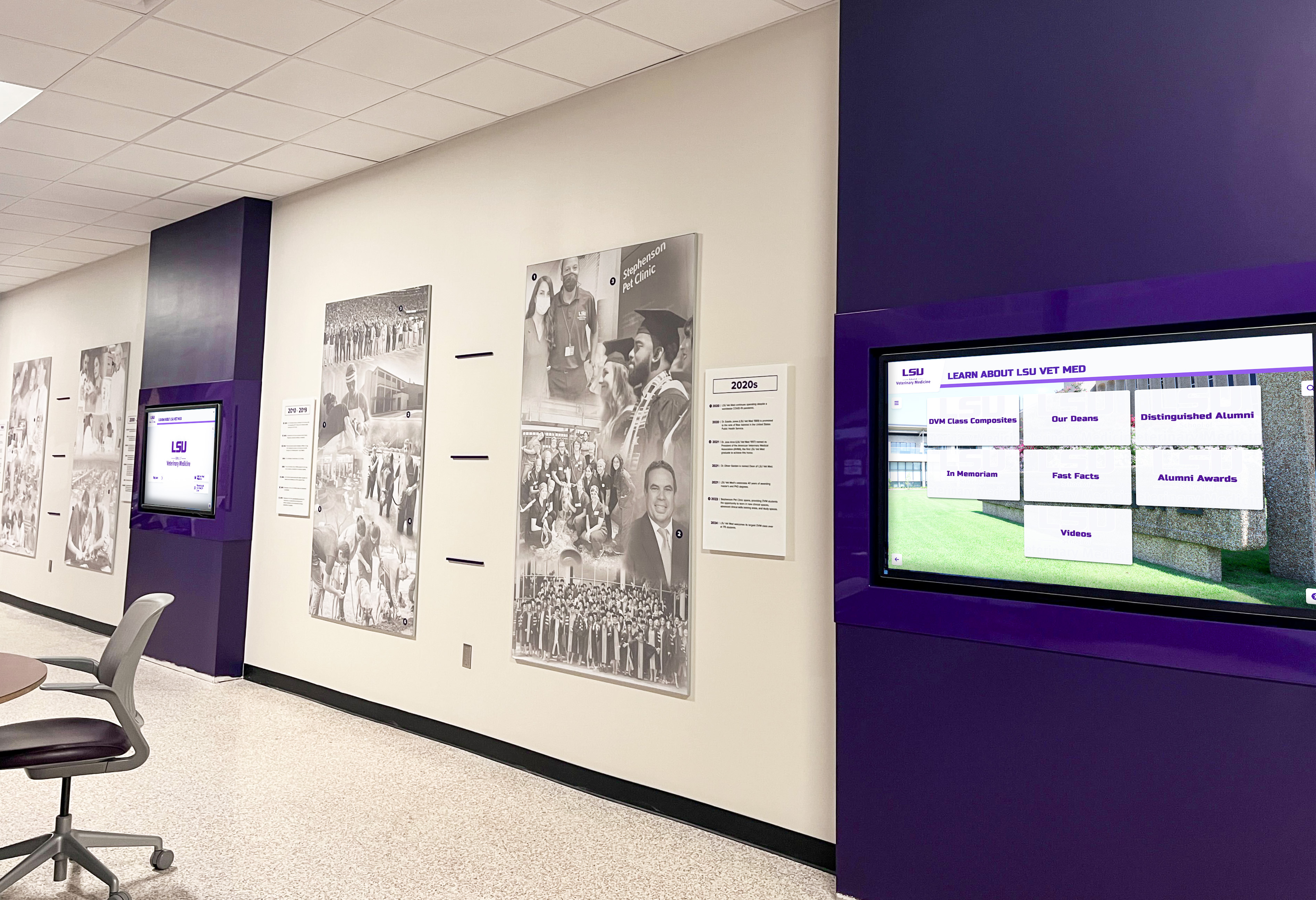
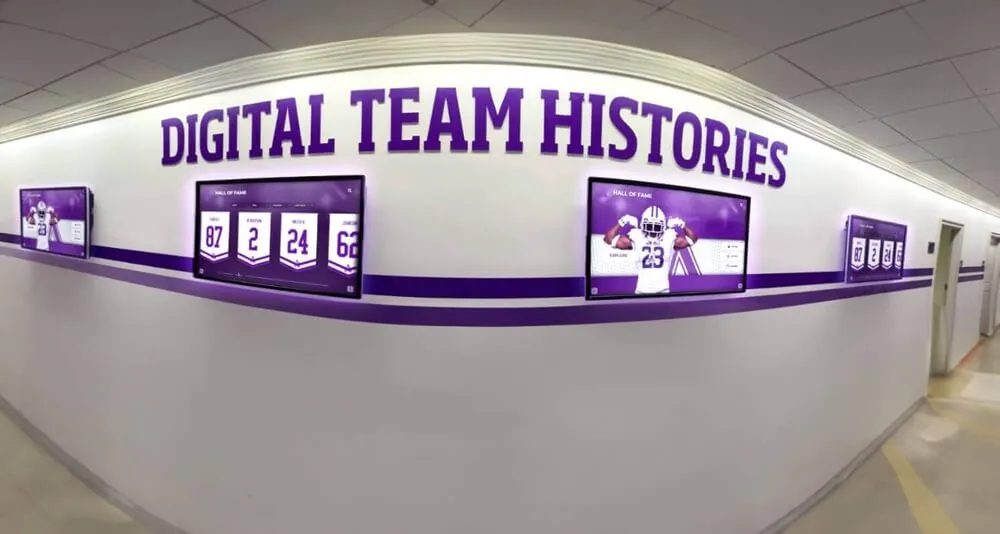
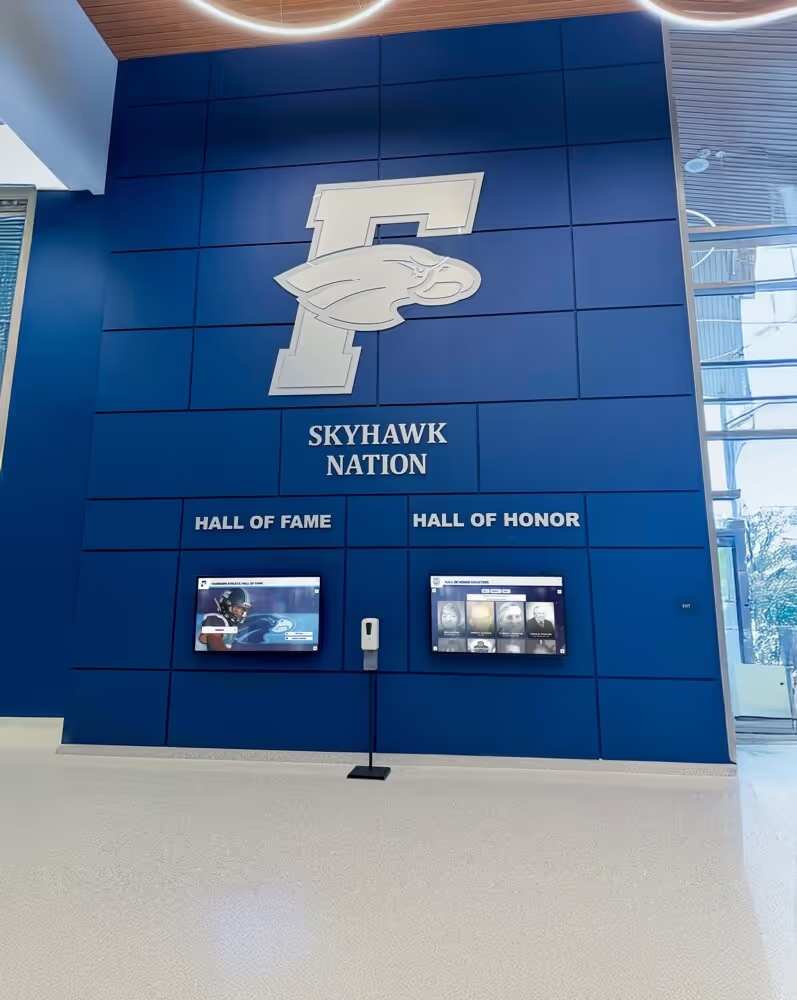
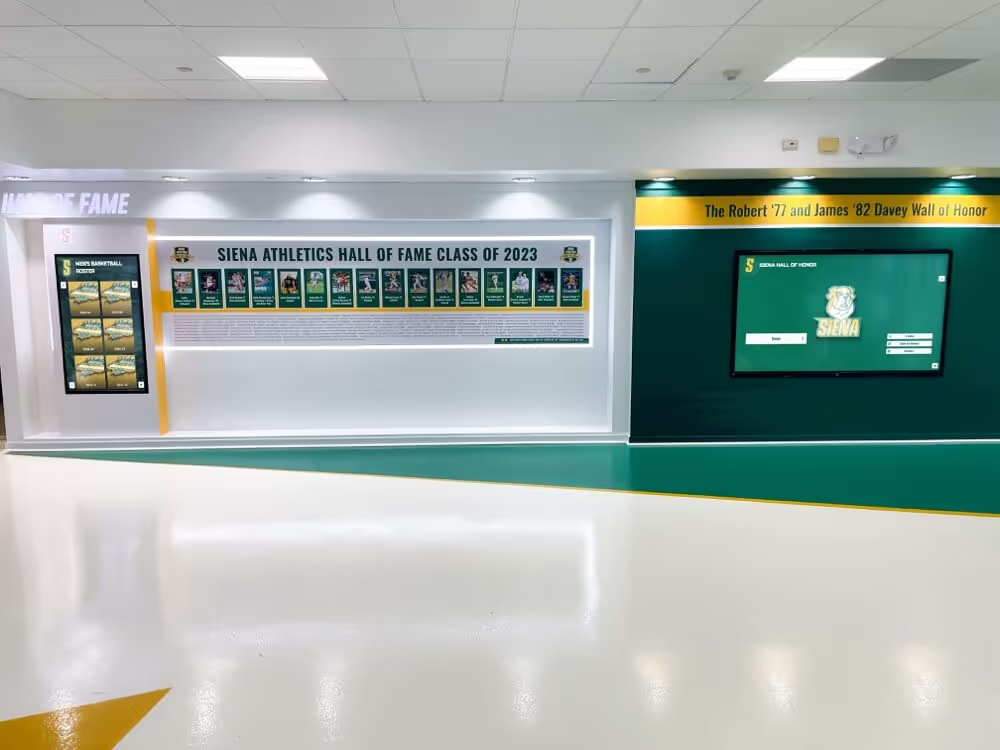
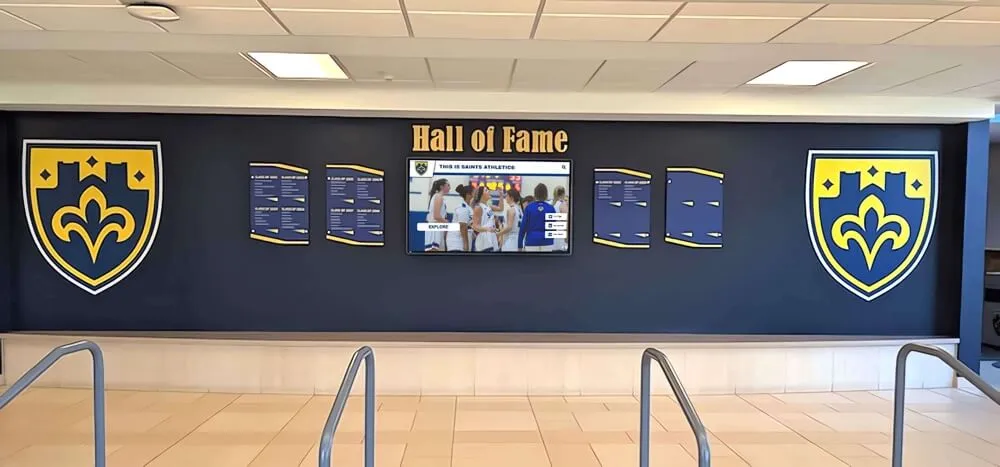
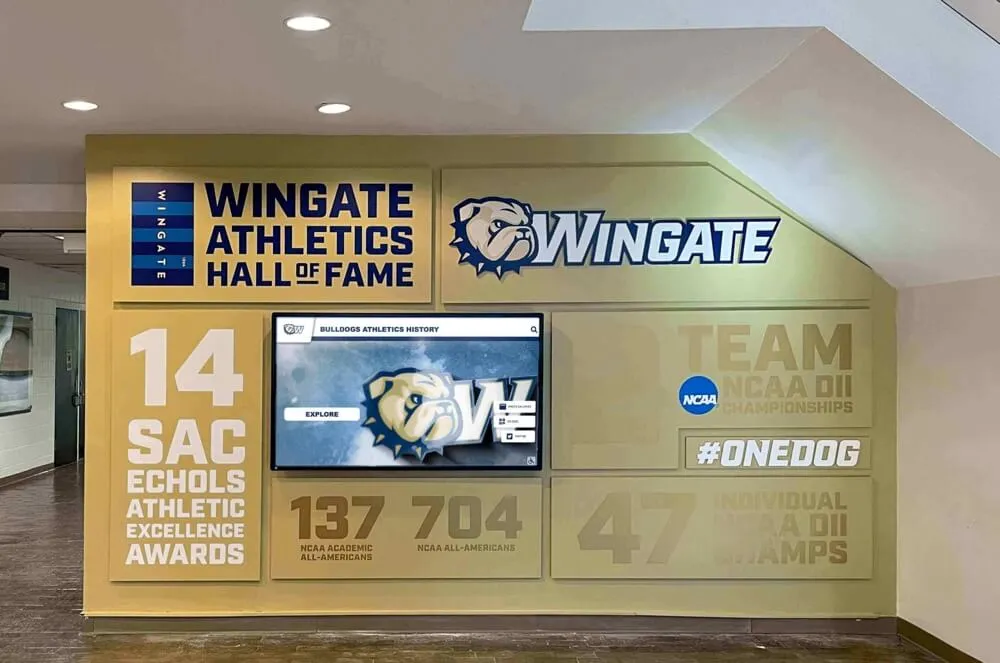
Multi-display installations share a single content management system, so administrators update content once and it appears across every screen in the network
Hardware Components: What You Actually Need
A complete interactive touchscreen installation involves more than the screen itself. Missing any component creates either an installation that does not function or one that fails prematurely.
The Display Panel
Commercial-grade displays differ from consumer televisions in ways that matter for public installations:
Brightness: Lobbies and hallways typically require 400–500 nits of brightness minimum. Consumer TVs rated for controlled living-room environments often deliver 200–300 nits, which appears washed out in ambient-lit institutional spaces.
Duty cycle: Consumer displays are designed for 4–6 hours of daily use. Commercial panels are rated for 16–24 hours per day of continuous operation. Running a consumer display at continuous commercial hours shortens its lifespan from years to months.
Warranty and parts availability: Commercial panels carry 3–5 year warranties with predictable parts availability. Consumer warranty terms typically run one year with no guarantee of replacement part stocking.
Bezel and mounting: Commercial displays include standardized VESA mounting patterns and often ship with tilt or flush-mount brackets. Consumer sets may require third-party adapters.
For school recognition applications, 55-inch panels work well in standard hallways, lobbies, and trophy areas. Large gymnasiums or common areas may warrant 65–75 inch displays. Screens smaller than 43 inches reduce legibility at normal hallway viewing distances.
Media Player vs. System-on-Chip (SoC)
The display itself shows content but does not generate it. Something must run the software that drives what appears on screen. You have two main options:
External media player: A separate compute device—resembling a small desktop computer or a hockey-puck form factor—connects via HDMI or DisplayPort to the display. The media player runs the signage operating system, connects to the network, and handles all software processing. Advantages: replaceable without changing the display, upgradeable as software requirements grow, easier to service. This is generally the more practical choice for complex recognition platforms.
System-on-chip (SoC): Some commercial displays embed a processor directly in the panel. The display runs software without an external device. Advantages: fewer cables, simpler installation. Disadvantages: when the embedded chip reaches end of support, the display itself becomes obsolete even if the panel is still functional. SoC solutions work well for simpler signage loops; complex recognition databases with search and live-query content often require external media players for adequate processing power.
Mounts and Enclosures
Wall-mounting a 55-inch commercial display requires structural planning. Most commercial panels weigh 40–70 pounds. Standard drywall mounting is insufficient—the mount must anchor into studs or a backing plate secured to structural elements.
Flush-mount systems present a clean appearance but require a recessed electrical box and sometimes a recessed network port. Tilt mounts allow screen angle adjustment to reduce glare and accommodate varying viewer heights. Both options are available from commercial AV suppliers in school-appropriate configurations.
For kiosk deployments (freestanding displays not wall-mounted), a commercial-grade kiosk enclosure protects the display, conceals cabling, and often includes a lockable compartment for the media player. Kiosk enclosures cost $800–$3,000 depending on materials and security features.
Peripheral Accessories
Depending on the application, installations may also require:
- Uninterruptible power supply (UPS): Protects against brief power interruptions that can corrupt media player storage or damage displays.
- Network switch: For multi-display installations sharing a network drop.
- Cable management: Surface raceways or in-wall conduit for a professional finished appearance.
- External speakers: Some interactive signage applications use audio; commercial displays often include speakers adequate for this purpose.
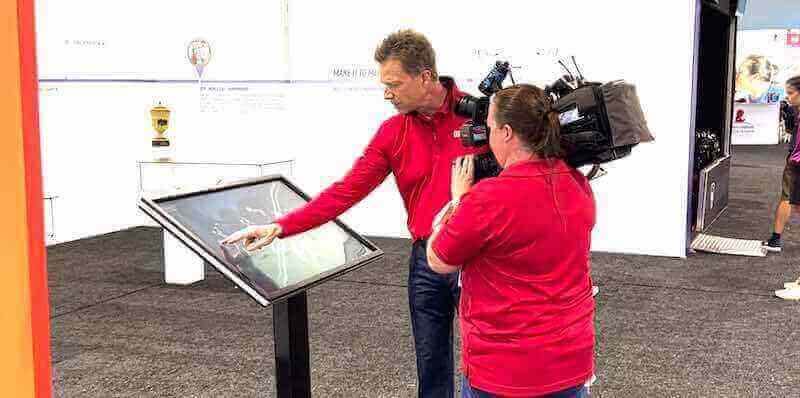
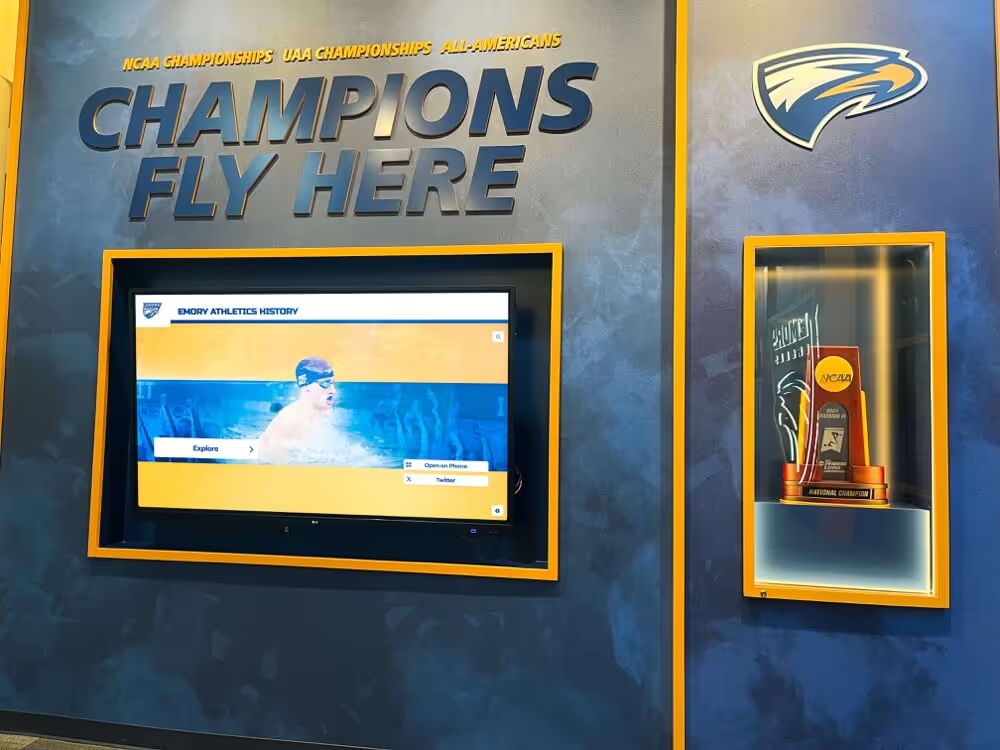
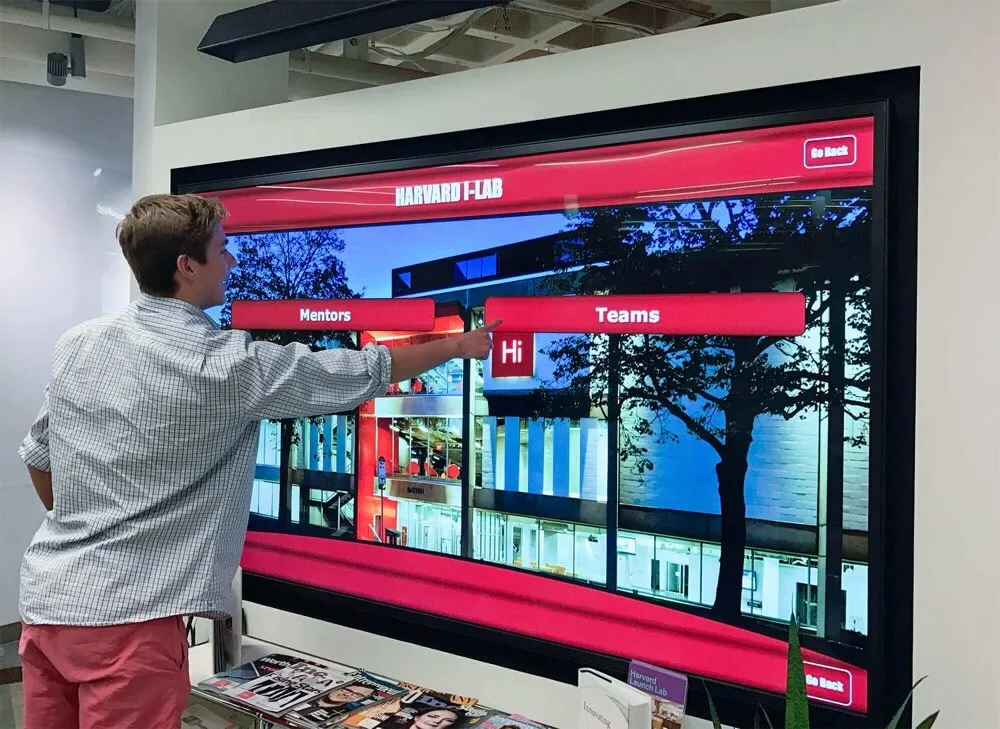
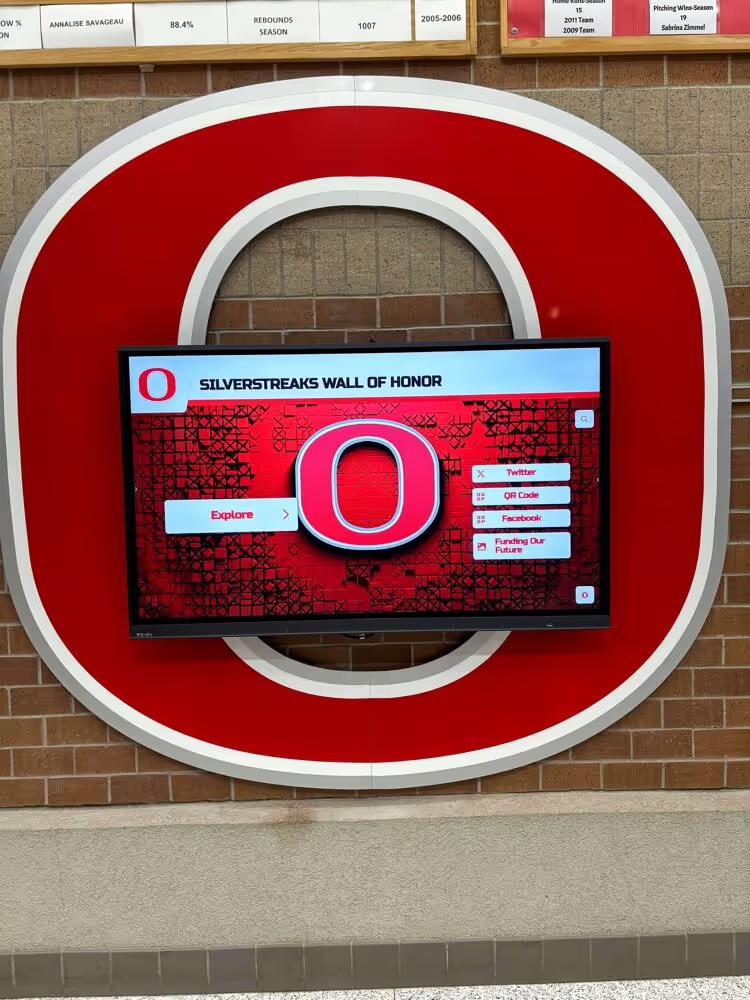
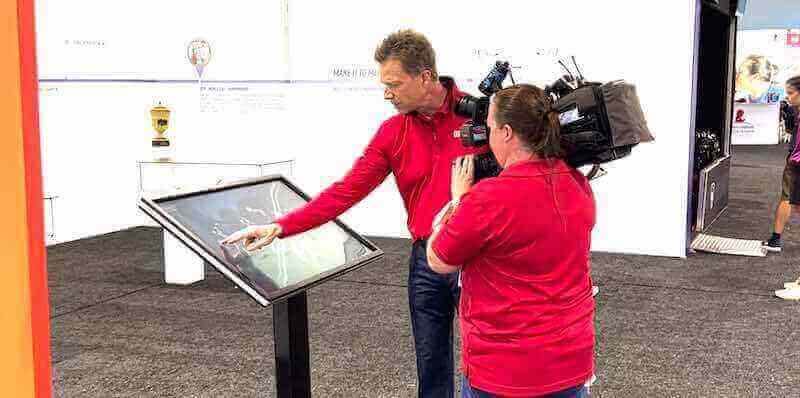
Well-designed interactive signage invites active exploration rather than passive viewing—visitors control what they see and how long they stay engaged
Software and Content Management: Where Most Projects Succeed or Fail
Hardware is the easier half of interactive signage. Software is where projects most commonly fall short.
Two Categories of Software
General digital signage platforms manage scheduled content loops across multiple screens. They excel at displaying rotating slideshows, promotional content, and simple announcements. Most were not designed for database-driven interactive content where visitors search by name or browse hierarchical categories.
Purpose-built recognition and archive platforms are designed specifically for the use case where visitors explore structured content—athlete profiles, award records, historical photos, alumni directories. These platforms include:
- Structured data entry forms for consistent profile creation
- Search and filter interfaces visitors can use without training
- Media management for photo and video archives
- Role-based access so designated staff can update content without technical involvement
- Responsive design allowing the same content database to display on physical kiosks and mobile browsers
For recognition displays, trophy archives, and institutional history applications, general signage platforms are fundamentally the wrong tool. A school that builds an athletic archive on a slideshow-based signage platform will find that content becomes unmanageable within 12-18 months as the number of profiles grows.
CMS Evaluation: What to Actually Test
During any software evaluation, insist on testing these workflows yourself rather than watching a vendor demonstration:
Add a new profile: How many steps does it take to add a new inductee with a photo, biographical information, and award details? If this takes more than 10 minutes for a non-technical staff member, day-to-day management will become a burden.
Correct an error: What happens when you discover a misspelled name or wrong graduation year from five years ago? Can you update it immediately from a web browser, or does it require submitting a support ticket?
Search for a specific person: From the visitor-facing interface, can you find a specific athlete by partial name match within 15 seconds?
Add a second screen: If you later install a display in another building, does the platform charge an additional per-screen license fee? Some platforms charge the same fee for one screen as for twenty; others multiply per-screen charges that quickly become budget-prohibitive for expanding networks.
For a detailed comparison of touchscreen software options for schools, including what to ask vendors before signing a contract, the full guide covers most scenarios you will encounter during procurement.
Network and Connectivity Requirements
Interactive signage generally needs network access for two purposes: receiving content updates and (in some configurations) connecting to remote databases.
For content updates: Most platforms sync content from a cloud CMS to local storage on the media player. The display does not require constant connectivity during operation—once content syncs, the display operates from local storage. This means brief network outages do not interrupt the visitor experience. What you do need is stable connectivity for scheduled syncs, typically every few hours or on-demand when content changes.
For real-time data: Some advanced configurations pull live data—game scores, leaderboards, or record board updates—directly from connected databases. These require stable connectivity and occasionally dedicated network ports.
Bandwidth: Standard 25 Mbps internet service is more than adequate for most recognition display networks. The data footprint of structured profiles and images is modest compared to video streaming applications.
Network isolation: Security-conscious IT departments may require interactive signage on a separate network VLAN isolated from administrative systems. Quality commercial platforms support this configuration without functional limitations.
For environments where running ethernet is impractical, Wi-Fi connections work for most content sync scenarios. Ethernet remains preferable for reliability in high-traffic public areas where Wi-Fi congestion can delay updates.
Installation Planning: What to Verify Before the Hardware Arrives
Effective installations start with site assessment weeks before any equipment ships. Skipping this step produces field surprises that delay projects and increase costs.
Electrical: Confirm a dedicated circuit within reach of the planned mount location. Commercial displays typically draw 100–250 watts; running them on shared circuits with other high-draw equipment creates reliability problems. Some installations require an electrician to add outlets, which should be planned and scheduled in advance.
Structural: Identify stud locations and wall construction type. Concrete or masonry walls require anchor bolts and masonry hardware. Metal stud construction requires specific anchoring systems. Confirm the wall section can support the combined weight of display, mount, and media player.
Lighting: Walk the space at different times of day and observe ambient light conditions. Direct sunlight hitting the screen at certain hours creates glare that renders even high-brightness displays difficult to use. Window film, adjusted screen positioning, or anti-glare screen protectors can mitigate this if the ideal location has problematic light exposure.
ADA compliance: The Americans with Disabilities Act guidelines for operable parts in public spaces inform screen placement. Touchscreen controls should be reachable from a seated (wheelchair) position. The general guidance is that operable controls be between 15 and 48 inches from the floor; for a large display, the primary interactive zone should fall within this range. Screens mounted too high exclude wheelchair users from the interactive experience entirely. The K-12 interactive display buyer’s guide covers ADA mounting requirements and classroom-specific installation considerations in detail.
Cable routing: Plan the path from the display location to the electrical panel and network drop. In-wall routing produces the cleanest result but requires cutting and patching drywall. Surface raceways are faster to install but visible. Decide which approach fits your facility’s aesthetic before installation day.
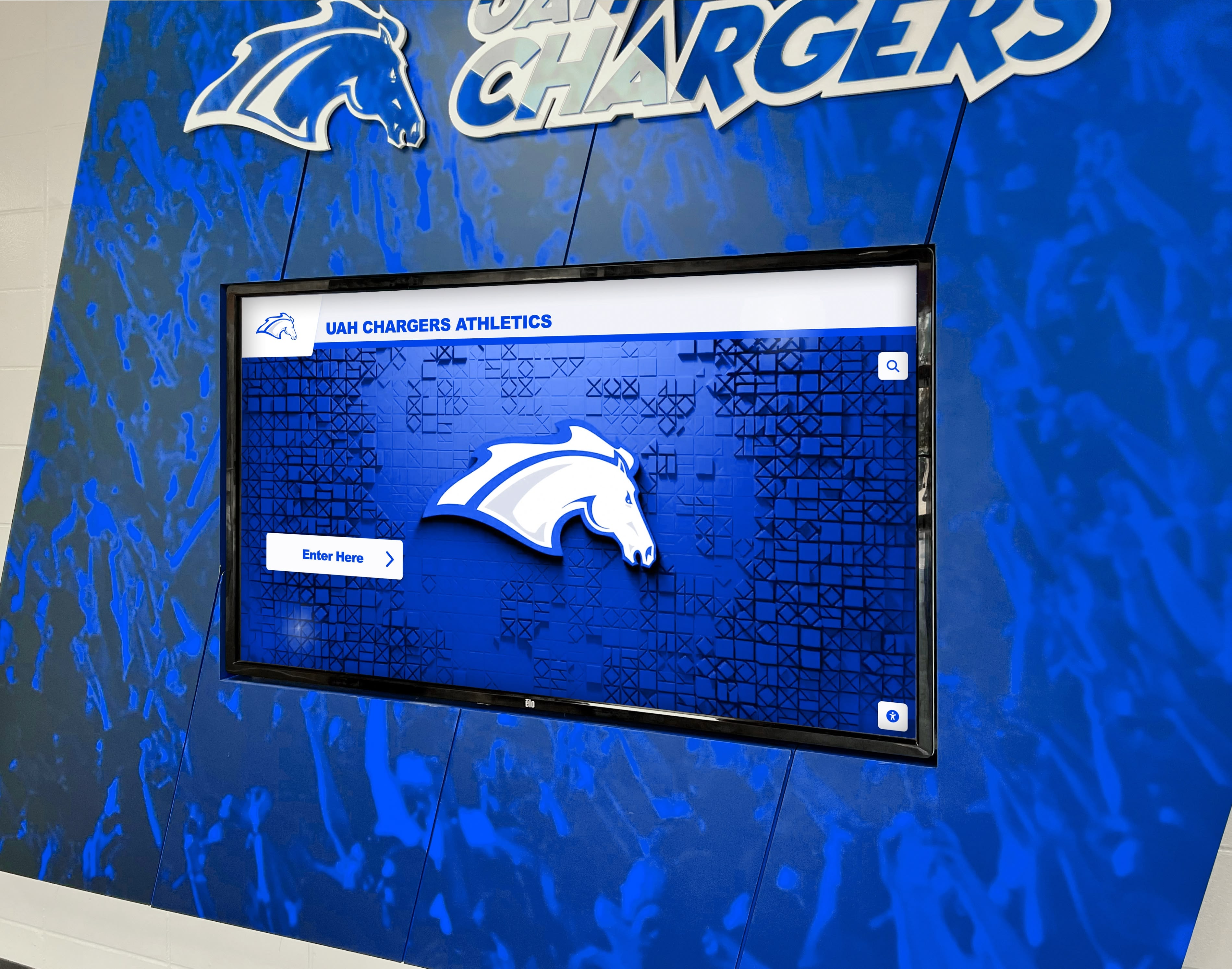
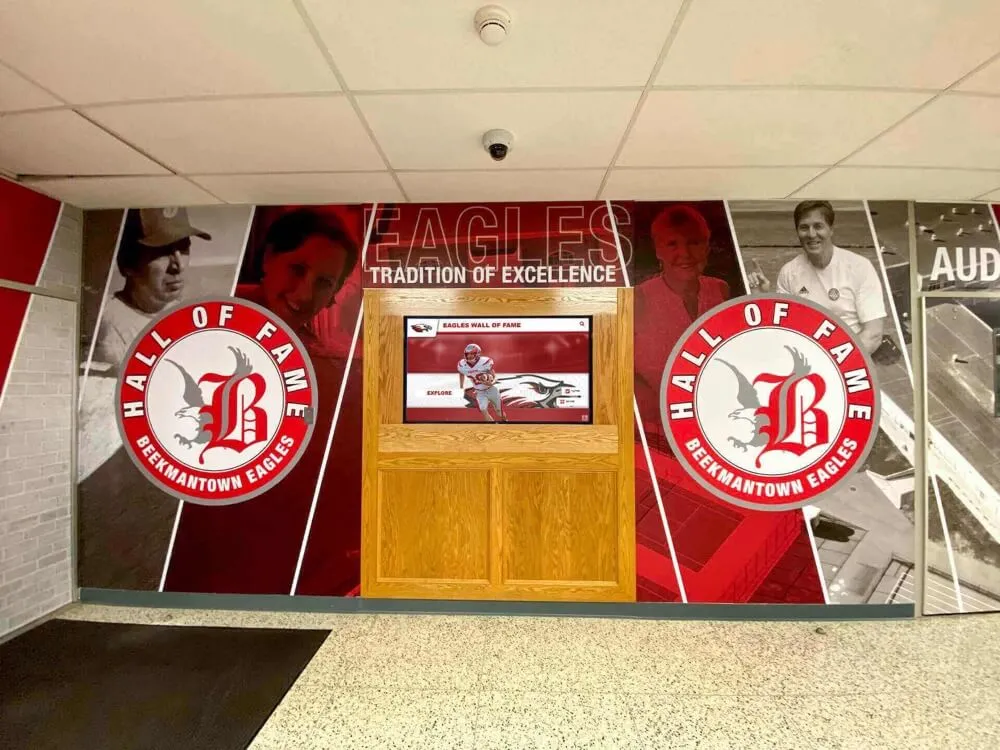
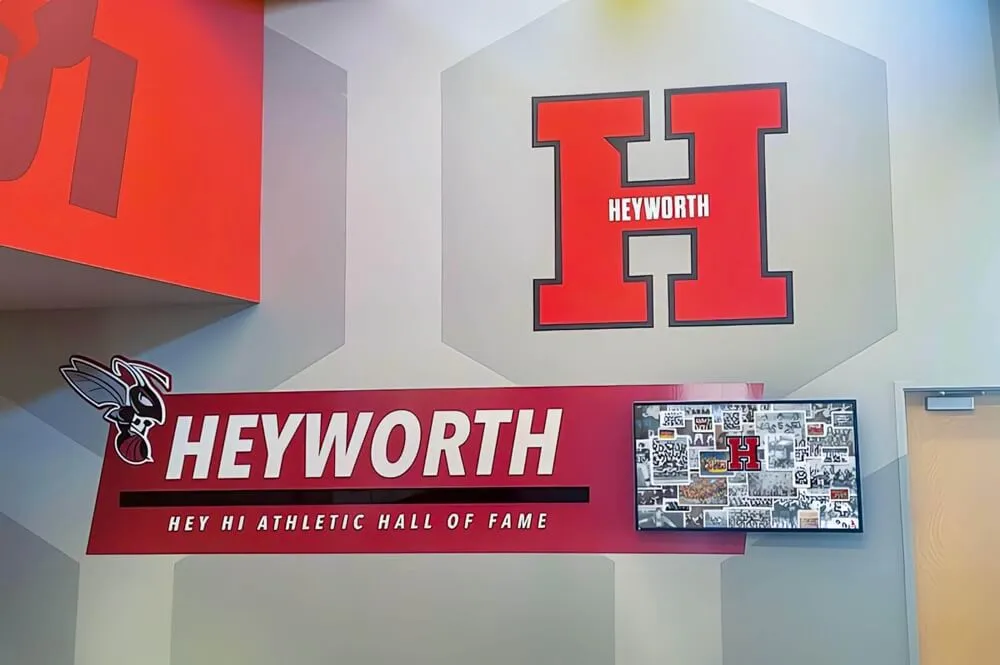
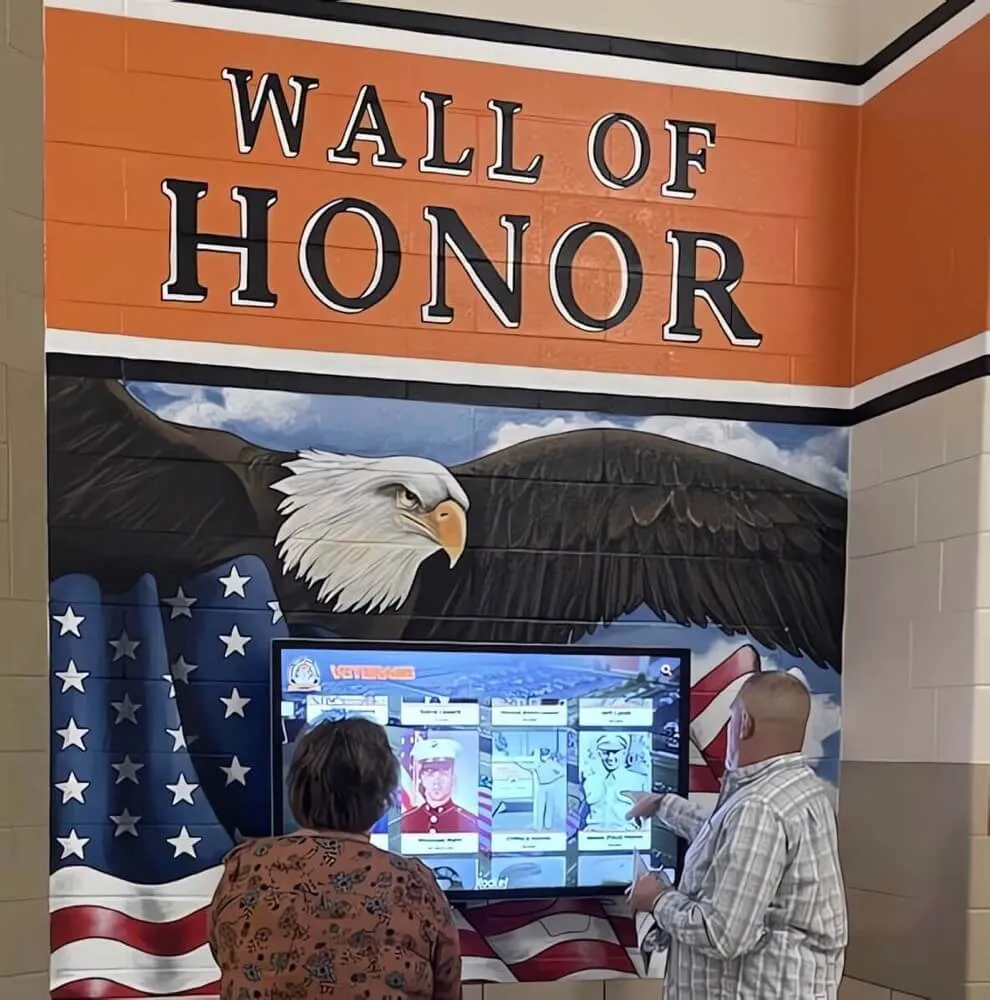
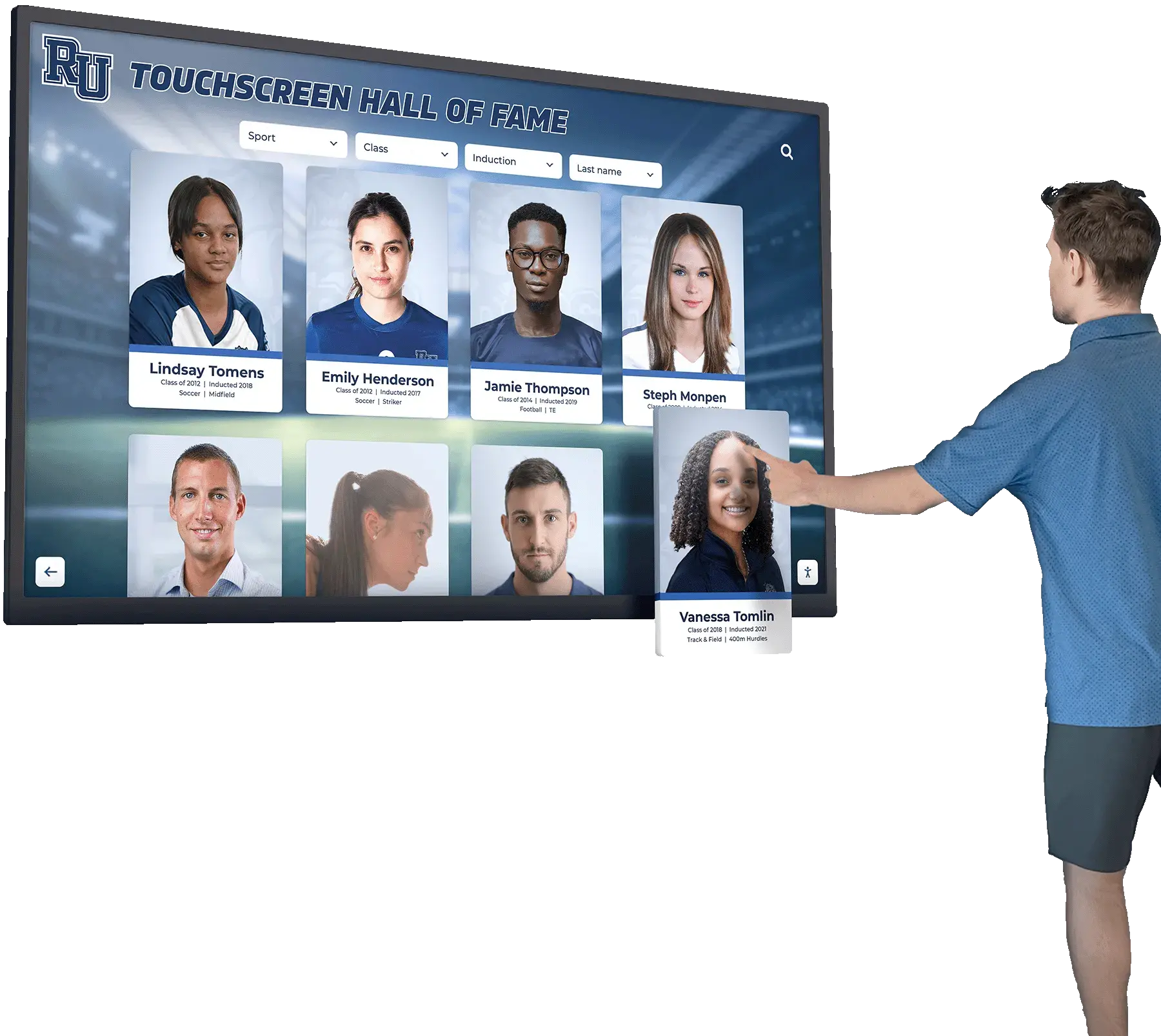
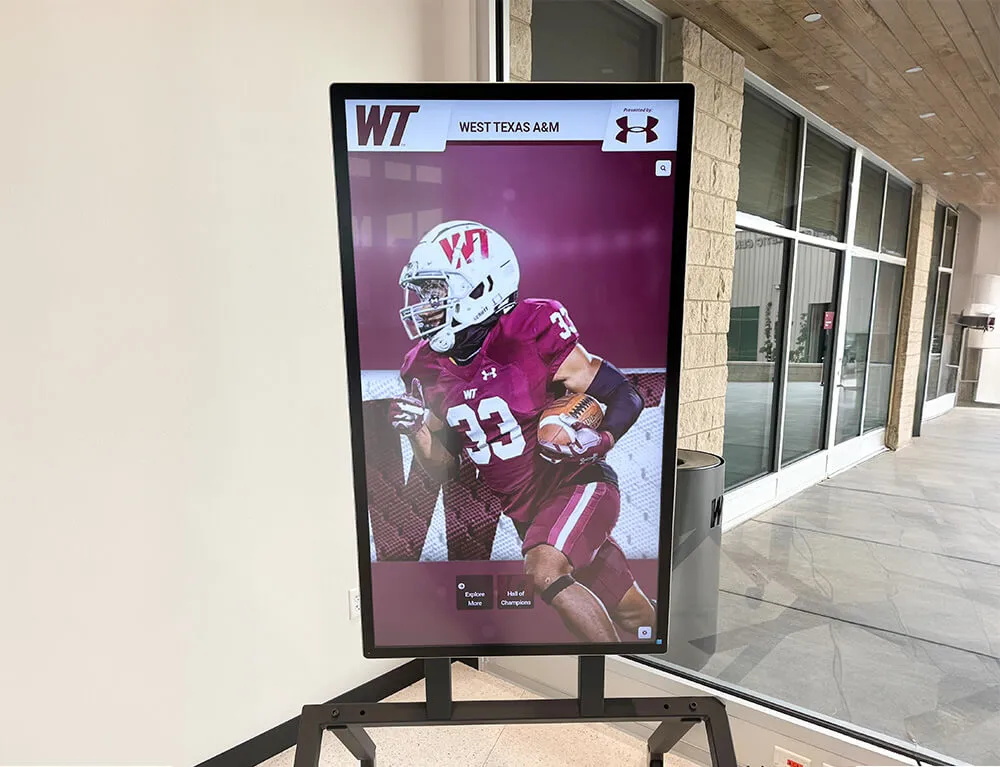
Purpose-built recognition displays organize decades of achievement data into searchable, browsable content that visitors can navigate without instruction
Content Strategy: Making Interactive Signage Actually Useful
Hardware and software create the capability. Content determines whether visitors actually engage with the display.
Structure Content for Active Browsing
Interactive signage users navigate differently than passive viewers. They arrive with specific information in mind—a name, a team, a year—or they browse out of curiosity. Your content architecture should support both behaviors.
Searchable by specific terms: Every profile should be findable by name, year, sport, or achievement type within seconds. If a grandparent visiting for a graduation wants to find their grandchild’s coach from the 1992 football season, they should be able to get there in three taps.
Browsable for discovery: Users without a specific target should land on featured content that draws them in—recent additions, significant anniversaries, highlighted achievements, or seasonal relevance. A display showing nothing interesting at the default state will see visitors walk past without stopping.
Layered depth: A profile should offer enough at a glance to understand who the person is, with the option to go deeper for those who want more. A brief bio visible immediately, with full statistics and photo galleries available one tap further, serves both casual browsers and engaged researchers.
Photo Standards
Recognition displays succeed or fail significantly on photo quality. Blurry, poorly cropped, or low-resolution photos undermine otherwise complete content.
For current profiles, standardize on a minimum resolution of 1920x1080 pixels and consistent composition—head-and-shoulders portraits on neutral backgrounds, or action photos with clear subject framing. For historical archives, professional scanning of physical photos at 600 DPI or higher preserves quality for digital display. Organizations with extensive historical archives should budget scanning costs into the project from the start.
Keeping Content Current
Static displays become dated quickly. Assign specific content management responsibilities to a staff member or volunteer with defined time allocated for updates. A recognition program with an active update schedule—adding new inductees promptly, featuring seasonal content, and correcting errors as discovered—delivers substantially more engagement value than a display that reflects the state of the archive from installation day two years ago.
Digital signage platforms designed for school environments include content scheduling tools that let administrators prepare and queue updates in advance—useful for managing recognition announcements around awards seasons, graduation, or reunion events.
How Schools Use Interactive Touchscreens for Recognition and Archives
Recognition and archival display is one of the most common specialized applications of interactive touchscreens in K-12 and higher education. The use case is well-matched to what touchscreen technology does well: organizing large volumes of structured information into something visitors can meaningfully explore.
Athletic Halls of Fame
An athletic hall of fame at a school with thirty or more years of history may include hundreds or thousands of inductees, records, and achievements. Physical plaques and trophy cases cannot accommodate this volume—schools with active programs fill physical display space within a few years and then face ongoing decisions about which achievements remain visible and which go into storage.
Interactive touchscreen systems eliminate the storage problem. Every inductee, every record, every team photo occupies permanent searchable space on the display regardless of when it was added. A student athlete inducted in 1978 remains as accessible as one inducted last spring.
Touchscreen display solutions for high school gym lobbies and athletic spaces show how schools integrate these displays into existing spaces, including how installations complement rather than replace existing physical trophies and championship banners.
Academic and Activity Recognition
Academic recognition programs—honor rolls, National Merit Scholars, valedictorians across decades—benefit equally from interactive archiving. Academic achievers often receive certificates rather than trophies, which means physical display infrastructure handles them poorly. A searchable digital archive treats a 1992 National Merit Scholar and a 2026 valedictorian with identical visibility, organized into an accessible format that physical displays cannot replicate.
The same platform that manages athletic records can accommodate debate championships, science olympiad placements, music competition results, and club achievement recognition—all in a unified system that visitors browse through a single interface.
Donor and Supporter Recognition
Institutions that publicly thank major donors use interactive touchscreen displays to maintain current, accurate, and visually engaging recognition without the cost and permanence of engraved plaques. Donor levels, gift histories, and recognition tiers can update as campaigns progress without requiring new physical materials.
Large-scale touchscreen display solutions for schools cover configurations that handle both recognition and donor acknowledgment on shared or dedicated displays.
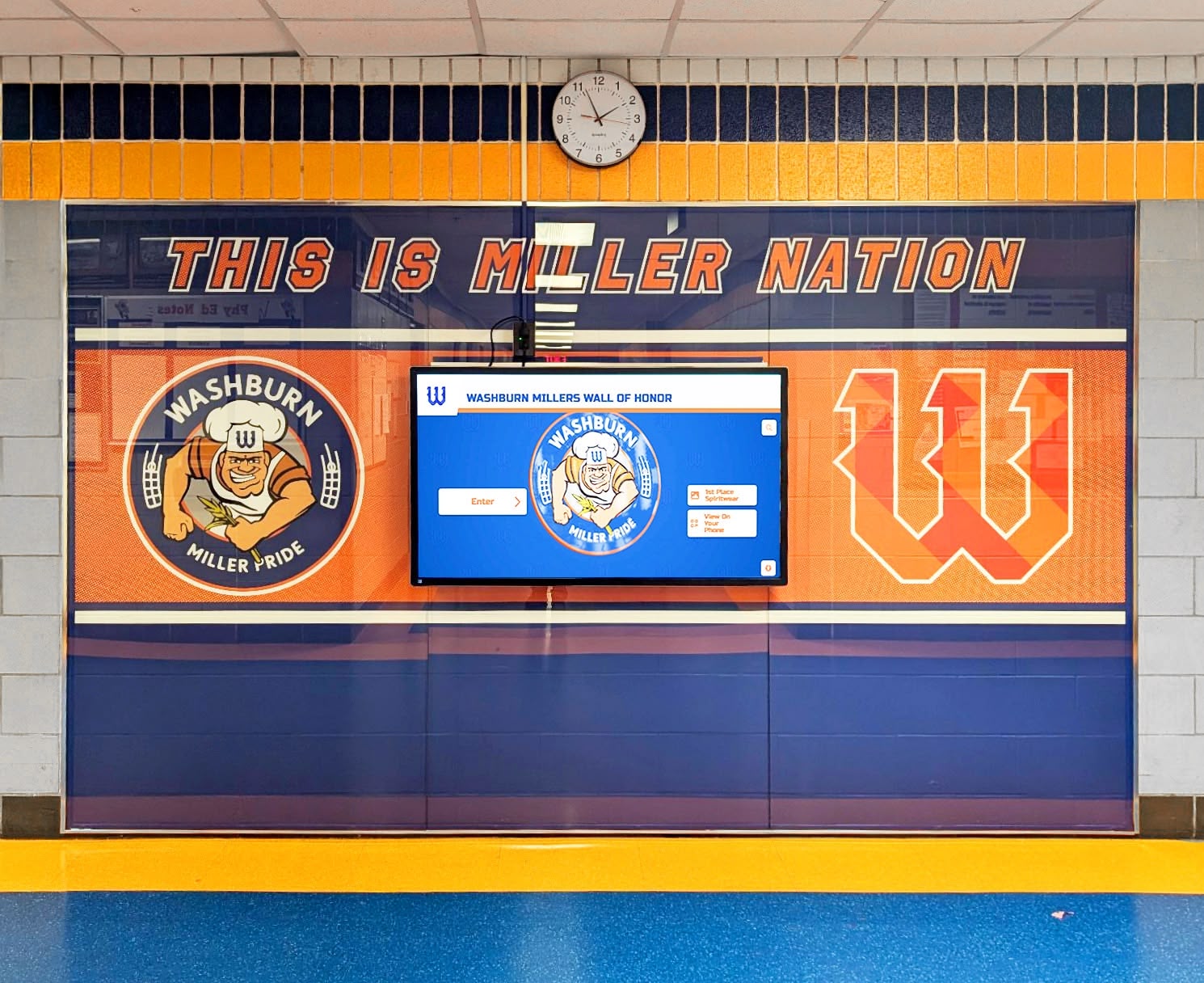
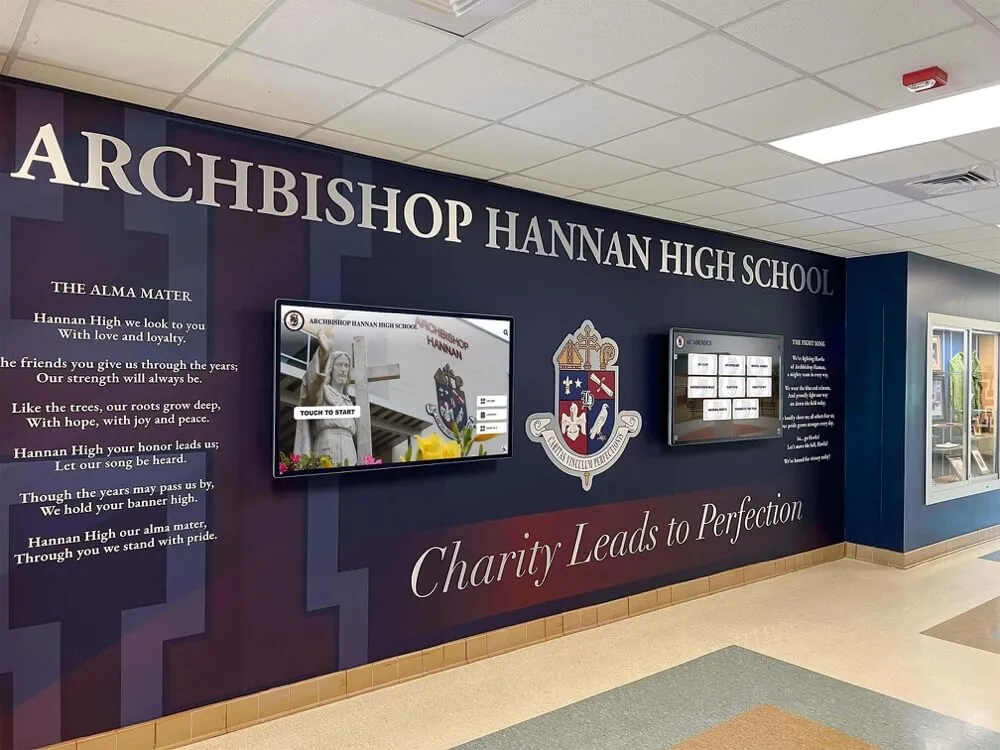
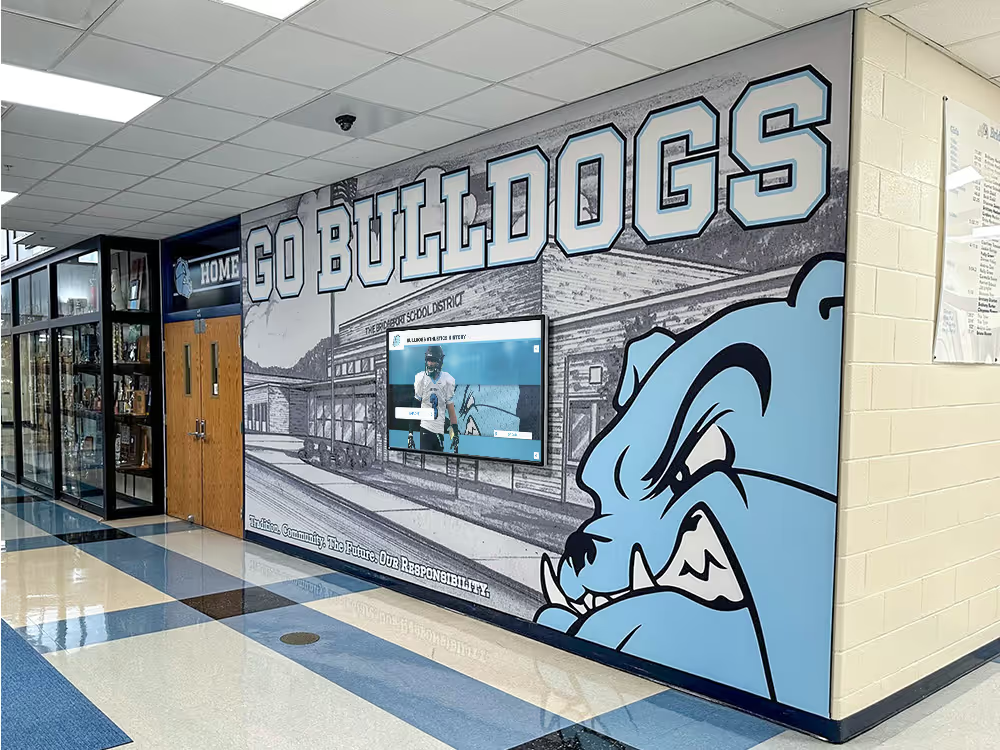
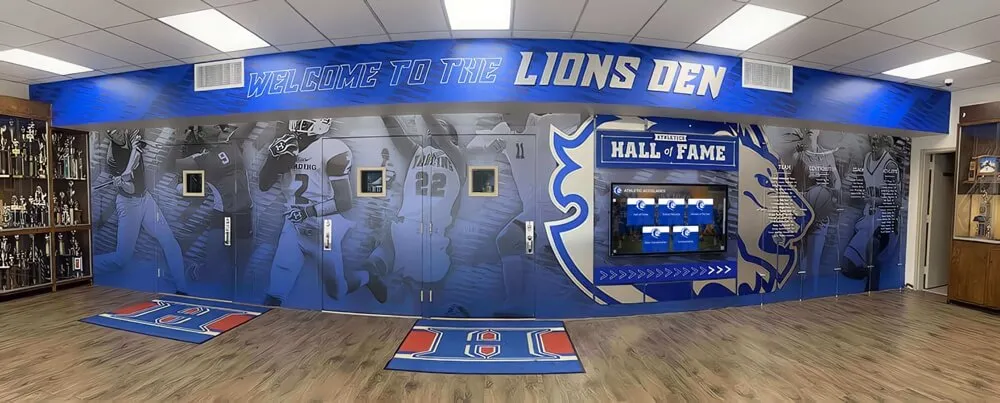
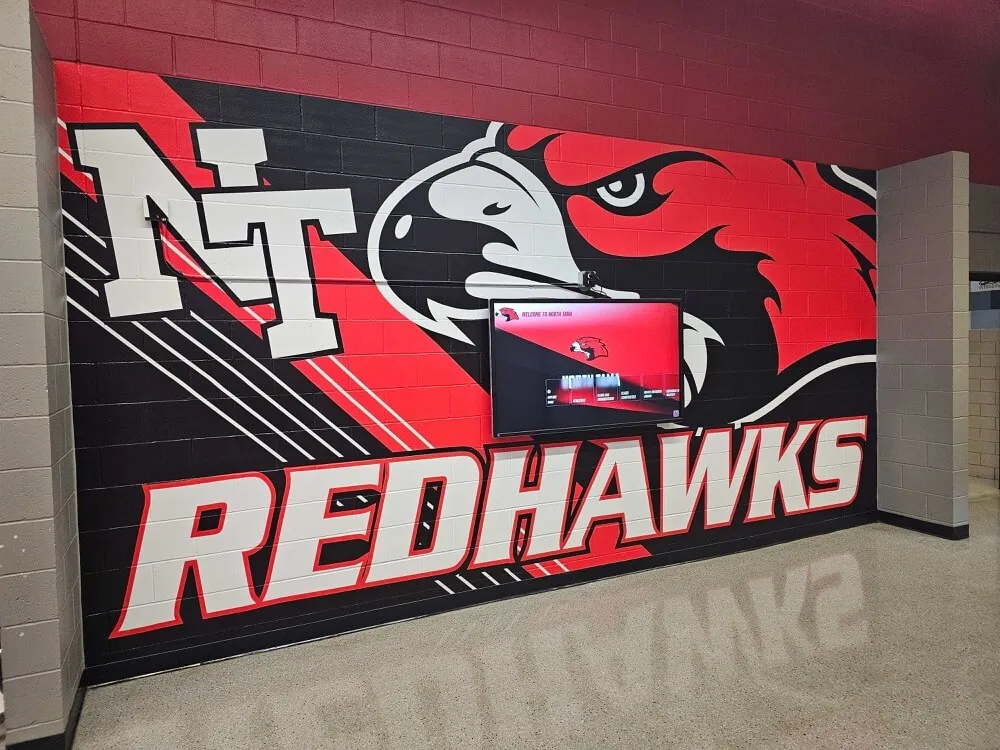
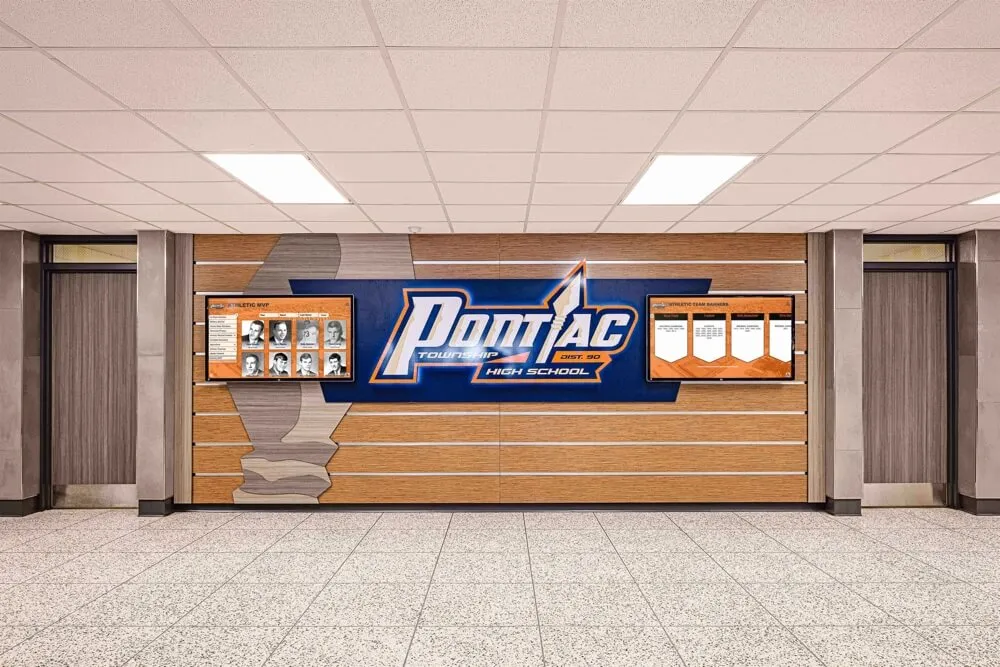
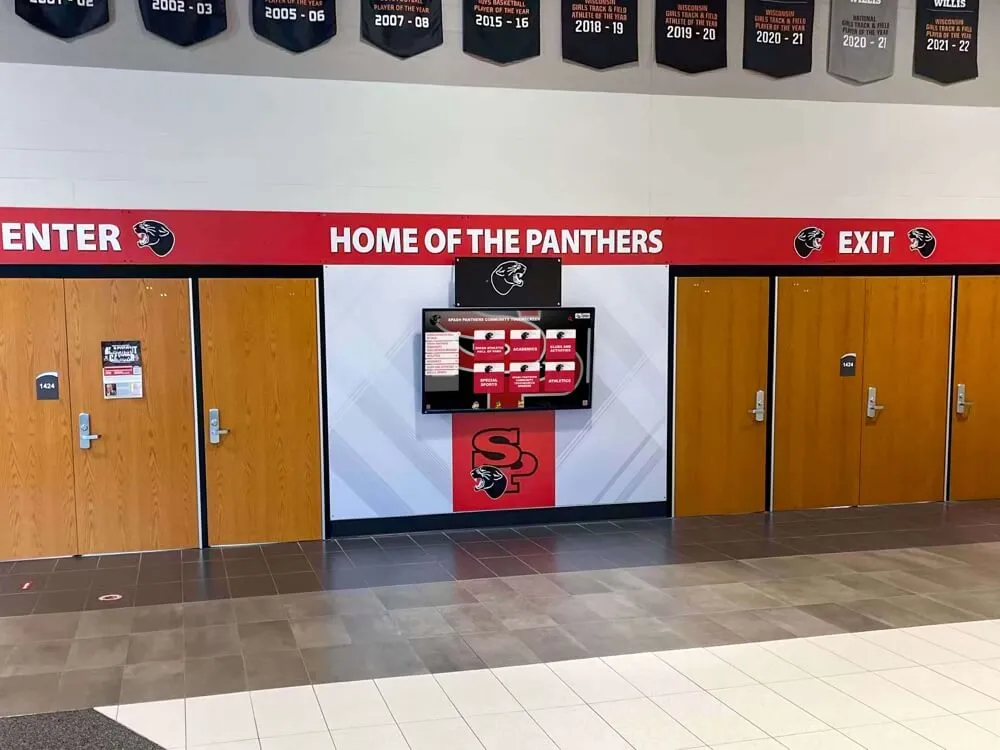
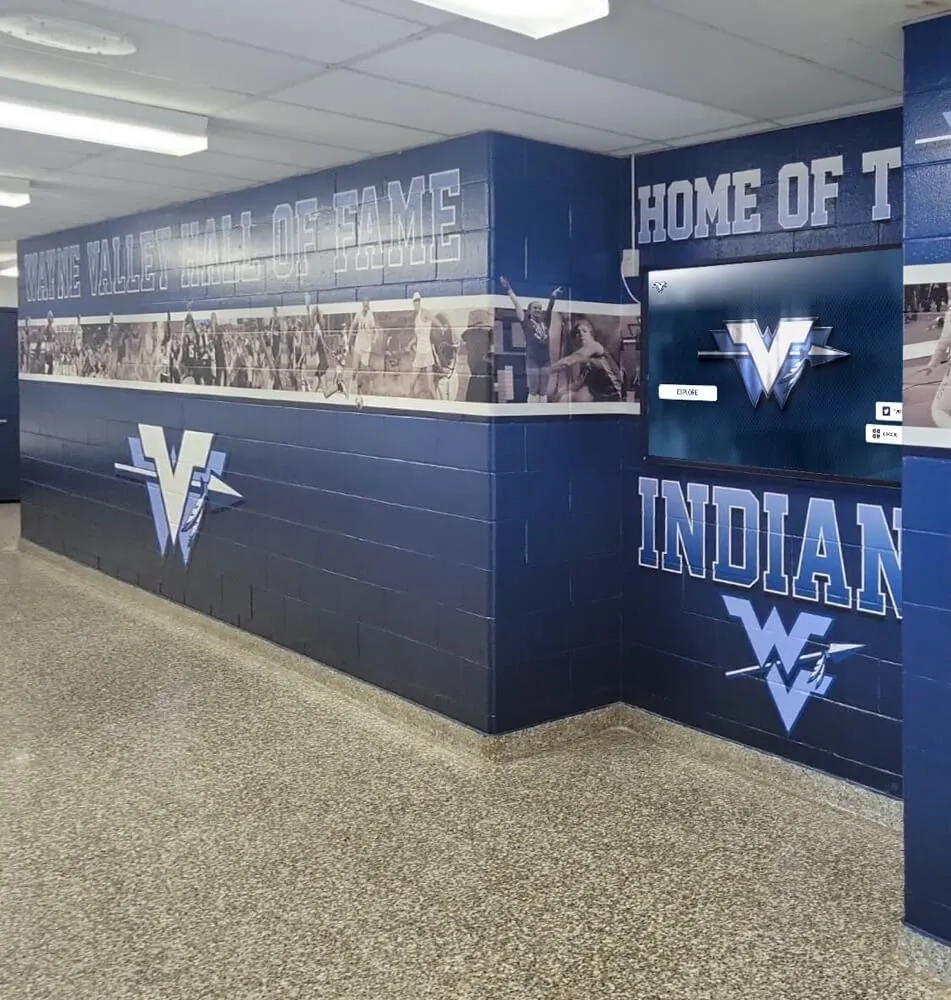
Interactive recognition displays often anchor larger hallway or lobby installations that combine digital screens with physical murals, championship banners, and traditional trophy cases
Rocket Alumni Solutions as a Recognition Platform
For schools and athletic programs specifically seeking a touchscreen recognition system rather than a general signage tool, Rocket Alumni Solutions represents a purpose-built option. The platform handles athletic hall of fame displays, academic recognition, donor walls, and historical archives within a single CMS built for non-technical administrative staff.
Key differentiators for educational institutions include unlimited screen deployment on a single license—meaning a school can install displays in its gymnasium lobby, academic wing, and fine arts center without paying per-screen fees that multiply costs—and content management that staff can handle without vendor involvement for routine updates. Recognition-focused platform features like searchable athlete profiles, record board integration, and alumni directory displays are built into the core product rather than bolted on as add-ons.
For schools exploring interactive touchscreen displays specifically for recognition and archive use cases, the complete guide to digital hall of fame displays covers implementation steps, hardware specifications, and content planning from the school administrator’s perspective.
Accessibility Standards for Public Touchscreen Displays
Public institutions—including public schools, universities, and government facilities—are required to meet accessibility standards for interactive displays. Private institutions generally treat these standards as baseline best practices even where not legally mandated.
WCAG 2.2 AA: The Web Content Accessibility Guidelines, version 2.2 at the AA conformance level, apply to software running on public interactive displays in the same way they apply to websites. Key requirements include:
- Sufficient color contrast ratios (minimum 4.5:1 for normal text)
- Text alternatives for all non-text content
- Keyboard-navigable interfaces (important for users who cannot use touch input)
- Consistent navigation structure that users can learn and rely on
- No content that flashes at frequencies that could trigger photosensitive reactions
Physical placement: As noted above, operable controls between 15 and 48 inches from the floor. Clear floor space of at least 30x48 inches in front of a freestanding kiosk to accommodate a wheelchair approach.
Touch target sizing: Minimum touch target size of 44x44 CSS pixels per WCAG 2.5.8 (applicable to the software layer), with adequate spacing between targets to prevent accidental activation.
Verifying accessibility before purchase saves significant rework costs. Ask vendors for specific WCAG 2.2 AA documentation, not just a general claim of “ADA compliance” (which often refers only to physical placement standards, not software accessibility). Comparing interactive touchscreen systems across display quality, software, and accessibility provides a structured framework for evaluating multiple vendors on these criteria simultaneously.
Understanding True Total Cost of Ownership
The purchase price of a touchscreen display represents one component of total ownership cost. Organizations that budget only for initial hardware and installation typically encounter unexpected expenses in year two or three.
Hardware (one-time):
- Commercial touchscreen display: $2,500–$6,000 depending on size and specification
- Media player or SoC: $300–$1,500 for external players; often included in SoC displays
- Mount or kiosk enclosure: $200–$3,000
- Installation labor and materials: $500–$2,000 depending on electrical and structural work required
Software (recurring):
- Annual platform subscription: $1,500–$5,000+ per year depending on the platform and feature tier
- Per-screen fees (if applicable): multiply by screen count if the platform charges per display
Content operations (recurring):
- Staff time for content management: typically 2–5 hours per month for active programs
- Photo scanning or digitization for historical archives: $500–$3,000+ one-time depending on archive size
- Occasional graphic design or layout customization
Hardware lifecycle: Commercial displays typically require replacement every 7–10 years. Budget for this cycle rather than treating the initial purchase as indefinite.
Organizations evaluating platforms with per-screen licensing should project costs over five years across their planned display count before comparing to platforms with organization-wide pricing. A platform that appears less expensive per screen in year one may cost two or three times as much by year five for a network of four or more displays.
Digital signage options for schools including feature comparison, management, and pricing structures breaks down the features-versus-cost tradeoffs across different platform categories.
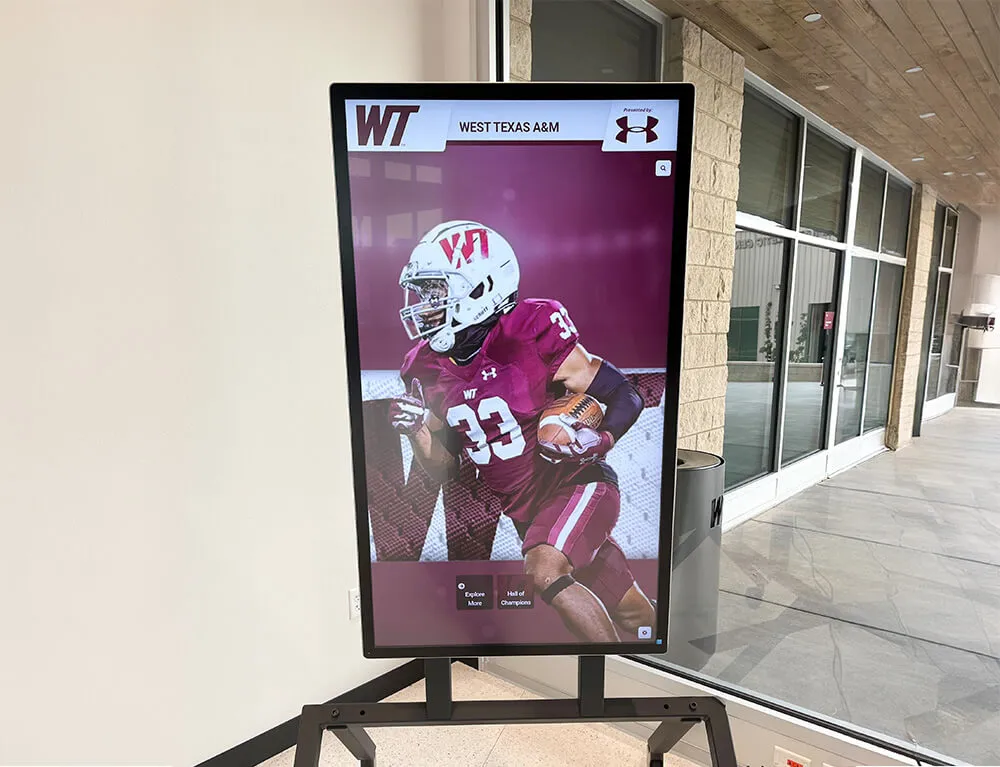
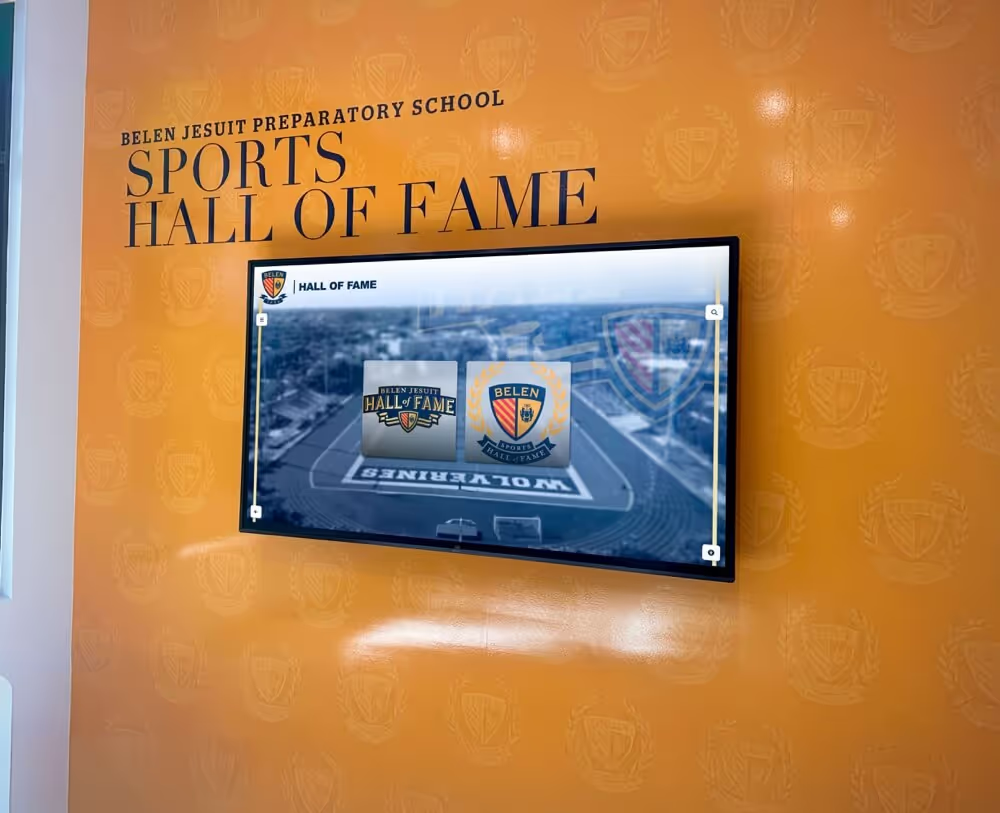
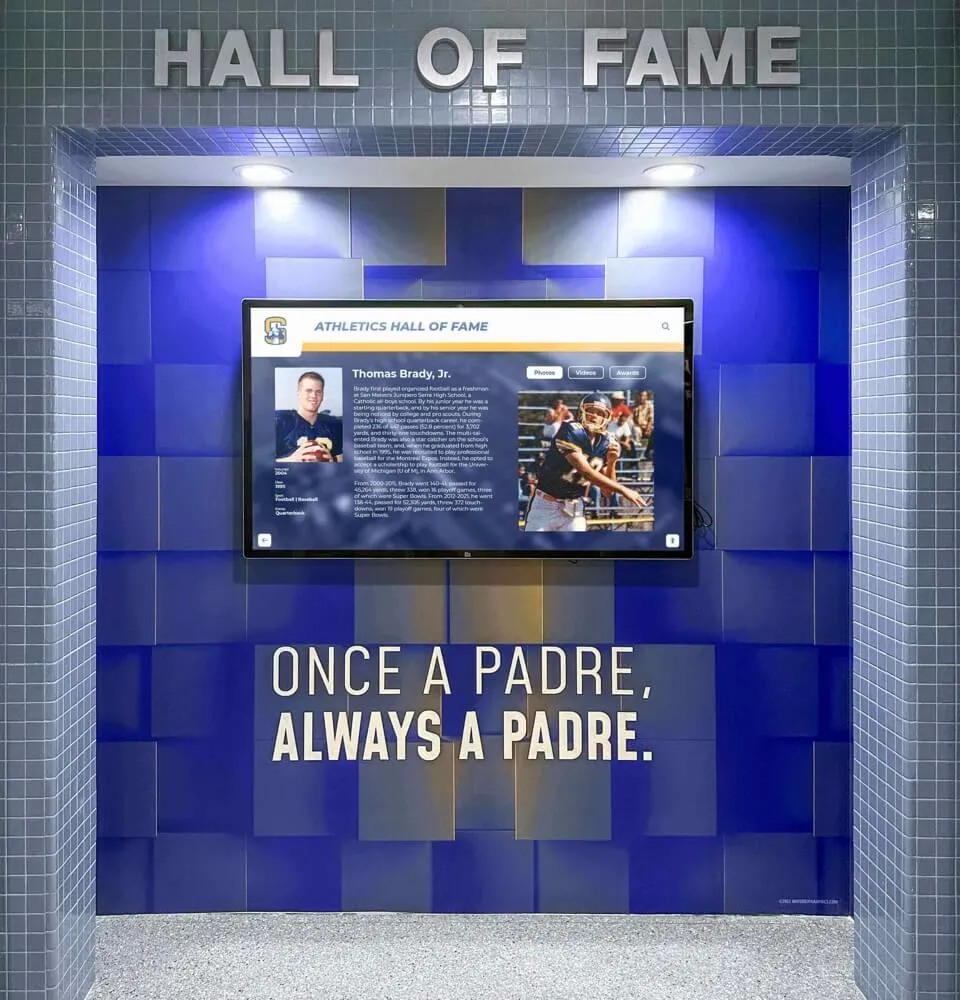
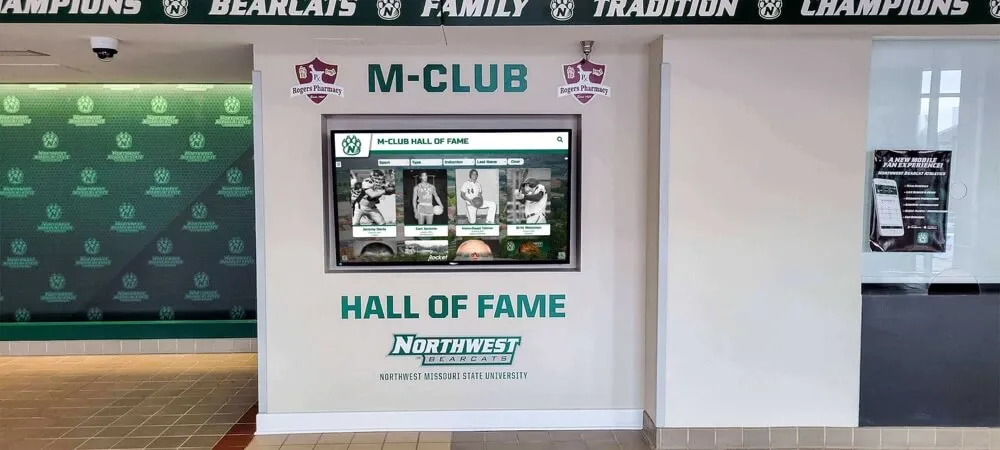
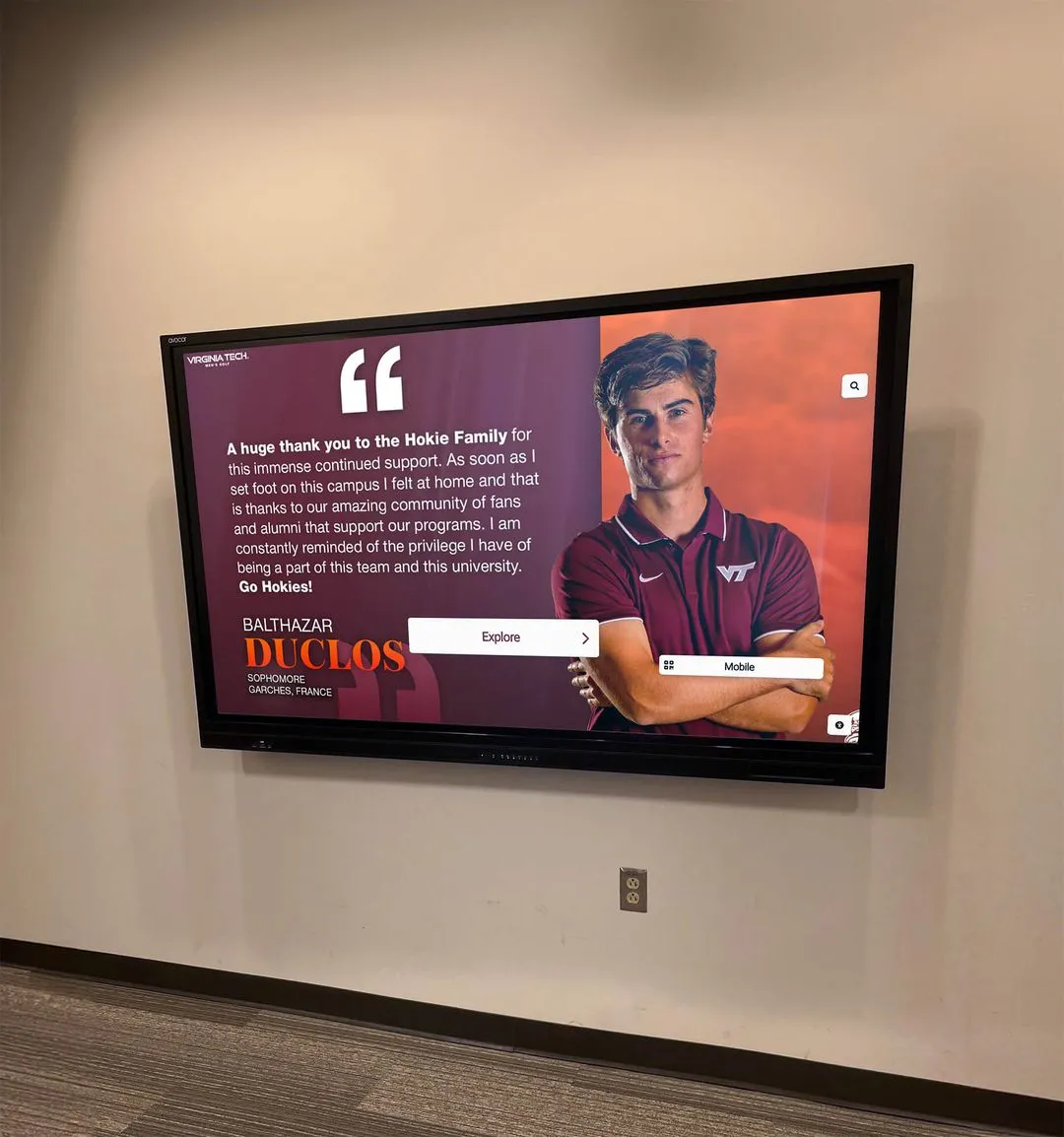
Recognition-focused displays present structured profile data—statistics, photos, biographical details—in formats visitors can browse and search independently
Questions to Ask Before You Buy
Use this checklist during vendor conversations to surface information that may not appear in marketing materials.
About the hardware:
- Is this a commercial-grade panel or a consumer display? What is the rated duty cycle?
- What is the warranty period and what does it cover?
- Is this display compatible with multiple media player options, or am I locked into a specific device?
About the software:
- Can my staff manage content without vendor involvement for routine updates?
- Is there a per-screen license fee, or does one subscription cover all our displays?
- Does the platform provide WCAG 2.2 AA compliance documentation?
- What happens to our data if we cancel the subscription or the company closes?
About implementation:
- Who is responsible for installation—the vendor, a subcontractor, or our facilities team?
- What site assessment is completed before hardware ships?
- How long does initial content setup take, and who performs it?
About support:
- What is the response time commitment for technical issues?
- Is support available outside business hours?
- What training is provided for staff managing content?
About scalability:
- If we want to add displays in other buildings next year, what does that cost?
- Can we connect multiple displays to a single content management system?
Touchscreen kiosk software selection for interactive displays and fully locked-down browser configurations for kiosk applications cover the software deployment side—particularly relevant for kiosk-mode configurations where you need to restrict the display to a single application.
Maintenance: What Ongoing Care Looks Like
An interactive touchscreen display installed correctly and managed with reasonable care should operate reliably for its entire commercial duty-cycle lifespan. Routine maintenance is not extensive.
Screen cleaning: Commercial display glass should be cleaned with microfiber cloths and alcohol-free cleaners. Ammonia-based glass cleaners can damage anti-glare coatings. High-traffic public touchscreens in school environments should be cleaned weekly at minimum.
Software updates: Both the operating system on the media player and the signage platform software release periodic updates. Applying these on a defined schedule (monthly is typical for media player OS updates, more frequently if security patches are released) keeps the system secure and compatible with current platform features.
Content audits: Quarterly review of displayed content catches errors, outdated information, and missing profiles before visitors notice. Assign this to whoever manages content day-to-day.
Hardware inspection: Annually inspect cables and connections for wear, verify the mount remains secure, and clean any vents on the media player to prevent heat buildup.
Environment monitoring: In spaces with high humidity, temperature swings, or significant dust, check the display environment more frequently. Commercial displays tolerate a wide range of conditions but prolonged exposure to extreme humidity or temperature can shorten lifespan.
How interactive touchscreen technology is transforming school lobbies and common spaces provides context for how institutions plan lobby and common-area installations holistically—including how maintenance considerations factor into placement decisions.
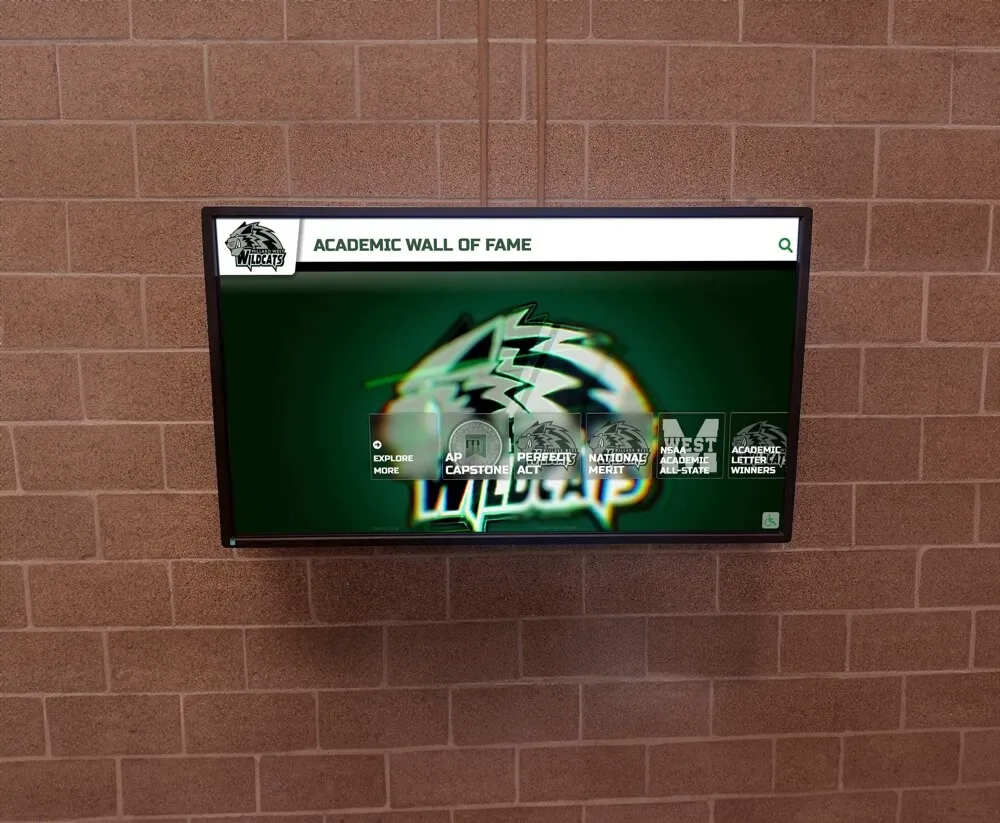
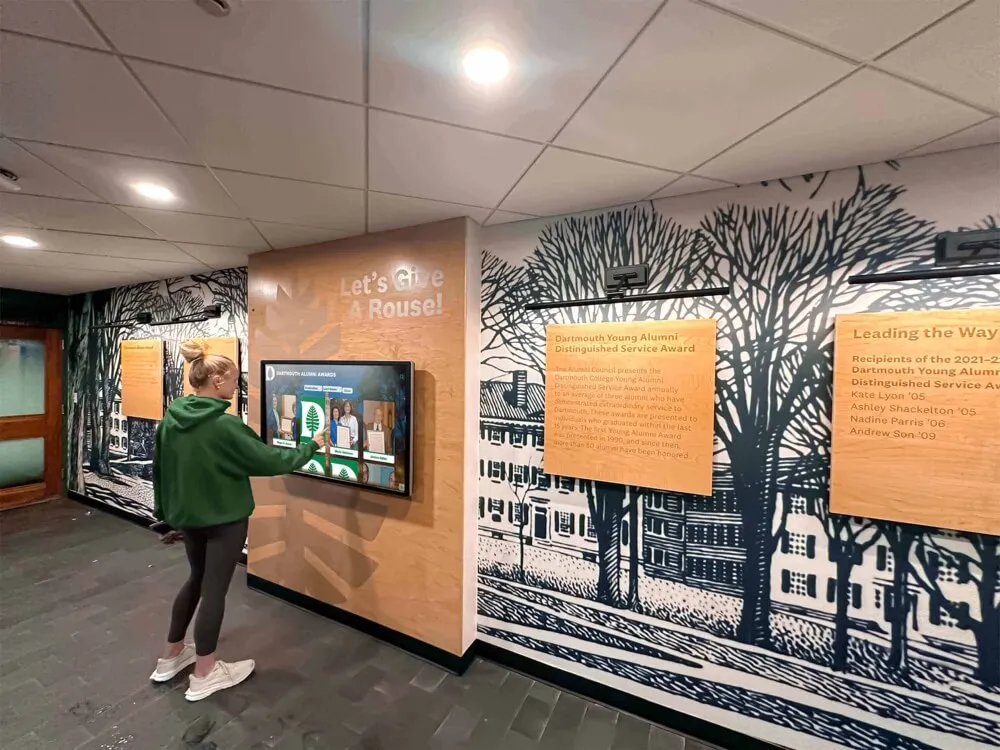
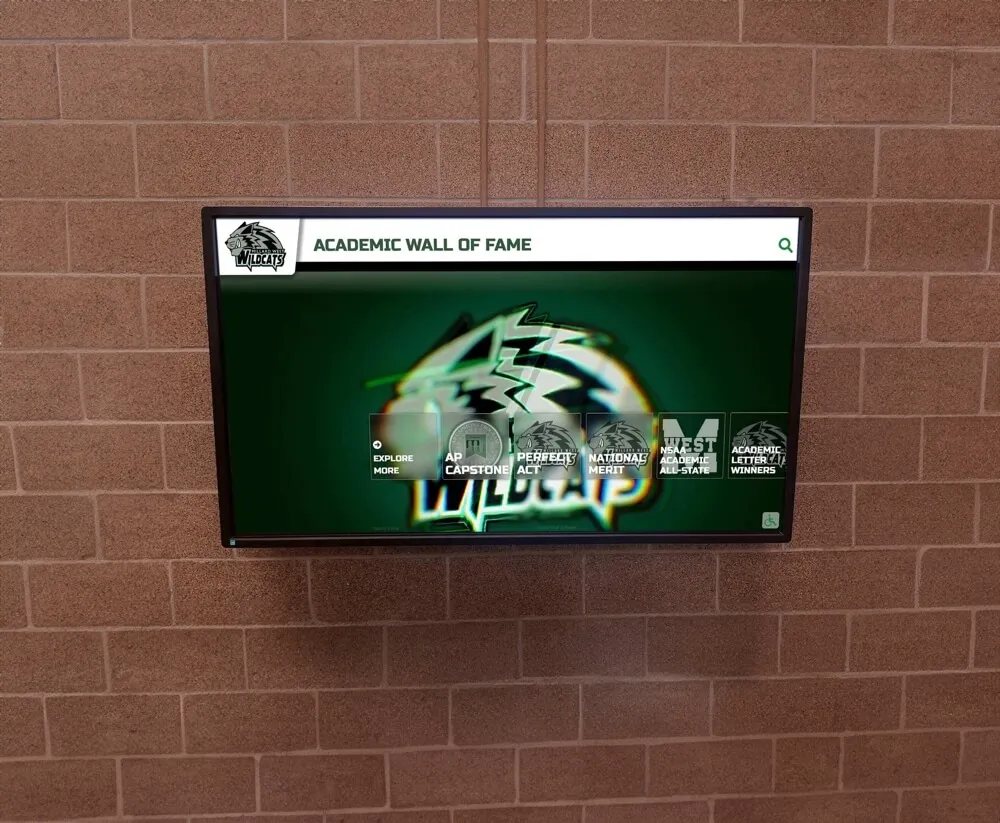
Academic recognition programs use the same interactive touchscreen platforms as athletic halls of fame, organizing honor roll, scholarship, and competition achievement data into searchable archives
Summary: What a Complete Interactive Touchscreen Installation Requires
To make this practical, here is a consolidated checklist of the components, decisions, and preparations a complete installation involves:
Hardware:
- Commercial-grade PCAP touchscreen display, correctly specified for brightness and duty cycle
- External media player or verified SoC with sufficient processing capability for your software platform
- VESA-compatible mount or kiosk enclosure rated for the display weight
- UPS for power protection
- Structured cable management
Site preparation:
- Dedicated electrical circuit at the mount location
- Structural backing or identified studs for wall mounting
- Network drop within reach of the display location
- ADA-compliant placement at appropriate height
- Glare assessment and mitigation if necessary
Software:
- Purpose-built platform matched to your use case (recognition/archive vs. general signage)
- Confirmed content management workflow that non-technical staff can operate independently
- WCAG 2.2 AA compliance documentation from the vendor
- Data ownership and export terms confirmed in the contract
- Multi-screen pricing confirmed if expansion is planned
Content:
- Defined content structure and categories before the platform is configured
- Photo standards and collection process established
- Historical archive digitization plan if applicable
- Content management responsibility assigned to specific staff
- Update schedule defined and communicated
Ongoing:
- Cleaning schedule and approved materials identified
- Software update process assigned
- Content audit cadence defined
- Hardware inspection scheduled annually
Conclusion
Interactive touch screen digital signage works because it puts control in the visitor’s hands. The technology—capacitive touch detection, commercial display panels, purpose-built CMS platforms—makes that possible. But technology alone does not produce a meaningful installation. It takes complete hardware specification, careful site planning, software matched to the actual use case, and content built with a clear understanding of how visitors will use the display.
For schools and institutions using these displays to preserve and share their history—athletic halls of fame, academic archives, alumni recognition, donor walls—the content layer is the lasting value. Hardware will be replaced in a decade. A well-managed archive of institutional memory, built systematically on a solid platform, grows more valuable every year as it accumulates.
If your institution is evaluating interactive touchscreen displays for recognition, archival, or general signage purposes, see Rocket Alumni Solutions in action to understand how a purpose-built recognition platform handles the software, content management, and multi-screen deployment questions this guide covers.
Live Example: Rocket Alumni Solutions Touchscreen Display
Interact with a live example (16:9 scaled 1920x1080 display). All content is automatically responsive to all screen sizes and orientations.