



First-time visitors arrive at your campus or facility facing an immediate challenge: finding their destination among dozens of buildings, hundreds of rooms, and thousands of square feet of unfamiliar hallways. They scan walls for static directory boards, interrupt busy reception staff, or wander hallways hoping to stumble across the right location. Each minute spent searching creates frustration that colors their entire experience with your institution.
Traditional approaches to building navigation—printed directories, wall-mounted maps, static signage—fail to address how people actually seek information in 2026. Modern visitors expect the same searchable, interactive experience they use on smartphones daily, not alphabetical lists requiring careful reading or maps demanding orientation skills most people lack.
Touchscreen building directories eliminate navigation friction by providing clear, self-service wayfinding that visitors understand instantly. Through familiar touch interfaces, people search for destinations by name, view visual maps showing exactly where to go, and access comprehensive facility information without staff assistance. For schools, universities, hospitals, corporate campuses, and any facility welcoming visitors, these interactive systems change confusing navigation into simple, stress-free experiences.
This comprehensive guide examines everything administrators, facility managers, and decision-makers need to know about implementing touchscreen building directories. From understanding core capabilities and evaluating features to calculating return on investment and planning successful deployments, this resource provides practical guidance for institutions ready to modernize their wayfinding and visitor experience.

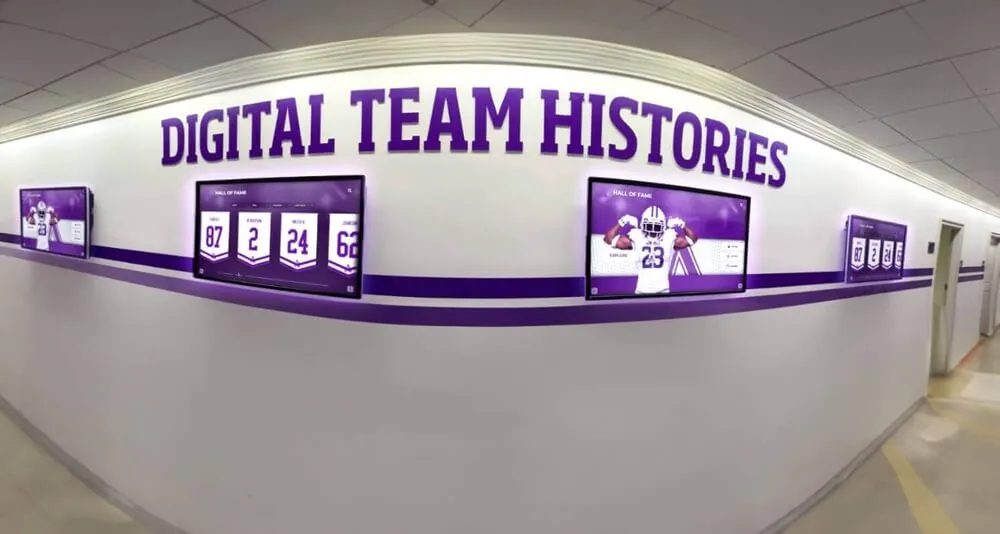
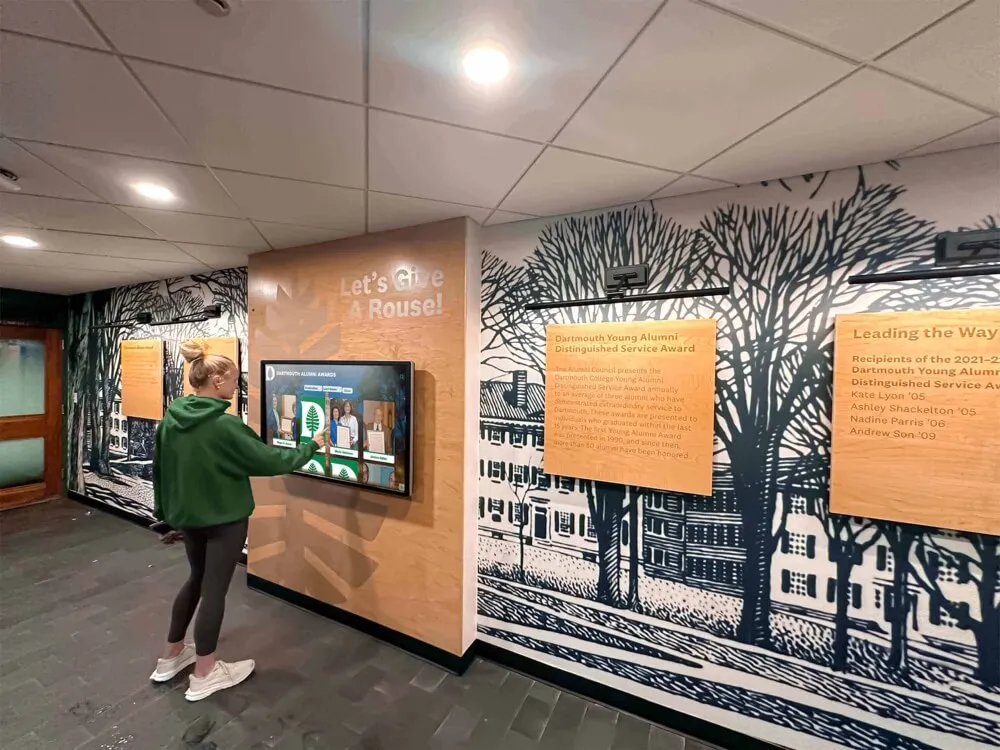
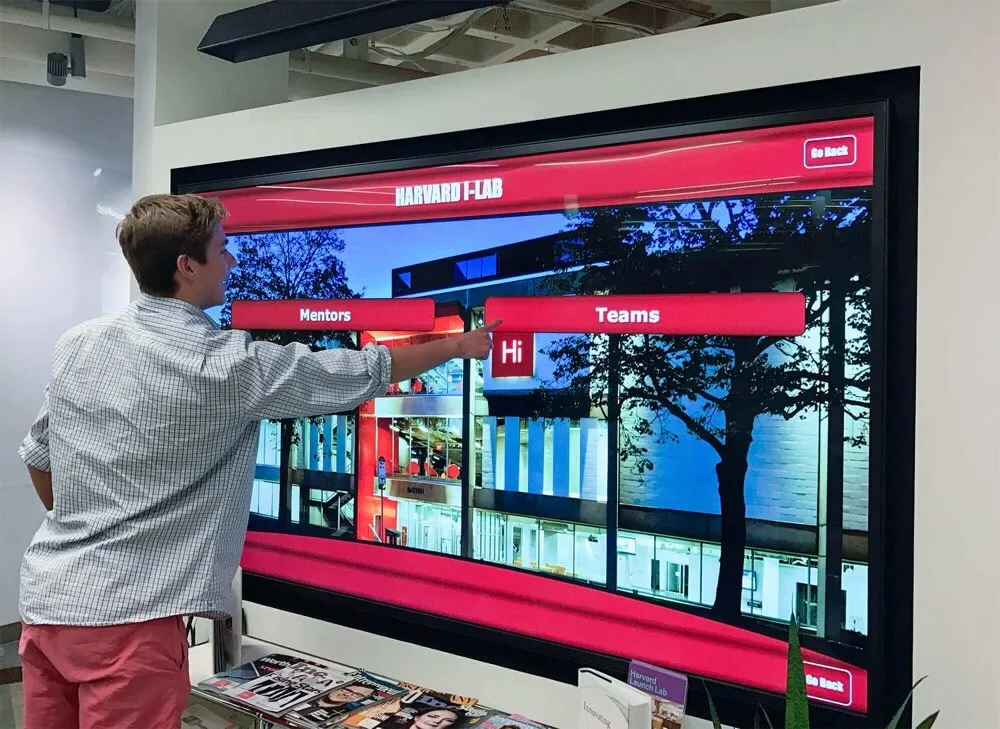
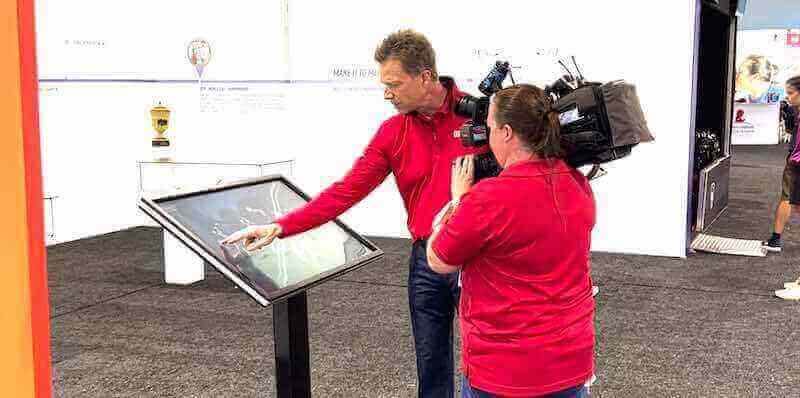
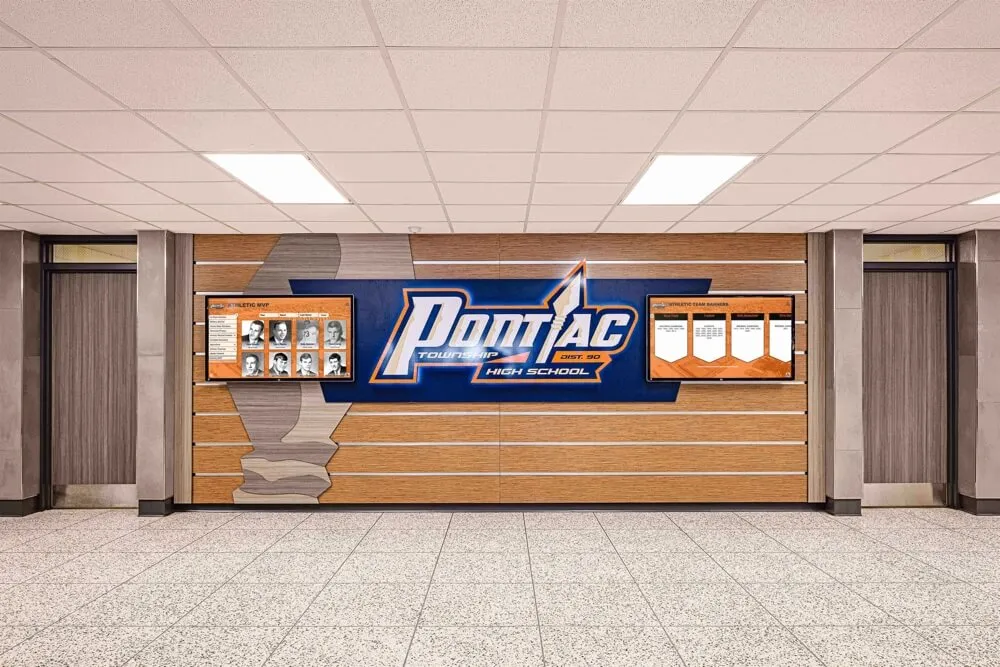
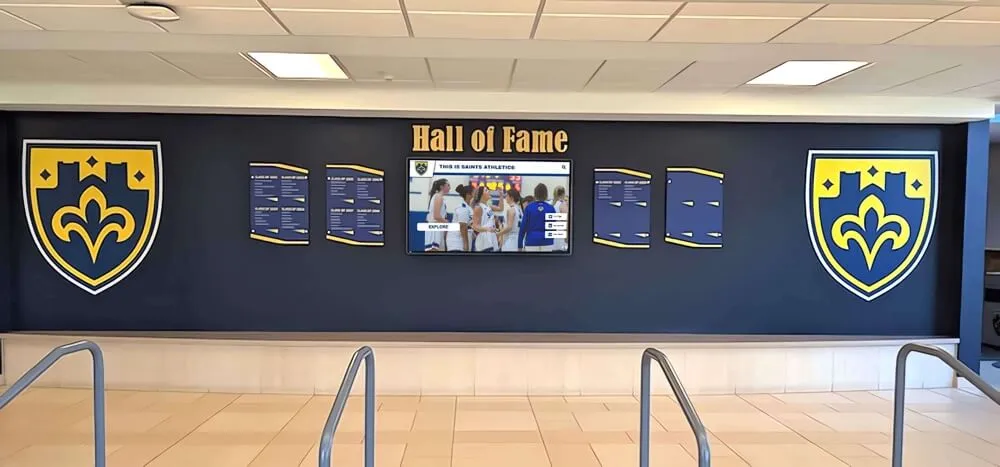
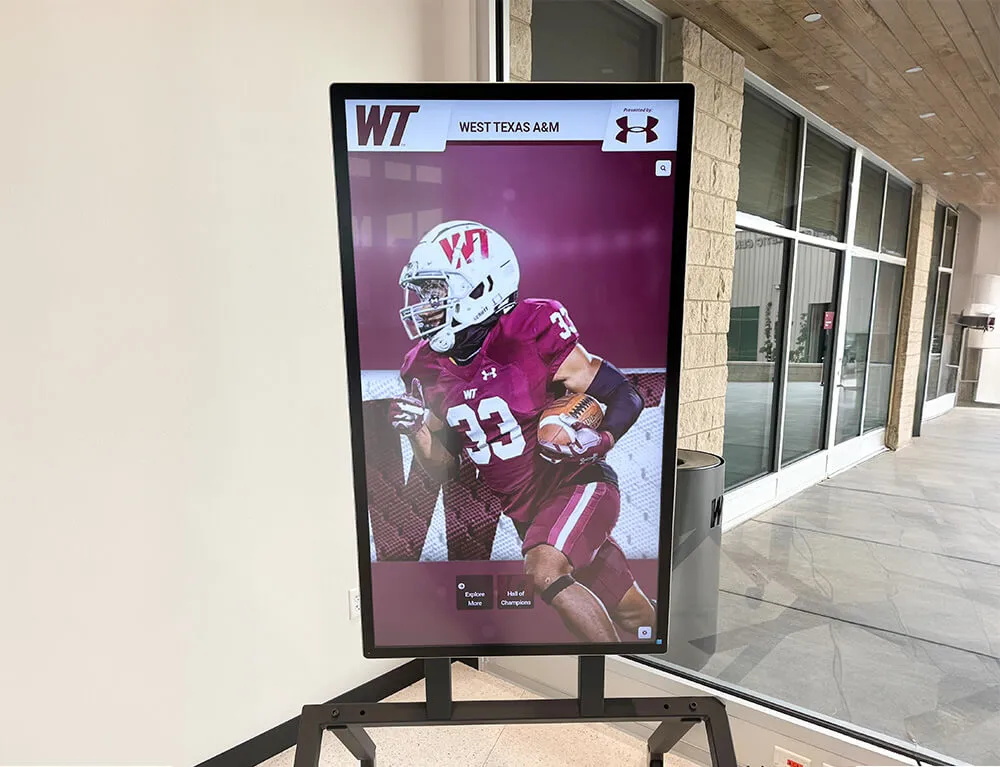
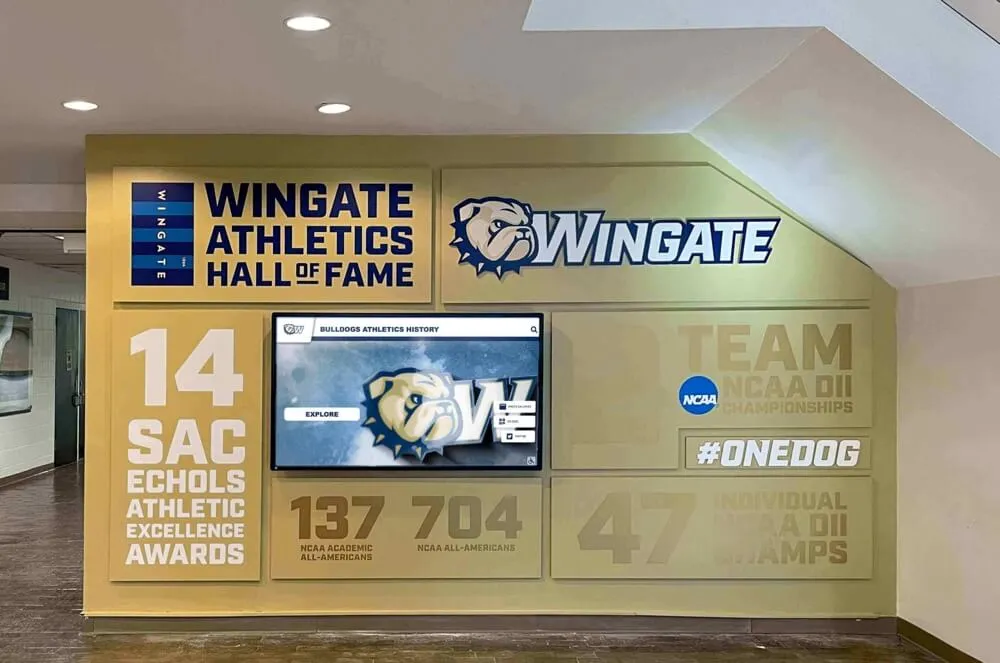
Modern touchscreen directories provide self-service wayfinding that reduces staff burden while improving visitor satisfaction
Understanding Touchscreen Building Directories
Before evaluating specific solutions, understanding what touchscreen building directories provide and how they differ from traditional approaches clarifies their value proposition.
What Touchscreen Building Directories Do
Interactive building directories serve as digital concierge systems positioned at facility entry points and strategic locations throughout campuses.
Core Functionality
Modern touchscreen directories provide:
- Searchable databases of rooms, offices, departments, and people organized for instant access
- Interactive maps showing building layouts, floor plans, and campus overviews with visual clarity
- Route guidance highlighting paths from current location to destination with turn-by-turn directions
- Real-time updates reflecting current room assignments, department relocations, and schedule changes
- Multi-language support serving diverse visitor populations with language selection options
- Accessibility features ensuring visitors with disabilities can navigate facilities independently
- After-hours operation providing wayfinding 24/7 without staffing requirements
Unlike static directories requiring manual updates and offering limited information, touchscreen systems adapt to changing facilities while providing depth impossible on printed signs.
How They Differ from Traditional Directories
The distinction between old and new approaches extends beyond digital versus physical—it represents fundamentally different philosophies about information access.
Traditional Directory Limitations
Wall-mounted acrylic directories with printed inserts face inherent constraints:
- Limited capacity showing only names and room numbers without context or visual reference
- Update friction requiring physical access, printed materials, and manual insertion for changes
- No search capability forcing visitors to scan entire lists alphabetically hoping to find destinations
- Static information providing identical content regardless of visitor needs or time of day
- Accessibility barriers with small text often mounted at heights difficult for wheelchair users to read
- No visual context requiring visitors to interpret room numbers and translate them to physical locations
Touchscreen Directory Advantages
Interactive systems address these limitations directly:
- Unlimited information capacity storing comprehensive facility databases with detailed profiles
- Instant updates through cloud-based content management requiring no physical access
- Advanced search finding destinations by partial names, departments, functions, or keywords
- Contextual information adapting content based on time, events, or visitor type
- Universal accessibility with adjustable interfaces meeting ADA and WCAG compliance standards
- Visual wayfinding showing exactly where destinations exist with maps, photos, and directions
This transformation proves particularly valuable for complex facilities where traditional directories create more confusion than clarity.
Primary Applications and Use Cases
Touchscreen building directories serve diverse facility types with specific navigation challenges.
Educational Institutions
Schools, colleges, and universities implement directories for:
- Prospective student tours enabling families to independently explore campuses during visit days
- New student orientation helping incoming students learn campus layouts before classes begin
- Parent conference nights allowing families to quickly locate classrooms across large buildings
- Athletic events directing visiting teams and spectators to gyms, fields, and locker rooms
- Community events guiding public visitors to auditoriums, meeting spaces, and facilities
- Administrative access helping staff locate offices in buildings with frequent personnel changes
Large school campuses with multiple buildings, additions, and room numbering inconsistencies benefit most dramatically from interactive campus navigation solutions.
Corporate Campuses and Office Buildings
Business facilities use directories for:
- Client meetings enabling visitors to locate conference rooms and executive offices independently
- Vendor deliveries directing suppliers to receiving areas and specific department locations
- New employee onboarding helping new hires navigate unfamiliar workspaces during transition periods
- Hot desking environments showing current desk assignments when employees work flexibly
- Multi-tenant buildings providing building-wide navigation across diverse organizations
- Facility services helping maintenance and support staff locate request origins efficiently
Healthcare Facilities
Hospitals and medical centers implement directories addressing:
- Patient appointments reducing stress for patients navigating to departments, offices, and exam rooms
- Visitor wayfinding helping families locate patient rooms, waiting areas, and amenities
- Emergency situations directing visitors to urgent care, emergency departments, and specific wings
- Accessibility needs providing wheelchair-accessible routes and elevator locations
- Multi-building campuses connecting hospitals, clinics, parking structures, and specialty centers
- Department relocations reflecting frequent facility reorganization common in healthcare settings
Government Buildings and Public Facilities
Municipal and government facilities serve diverse populations requiring:
- Public services access directing citizens to licensing, permits, records, and administrative offices
- Multi-agency buildings helping visitors navigate shared facilities housing various departments
- Accessibility compliance ensuring all citizens can independently access services regardless of ability
- Security integration working with controlled access systems and visitor management protocols
- Multi-language support serving diverse populations with varying English proficiency
- After-hours information providing service hours and contact information when offices close
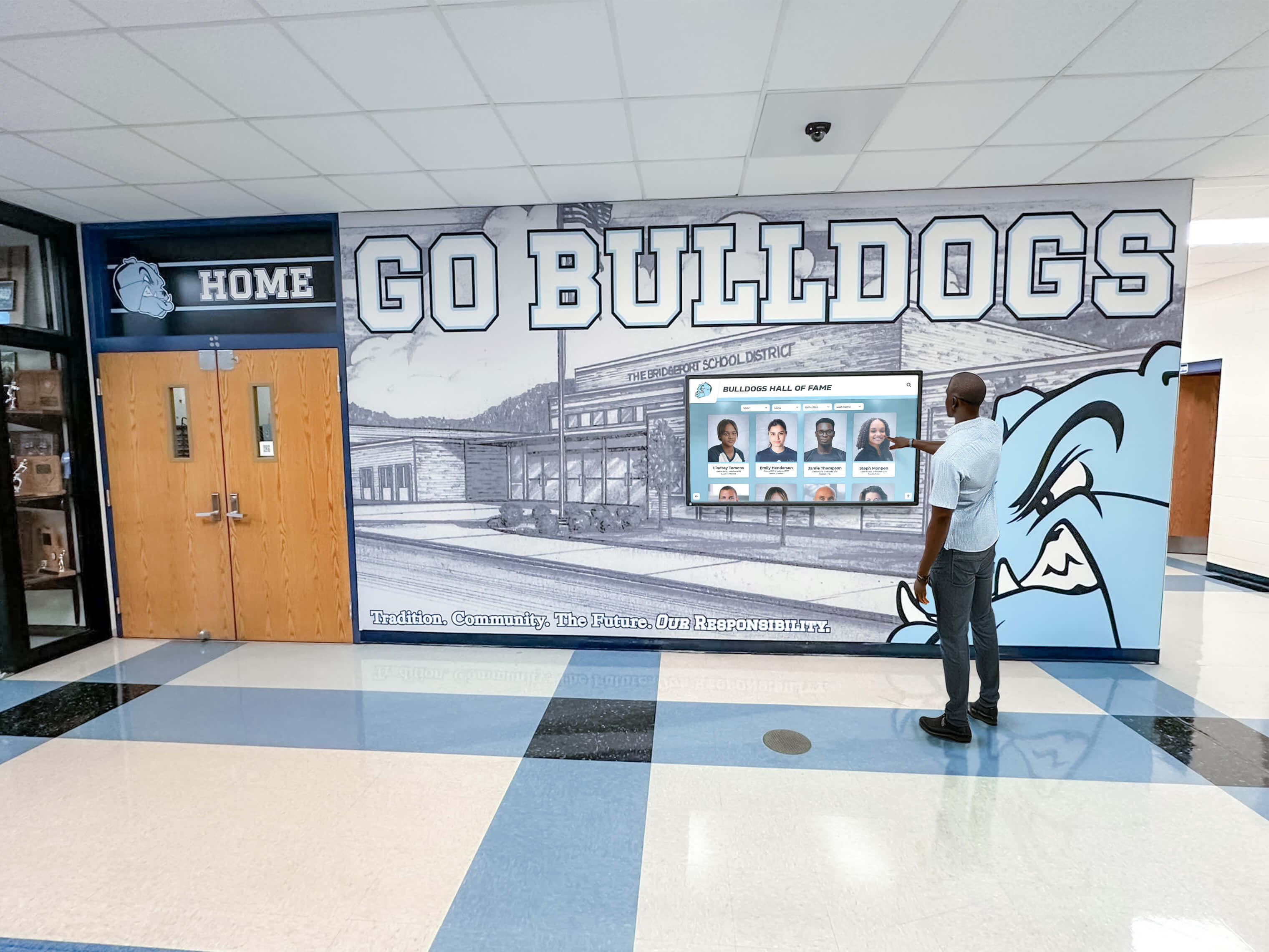
Strategic placement in high-traffic corridors ensures maximum accessibility for students, staff, and visitors seeking directions
Essential Features and Capabilities
Evaluating touchscreen directory solutions requires understanding which features deliver genuine value versus marketing claims that sound impressive but provide limited practical benefit.
Core Wayfinding Features
The foundation of any building directory centers on helping people find destinations reliably.
Comprehensive Search Functionality
Effective search capabilities include:
- People search finding individuals by first name, last name, or partial matches
- Department search locating organizational units and team locations
- Room search accessing spaces by room number, name, or function
- Keyword search finding destinations by purpose (testing center, admissions, athletics)
- Auto-complete suggestions helping users find correct spellings and offering alternatives
- Phonetic matching accommodating spelling variations and common misspellings
- Recently added entries highlighting new locations, departments, or personnel
Search represents the most-used feature in building directories—systems with poor search frustrate users immediately.
Interactive Mapping and Visual Wayfinding
Maps transform abstract room numbers into visual destinations:
- Multi-floor building views showing complete facility layouts with floor selection
- “You Are Here” indicators orienting visitors to current position relative to destinations
- Highlighted routing displaying recommended paths from kiosk to destination
- Point-of-interest markers identifying restrooms, elevators, stairs, exits, and amenities
- Zoom capabilities allowing detailed examination of specific areas
- Campus overview maps connecting multiple buildings with outdoor pathways
- Accessibility routing showing elevator access and wheelchair-accessible paths
Visual wayfinding particularly helps visitors who process spatial information better than written directions.
Real-Time Information Updates
Currency matters when facilities constantly change:
- Central management systems allowing administrators to update all directories simultaneously
- Immediate synchronization reflecting changes within minutes across all devices
- Schedule-based updates automatically activating temporary changes for events or closures
- Emergency messaging displaying critical information during safety situations
- Department relocations reflecting frequent organizational changes common in institutions
- Personnel updates showing current office assignments as staff move or roles change
- Maintenance notifications alerting visitors to closed areas or alternate routes
Organizations implementing digital recognition displays alongside wayfinding create comprehensive visitor experiences that orient and engage simultaneously.
Extended Functionality Beyond Basic Directories
Advanced systems incorporate capabilities that extend value beyond simple wayfinding.
Multi-Purpose Information Access
Comprehensive touchscreen systems combine:
- Institutional history sharing archives, achievements, and heritage alongside navigation
- Recognition displays celebrating students, faculty, donors, and alumni achievements
- Event information showing schedules, locations, and registration details
- Emergency procedures providing evacuation routes and safety protocol access
- Facility hours displaying service availability and seasonal schedule changes
- Contact information offering phone numbers, emails, and website links
- Announcement integration showing important messages and time-sensitive communications
This consolidation eliminates multiple separate signage systems while improving information accessibility. For schools preserving institutional memory, consider how interactive historical displays combine navigation with storytelling.
Visitor Self-Service Features
Advanced systems enable visitors to:
- Print directions generating paper maps for reference while navigating
- Send to mobile texting directions to smartphones for portable access
- QR code generation creating scannable codes linking to destination information
- Email information sending details to personal addresses for future reference
- Access additional resources linking to websites, videos, or detailed information
- Request assistance connecting to help desks or staff when needed
- Provide feedback capturing visitor experience data for continuous improvement
These self-service options reduce staff interruptions while ensuring visitors receive help when genuinely needed.
Analytics and Usage Tracking
Management dashboards provide:
- Popular destinations identifying most-searched locations for optimization
- Peak usage times revealing when visitors need directories most
- Common search terms uncovering what information visitors seek
- Failed searches highlighting missing information or confusing terminology
- Average interaction time measuring engagement and usability
- Language preferences showing which translations visitors select
- Content effectiveness determining which information types receive most attention
These insights inform facility planning, signage improvements, and content optimization.
Accessibility and Compliance Features
Ensuring all visitors can navigate independently requires deliberate design attention.
ADA and WCAG Compliance
Accessible directories incorporate:
- Mounting height standards positioning screens at wheelchair-accessible levels (typically 40-48 inches)
- Reach ranges ensuring all touch targets fall within accessible zones
- Screen reader compatibility announcing content for blind users
- High contrast modes improving visibility for low-vision users
- Adjustable text size accommodating varying vision needs
- Audio feedback confirming selections through sound
- Alternative input methods supporting various interaction capabilities
For institutions prioritizing universal access, review how WCAG 2.2 AA compliance standards apply to touchscreen installations.
Multi-Language Support
Serving diverse populations requires:
- Multiple language options providing content in languages your visitors speak
- Easy language selection placing language choice prominently on home screens
- Complete translations ensuring all content, not just navigation, appears in selected languages
- Cultural considerations adapting content presentation for different cultural contexts
- Default language settings matching institutional primary language
- Quick language switching allowing visitors to change languages mid-session
Schools and institutions in diverse communities find multi-language support essential for equitable access.

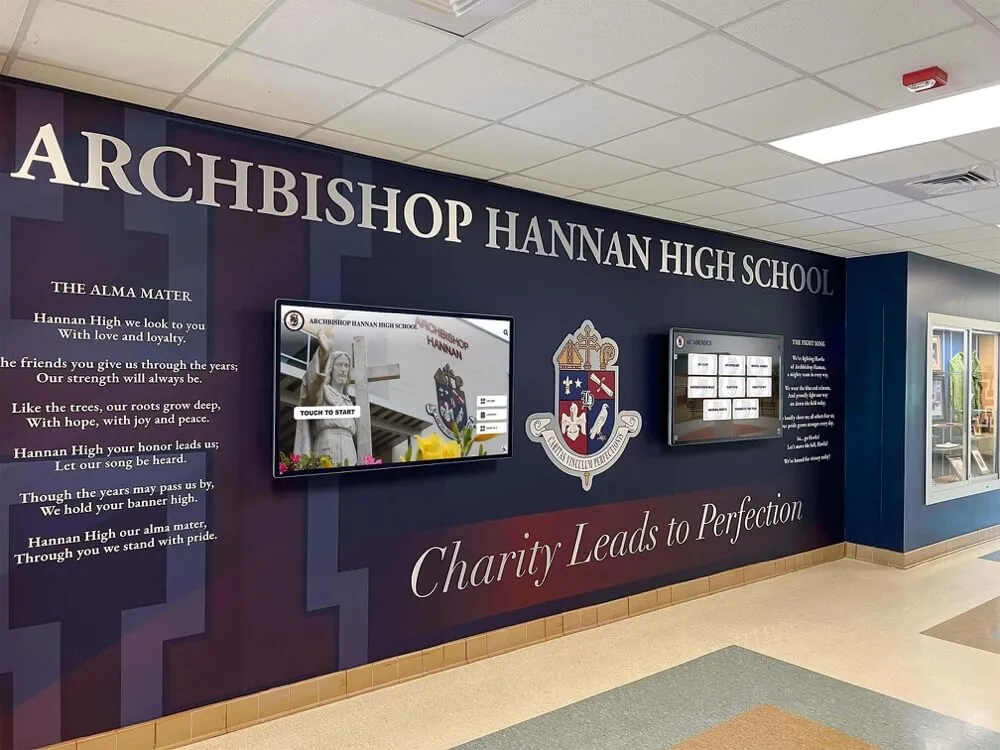
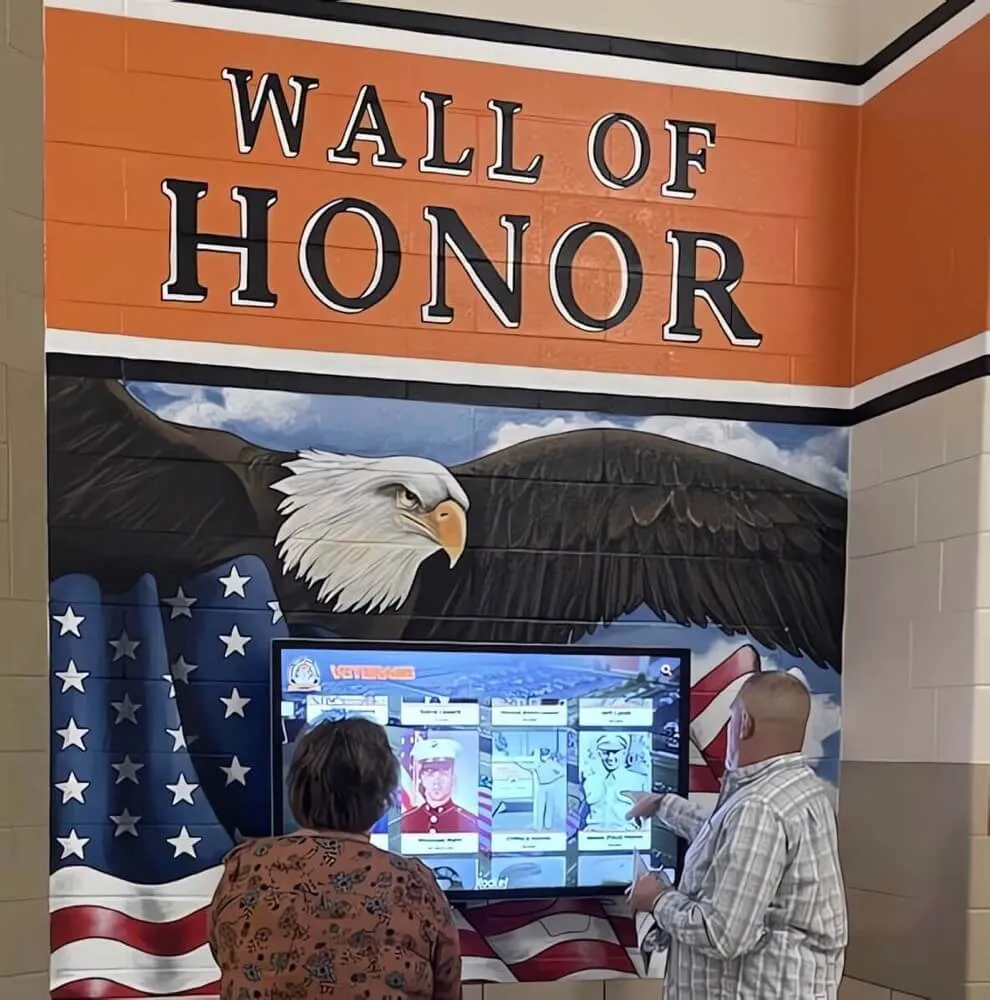
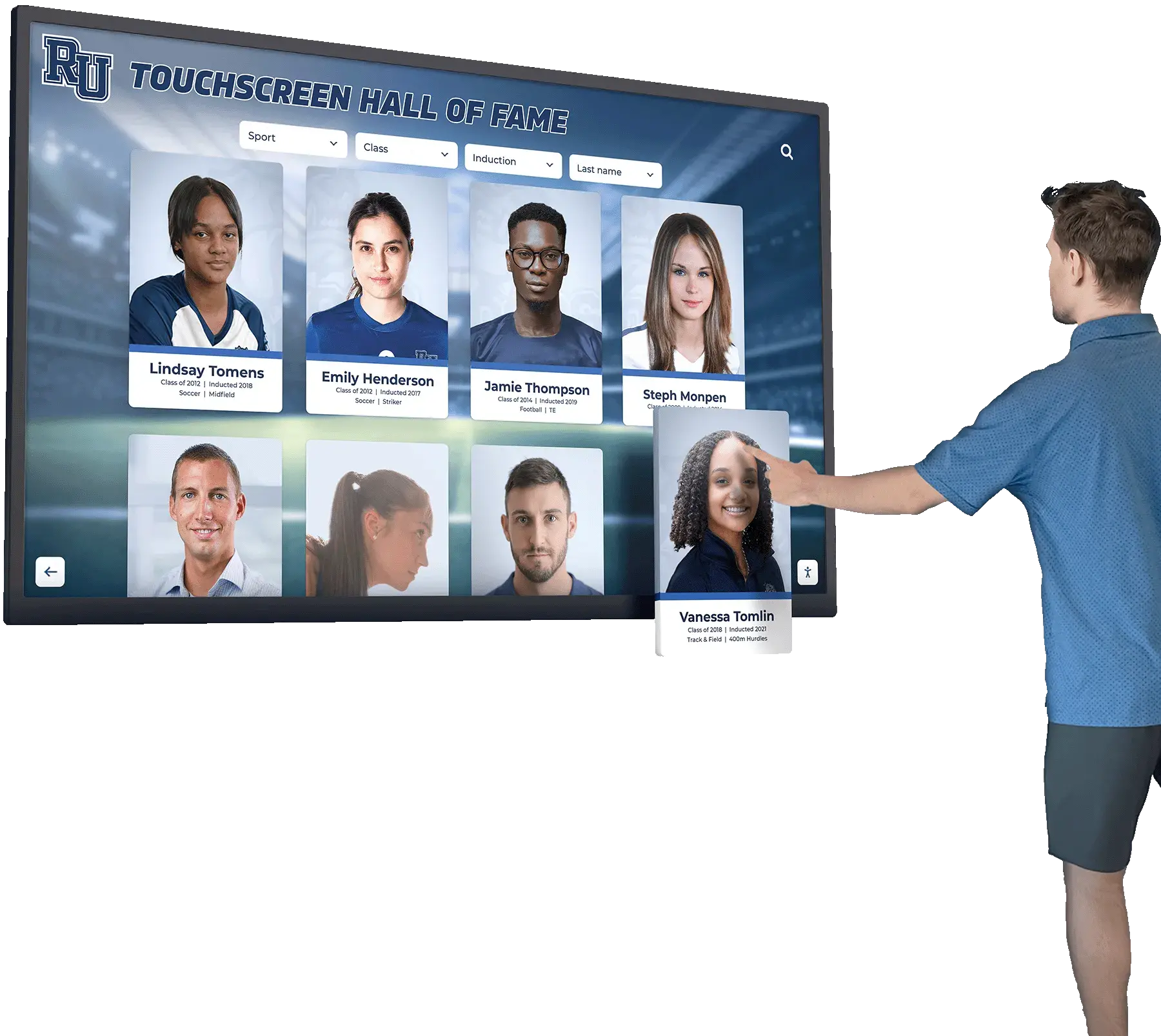
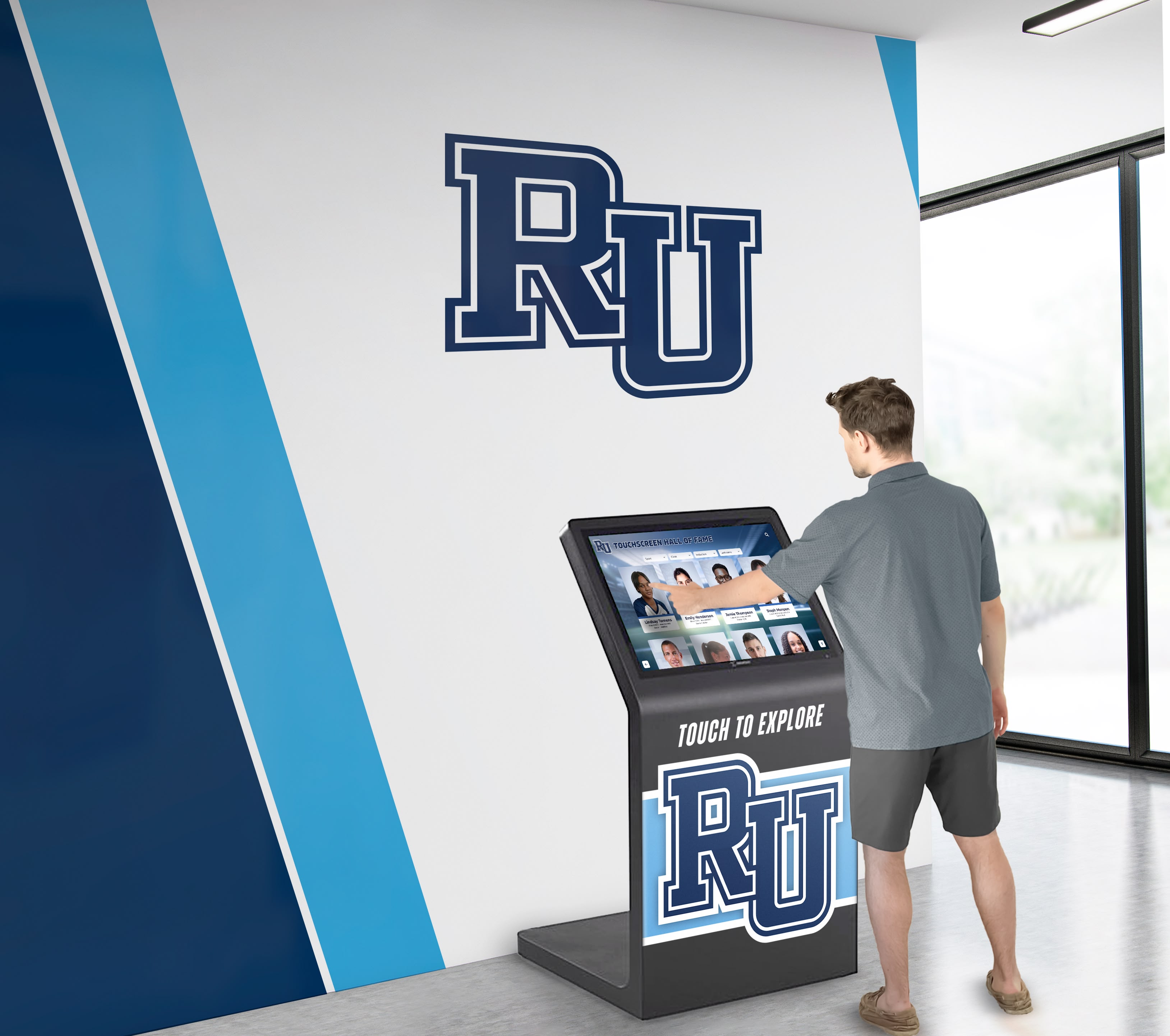
Familiar touch interfaces enable visitors of all ages and technology comfort levels to find information independently
Implementation Planning and Considerations
Successful touchscreen directory deployment requires careful planning addressing technical, operational, and user experience factors.
Assessing Your Facility Needs
Before evaluating solutions, understand what your specific environment requires.
Facility Complexity Analysis
Consider your wayfinding challenges:
- Size and scale: How many buildings, floors, and rooms does your facility encompass?
- Layout complexity: Are buildings logically organized or do additions and renovations create confusing layouts?
- Visitor volume: How many people visit daily requiring directions or information?
- Visitor types: Are visitors mostly familiar (students, employees) or first-time (parents, clients, public)?
- Change frequency: How often do room assignments, personnel, or departments relocate?
- Existing confusion: Where do visitors most frequently get lost or require assistance?
Schools with frequent room assignment changes or multiple building additions find directories essential for reducing staff burden.
Current Pain Point Identification
Document existing problems:
- How much staff time currently spent answering directional questions?
- Where do visitors most frequently get lost or request assistance?
- How outdated are current printed directories or static signs?
- What information do static systems fail to provide?
- How long does updating current signage take?
- What accessibility limitations exist in current wayfinding systems?
- How do visitors currently access building information after hours?
Quantifying these pain points helps justify investment and measure success post-implementation.
Budget and Resource Assessment
Realistic planning considers:
- Initial investment capacity for hardware, software, installation, and content development
- Ongoing operational budget for subscriptions, maintenance, and content updates
- Staff resources for content management and system administration
- Technical infrastructure including network connectivity, power, and physical space
- Timeline constraints for procurement, installation, and launch
- Return on investment expectations for cost justification and success measurement
Hardware Selection Criteria
The physical directory system impacts user experience and operational sustainability.
Screen Size and Display Quality
Appropriate specifications include:
- 43-55 inch displays most common for lobby and corridor installations providing readable content
- 4K resolution ensuring text clarity and image quality
- Commercial-grade panels built for continuous operation unlike consumer displays
- Tempered glass protection preventing damage from impacts or vandalism
- Anti-glare coatings maintaining readability in bright lighting conditions
- Portrait or landscape orientation based on content type and installation location
- Brightness specifications (typically 400-700 nits) appropriate for indoor lighting
Undersized displays frustrate multiple simultaneous viewers; oversized screens waste budget in smaller spaces.
Mounting and Installation Options
Physical installation approaches include:
- Wall-mounted displays saving floor space in narrow corridors
- Freestanding kiosks providing stability and professional appearance in open lobbies
- Pedestal mounts offering flexible placement without wall anchoring requirements
- Recessed installations creating flush mounting in walls for permanent solutions
- Mobile carts allowing relocation for temporary events or facility flexibility
- Double-sided kiosks serving traffic from multiple directions in central locations
Mounting decisions impact accessibility, visibility, and long-term flexibility.
Touch Technology and Durability
Consider interaction quality:
- Capacitive touchscreens providing responsive, accurate touch recognition
- Multi-touch support enabling zoom gestures and familiar navigation
- Vandal-resistant construction withstanding public use without damage
- Tempered safety glass preventing injury if screens break
- Easy maintenance with surfaces that clean without special materials
- Expected lifespan of 7-10 years for commercial installations with proper care
Public installations require more durable construction than private office environments.
Software Platform Evaluation
Hardware represents just the vessel—software determines user experience and operational efficiency.
Content Management Requirements
Administrative capabilities should include:
- Web-based administration allowing updates from any device without special software
- Straightforward interfaces enabling non-technical staff to manage content independently
- Bulk import/export supporting fast database updates and backups
- Preview capabilities verifying changes before publishing to live displays
- Version control tracking changes and allowing rollback if needed
- Multi-user access with appropriate permission levels for different roles
- Schedule publishing automating temporary changes for events or seasons
Systems requiring IT department involvement for routine updates create bottlenecks that slow response to facility changes.
Integration Capabilities
Consider how directories connect with:
- Student information systems automatically syncing room assignments and class schedules
- Human resources databases updating personnel directories as staff change
- Facility management systems reflecting maintenance closures or space reallocation
- Event management platforms showing current activities and locations
- Emergency notification systems displaying critical alerts during incidents
- Active Directory / LDAP importing organizational structure and contact information
- Calendar systems displaying schedule information and room availability
Deep integration eliminates manual data entry and ensures accuracy through authoritative sources. Organizations implementing comprehensive digital signage systems benefit from platforms supporting multiple use cases beyond wayfinding.
User Experience Design
Evaluate interfaces for:
- Simple navigation requiring no instructions or training for first-time users
- Fast response times displaying search results within 1-2 seconds
- Clear visual hierarchy making important information immediately obvious
- Readable typography with appropriate font sizes for viewing distances
- Consistent interaction patterns matching familiar touch interface conventions
- Error handling gracefully managing failed searches or missing information
- Customization options allowing branding and visual consistency with institutional identity
Poor user experience undermines the entire investment—confused visitors abandon difficult directories.
Physical Placement Strategy
Where you install directories significantly impacts their effectiveness.
Strategic Location Selection
Optimal placement includes:
- Main entrances where visitors first enter buildings seeking orientation
- Elevator lobbies where people pause naturally before choosing floors
- Building intersections at decision points where multiple corridors meet
- Parking structure connections immediately as visitors enter from parking areas
- Reception areas complementing staff assistance for busy periods
- Conference centers where external visitors need event-specific navigation
- Near major destinations at frequently-sought locations like auditoriums or gymnasiums
Position directories where people naturally pause and look for guidance, not in locations requiring deliberate searching.
Quantity Considerations
Determine appropriate density:
- Large single buildings: 1 directory per main entrance plus 1 per floor for multi-story facilities
- Multi-building campuses: 1 directory per building entrance plus central campus locations
- Complex layouts: Additional directories at major decision points and intersections
- High-traffic periods: Consider capacity during peak usage (tours, conferences, events)
Start with core locations and expand based on usage analytics showing gaps in coverage.
Physical Environment Factors
Installation locations should provide:
- Adequate lighting without glare creating screen readability issues
- Electrical access within reasonable distance for professional installation
- Network connectivity if cloud-based management requires internet access
- Clear sightlines ensuring visibility from natural foot traffic patterns
- ADA compliance with clear floor space and appropriate approach angles
- Protection from weather for exterior installations requiring weatherproof enclosures
- Security considerations in areas with vandalism risk or after-hours access
Poor environmental conditions compromise both equipment longevity and user experience.
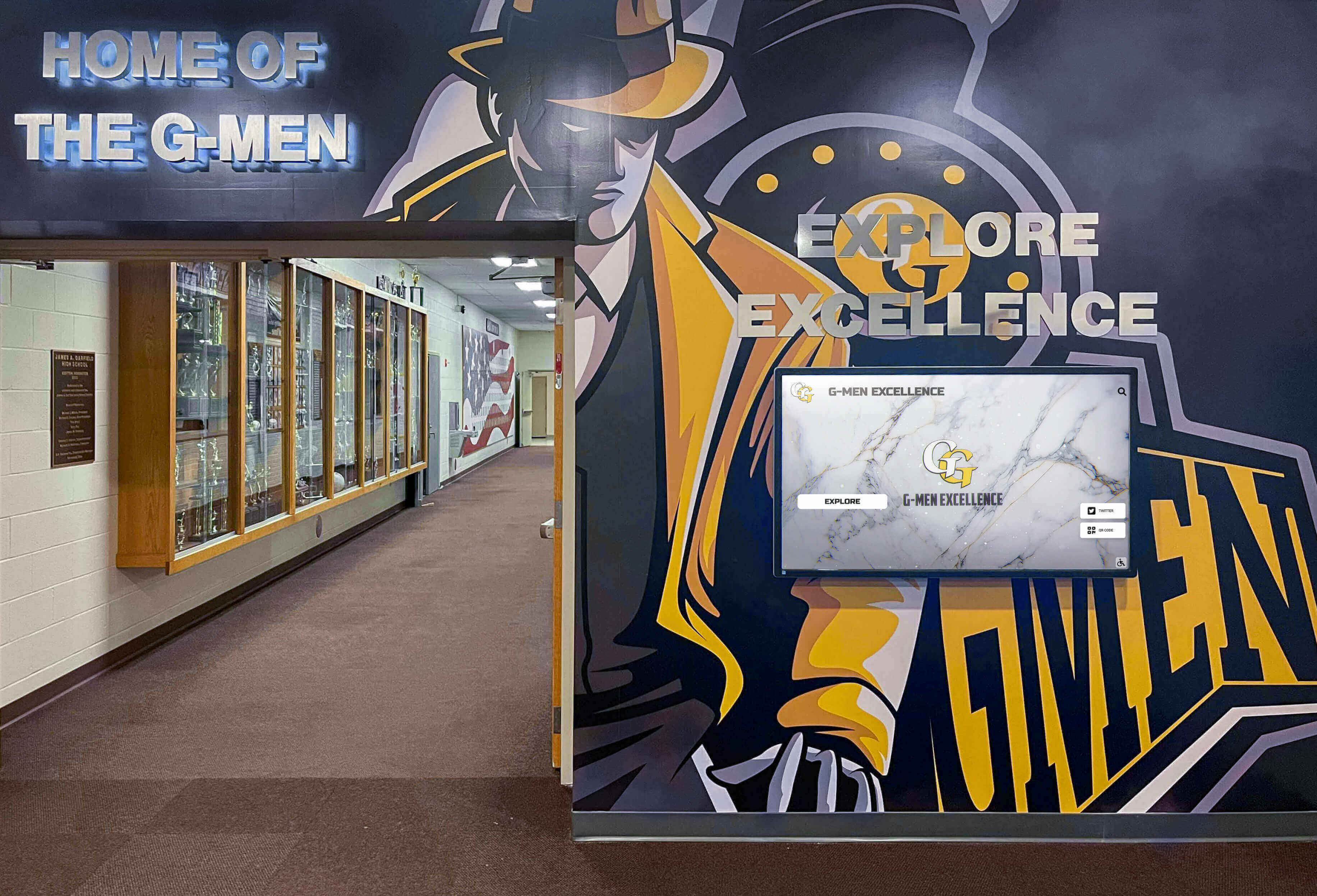
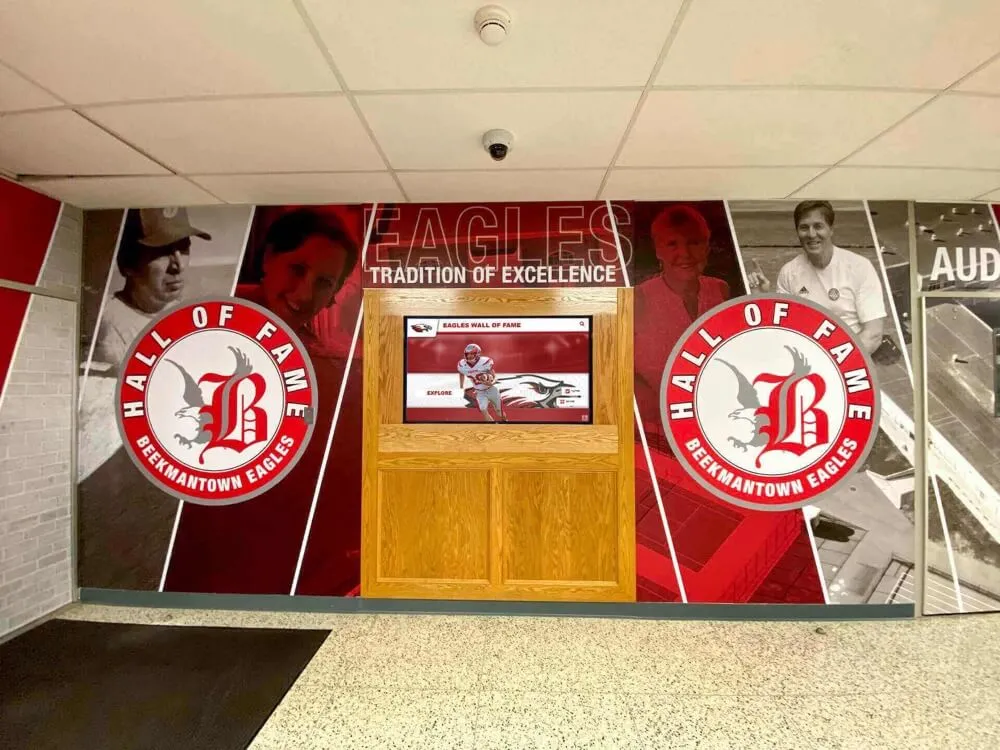
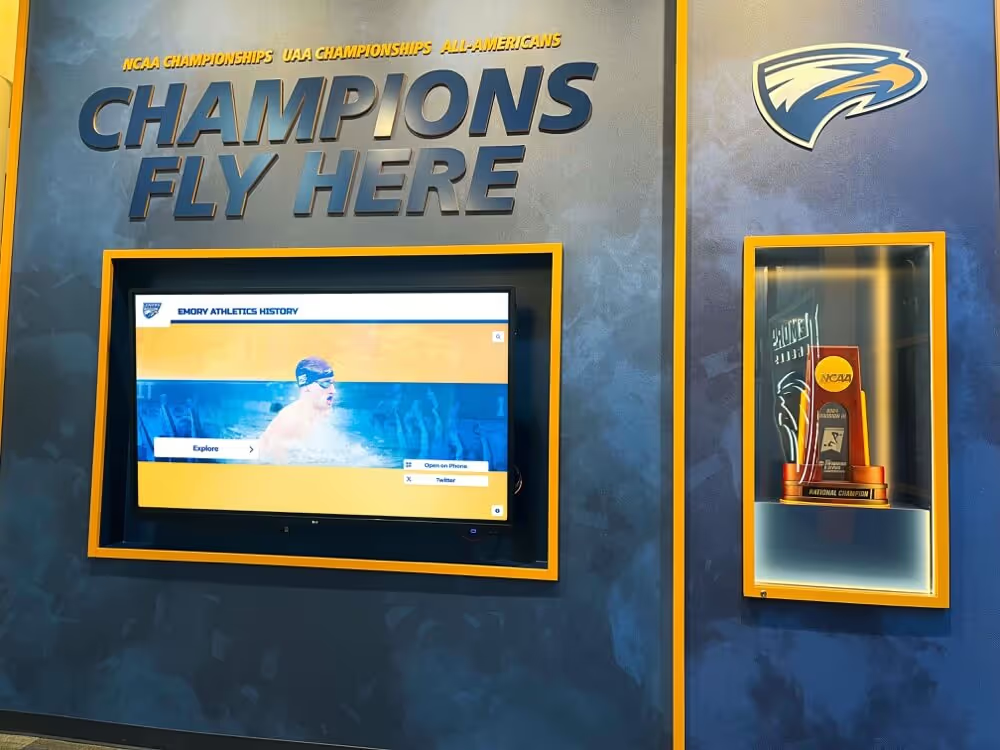
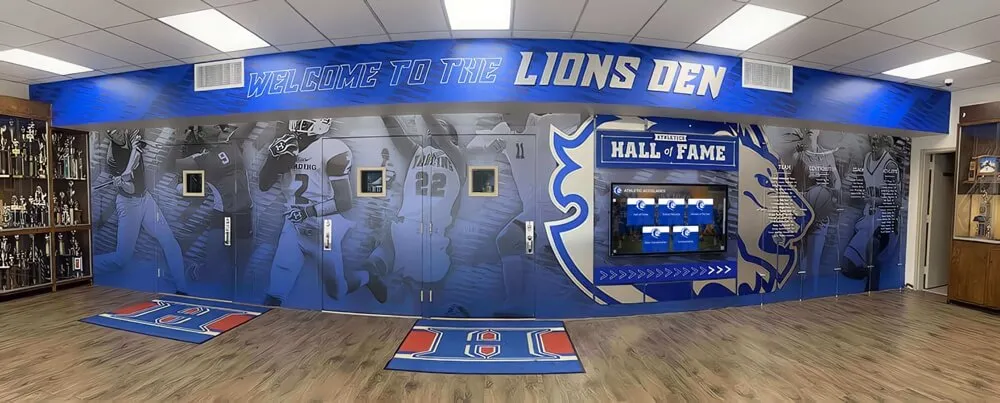
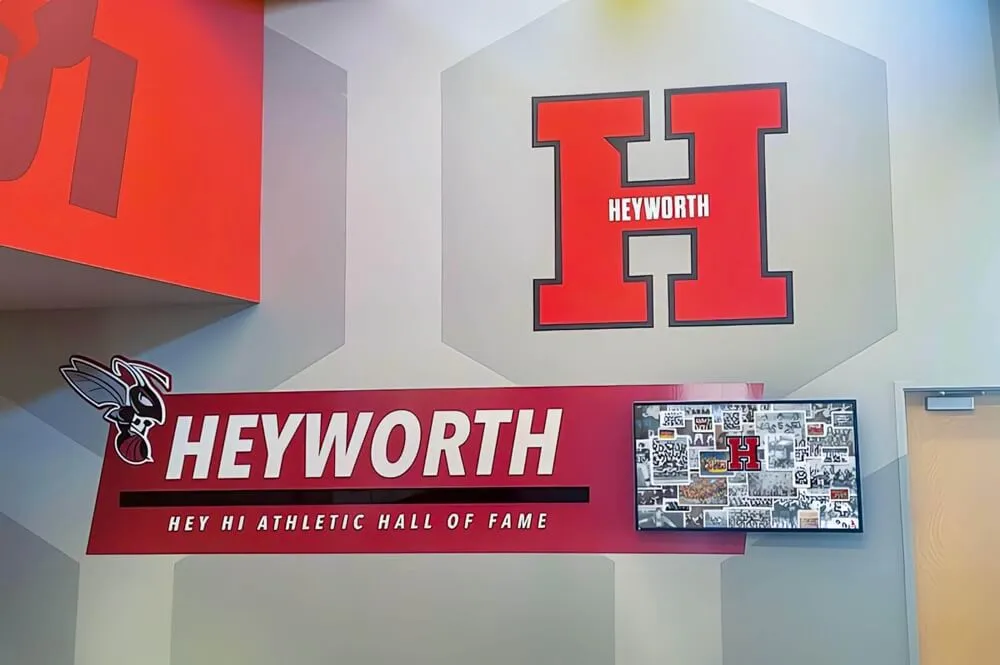
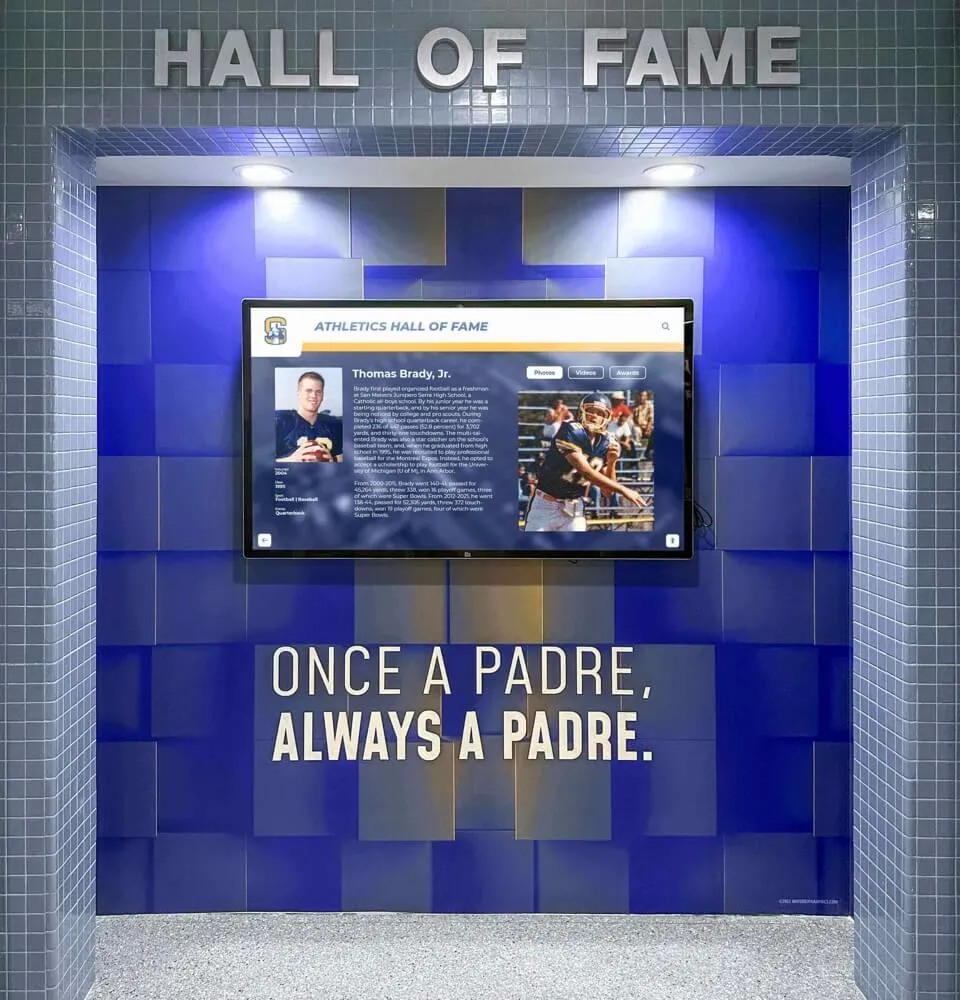
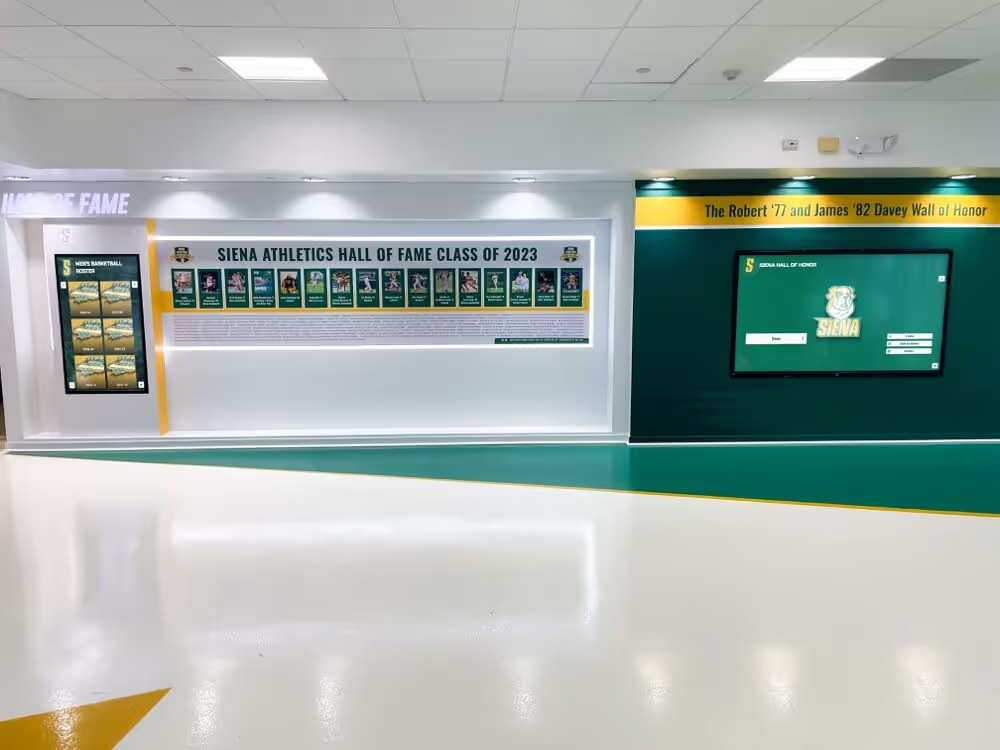
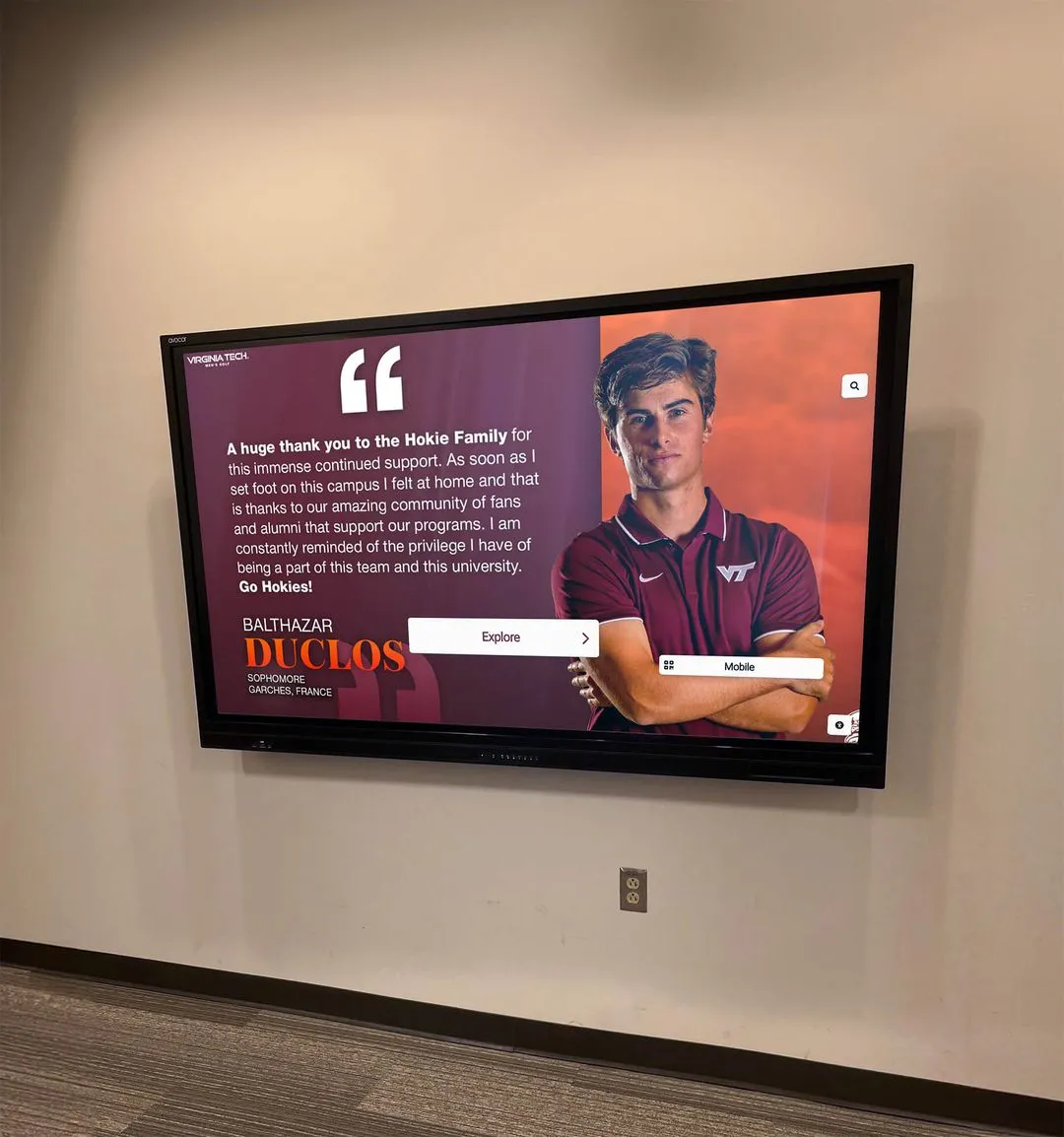
Successful implementations integrate directories with existing facility design and recognition displays for cohesive visitor experiences
Cost Analysis and Return on Investment
Understanding total cost of ownership and measurable benefits helps justify investment and set realistic expectations.
Initial Investment Components
Comprehensive budgeting includes all deployment costs.
Hardware Costs
Physical equipment expenses:
- Touchscreen displays: $2,500-$5,000 for commercial 43-55" panels
- Mounting solutions: $300-$1,500 depending on installation type
- Protective enclosures: $500-$2,000 for high-traffic or exterior locations
- Installation labor: $500-$1,500 per unit for professional mounting and configuration
- Electrical work: $200-$800 if new circuits or outlets required
- Network infrastructure: $100-$500 for connectivity if needed
Total hardware investment typically ranges $4,000-$10,000 per directory location depending on specifications and installation complexity.
Software and Content Costs
Digital infrastructure expenses:
- Software licensing: $1,000-$3,000 annually per display or facility-wide subscription
- Initial content development: $2,000-$8,000 for comprehensive database creation and mapping
- Custom design work: $1,000-$3,000 for branded interface matching institutional identity
- Integration services: $2,000-$8,000 for connecting existing databases and systems
- Training and documentation: $500-$2,000 for administrative staff preparation
- Contingency budget: 10-15% for unexpected requirements
Software and setup costs often equal or exceed hardware investment for comprehensive implementations.
Ongoing Operational Costs
Annual expenses include:
- Software subscriptions: $1,000-$3,000 per display or site license
- Content updates: Minimal with self-service platforms; $500-$2,000 annually if outsourced
- Hardware maintenance: $200-$500 annually for cleaning, calibration, and minor repairs
- Electricity: $50-$100 per display annually for continuous operation
- Network connectivity: Usually included in existing infrastructure
Total annual operational cost typically ranges $1,500-$4,000 per directory over 7-10 year expected hardware lifespan.
Quantifiable Benefits and Savings
Return on investment derives from multiple sources.
Staff Time Savings
Reception and administrative efficiency gains:
- Reduced directional questions: Schools report 40-60% decrease in wayfinding interruptions
- Eliminated directory updates: No more printing, inserting, and maintaining acrylic signage
- Faster visitor processing: Self-service reduces reception desk wait times
- Decreased phone inquiries: Information available 24/7 without staff assistance
A single full-time receptionist costs $35,000-$50,000 annually. Even modest time savings justify directory investments. If directories reclaim just 2 hours daily of staff time ($25/hour × 2 hours × 250 workdays), annual savings reach $12,500—covering system costs within 2-3 years.
Eliminated Signage Costs
Ongoing savings include:
- No printed directories: Eliminating $200-$800 per update across multiple locations
- Reduced static signage: Fewer directional signs needed when directories provide wayfinding
- No signage reprints: Changes cost nothing versus reprinting when information changes
- Professional installation avoided: No hiring sign installers for frequent updates
Organizations updating directories quarterly save $800-$3,200 annually on printing and installation alone.
Improved Visitor Experience Value
Harder to quantify but critically important:
- Reduced visitor frustration creating positive first impressions
- Increased independence for visitors with disabilities
- After-hours accessibility extending information access beyond staffed hours
- Professional image reflecting institutional investment in visitor service
For schools attracting prospective students and families, positive visit experiences directly impact enrollment decisions worth thousands in tuition revenue per student.
Facility Efficiency Improvements
Operational benefits include:
- Faster visitor processing during high-volume events
- Reduced crowding at reception desks and information counters
- Better space utilization when visitors navigate efficiently without escorts
- Improved emergency response with known locations displayed clearly
These benefits compound across thousands of annual visitors over multi-year timeframes.
Comparing Directory Solution Approaches
Different implementation strategies carry distinct cost profiles.
Standalone Wayfinding Systems
Purpose-built directory platforms provide:
- Lower complexity with focused functionality reducing training needs
- Faster deployment with pre-built wayfinding templates
- Predictable costs through straightforward per-display pricing
- Limited flexibility when needs expand beyond basic directories
Best for organizations requiring only wayfinding without additional digital signage needs.
Comprehensive Digital Signage Platforms
Multi-purpose systems combining directories with broader capabilities offer:
- Greater versatility serving multiple communication needs simultaneously
- Shared infrastructure spreading costs across various applications
- Future flexibility as institutional needs evolve over time
- Higher initial complexity requiring more planning and implementation time
Appropriate when facilities need directories plus announcements, recognition displays, and general communication tools. Explore how touchscreen kiosk solutions combine multiple functions in unified platforms.
Hybrid Recognition and Wayfinding Systems
Specialized platforms combining directories with institutional storytelling provide:
- Dual-purpose value serving navigation while celebrating achievements
- Engaged interaction extending usage beyond quick lookups
- Institutional connection helping visitors understand community and history
- Consolidated investment eliminating separate systems for directories and recognition
Particularly valuable for schools and institutions where visitor experience includes both navigation and engagement with institutional identity.
Best Practices for Successful Implementation
Learning from successful deployments helps avoid common pitfalls while maximizing effectiveness.
Content Development and Organization
How you structure information determines whether visitors find what they need quickly.
Database Completeness
Ensure comprehensive coverage:
- Every room and space included in searchable database, not just major destinations
- All personnel with current office locations and contact information
- Department listings with clear names matching how people actually reference them
- Alternate names for locations people call by different terms
- Historical names for recently renamed spaces during transition periods
- Common destinations like restrooms, elevators, water fountains, and exits
Missing information undermines trust—visitors who search unsuccessfully once may avoid using directories again.
Search Term Optimization
Consider how visitors think:
- Include common abbreviations: IT (Information Technology), HR (Human Resources), PE (Physical Education)
- Add phonetic variations: Different spellings people might try
- List functional descriptions: Testing center, counseling office, admissions department
- Include position titles: Principal, registrar, athletic director
- Add building nicknames: What students actually call buildings versus official names
- Tag seasonal uses: Christmas concert location, graduation ceremony venue
Test directories with actual visitors noting failed searches for continuous improvement.
Visual Content Quality
Professional presentation requires:
- High-quality floor plan maps clearly showing room layouts and navigation paths
- Accurate scale maintaining spatial relationships for orientation
- Consistent orientation with north or primary entrances aligned across floors
- Clear labels using readable fonts at appropriate sizes
- Color coding distinguishing departments, floors, or functional areas
- Landmark identification showing recognizable features helping orientation
- Photo integration when visual recognition helps more than maps
Invest in professional map creation if needed—poor maps confuse rather than clarify.
User Experience Optimization
Small design decisions significantly impact whether visitors successfully find information.
Home Screen Design
First impressions matter:
- Clear search prominently featured as the primary interaction method most visitors prefer
- Popular destinations offering quick access to frequently sought locations
- Visual hierarchy making most important options immediately obvious
- Minimal cognitive load avoiding overwhelming visitors with too many choices
- Attractive design reflecting institutional branding and quality standards
- Screensaver mode attracting attention when idle with compelling visuals
Home screens should communicate purpose instantly—visitors should never wonder what the device does.
Navigation Flow
Interaction sequences should feel logical:
- Minimal steps from search to destination information—ideally 2-3 touches maximum
- Obvious next actions with clear buttons and labels indicating what each does
- Consistent patterns using same interaction methods throughout
- Back/home buttons always visible for easy recovery from wrong paths
- Progress indicators when multi-step processes show where users are
- No dead ends ensuring every screen offers next actions
Test navigation with actual users observing where confusion occurs.
Information Display
Destination pages should provide:
- Visual map showing location highlighted clearly
- Written directions with step-by-step instructions
- Room number displayed prominently
- Department/occupant name confirming correct destination
- Contact information including phone and email
- Additional details like office hours, services offered, or special instructions
- Print/share options enabling visitors to take information with them
Avoid assuming visitors navigate well from maps alone—multiple information formats serve diverse navigation preferences.
Maintenance and Content Management
Ongoing success requires sustainable operational approaches.
Establishing Update Workflows
Create clear processes:
- Designated content administrators with specific responsibilities and backup coverage
- Regular update schedules ensuring timely information currency checks
- Change notification systems alerting administrators when facility changes occur
- Quality assurance procedures verifying updates before publishing
- Emergency override processes enabling rapid critical updates outside normal workflows
Without clear ownership, directories gradually become outdated and lose credibility.
Monitoring Usage and Performance
Track effectiveness through:
- Analytics review examining popular searches and failed queries monthly
- User feedback collection providing simple rating mechanisms on directories
- Staff input gathering insights from reception personnel about common questions
- Periodic testing actually using directories to verify accuracy and functionality
- Uptime monitoring ensuring hardware functions reliably
- Content audits systematically verifying information accuracy quarterly
Use data to drive continuous improvement rather than assuming directories work well.
Hardware Maintenance Schedule
Preserve equipment longevity:
- Weekly cleaning of touchscreens with appropriate cleaning solutions
- Monthly inspections checking for physical damage, loose mounting, or display issues
- Quarterly calibration ensuring accurate touch recognition
- Annual professional servicing verifying electrical connections and internal components
- Planned replacement scheduling hardware refresh every 7-10 years
Neglected hardware develops problems that frustrate users and require expensive emergency repairs.
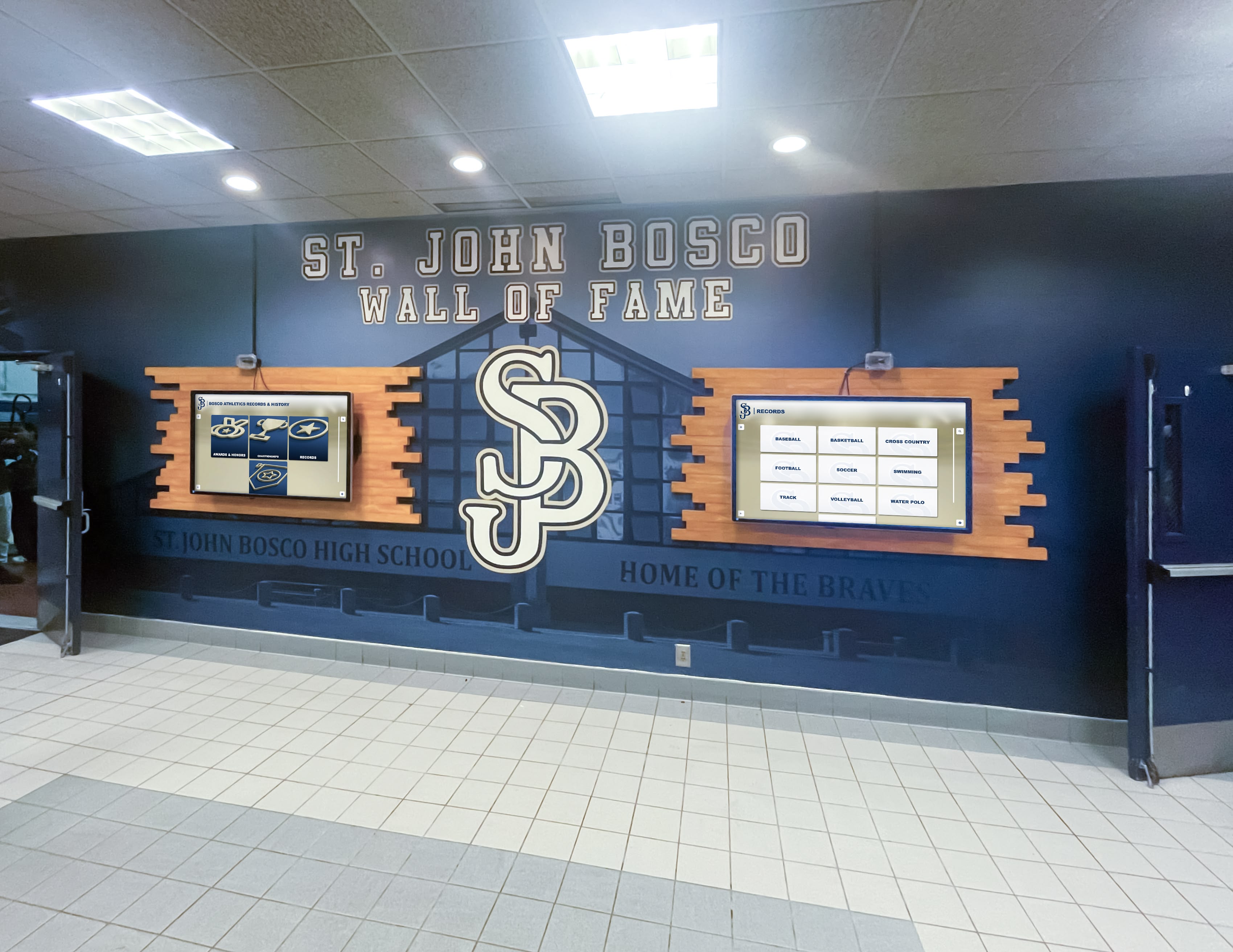
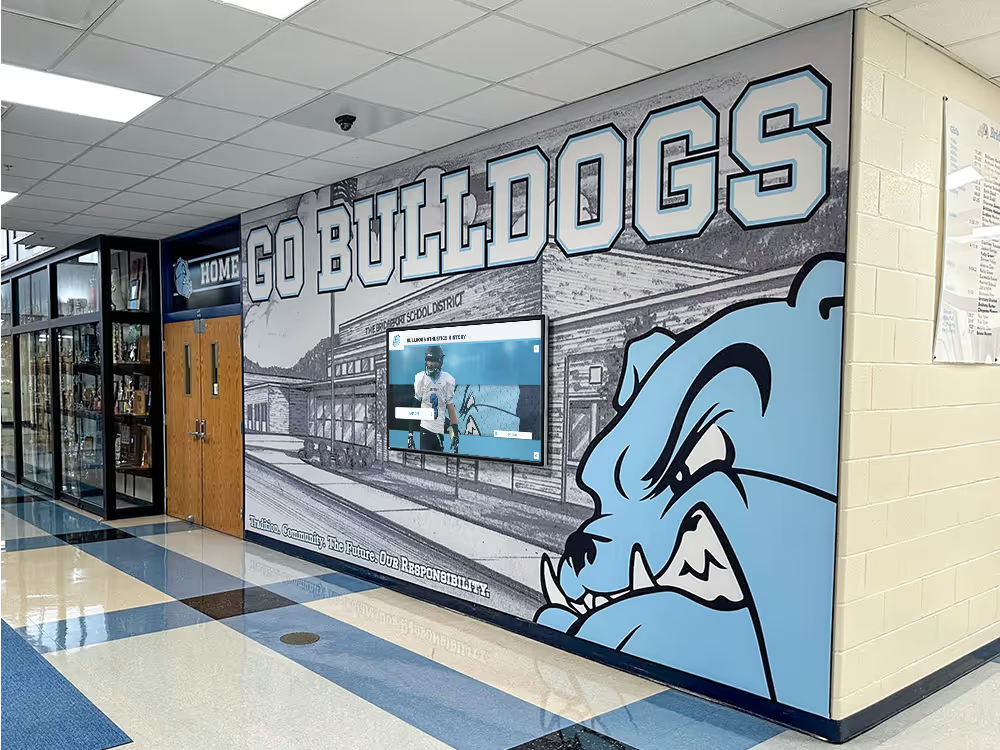
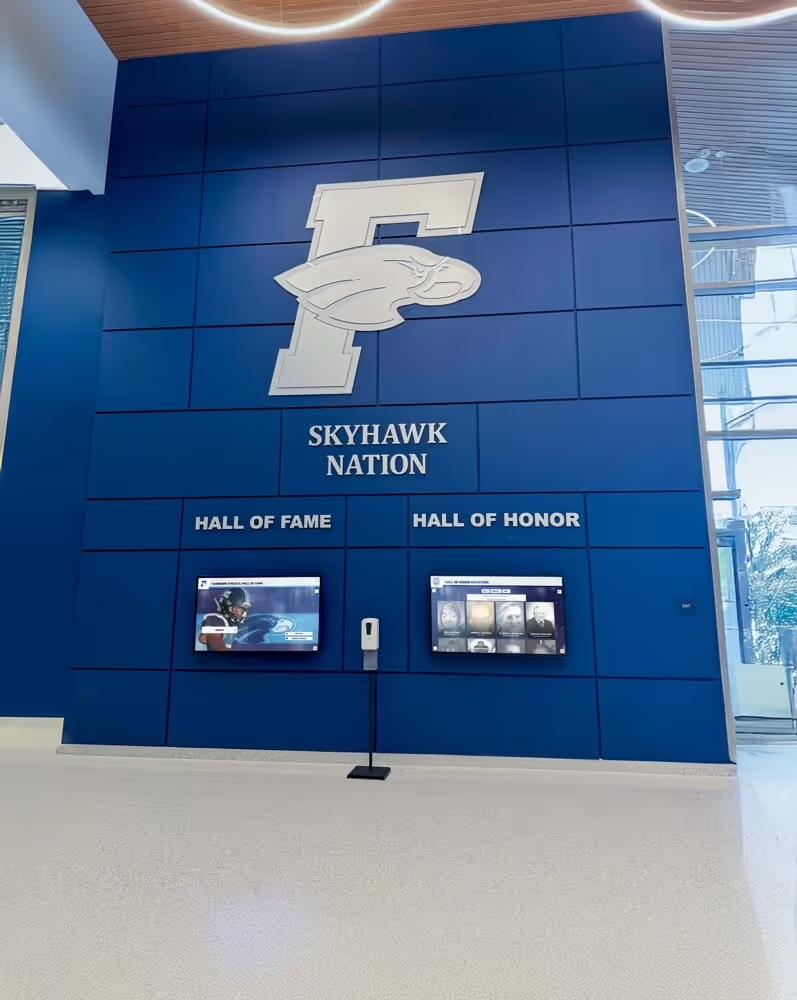
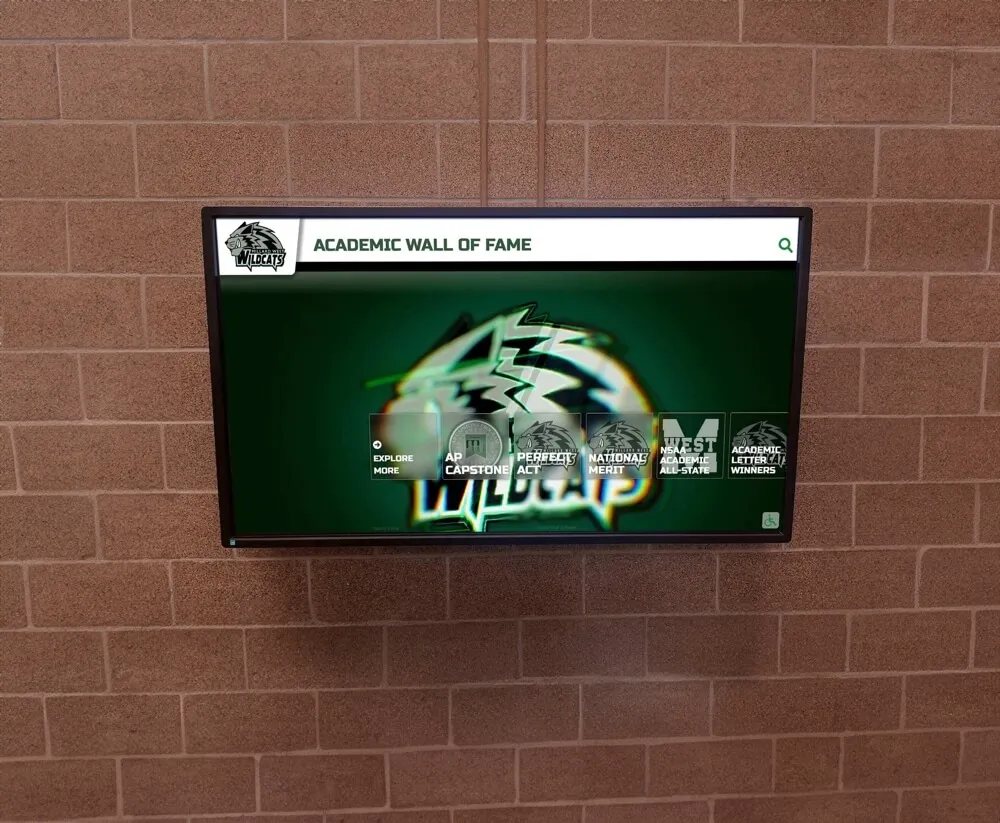
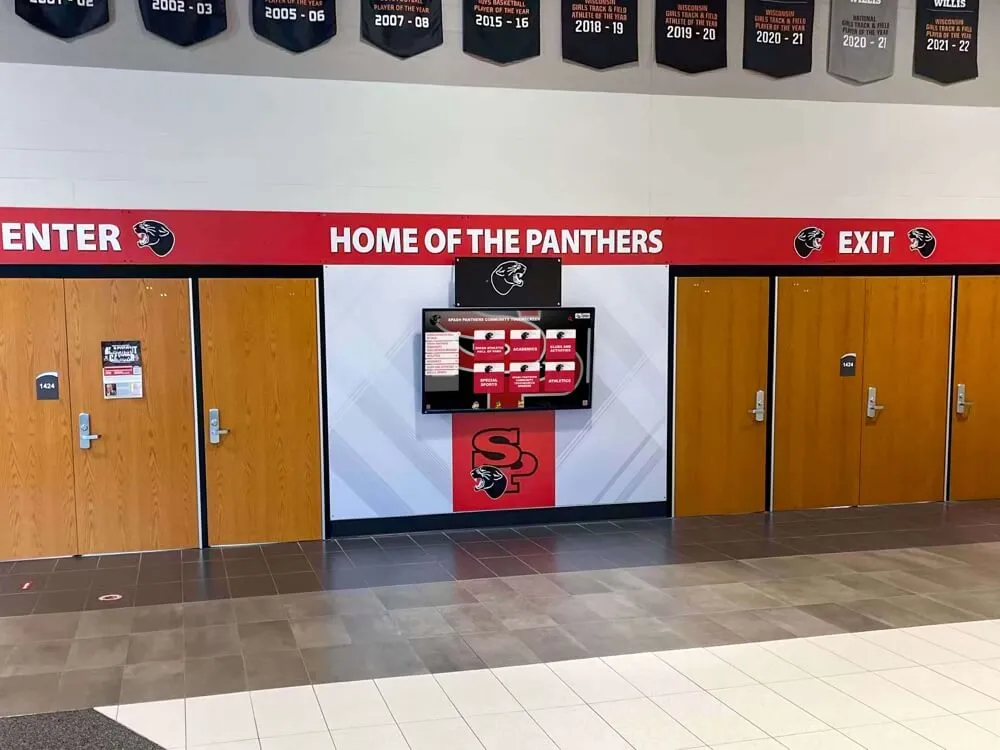
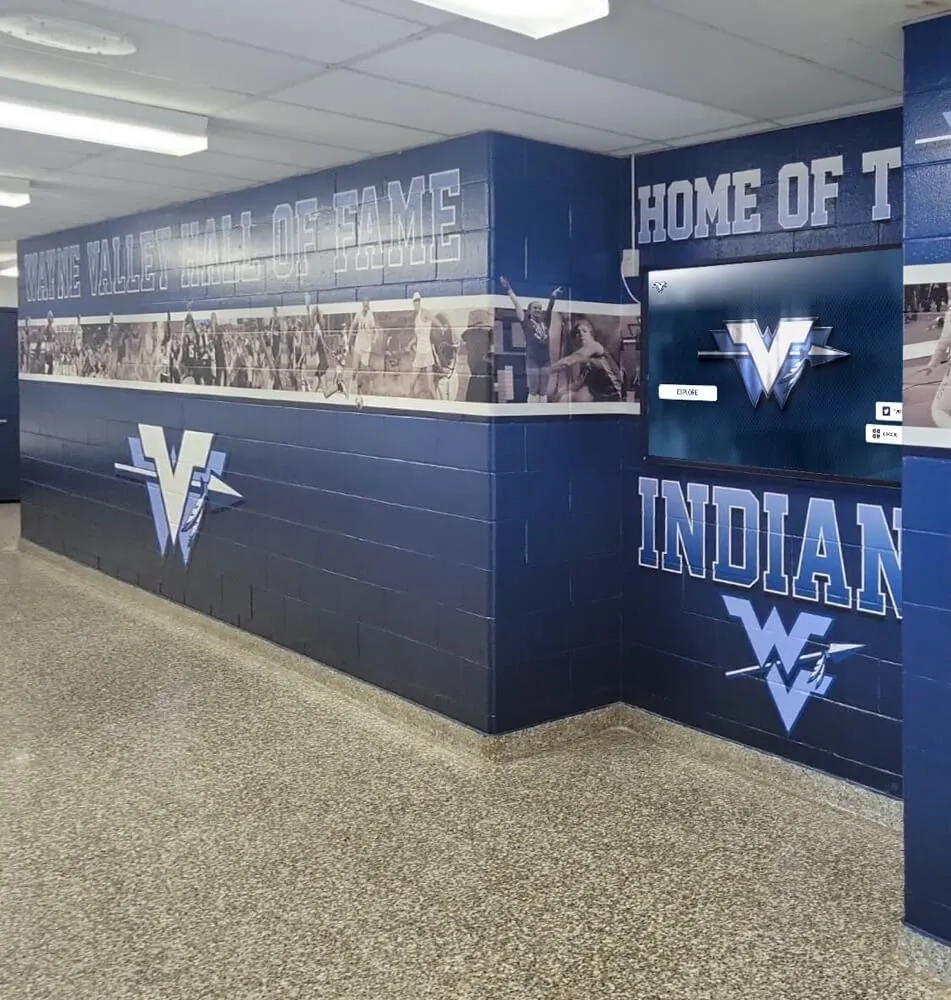
Multi-display installations provide redundancy and serve multiple simultaneous users during high-traffic periods
Expanding Beyond Basic Directories
Once core wayfinding succeeds, directories can serve additional institutional purposes.
Integrating Recognition and Institutional History
Facilities welcoming alumni, donors, and community members benefit from directories that also celebrate institutional identity.
Combined Directory and Recognition Displays
Unified systems provide:
- Wayfinding for current needs helping visitors navigate immediately
- Historical context sharing institutional heritage during idle time or exploration
- Alumni connection showing how past community members contributed
- Donor recognition acknowledging supporters making facilities possible
- Achievement celebration honoring students, faculty, and program excellence
This approach particularly suits schools and universities where visitors include alumni returning to campus. Solutions like Rocket Alumni Solutions combine wayfinding capabilities with comprehensive recognition platforms, ensuring directories serve both practical navigation and community engagement purposes.
For schools considering dual-purpose implementations, review how digital hall of fame displays integrate with facility navigation to maximize installation value.
Event and Schedule Integration
Flexible content extends directory utility throughout the year.
Temporary Event Navigation
Directories supporting events provide:
- Event-specific maps showing temporary room assignments for conferences or tournaments
- Schedule information displaying session times and locations
- Exhibitor directories helping attendees locate vendors or presentations
- Speaker information with locations, times, and biographical details
- Parking guidance directing visitors to appropriate lots during high-attendance events
- After-event reset automatically reverting to standard content when events conclude
Schools hosting athletic tournaments, academic competitions, and community events find flexible content essential during these periods.
Multi-Campus and Regional Systems
Organizations with multiple locations benefit from connected directory networks.
Unified Management Across Locations
Centralized platforms enable:
- Consistent experience across all facilities with familiar interfaces
- Centralized administration updating all locations simultaneously from central dashboards
- Shared content reusing maps, designs, and templates across similar buildings
- Cross-location directions helping visitors navigate between campuses
- Centralized analytics comparing usage patterns across facilities
- Economies of scale reducing per-location costs through volume deployments
School districts, university systems, and multi-site organizations achieve significant operational efficiency through unified approaches.
Measuring Success and Continuous Improvement
Quantifying directory effectiveness ensures ongoing value and guides enhancement decisions.
Key Performance Indicators
Track meaningful metrics:
- Usage volume measuring daily, weekly, and monthly interactions
- Search success rate calculating percentage of searches yielding results
- Popular destinations identifying most-requested locations
- Average session duration indicating engagement level
- Peak usage times revealing when directories serve most visitors
- Failed searches highlighting missing content or search terminology gaps
- Help requests tracking how often visitors seek staff assistance despite directories
Establish baselines early and monitor trends over time.
Gathering Visitor Feedback
Direct input provides qualitative insights:
- Simple rating systems letting visitors indicate satisfaction after each use
- Comment collection gathering open-ended feedback about experiences
- Periodic surveys systematically assessing visitor perceptions
- Staff observations documenting what reception personnel notice
- Usability testing observing first-time users attempting common tasks
Combine quantitative metrics with qualitative feedback for complete understanding.
Iterative Enhancement Process
Successful deployments evolve continuously:
- Monthly data review examining analytics for patterns and issues
- Quarterly content audits systematically verifying information accuracy
- Annual feature assessment evaluating whether capabilities meet evolving needs
- User testing periodically observing actual visitors using systems
- Competitive review examining how other institutions approach wayfinding
- Technology updates staying current with software improvements and new capabilities
Treat directory implementation as ongoing programs rather than one-time projects.
Future Trends in Building Directory Technology
Understanding emerging capabilities helps inform long-term planning.
Mobile Integration and Personal Devices
Touchscreen directories increasingly connect with smartphones:
- QR code scanning sending maps directly to visitor phones for portable navigation
- Text message directions receiving turn-by-turn instructions via SMS
- Email information forwarding contact details and location information
- Mobile app extensions providing directory access before arriving at facilities
- Bluetooth beacons enabling phone-based indoor positioning
- Augmented reality overlaying directional arrows through phone cameras
Mobile integration extends directory value beyond fixed kiosks while maintaining privacy.
Artificial Intelligence and Natural Language Processing
Emerging systems understand conversational queries:
- Voice interaction asking questions naturally rather than typing searches
- Natural language processing understanding “Where is the guidance counselor?” versus requiring specific department names
- Contextual suggestions anticipating needs based on time, context, or user patterns
- Multilingual understanding processing queries in visitors’ native languages automatically
- Clarification dialogs asking follow-up questions when requests are ambiguous
These capabilities particularly benefit visitors with limited literacy or unfamiliarity with institutional terminology.
Indoor Positioning and Augmented Reality
Advanced navigation technologies enable:
- Precise location tracking knowing exactly where visitors stand without manual input
- Turn-by-turn navigation providing real-time guidance as people walk
- Augmented reality overlays showing directional arrows through phone cameras
- Proximity notifications alerting visitors when approaching destinations
- Companion navigation guiding visitors from parking to specific rooms seamlessly
While still emerging, these technologies will mature over the next several years as indoor positioning infrastructure develops.
Conclusion: Improving Visitor Experience Through Better Wayfinding
Touchscreen building directories represent more than technological upgrades to static signage—they fundamentally change how institutions welcome and serve visitors. By providing clear, self-service access to comprehensive facility information, interactive directories eliminate navigation friction that creates frustration and wastes staff time answering repetitive questions.
For schools, universities, corporate campuses, healthcare facilities, and any organization welcoming diverse visitors to complex spaces, modern directory systems deliver measurable return on investment through staff efficiency gains, eliminated signage costs, and improved visitor satisfaction. The most successful implementations extend beyond basic wayfinding to combine navigation with recognition, institutional storytelling, and comprehensive information access that serves visitors’ complete needs.
As facilities grow, reorganize, and evolve, digital directories adapt effortlessly through simple content updates that keep pace with change—something impossible with static signage requiring physical replacement. This flexibility ensures directories remain valuable investments serving institutions effectively for years as needs shift and expand.
Organizations ready to modernize their visitor experience and facility navigation should evaluate touchscreen directory solutions that match their specific complexity, budget, and long-term institutional goals. Whether implementing standalone wayfinding systems or comprehensive platforms combining navigation with recognition and communication capabilities, the key is choosing sustainable approaches that non-technical staff can manage independently while delivering clear experiences that visitors value.
Ready to explore how touchscreen building directories can transform visitor navigation at your school or facility? Schedule a demo to see how modern interactive directory systems can eliminate wayfinding frustration, reduce staff burden, and create welcoming first impressions that reflect your institution’s commitment to service excellence.